Best Backup Software in 2026: 10 Tools Compared With Prices

Backup software makes automatic copies of the files on your computer, or of the whole drive, so you can get them back after a drive failure, theft, ransomware or an accidental delete. Some tools copy to the cloud, some to an external drive or NAS, and the best setups use both.
We checked 10 backup tools on their official websites in November 2026. Short answer: Backblaze is the best cloud backup for one computer, IDrive is the best value for several devices, Acronis True Image is the best all-in-one backup and security suite, Macrium Reflect X is the best disk imaging tool for Windows, and Veeam Agent for Microsoft Windows FREE and Time Machine are the best free choices. Prices are US list prices before tax, checked on each vendor’s site on 18 November 2026.
Best Backup Software at a Glance
| Software | Best For | Runs On | Price (US) | Free Option |
|---|---|---|---|---|
| Backblaze | Unlimited cloud backup for one computer | Windows, Mac | $99/year or $9/month | 15-day free trial |
| IDrive Personal | Cloud backup for several devices | Windows, Mac, Linux, iOS, Android | 5 TB: $9.99/month billed yearly | IDrive Basic, 10 GB free |
| Acronis True Image | Image backup, cloning and security | Windows, Mac | From $49.99/year | 30-day free trial |
| Macrium Reflect X Home | Disk imaging and cloning on Windows | Windows | $49.99/year (1 computer) | 30-day free trial |
| Veeam Agent for Microsoft Windows FREE | Free full-PC image backup | Windows | Free | Free |
| Arq 7 | Encrypted backup to your own cloud account | Windows, Mac | $59.99 per computer | Free trial |
| Carbon Copy Cloner 7 | Mac clones and snapshots | Mac | $49.99 one-time | 30-day trial |
| Duplicati | Free open-source backup to any storage | Windows, Mac, Linux | Free | Free and open source |
| Time Machine | Built-in Mac backup to a drive or NAS | Mac | Free | Built in |
| File History + Windows Backup | Built-in Windows file backup | Windows 11, Windows 10 | Free (5 GB OneDrive) | Built in |
Prices checked on vendor sites on 18 November 2026. IDrive, Acronis and Macrium were running first-year Black Friday discounts; the table shows their regular prices.
1. Backblaze — Best Unlimited Cloud Backup for One Computer
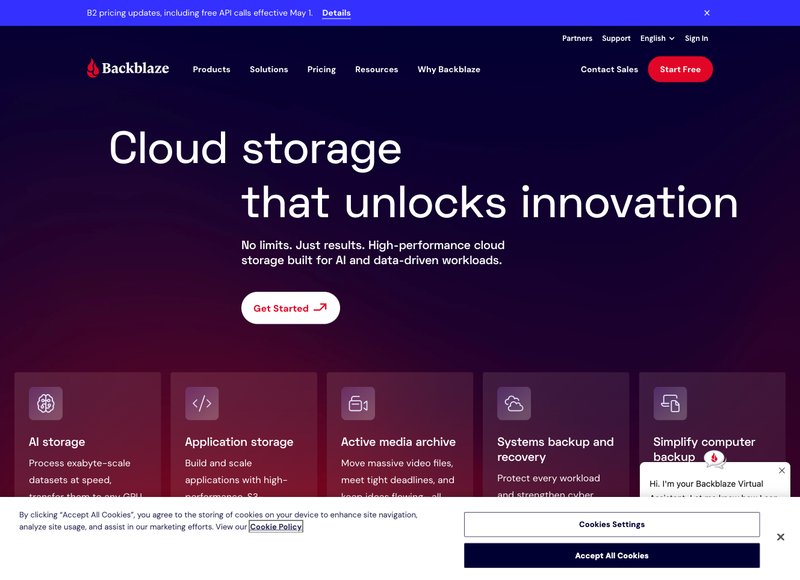
Backblaze Personal Backup backs up everything on a Mac or PC to the cloud automatically, with no storage limit and no limit on file size or type. It also backs up connected external drives, so a large photo library on a USB drive is covered too.
It costs $9 a month, $99 a year or $189 for two years, and there is a 15-day free trial with no credit card. Files are encrypted before they leave your computer, and you can add an optional private encryption key so only you can unlock your backups. Backblaze keeps multiple versions of your files; extended version history, up to Forever retention, costs extra.
To restore, you can download files from the web or the restore app, or order a USB drive of your data by mail and send it back within 30 days for a refund.
- Price: $9/month, $99/year or $189 for two years; 15-day free trial.
- Pros: Truly unlimited storage; backs up external drives; very little to set up; restore by mailed drive.
- Cons: Cloud only: no disk images or clones; each computer needs its own plan.
- Best for: Anyone who wants one simple off-site backup for a single computer.
Backblaze Personal Backup | Backblaze pricing
2. IDrive Personal — Best for Backing Up Several Devices
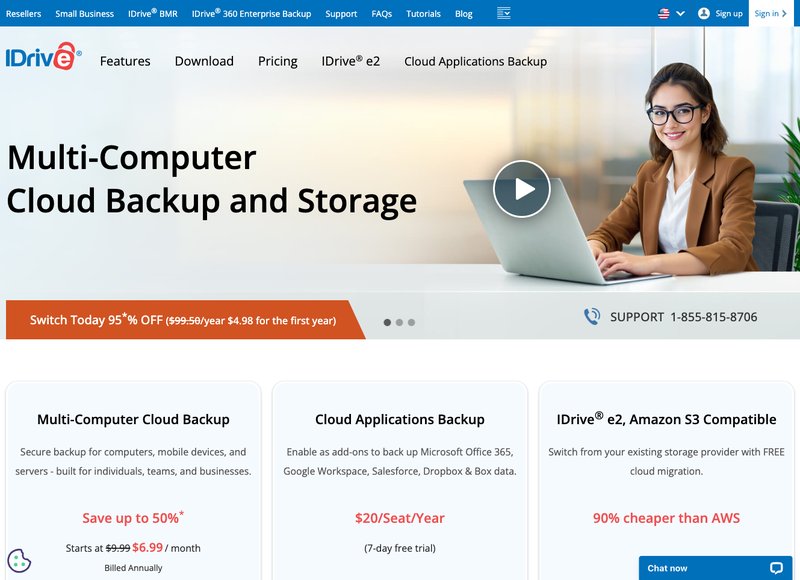
IDrive puts PCs, Macs, Linux computers, iPhones, iPads and Android devices into one account with shared storage. Unlike Backblaze, storage is capped, but the cap is large: IDrive Personal starts at 5 TB.
IDrive Personal 5 TB costs $9.99 a month billed yearly or $11.99 billed monthly, and new customers get 30% off the first year. IDrive Basic is free with 10 GB. IDrive keeps up to 30 previous versions of every file without counting them against your storage, and its Snapshots feature lets you roll an account back to a point in time, which helps after a ransomware attack.
It can also back up a whole machine as a disk image, and IDrive Express ships a physical drive for very large backups or restores (free once a year).
- Price: 5 TB $9.99/month billed yearly ($11.99 monthly); 10 TB $14.99/month billed yearly; IDrive Basic free with 10 GB.
- Pros: One account for computers and phones; 30 versions per file; disk image backup; Snapshots for ransomware recovery.
- Cons: Storage is capped; the app has more settings than Backblaze; the first-year discount does not apply at renewal.
- Best for: Households and freelancers with several computers and phones.
3. Acronis True Image — Best Backup and Security Suite
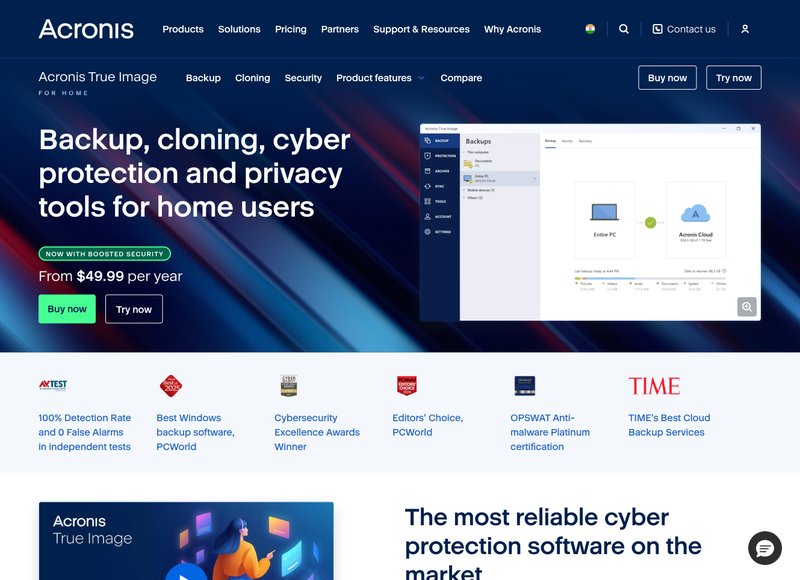
Acronis True Image (formerly Acronis Home Office) combines full image backups, disk cloning and file backups with anti-malware protection. It runs on Windows and macOS and protects up to 5 computers per license, plus phones.
There are three yearly plans for one computer: Essentials ($49.99) for local backups and cloning, Advanced ($72.99, with 50 GB of cloud storage and anti-malware), and Premium ($124.99, with 1 TB of cloud storage). Every plan includes incremental and differential backups, recovery to dissimilar hardware and a rescue drive called the Acronis Survival Kit.
- Price: Essentials $49.99/year; Advanced $72.99/year; Premium $124.99/year (1 computer); 30-day free trial.
- Pros: Image backup, cloning and cloud backup in one app; anti-ransomware protection; Windows and Mac.
- Cons: Subscription even for local-only backups; lots of features if you only want simple file backup.
- Best for: People who want backup, cloning and malware protection from one vendor.
Acronis True Image | Acronis plans and prices
4. Macrium Reflect X Home — Best Disk Imaging and Cloning for Windows
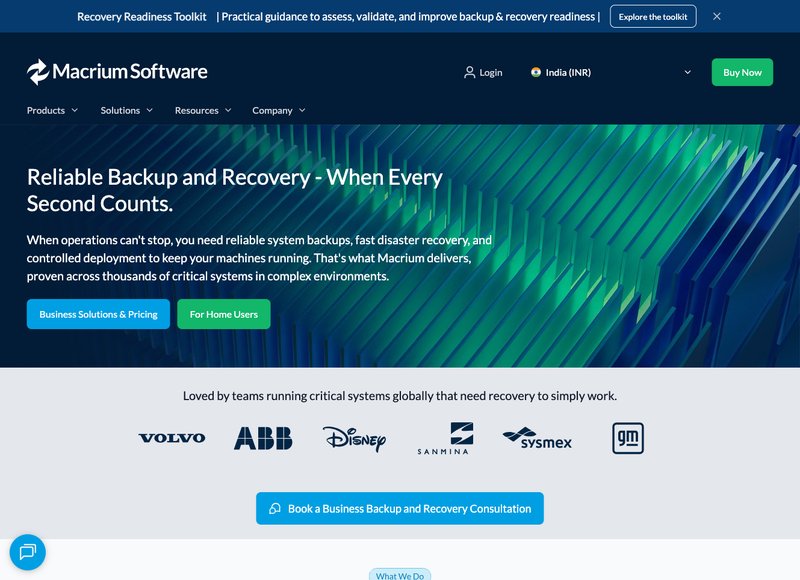
Macrium Reflect is the disk imaging tool many Windows enthusiasts and IT staff trust for system images and drive clones. It creates images of a running Windows system, clones disks directly, restores PCs that will not boot (using WinPE 11 rescue media), and can even boot a backup in a Hyper-V or VirtualBox virtual machine.
Macrium no longer offers a free edition: its old Reflect Free page now offers a 30-day free trial of Reflect X Home instead. Reflect X Home costs $49.99 a year for one computer, with email support, incremental imaging, ransomware protection and encryption. If you want a free imaging tool, use Veeam Agent below.
- Price: $49.99/year for 1 computer; 30-day free trial.
- Pros: Fast, reliable images and clones; Rapid Delta Restore; restores PCs that will not boot.
- Cons: Windows only; no cloud storage of its own; no free version any more.
- Best for: Windows users who want a full system image on an external drive or NAS.
Macrium Reflect X Home | Macrium free trial
5. Veeam Agent for Microsoft Windows FREE — Best Free Image Backup for Windows
Veeam Agent for Microsoft Windows FREE is a free backup app for Windows desktops, laptops and tablets from Veeam, a company best known for business backup. It backs up your entire PC as an image, single volumes, or individual files and folders to an external hard drive, a NAS share or a Veeam Backup & Replication repository.
It also creates bootable recovery media on a USB flash drive, SD card, disc or ISO image, and supports bare-metal restores, so you can rebuild a PC after a dead drive. The setup is more technical than Backblaze or IDrive, but it costs nothing.
- Price: Free.
- Pros: Free full-PC image backups; bootable recovery media; bare-metal restore.
- Cons: Windows only; no cloud storage of its own; written for IT-minded users.
- Best for: Windows users who want a free system image on an external drive or NAS.
Veeam Agent for Microsoft Windows FREE
6. Arq 7 — Best for Backing Up to Your Own Cloud Storage
Arq is a backup app for Mac and Windows that sends encrypted, versioned backups to storage you choose: a cloud account you already pay for, an SFTP server, an external drive or a NAS, or several of them at once.
Arq 7 costs $59.99 per computer as a one-time purchase that includes one year of updates (more years of updates cost $25 a year). Arq Premium costs $69.99 a year for up to 5 computers and includes 1 TB of storage that Arq manages for you, plus web access to your backups.
- Price: Arq 7 $59.99 per computer; Arq Premium $69.99/year with 1 TB; free trial.
- Pros: Use storage you already have; strong encryption; one app for cloud and local backups.
- Cons: You manage the storage yourself unless you pay for Premium; not unlimited.
- Best for: People who already pay for cloud storage and want a private backup on top of it.
7. Carbon Copy Cloner 7 — Best Mac Cloning and Local Backup
Carbon Copy Cloner (CCC) from Bombich Software gives Mac users more control than Time Machine: you choose exactly what to copy and where, and CCC keeps snapshots on the backup disk so you can go back to an earlier version of any file. Its read-only snapshots cannot be changed by malware or ransomware.
CCC 7 needs macOS Ventura or later. A Personal & Household license costs $49.99 one-time and covers non-commercial use on all computers in your household, and there is a 30-day trial.
- Price: $49.99 one-time (household license); 30-day trial.
- Pros: Precise control over backups; snapshots; household license; one-time price.
- Cons: Mac only; local backups only, so pair it with a cloud service.
- Best for: Mac users who want a second local backup or a ready copy of their drive.
Carbon Copy Cloner | Bombich Software store
8. Duplicati — Best Free Open-Source Cloud Backup
Duplicati is free, open-source backup software for Windows, macOS and Linux. You pick your own storage, such as S3-compatible storage, WebDAV, SFTP or a local drive, and Duplicati encrypts everything with AES-256 on your computer before it is uploaded.
The app itself is free. Duplicati also sells an optional web console for monitoring many machines, and its free tier monitors up to 2 machines.
- Price: Free; optional paid console.
- Pros: Free and open source; strong encryption; works with almost any storage.
- Cons: You set up and pay for the storage; more technical than a one-click service.
- Best for: Technical users who want a free, encrypted backup to storage they control.
9. Time Machine — Best Free Backup for Mac
Time Machine is built into macOS and backs up your apps, music, photos, email and documents to an external drive, another Mac on your network, or a NAS that supports Time Machine over SMB. It keeps hourly backups for the past 24 hours, daily backups for the past month and weekly backups for all previous months, and you can use it to restore a whole Mac.
Apple says to use a backup disk with at least twice the storage capacity of your Mac, and to use that disk only for Time Machine. AFP network backups, including AirPort Time Capsule, are not supported in macOS 27 or later, so use a USB or Thunderbolt drive or an SMB NAS.
- Price: Free (you need a drive or NAS).
- Pros: Free; automatic hourly backups; easy file and full-Mac restores.
- Cons: Local only: no protection from fire or theft unless you add a cloud backup.
- Best for: Every Mac user, as the local half of a backup plan.
Back up your Mac with Time Machine | Disks you can use with Time Machine
10. File History and Windows Backup — Best Free Built-In Option for Windows
File History saves copies of your libraries (Documents, Pictures, Videos and Music) and the Desktop to an external drive or network location and lets you restore earlier versions of files. You turn it on in Control Panel under System and Security.
Windows Backup is different: it syncs your Desktop, Documents, Pictures, Videos and Music folders, settings and app list to OneDrive, and a free Microsoft account includes only 5 GB of OneDrive storage. Neither tool makes a full system image; Microsoft now lists the old Backup and Restore (Windows 7) as a legacy backup, so use Macrium, Veeam or Acronis for images.
- Price: Free (5 GB of OneDrive with a free Microsoft account).
- Pros: Built in; File History keeps file versions on your own drive.
- Cons: No full-PC image; Windows Backup depends on OneDrive space; work or school accounts are not supported by Windows Backup.
- Best for: Windows users who want free file versions on an external drive.
Backup and restore with File History | Back up and restore with Windows Backup
What Is the Best Way to Back Up Your Entire Computer?
The best way to back up your entire computer is to combine two kinds of backup: a system image on an external drive, so you can rebuild the whole machine (Windows, apps, settings and files) after a drive failure, and a cloud backup of your files, so a fire, flood or theft cannot take both copies.
- On Windows: make the image with Macrium Reflect X, Acronis True Image or the free Veeam Agent, and add Backblaze or IDrive for the cloud copy. File History and Windows Backup alone do not image the whole PC.
- On a Mac: Time Machine can restore your whole Mac from an external drive; add Backblaze, IDrive or Arq for an off-site copy. Carbon Copy Cloner is a good second local backup.
Test a restore once in a while. A backup you have never restored from is only a hope.
What Is the Best External Drive Backup Software?
For backing up to an external hard drive, the best software depends on your computer:
- Windows, free: Veeam Agent for Microsoft Windows FREE for a full image, or File History for file versions.
- Windows, paid: Macrium Reflect X Home or Acronis True Image for fast images, clones and rescue media.
- Mac, free: Time Machine.
- Mac, paid: Carbon Copy Cloner for more control and snapshots.
For more free Windows tools, see our list of free Windows backup software, and for drive-to-drive copies, our guide to cloning software.
Which Storage Device Is Best for Backing Up Files?
There is no single best device; each has a job:
- External hard drive (HDD): the most storage for the money, which makes it the usual choice for image backups and Time Machine.
- External SSD: faster and tougher than a hard drive, but you pay more per terabyte. Good for small, quick backups you carry around.
- NAS (network-attached storage): one box on your home network that several computers back up to automatically. Time Machine works with NAS devices that support SMB. See our guide to the best NAS devices.
- Cloud backup: the only option here that is off-site by default, so it survives fire, flood and theft.
Drives do fail: Backblaze’s Drive Stats put the 2025 annualized failure rate of the hard drives in its data centers at 1.36%. That is why the safest answer is an external drive or NAS plus a cloud backup.
Is 500 GB of Data a Lot for an External Hard Drive?
500 GB is a lot of photos and documents, but it is small for a backup drive. Apple recommends a Time Machine disk with at least twice the storage capacity of your Mac: for a 1TB Mac, at least 2TB. By that rule, a 500 GB drive only suits a computer with 256 GB of storage. Backups keep older versions of your files, so they need room to grow.
If you only back up selected folders, check how much space they use and buy a drive at least twice that size. For full system images of a computer with 512 GB or 1 TB of storage, choose a 2 TB drive or larger.
Is Veeam Still Free?
Yes. Veeam Agent for Microsoft Windows FREE is still free to download and use for backing up Windows PCs to an external drive or NAS. For small businesses, Veeam also offers Veeam Backup & Replication Community Edition, which it describes as free forever and suggests for protecting a Windows server or several workstations for up to 10 users.
Full, Incremental and Differential Backups: Which Is the Most Time-Efficient?
- Full backup: copies everything every time. Simplest, but slowest and uses the most space.
- Incremental backup: after the first full backup, copies only what changed since the last backup of any kind. This is the most time-efficient type, and most modern tools use it. Time Machine, for example, backs up only the files that changed since the previous backup.
- Differential backup: copies everything that changed since the last full backup. Faster to restore than a long chain of incrementals, but each backup grows over time.
Acronis True Image lets you choose between incremental and differential backups; most cloud services handle this for you automatically.
How to Choose Backup Software
- Cloud, local or both: cloud protects against disasters and theft; local restores faster. Use both.
- Files or the whole system: file backup restores documents; an image restores a working computer.
- Versions: look for version history, so you can go back to a file from before it was overwritten or encrypted by ransomware.
- Encryption: a private key or local encryption means the provider cannot read your files.
- Restores: check how you get data back: download, web, or a drive by mail.
- Price model: per computer (Backblaze), per storage amount (IDrive), per year (Acronis, Macrium) or one-time (Carbon Copy Cloner, Arq 7).
The 3-2-1 Backup Rule
The 3-2-1 rule is the standard advice for keeping data safe:
- 3 copies of your data: the original plus two backups.
- 2 different types of storage, such as your computer’s drive and an external drive.
- 1 copy off-site, which is what a cloud backup gives you.
A simple home setup that meets it: your files on your computer, Time Machine or Macrium (or Veeam) on an external drive, and Backblaze or IDrive in the cloud.
Frequently Asked Questions
Can I use Google Drive, OneDrive or Dropbox as a backup?
Not on their own. These are sync services: if you delete a file or ransomware encrypts it, the change syncs to the cloud too. Windows Backup also works by syncing folders to OneDrive. A real backup keeps separate copies and older versions. For storing and sharing files, see our cloud storage comparison.
What is the best free backup software?
Veeam Agent for Microsoft Windows FREE is the best free full-PC backup for Windows, Time Machine is the best free backup for Mac, and Duplicati is a free open-source option for encrypted backups to cloud storage you choose. File History is built into Windows for file versions.
Is there a free version of Macrium Reflect?
No. Macrium no longer offers a free edition; Reflect X Home costs $49.99 a year for one computer, and you can try it free for 30 days. Veeam Agent for Microsoft Windows FREE is a free alternative for disk images.
How much does Backblaze cost?
Backblaze Personal Backup costs $9 a month, $99 a year or $189 for two years, with unlimited storage and a 15-day free trial.
Can I back up an external drive to the cloud?
Yes. Backblaze backs up connected external drives as part of its unlimited plan, at no extra cost. Keep the drive connected regularly so its backup stays current.
How often should I back up my computer?
Continuously or at least daily. Backblaze backs up continuously, and Time Machine backs up every hour by default, so you lose at most a few hours of work.
Is cloud backup safe?
Yes, with the right settings. Backblaze encrypts files before they leave your computer and offers an optional private key; Duplicati and Arq encrypt backups locally before upload. Turn on two-factor authentication for your backup account.
What is the difference between backup and cloning?
A backup saves copies of your files, often with older versions. A clone is an exact copy of a whole drive that you can swap in or boot from. An image is like a clone stored as a file, so you can keep several of them on one drive. If you have already lost files, try our picks for free data recovery software.
What is the best backup software for Mac?
Use Time Machine for free local backups and add Backblaze, IDrive or Arq for a cloud copy. Carbon Copy Cloner is the best paid tool for Mac clones. See our guide to the best online backup for Mac.
Bottom Line: What Is the Best Backup Software?
For most people, the best backup software in 2026 is a pair: Backblaze (or IDrive if you have several devices) for an off-site cloud copy, plus a local backup on an external drive with Time Machine on a Mac or Macrium Reflect X or the free Veeam Agent on Windows. If you want one paid app that does images, clones and cloud backup, choose Acronis True Image.
Related guides: best online backup services, best online backup for Mac, free Windows backup software and best NAS devices.