10 Best Free Windows Backup Software in 2026, Plus the Built-In Windows Tools
Hard drives fail, laptops get stolen, and one wrong click or ransomware attack can wipe out years of photos and documents. You don’t need to pay to protect them: Windows has free built-in backup tools, and several well-known backup programs have free editions that can image your whole PC, back up files on a schedule or copy them to the cloud. If you’ve already lost files, you need data recovery software instead. To make sure it never happens again, here are the best free Windows backup tools in 2026. We checked every tool on its official site on November 19, 2026, including what the free edition really includes.
Quick answer: EaseUS Todo Backup Free and AOMEI Backupper Standard are the easiest free way to back up a whole Windows PC, and Veeam Agent for Microsoft Windows FREE is the best free choice if you want bootable recovery media and a bare-metal restore. If you only need your files and settings safe, Windows Backup and File History are built into Windows 11 and 10 and cost nothing. One catch the old version of this guide got wrong: EaseUS, AOMEI and MiniTool all keep cloning your Windows system drive to a new SSD for their paid editions.
Best Free Windows Backup Software at a Glance
| Software | Best for | What the free version backs up | Clones the Windows drive for free? |
|---|---|---|---|
| EaseUS Todo Backup Free | Beginners | System, disks, partitions, files; schedules; cloud | No (Home edition) |
| AOMEI Backupper Standard | Disk images | System, disks, partitions, files; folder sync | No (data disks only) |
| MiniTool ShadowMaker Free | Sync to Google Drive or OneDrive | System, disks, partitions, files; local and cloud sync | No (non-system disks only) |
| Veeam Agent FREE | Full-PC recovery | Whole PC, volumes, files and folders | No (restore an image instead) |
| Paragon Backup & Recovery CE | Arm64 and WinPE recovery | Disks, OS, files and folders | No (paid edition) |
| Duplicati | Encrypted cloud backup | Files, to cloud storage and servers | Not an imaging tool |
| MSP360 Backup Free | Your own cloud storage | Files; images on Windows (personal use) | Not a cloning tool |
| SyncBackFree | Backup plus sync | Files: backup, mirror, sync | Not an imaging tool |
| FBackup | Simple file backup | Files, zipped or mirrored | Not an imaging tool |
| Iperius Backup Free | NAS and USB drives | Files, incremental, to NAS, USB, network | Not an imaging tool |
The 10 Best Free Windows Backup Tools in 2026
1. EaseUS Todo Backup Free — Best for Beginners
EaseUS Todo Backup Free backs up your system, disks, partitions and files to a local drive, an external drive, a NAS, a network share or the cloud. Unlike many free tools, it includes incremental and differential backups, scheduled backups and encrypted backups at no cost, and new users get a 30-day free trial of 250GB of EaseUS cloud storage. It runs on Windows 11 and 10.
Not in the free version: disk, partition and system cloning, Outlook email backup and restoring a system to different hardware are in Todo Backup Home, listed at $39.95.
2. AOMEI Backupper Standard — Best for Disk Images
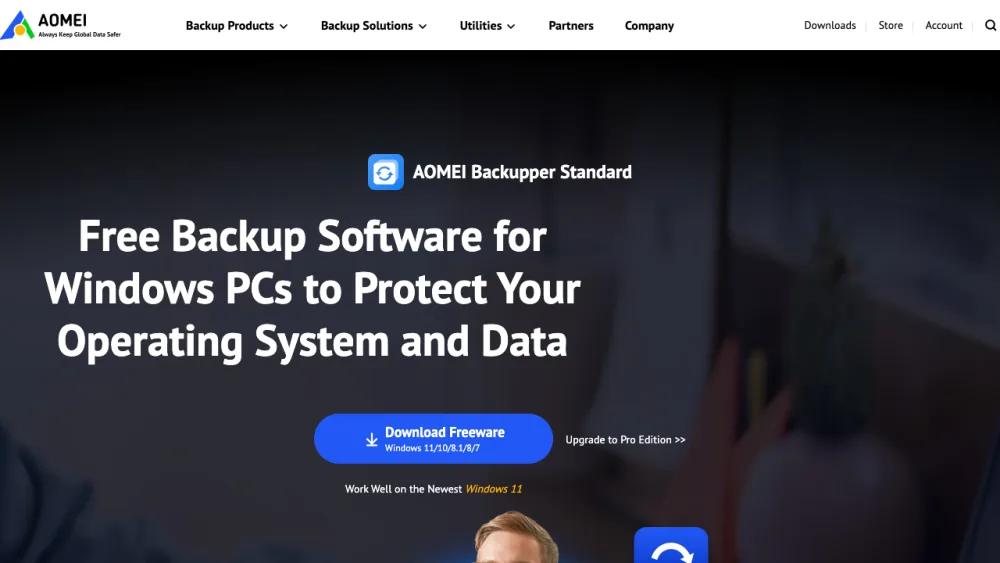
AOMEI Backupper Standard is free backup software for Windows 11, 10, 8.1, 8 and 7. It backs up the whole operating system, entire disks, partitions and individual files, daily, weekly or monthly, to a local disk, an external drive, a network share, a NAS or a cloud drive, with incremental backups, compression and email notifications. It can also sync files and folders automatically.
Cloning limit: the free Standard edition only supports data disk cloning. Moving Windows itself to a new SSD (system clone) needs AOMEI Backupper Professional, from $39.95.
3. MiniTool ShadowMaker Free — Best for Syncing to Google Drive or OneDrive
MiniTool ShadowMaker Free 5.0 backs up files and folders, the system, disks and partitions, on a daily, weekly or monthly schedule or when you log out, and it deletes outdated backup images to save space. Its newest free feature syncs files and folders, even open ones, to local drives and to Google Drive and OneDrive. It can also clone a non-system disk to a second drive for free.
Not in the free version: MiniTool’s edition comparison marks cloning the system disk, the full/differential backup scheme and backing up from WinPE as paid features.
4. Veeam Agent for Microsoft Windows FREE — Best for Full-PC Recovery
Veeam Agent for Microsoft Windows FREE is a free standalone backup agent for Windows desktops, laptops and tablets, built on the same technology as Veeam Backup & Replication. It makes image-based backups of your entire PC, volume-level backups, or file and folder backups, to an external hard drive, a NAS share or a Veeam Backup & Replication repository. You can create bootable recovery media on a USB flash drive, SD card, CD/DVD/BD or ISO image, and recover with a bare-metal restore or a file-level restore. It also includes CryptoLocker protection.
Best for: anyone who wants to get a dead or replaced drive back to exactly how it was. To protect a Windows server or up to 10 workstations from one console, Veeam points to Veeam Backup & Replication Community Edition.
5. Paragon Backup & Recovery Community Edition — Best for Arm64 PCs
Paragon Backup & Recovery Community Edition is free for non-commercial use. It backs up disks, the operating system, files and folders into compressed images (including VMDK, VHD and VHDX formats), with scheduled backups, advanced restore options and backup and restore under WinPE through its Recovery Media Builder. It needs 64-bit Windows: Windows 10 x64 (1809 and newer), Windows 11 x64 or Windows 11 Arm64, with native Arm64 support.
Not in the free version: copying volumes or the OS to another drive is left to the paid Paragon Hard Disk Manager editions, and commercial users need Hard Disk Manager for Business.
6. Duplicati — Best for Encrypted Cloud Backup
Duplicati is a free, open-source backup client that stores encrypted, incremental, compressed backups on cloud storage services and remote file servers, including Amazon S3, Backblaze B2, Box, Dropbox, Google Drive, MEGA, Microsoft OneDrive, SFTP and WebDAV. It encrypts everything with AES-256 (or GNU Privacy Guard) before uploading, and after the first full backup only changes are uploaded. The Duplicati core is licensed under the MIT license, and it runs on Windows, macOS and Linux.
Good to know: Duplicati’s optional online console is free for up to 2 machines; paid plans add alerts and remote management for more machines.
7. MSP360 Backup Free — Best for Your Own Cloud Storage
MSP360 Backup Free is completely free for personal use on standalone (non-domain) machines. It does file-level backups and, on Windows, image-based backups, with scheduling, retention settings, client-side encryption and object lock (immutability). You bring your own storage account, such as Amazon S3, Microsoft Azure, Wasabi or Google Cloud, so you only pay your storage provider. It runs on Windows 7 and later, macOS and Linux, with forum-based support.
8. SyncBackFree — Best for Backup Plus Sync
SyncBackFree from 2BrightSparks is free for personal, educational, charity, government and commercial use, with no registration and no ads. It backs up, mirrors and synchronizes files, runs backups on a schedule, emails backup logs and includes ransomware detection, on Windows 11, 10, 8 and 7 SP1.
Not in the free version: backing up locked or open files needs SyncBackSE, and cloud services are supported in SyncBackPro.
9. FBackup — Best Simple File Backup
FBackup is backup software free for both personal and commercial use. A wizard asks what you want to back up, where to, how (a full backup that zips the files, or a mirror backup that keeps exact copies) and when, then runs the job automatically on schedule. Sources and destinations include local and USB drives, mapped network locations and Dropbox or Google Drive. The current version is 9.9.1062, released October 28, 2026; its paid sibling Backup4all adds more advanced options.
10. Iperius Backup Free — Best for NAS and USB Drives
Iperius Backup Free backs up to NAS, external USB hard drives, RDX drives and networked computers, with incremental backups, scheduling by days and times, email notifications, zip compression and external scripts. It’s freeware with no expiration and an unlimited number of backup jobs; the latest version is 8.8.9. Paid versions add protection for ESXi and Hyper-V virtual machines and SQL Server or MySQL databases.
Older free tools that are still around
Cobian Reflector, the successor to the popular Cobian Backup, is freeware even in commercial environments. DriveImage XML still images drives and partitions using Windows’ Volume Shadow Services, but its current version, V2.60, dates from November 21, 2016, and its listed requirements stop at Windows 10. Home users can use its Private Edition free; commercial use needs the paid edition.
How to Back Up Windows 11 or Windows 10 With the Built-In Tools
Windows has two free backup tools built in. Microsoft recommends a cloud backup if you want your files safe and easy to reach from any device, and an external drive or network drive when internet access isn’t available or you need to store large files (Microsoft’s backup guide). For a complete system image, use one of the free imaging tools above: Microsoft lists the old Backup and Restore (Windows 7) as a legacy backup and recommends the modern options instead.
Note for Windows 10: Microsoft ended support for Windows 10 on October 14, 2025. Your PC still works, but it no longer gets free security fixes, so back up before you move to Windows 11.
Option 1: Windows Backup (files and settings to OneDrive)
- Sign in to Windows with a personal Microsoft account (Settings > Accounts > Your info). Work or school accounts won’t work.
- Select Start, type backup and open Windows Backup.
- Expand Folders and switch on the folders you want in OneDrive: Desktop, Documents, Pictures, Videos and Music.
- Choose which settings to back up: installed apps, accessibility, accounts, Wi-Fi networks and passwords, personalization, language preferences and other Windows settings.
- Select Back up. To restore on a new PC, sign in with the same Microsoft account.
Steps from Microsoft Support. You can change what’s backed up later under Settings > Accounts > Windows backup.
Option 2: File History (versions of your files on an external drive)
- Connect an external drive, or set up a network location for your backups.
- Open Control Panel and, under System and Security, select Save backup copies of your files with File History.
- Select Turn on. File History then keeps backing up your libraries (Documents, Pictures, Videos, Desktop and so on); add other folders by including them in a library.
- To get a file back, open File Explorer, right-click the folder that held it and select Restore previous versions.
Steps from Microsoft Support.
What Is Windows Backup, and Is It Free?
Windows Backup is the backup app built into Windows 11 and 10. It syncs the folders you choose to OneDrive and saves your apps, settings and Wi-Fi passwords to your Microsoft account, so getting back to your things on a new PC is as simple as signing in. It’s focused on consumer devices with a personal Microsoft account.
It’s free, but it uses OneDrive space: a free Microsoft account comes with 5 GB of OneDrive cloud storage, and you can buy more if your folders don’t fit. File History is free too and only needs an external drive or a network location. Neither one makes a full system image, which is why most people pair them with a free imaging tool.
Can Free Software Clone Your Drive to a New SSD?
Not with the big three free editions. EaseUS keeps cloning for Todo Backup Home, AOMEI Backupper Standard only clones data disks, and MiniTool ShadowMaker Free can clone a non-system disk but not the system disk. Paragon’s Community Edition doesn’t copy volumes or the OS either.
The free workaround is to make a full image backup and restore it to the new drive. Veeam Agent FREE, for example, makes an image of your entire PC and can restore it from its bootable recovery media with a bare-metal restore.
What Happened to Macrium Reflect Free?
Macrium Reflect Free used to be on every list like this one, but it’s gone. According to Macrium’s support policy, Reflect Free v8.0 was the last version to get feature, compatibility or bug fix updates, security patches ended on January 1, 2024, and it’s no longer available to download. If you already have it, you can keep using it, but it only supports Windows 10 and 11 up to version 22H2. Macrium’s old free download page now offers a 30-day trial of Reflect X instead.
Follow the 3-2-1 Backup Rule
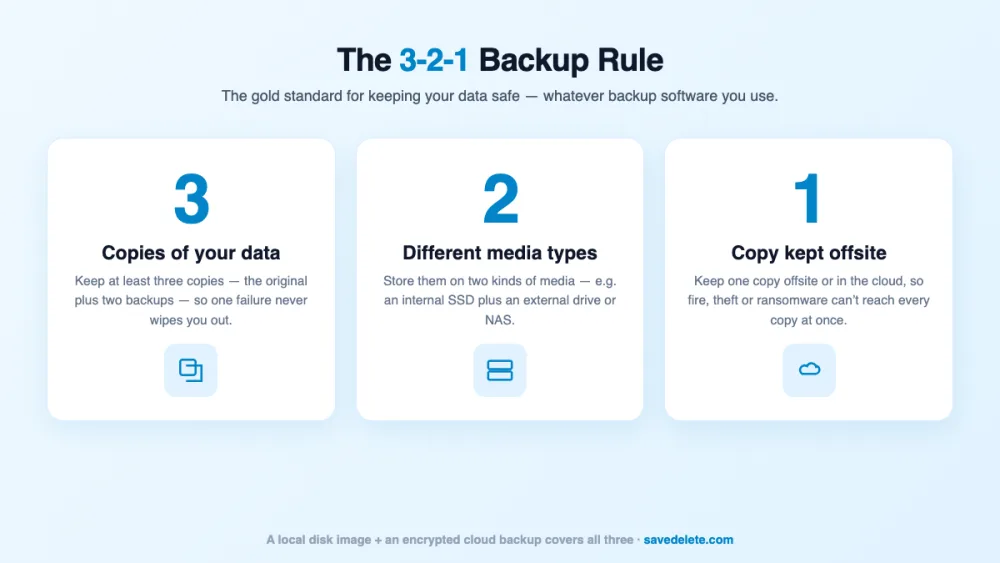
Whatever software you pick, plan your backups around the 3-2-1 rule: keep 3 copies of your data, on 2 different types of media, with 1 copy offsite or in the cloud. A local disk image plus an encrypted cloud backup covers it. If you need somewhere to keep the offsite copy, see our guide to the best cloud storage services, and for the full strategy, read our complete data backup and recovery guide. For paid backup apps and online backup services, see our roundup of the best backup software in 2026.
Frequently Asked Questions
What is the best free backup software for Windows?
For most people, EaseUS Todo Backup Free or AOMEI Backupper Standard: both back up your system, disks, partitions and files on a schedule. Veeam Agent for Microsoft Windows FREE is the best free pick for a full-PC image with bootable recovery media, Duplicati is the best free choice for encrypted cloud backup, and Windows Backup and File History are already built into Windows.
Is Veeam still free?
Yes. Veeam Agent for Microsoft Windows FREE is still a free download on Veeam’s site as of November 2026. It backs up Windows desktops, laptops and tablets (the whole PC, volumes, or files and folders) to an external drive, a NAS share or a Veeam repository, with bootable recovery media and bare-metal restore. For a Windows server or up to 10 workstations, Veeam offers the free Veeam Backup & Replication Community Edition.
How do I back up a Windows 10 system?
Use Windows Backup to sync your Desktop, Documents, Pictures, Videos and Music folders and your settings to OneDrive, or turn on File History in Control Panel to keep copies of your files on an external drive. For a full system backup that includes Windows and your apps, make an image with a free tool such as Veeam Agent FREE, AOMEI Backupper Standard or EaseUS Todo Backup Free. Windows 10 support ended on October 14, 2025, so it’s a good time to do it before moving to Windows 11.
What is the Windows backup service?
Windows Backup is Microsoft’s built-in backup app for Windows 11 and 10. It backs up your folders to OneDrive and your installed apps, settings and Wi-Fi passwords to your Microsoft account, so you can restore them on a new PC by signing in. It needs a personal Microsoft account; work or school accounts won’t work.
Does Windows 11 have a built-in backup utility?
Yes, two. Windows Backup saves your folders, apps and settings to OneDrive and your Microsoft account, and File History keeps versions of your files on an external drive or network location. Neither makes a full system image; for that, use a free imaging tool from this list.
Is Microsoft Windows Backup free?
Yes. Windows Backup is included in Windows, and a free Microsoft account comes with 5 GB of OneDrive storage for your backed-up folders. If your files need more space, you can buy more OneDrive storage, or use File History with your own external drive at no cost.
Can free software clone my hard drive to a new SSD?
Not your Windows system drive, if you use the free editions of EaseUS Todo Backup, AOMEI Backupper or MiniTool ShadowMaker: all three keep system cloning for their paid versions (AOMEI and MiniTool can clone data disks for free). The free alternative is to make a full image backup and restore it to the new SSD, for example with Veeam Agent FREE’s bare-metal restore.
What happened to Macrium Reflect Free?
Macrium has ended it. Reflect Free v8.0 got its last security patches on January 1, 2024, it can no longer be downloaded, and it supports Windows 10 and 11 only up to version 22H2. Existing users can keep using it.
What’s the difference between a file backup and a disk image?
A file backup copies the files and folders you choose, which is quick and saves space. A disk image copies the entire drive, including Windows, your apps, settings and files, into one backup, so you can restore a PC to exactly how it was. Most people want both: regular file backups plus an occasional full image.