Signal Screenshot Blocking: How to Turn Off Screen Security
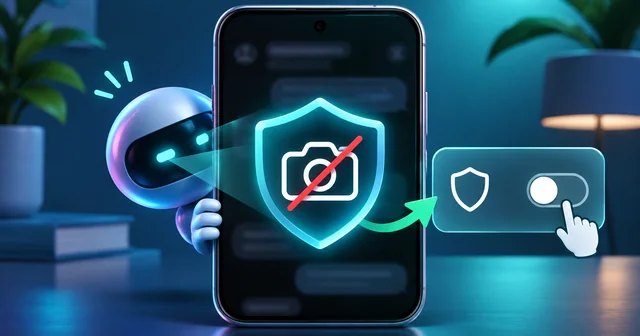
Signal screenshot protection is a new default that stops screenshots inside the Signal app on iOS 27 and switches on Screen security on Android when it detects an AI assistant reading the screen. You can turn it off in Signal's privacy settings, but Signal warns that doing so can expose your chats to on-device AI agents.
What Happened
On Friday, 20 November 2026, Signal published a post titled "Protecting your privacy" announcing that it would restrict "the latest AI agents built into mobile operating systems" from capturing what is on a Signal screen. The post names two systems directly: Gemini Intelligence on Android and Onscreen Awareness with Siri AI on Apple devices. Signal president Meredith Whittaker described these operating-system agents as "an existential threat" to the app's ability to guarantee privacy.
The change arrived as an app update. According to 9to5Mac's walkthrough of the iPhone update, people who update and then try to take a screenshot see the message "Screenshot prevented by 'Block Siri AI' setting." On Android, Signal reuses its existing Screen security option and turns it on automatically when it detects an AI assistant trying to access the screen.
This is the second time Signal has taken this step. On 21 May 2025 it switched Screen security on by default in Signal Desktop on Windows 11, to keep Microsoft Recall from storing screenshots of chats, as explained in its earlier post "By Default, Signal Doesn't Recall". The new update extends the same idea to phones. Signal says it cannot yet do the same on macOS.
Why It Matters
Signal's encryption protects messages while they travel between phones. It cannot protect a message once it is decrypted and displayed, because that is the moment you read it. If an AI agent built into the operating system can see your screen, it can read the same words you do, without breaking any encryption. Signal's post puts it plainly: once an agent captures the data, it is "outside of Signal's control" and can end up in "whatever local database or remote server" that agent uses.
That affects everyone in a conversation, not only the person whose phone has the assistant switched on. A group chat is only as private as the least-protected screen in it. Signal's answer is to make the safer option the default and to ask people who want screenshots to switch it off deliberately.
For ordinary users, the practical effect is simple: screenshots of Signal chats that used to work may now fail. If you rely on screenshots to save receipts, addresses, or instructions sent over Signal, you will need to change a setting or use another method, such as copying the text.
How It Works
On iPhone (iOS 27)
Signal adds a new toggle called Block Siri AI in its privacy settings, and it is on by default. 9to5Mac quotes the in-app description: "Prevent Siri AI from scanning Signal content. This will also block you from taking screenshots in the app and App Switcher." The App Switcher detail matters: the preview card you see when swiping between apps is also hidden, so a glance at your recent apps will not show the last chat you had open.
To turn it off, open Signal, go to Settings > Privacy, and switch off Block Siri AI. Screenshots then work again inside the app. According to Engadget's report on the update, Signal also shows a prompt offering to turn the protection off when it detects that you tried to take a screenshot.
On Android
Android works differently because there are many versions of it. Signal explains in a footnote that on many manufacturers' builds it has no reliable way to detect a screenshot attempt once screenshots are already disabled. Rather than have screenshots silently stop working, it chose to detect when an AI assistant tries to access the screen, and then automatically enables the existing Screen security setting. That means many Android users will not notice any change until an assistant actually reads the screen.
To disable screen security on Android, open Signal's settings, go to Privacy, and turn off Screen security. Engadget reports that Signal offers the same kind of prompt here, shown when it detects an assistant reading the screen.
On Windows and Mac
On Windows 11, Signal Desktop has had Screen security on by default since May 2025. Signal's 2025 post gives the path as Signal Settings > Privacy > Screen security, and says turning it off always shows a warning and asks for confirmation. Screenshots of a protected Signal window come out blank. The same post notes that some accessibility software, such as screen readers or magnifiers, may not work correctly while it is on.
On macOS there is no equivalent. Signal says it is "currently unable to implement these protections on macOS", because operating system makers do not give developers a way to restrict AI data access "without making drastic compromises to the core user experience". That is why Siri AI is not blocked in Signal's Mac app.
What the setting does not stop
Signal calls its own fix "incomplete". Blocking screenshots does not stop an agent from reading content already on the device through the filesystem. It does not stop agents that read notifications. Engadget, citing Reuters, reports that Meta's Muse agent read Signal messages from notifications on Android and used accessibility permissions on Mac, which Signal describes as being used as a "skeleton key". And the setting is local: if the person you are chatting with has turned protection off, their assistant can still read the conversation on their phone.
Signal is asking Apple, Google, and Microsoft for two things: an easy, documented way for developers to opt an app out of AI data access, and better documentation of how these agents read app data. The post says some providers, including Google and Apple, are engaging with Signal on the issue.
What's Still Unknown
Several things are not yet clear. Signal has not listed which Android phones and assistants its detection covers, and its footnote admits it cannot cover every Android build. It has not said when, or whether, Mac protection will arrive. Apple and Google had not publicly responded when the change was reported, according to CNET.
It is also unclear whether Apple's own controls will make Signal's toggle unnecessary. 9to5Mac points out that iOS already lets you exclude chosen apps from Siri AI, and that this became easier in iOS 27.2. Signal has not said whether turning on that system option is enough on its own, so for now the in-app toggle is the protection Signal itself supports.
Frequently Asked Questions
How do I turn off Signal screenshot protection on iPhone?
Open Signal, go to Settings, then Privacy, and switch off Block Siri AI. Screenshots inside the app and the App Switcher preview will work again. Signal warns that doing this may let Siri AI and other on-device agents read your chats and those of the people you message, so turn it back on when you no longer need screenshots.
How do I disable screen security in Signal on Android?
Open Signal's settings, go to Privacy, and switch off Screen security. Signal now turns this setting on automatically when it detects an AI assistant trying to read the screen, so you may find it switched back on later. Signal's post says it uses this detection approach because many Android builds give it no reliable way to detect screenshot attempts.
Why does Signal say "Screenshot prevented by 'Block Siri AI' setting"?
That message appears on iPhones running iOS 27 after the update, when the Block Siri AI toggle is on, which it is by default. The toggle stops Siri AI from scanning Signal content, and the only way Signal can do that is to block screenshots in the app. Turning the toggle off in Privacy settings removes the message.
Does Signal send a screenshot notification to the other person?
Nothing in Signal's announcement mentions alerting the other person. The new protection works only on your own device: it blocks capture, rather than reporting it. Signal's 2025 Windows post makes the same point about its desktop setting, saying it is local to your computer and does not apply to screenshots taken on other people's devices.
Does Signal screenshot protection work on Windows?
Yes. Signal Desktop has blocked screenshots by default on Windows 11 since 21 May 2025, to keep Microsoft Recall from storing chats. Screenshots of the window come out blank. You can turn it off under Signal Settings, Privacy, Screen security, after confirming a warning. Signal says some screen readers and magnifiers may not work properly while it is on.
Why can I still take screenshots of Signal on my Mac?
Signal says it is currently unable to implement these protections on macOS. It blames a lack of developer tools: Apple, Google, and Microsoft do not offer a way to restrict AI data access without drastic compromises to the core user experience. As a result, the Signal Mac app has no Siri AI protection for now, and screenshots there still work.
Does blocking screenshots fully protect my Signal chats from AI?
No. Signal calls the fix incomplete. It does not stop agents that read notifications, use accessibility permissions, or read files already stored on the device. It also cannot protect what appears on someone else's phone: if the person you are chatting with has turned the protection off, their assistant can still read the conversation there.
Related Reading
If you need to capture something on a computer instead, our guide on how to take a screenshot on a laptop covers every Windows and Mac shortcut. For other threats Signal users face, read about the FBI and CISA warning on hackers targeting Signal and WhatsApp. On the Apple side, see what Siri's chat auto-delete means for your privacy and how Siri AI's App Intents let it act inside apps. And for how another messaging service went the other way, read why Instagram ended end-to-end encryption for DMs.