Windows HDR Calibration App in 2026: How to Use It (Free Guide)
If you turned on HDR in Windows and your screen suddenly looked washed out, dim or oddly gray, you're not alone — and the fix is free. Microsoft's Windows HDR Calibration app profiles your exact display so HDR games and video look the way they're meant to: brighter highlights, deeper blacks and more accurate color. This 2026 guide covers what the app does, how to install and use it step by step, how to fix the washed-out SDR desktop, and how to make even non-HDR games look great with Auto HDR and RTX HDR.
What Is the Windows HDR Calibration App?
The Windows HDR Calibration app is a free tool from Microsoft that fine-tunes how Windows displays HDR content on your monitor or TV. It walks you through a few on-screen test patterns, measures your display’s usable brightness range and color, and then saves a custom ICC color profile that Windows applies automatically. The payoff: HDR games and movies show brighter, better-controlled highlights, deeper shadows and more accurate color — instead of the flat, clipped image many displays produce out of the box.
Why Calibrate HDR on Windows?
Out of the box, many HDR displays look washed out or overly dim in Windows because the system doesn’t know the panel’s exact capabilities, so its tone mapping is a guess. That leads to clipped highlights (bright areas blown to featureless white), crushed blacks (lost shadow detail), and inaccurate color. Calibration measures your display’s real minimum and maximum luminance and its color volume, then tells Windows exactly how to map HDR content — giving you a clearly better, more accurate picture in supported games and HDR video.
What You Need Before You Start
- An HDR-capable display. HDR10 or better. A VESA DisplayHDR 400 panel works, but OLED or mini-LED displays (DisplayHDR 600/1000+) look dramatically better because they can actually hit the brightness and local dimming HDR needs. See our picks for gaming monitors and the best laptops of 2026 if you’re shopping for a screen.
- Windows 11. The app is Windows 11 only (Windows 10 has just a basic HDR brightness slider).
- HDR turned on in Settings > System > Display > Use HDR.
- Up-to-date graphics drivers and a capable cable — HDMI 2.0/2.1 or DisplayPort 1.4 or newer.
How to Install the Windows HDR Calibration App
Open the Microsoft Store, search for “Windows HDR Calibration,” and click Get — or use the direct Microsoft Store link. It’s a small download and installs in seconds. If the Store says the app isn’t available for your device, your PC either isn’t running Windows 11 or doesn’t have an HDR-capable display detected.
How to Use the HDR Calibration App: Step by Step
- Turn on HDR first. Go to Settings > System > Display and switch on Use HDR. The app won’t calibrate correctly if HDR is off.
- Launch the app and read the short intro screen, then move it to the display you want to calibrate (calibrate each HDR display separately).
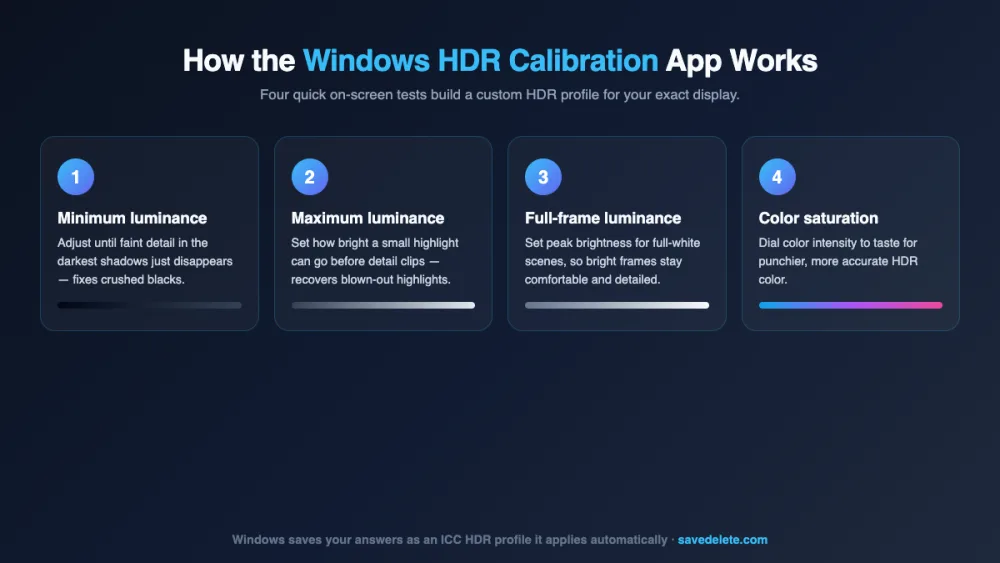
- Minimum luminance: raise the slider until the faint pattern in the darkest area just disappears. This sets your black level and recovers shadow detail.
- Maximum luminance: adjust until the small center pattern just blends into the background. This sets how bright a small highlight can go before it clips.
- Maximum full-frame luminance: do the same for a full-screen bright pattern, setting peak brightness for full-white scenes.
- Color saturation: on the final screen, drag the slider to taste — higher for punchier color, lower for a more natural look.
- Finish and save. Name the profile and click Finish. Windows creates an ICC HDR profile and applies it automatically; you can toggle it later under Color management.
Fix the Washed-Out SDR Desktop (the Gray Haze)
The most common HDR complaint isn’t about games — it’s that the desktop and everyday apps look gray and faded once HDR is on. That’s because SDR (standard dynamic range) content is being stretched into the HDR range. The fix takes ten seconds: go to Settings > System > Display > HDR and lower the SDR content brightness slider until your desktop, browser and taskbar look normal again. Many users land somewhere around the 20–40% mark. This only affects SDR content — calibrated HDR games and video still pop.
Bonus: Make SDR Games and Video Look HDR
Once your display is calibrated, you can push older, non-HDR games and content into HDR-style output:
- Auto HDR: a built-in Windows 11 toggle (Settings > System > Display > HDR > Auto HDR) that automatically expands the range of many SDR games. Free and easy, though results vary by game.
- RTX HDR (NVIDIA GPUs): if you have an RTX graphics card, RTX HDR in the NVIDIA app generally looks better than Auto HDR, preserving contrast while boosting highlights — at a small (roughly 5–7%) performance cost.
- HDR video: for editing or grading HDR footage, pair a calibrated display with capable software from our best video editing software guide.
Troubleshooting Common HDR Problems
- The “Use HDR” toggle is greyed out. Your display, cable or GPU isn’t reporting HDR support — update graphics drivers, try a different HDMI 2.0+/DisplayPort cable, and confirm the panel is HDR-capable.
- You can’t install the app. It requires Windows 11 and a detected HDR display.
- HDR still looks washed out. Lower SDR content brightness (above), update your GPU drivers, and re-run the calibration.
- Colors look oversaturated or unnatural. Re-open the app and lower the saturation slider on the final screen.
- HDR video looks too dark in a browser. Make sure the streaming app/site supports HDR and that hardware acceleration is enabled.
Tips for the Best HDR Picture
- Panel quality matters most. OLED and mini-LED beat edge-lit DisplayHDR 400 screens by a wide margin — calibration can’t add brightness or contrast the panel doesn’t have.
- Calibrate in your normal lighting. Ambient light changes how much shadow detail you can see, so calibrate in the room where you actually use the PC.
- Recalibrate after big driver updates or when you switch monitors.
- Turn HDR off for SDR-only work if you do a lot of color-sensitive SDR tasks and the desktop still bothers you.
Frequently Asked Questions
Is the Windows HDR Calibration app free?
Yes. It's a free download from the Microsoft Store, published by Microsoft Corporation, for Windows 11 PCs with an HDR-capable display. There are no in-app purchases.
Does HDR calibration really improve the picture?
Yes. Calibration corrects washed-out or dim HDR output by mapping your display's exact minimum and maximum brightness and its color range. The result is brighter, more controlled highlights, deeper blacks with more shadow detail, and more accurate, punchier color in HDR games and video.
Do I need a colorimeter or special hardware to calibrate HDR?
No. Unlike professional SDR calibration, the Windows HDR Calibration app uses on-screen test patterns that you adjust by eye — no colorimeter or extra hardware is required. You only need an HDR-capable display with HDR enabled in Windows settings.
Why does my screen look washed out after I enable HDR?
That gray, faded look usually comes from non-HDR (SDR) content — your desktop, browser and most apps — being stretched into the HDR range. Fix it by lowering the SDR content brightness slider under Settings > System > Display > HDR until the desktop looks right, then run the HDR Calibration app so HDR content still pops.
Is the HDR Calibration app available on Windows 10?
No. The dedicated Windows HDR Calibration app requires Windows 11. On Windows 10 you can only make a rough adjustment using the single HDR/SDR brightness slider in Windows HD Color settings, which is far less precise than the Windows 11 app.
How often should I recalibrate my HDR display?
Recalibrate whenever you change displays, after a major graphics-driver update, or if HDR content starts looking off. For most people, calibrating once when you set up the monitor is enough — the ICC profile Windows saves keeps working until something in your setup changes.
What's the difference between HDR calibration and Auto HDR?
HDR calibration tunes how Windows displays real HDR content on your specific panel. Auto HDR is a separate Windows feature that automatically expands older SDR games into HDR-like output. They work together: calibrate your display first, then turn on Auto HDR (and, on NVIDIA GPUs, RTX HDR) to make SDR games look better too.
Final Thoughts
The Windows HDR Calibration app is the single easiest upgrade you can make to HDR on a Windows 11 PC — it’s free, takes a few minutes, and genuinely fixes the flat, washed-out look most displays ship with. Calibrate your panel, drop the SDR content brightness so the desktop looks right, then turn on Auto HDR or RTX HDR to bring your older games along too. With a decent HDR display, the difference is night and day.