Best Free Photo Editing Websites & Software (2026)
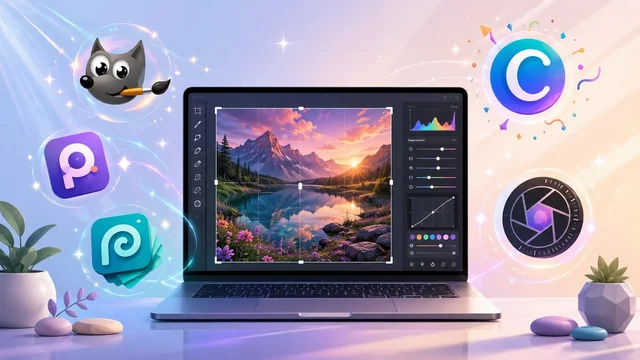
You don't need a $20-per-month subscription to edit photos well. In 2026 there are open-source desktop editors that rival Photoshop, browser-based tools that load in a second and run on any device, and AI-assisted apps that fix exposure, remove backgrounds, and upscale grainy photos in one click — all free. This guide rounds up the eight free photo editors most worth installing or bookmarking right now, what each is best at, and how they compare on price, platform and learning curve.
Quick picks — the best free photo editors in 2026
| Editor | Platform | Best for | Catch |
|---|---|---|---|
| GIMP | Win, Mac, Linux | Photoshop-style power editing | Steep learning curve |
| Photopea | Browser | Opening .psd files anywhere | Ads on free tier |
| Pixlr X / E | Browser, iOS, Android | Quick edits + built-in AI tools | AI credits gated on free tier |
| Canva | Browser, iOS, Android, desktop | Social-media graphics, templates | Premium assets gated |
| Paint.NET | Windows | Lightweight Windows edits | Windows only; no Mac/Linux build |
| PhotoScape X | Win, Mac | Batch edits + GIF / collage | Pro features paywalled |
| Darktable | Win, Mac, Linux | RAW workflow for photographers | Not a quick-edit tool |
| Fotor | Browser, iOS, Android, desktop | One-click AI enhance | Free tier exports are watermarked at higher sizes |
1. GIMP — the open-source Photoshop alternative
GIMP (the GNU Image Manipulation Program) is still the closest free equivalent to Photoshop in 2026. Version 3.0 finally shipped in early 2025 with non-destructive layers, proper colour-managed editing, and a cleaner UI, and the long-running 3.2 branch added improved CMYK support. It runs on Windows, macOS and Linux, supports layers, masks, paths, channels, curves, and a vast set of community filters and plug-ins. If you came of age on Photoshop tutorials, expect a steeper learning curve — the menu names and keyboard shortcuts are different — but every common Photoshop task has a GIMP equivalent.
2. Photopea — Photoshop in your browser
Photopea is a free, in-browser editor that mimics Adobe Photoshop’s interface almost pixel-for-pixel. Crucially, it can open and save native .psd files (with layers intact), plus .sketch, .xd, .fig and .raw. For anyone who occasionally needs to open a designer-supplied PSD without owning Photoshop, Photopea is the answer. It loads in seconds, runs on any device with a modern browser, and a one-off ad on the free tier is the only price you pay.
3. Pixlr X & Pixlr E — browser-based with AI built in
Pixlr comes in two flavours: Pixlr X (simple, one-page edits) and Pixlr E (advanced, Photoshop-like). Both are browser-based, both support layers and blending modes, and in 2026 both ship with built-in AI tools — background remove, generative fill, smart upscale, AI cutout, AI denoise. Free users get a daily allowance of AI credits; heavy AI use needs Pixlr Plus or Premium. For casual edits the free tier is plenty.
4. Canva — templates and design, not just editing
Canva is technically a graphic-design platform rather than a pure photo editor, but its drag-and-drop editor handles photo crops, filters, background removal (free since 2024), and one-click resizes between platforms. It is the obvious choice for anyone making YouTube thumbnails, Instagram posts, presentations or posters. Canva’s 2025 Magic Studio updates added a strong AI image generator, brand-kit colour matching, and bulk-create for variant assets — though the heaviest AI features sit behind the Canva Pro paywall.
5. Paint.NET — the lightweight Windows pick
Paint.NET (Windows only) started as a free replacement for Microsoft Paint and grew into a capable layer-based editor with effects, plug-ins and unlimited undo. It is fast, lightweight (under 20 MB installed), and ideal for users who want something more powerful than Paint without the complexity of GIMP. There’s no Mac or Linux build; for cross-platform free desktop editing, choose GIMP instead.
6. PhotoScape X — batch edits, GIFs and collages
PhotoScape X (Windows and macOS) is best when you have lots of photos to push through the same operation: bulk resize, watermark, file-rename, format-convert. It also has a strong collage maker, a GIF builder, and a screen-capture tool, all behind one interface. A paid Pro version unlocks RAW conversion and a wider set of effects, but the free tier handles batch work fine.
7. Darktable — RAW workflow for photographers
Darktable is the free answer to Adobe Lightroom: a non-destructive RAW developer with proper colour management, tethered shooting, masks, parametric filters and support for over 500 camera models. It is overkill for casual editing but the go-to free option for serious photographers who shoot RAW and need a real editing pipeline. RawTherapee is a close second.
8. Fotor — one-click AI enhance
Fotor leans hardest into one-click AI photo enhancements — tap once for “auto enhance”, “HDR”, “denoise”, “upscale to 4K”, “remove background”. The web version is free with watermark-free exports up to a moderate size; high-resolution exports and the full AI suite are gated behind Fotor Pro. Best when you want results in 10 seconds, not 10 minutes.
How to pick between them
- Need to open a .psd file? Photopea is the only free option that handles them faithfully.
- Want Photoshop-level power for free? GIMP 3 is the answer.
- Doing social-media graphics? Canva, every time.
- Shooting RAW? Darktable, with RawTherapee as backup.
- On Windows and just want a quick crop / annotate? Paint.NET.
- Batch-processing 500 photos? PhotoScape X.
- You just want the AI to do it? Fotor or Pixlr X.
Frequently asked questions
Is there a free photo editor that’s as good as Photoshop?
For 90% of common Photoshop tasks — layered editing, masks, retouching, colour correction, exporting — GIMP 3 and Photopea both qualify. Photopea is more useful if you regularly open files designers send you, because it reads native .psd and .sketch formats. GIMP is more useful if you want a fully offline desktop tool and don’t mind learning a different UI.
Can I edit RAW photos in a free editor?
Yes. Darktable and RawTherapee are both free, open-source RAW developers and cover the same workflow Lightroom does — cataloguing, non-destructive edits, masks, presets, export. Darktable supports over 500 camera models. GIMP can also open RAW files with the free darktable or RawTherapee plug-in, though using the dedicated app is smoother.
Which free photo editor has the best AI features in 2026?
Pixlr X, Fotor and Canva all ship strong AI features on their free tiers in 2026 — background removal, AI cutout, generative fill, smart upscaling, AI denoise. Pixlr’s implementation feels closest to the AI tools inside paid Photoshop, while Fotor’s one-click enhancements are the fastest for casual use. All three throttle heavy AI use behind a paid tier.
Do free photo editors add watermarks to exports?
GIMP, Photopea, Pixlr X, Pixlr E, Paint.NET, PhotoScape X and Darktable export without watermarks. Fotor’s free tier is watermark-free at moderate sizes; high-resolution exports require Fotor Pro. Canva is watermark-free for assets built from free elements; premium templates or stock photos used in a design are watermarked until you upgrade.
Which free editor is easiest for a complete beginner?
For first-time editors, Canva or Fotor is the gentlest start — both are template-driven, browser-based, and forgive mistakes with unlimited undo. Pixlr X also has a deliberately simple one-screen interface. Save GIMP and Darktable for after you’ve found your feet.
For more design-tool guides, see our roundups of the best AI tools for YouTube thumbnails and our list of the free AI video editors without watermark.