How to Create Multiple Firefox Profiles (2026 Guide)
Firefox profiles let you run completely separate browser instances — each with its own bookmarks, extensions, passwords, cookies, and settings. This is essential for developers testing in different environments, people who separate work and personal browsing, or anyone managing multiple accounts on the same websites.
Why Use Multiple Firefox Profiles?
- Separate work and personal browsing — different bookmarks, passwords, and extensions
- Web development testing — test with different extensions, settings, and cookie states
- Multiple account management — log into the same site with different accounts simultaneously
- Clean testing environment — a fresh profile with no extensions or cached data
- Shared computers — each user gets their own profile without interference
How to Create a New Firefox Profile
Method 1: Using about:profiles (Easiest)
- Type about:profiles in the Firefox address bar and press Enter
- Click "Create a New Profile"
- Click Next in the wizard
- Enter a name for the profile (e.g., "Work", "Development", "Personal")
- Click Finish
- Your new profile appears in the list — click "Launch profile in new browser" to open it
Method 2: Using Profile Manager (Command Line)
Close Firefox completely, then run:
- Windows:
firefox.exe -P(from the Firefox install directory) - Mac:
/Applications/Firefox.app/Contents/MacOS/firefox -P - Linux:
firefox -P
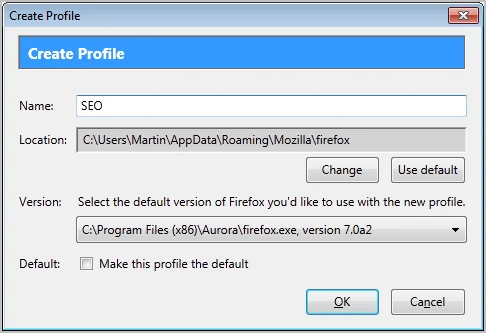
The Profile Manager window opens. Click "Create Profile", name it, and click "Start Firefox".
Method 3: Run Multiple Profiles Simultaneously
To run two profiles at the same time, use the --no-remote flag:
- Windows:
firefox.exe -P "Work" --no-remote - Mac:
/Applications/Firefox.app/Contents/MacOS/firefox -P "Work" --no-remote
This launches a separate Firefox window that operates independently from your default profile.
Managing Profiles
| Action | How |
|---|---|
| Switch profiles | about:profiles → "Set as default profile" → Restart Firefox |
| Delete a profile | about:profiles → "Remove" → choose "Delete Files" or "Don't Delete" |
| Rename a profile | about:profiles → "Rename" |
| Find profile folder | about:profiles → "Open Folder" next to Root Directory |
Pro Tips
- Create desktop shortcuts for each profile using
firefox -P "ProfileName" --no-remote - Use different themes per profile so you can visually distinguish them at a glance
- Sync selectively — you can sign into Firefox Sync on some profiles and not others
- Container tabs (Firefox Multi-Account Containers extension) offer a lighter alternative if you just need to isolate cookies for a few sites
For more browser and productivity tips, check our guides to the best Mac apps and VPN services for private browsing.
Frequently Asked Questions
Can I run multiple Firefox profiles at the same time?
Yes. Use the --no-remote flag when launching Firefox with a specific profile. For example: firefox -P "Work" --no-remote. This opens a separate Firefox instance that runs independently alongside your default profile.
Are Firefox profiles the same as Container Tabs?
No. Profiles are completely separate Firefox instances with their own bookmarks, extensions, settings, and history. Container Tabs (via the Multi-Account Containers extension) isolate cookies within a single profile. Use profiles for full separation, containers for lighter cookie isolation.