Stellar Photo Recovery Review: Is It Worth Using to Recover Lost Photos?
The card goes into the reader and the folder comes up empty. Maybe the camera throws a “card error” message mid-shoot. Maybe you formatted it to clear space, then remembered yesterday’s frames were still on it.
That sinking feeling is familiar to anyone who has shot enough. What you do in the next ten minutes matters more than which software you pick later. Still, the software matters, and Stellar Photo Recovery is one of the older names in the field. This review covers what it does, how a recovery session plays out, and who should bother with it.
What Is Stellar Photo Recovery?
Stellar Photo Recovery a desktop photo recovery software for Windows and macOS that hunts for deleted or inaccessible photos, videos and audio files on storage media. It looks past what the file system currently shows and searches for traces of files that were removed, formatted away or lost to errors.
Photographers are the natural audience, along with videographers and anyone producing content for a living. But plenty of people simply have an old USB stick or a phone’s microSD card with family pictures they can’t get at.
The focus on media is deliberate. This isn’t a tool for recovering spreadsheets or databases, and Stellar doesn’t pretend otherwise. If pictures and footage are what you lost, that narrow scope is a plus.
Key Features Worth Knowing
Recovering deleted photos is the baseline. The more interesting part is how it copes with a messy card. Stellar can scan formatted or corrupted cards, which is the situation most photographers actually find themselves in, and it works with SD and microSD cards, USB drives and other supported devices. One program for the camera, the drone and the flash drive in your bag is convenient.
Format support deserves a close look before you commit. A recovery tool that only understands JPEG is close to useless if you shoot RAW. Stellar lists RAW support across many camera brands, plus common video and audio formats. Compare the current list on Stellar’s site against your own camera model, because lists like this change.
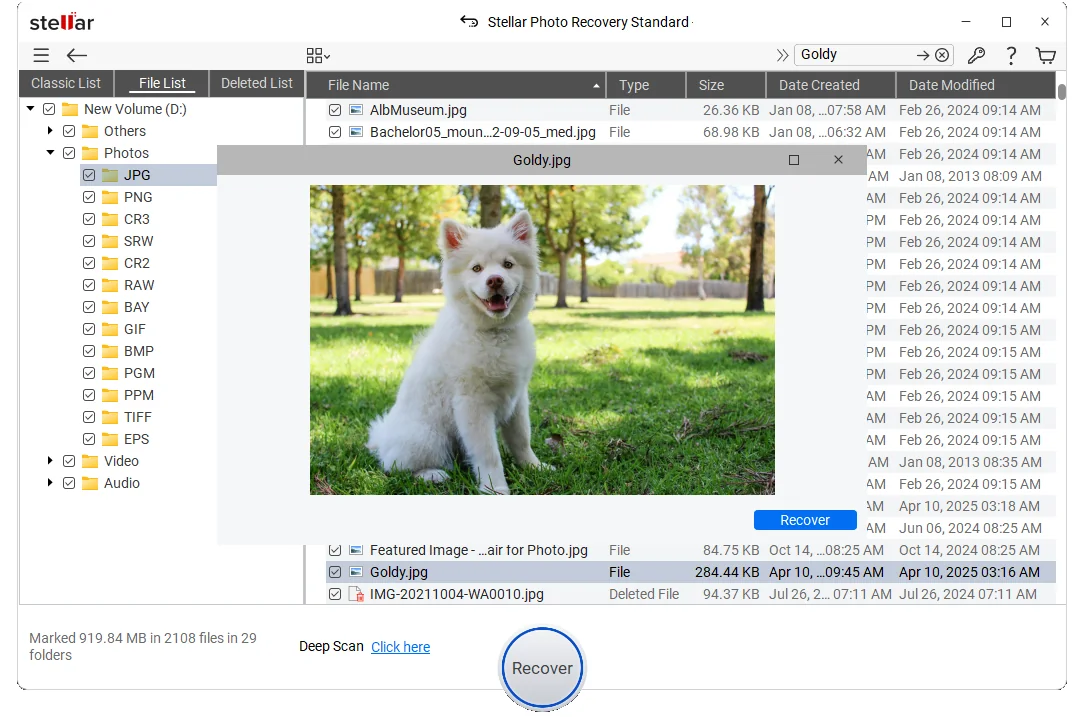
The preview is the feature I’d weigh most heavily. Seeing a thumbnail before you save anything tells you quickly whether the scan is turning up intact images or digital debris.
There’s also an Advanced Repair tool for files that were recovered but won’t open properly. Think of it as a second step, not part of recovery itself. It can fix certain kinds of damage, but it can’t rebuild data that’s gone, and which edition includes it may vary.
How Does Stellar Photo Recovery Work?
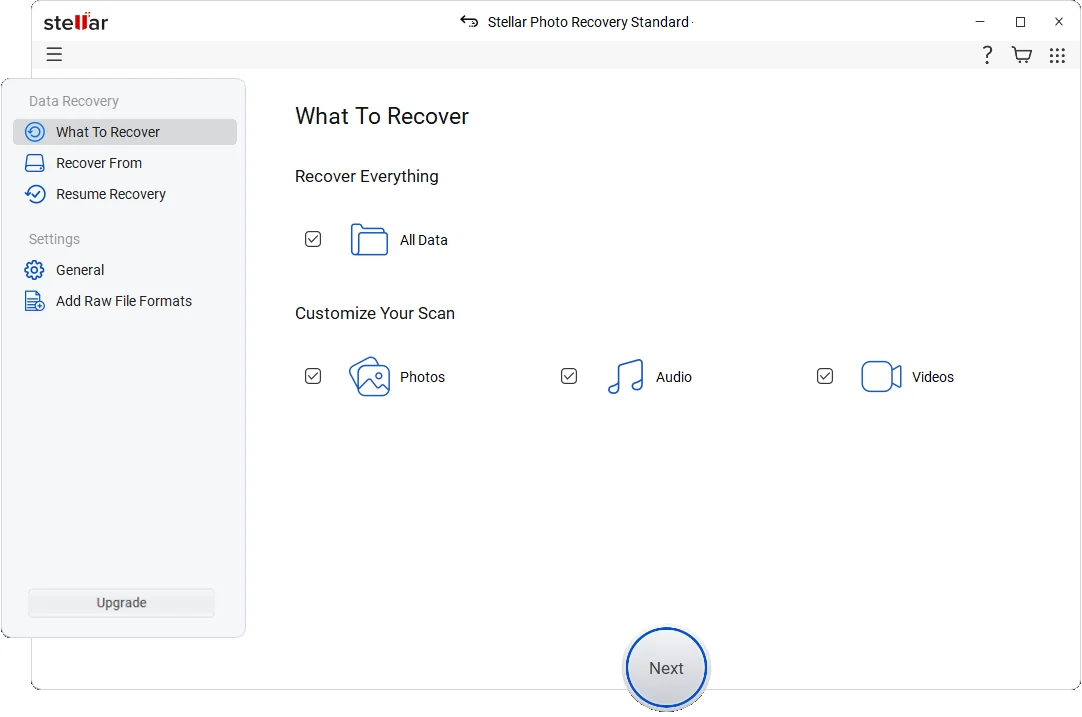
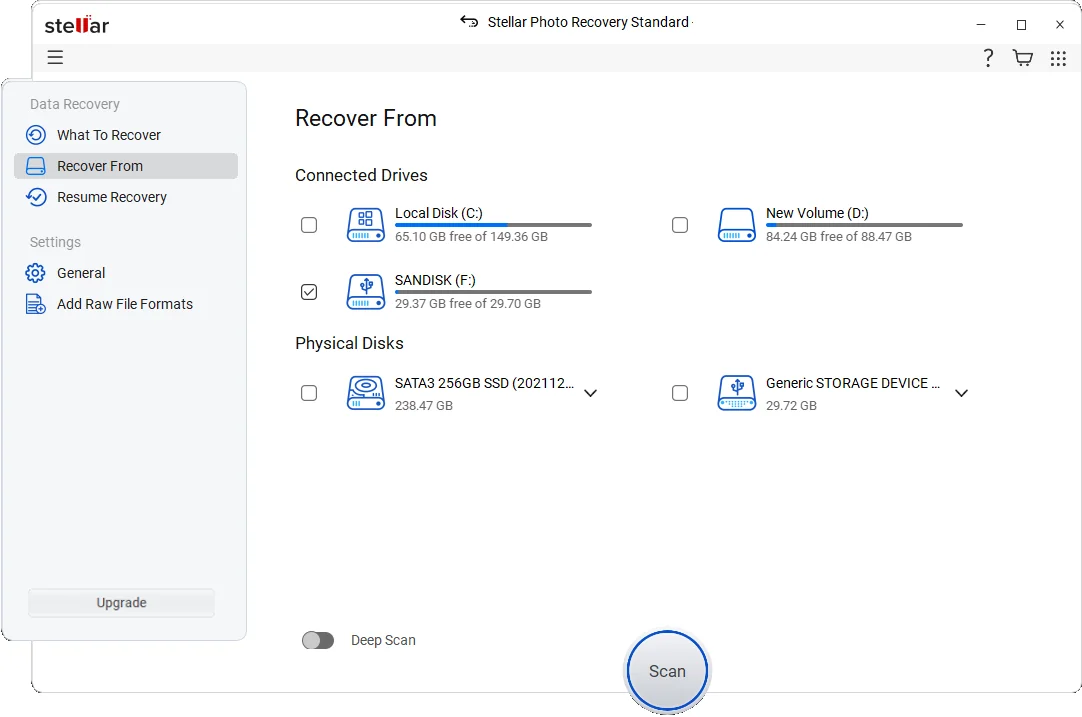
Plug the card into a reader. A dedicated card reader is usually steadier than connecting the camera by cable. Open the program, pick the card as your scan location, and start the scan.
Expect a quicker first pass, with a deeper scan available if your files don’t show up. When results appear, browse through them, preview what looks right, tick the files you want, and save them.
Here’s the part people skip: save to a different drive. Not the card. Writing recovered files back onto the original card can overwrite the very data you’re trying to retrieve, and that single mistake turns many recoverable cases into permanent ones.
One more habit worth building. The moment a card misbehaves, stop shooting to it. Every new write shrinks your chances.
Real-World Situations Where It Can Help
When you delete a photo, the image data usually stays put for a while. The card just marks that space as free. Until something new lands on top of it, recovery software has a reasonable shot at finding the file.
Formatting follows the same logic. A quick format mostly wipes the index, not the pictures, which is why a formatted SD card can sometimes be recovered if nothing has been shot onto it since. The same applies to cards that suddenly become unreadable and ask to be formatted, and to RAW files that vanish after a camera hiccup. A USB drive with missing photos is a close cousin.
None of this is guaranteed. Whether you get files back depends on the card’s condition and on what has overwritten what. A physically damaged card is a different story entirely, and that’s a job for a professional recovery lab.
Performance and Ease of Use
The interface is plain and sequential: choose a drive, scan, review. There’s little jargon, which helps when you’re already stressed. The preview pane is easy to use and does most of the heavy lifting in deciding what to save.
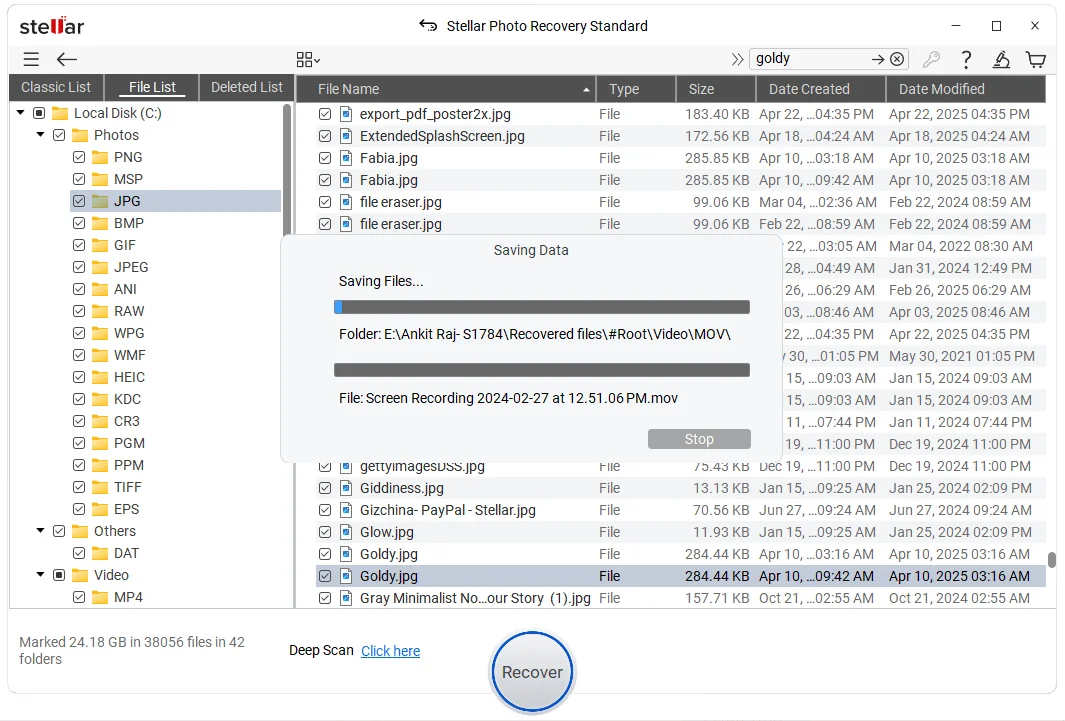
To be clear about the limits of this review, it’s based on Stellar’s documented features and workflow, not on hands-on testing, so there are no scan times or success rates here. Deep scans on big or heavily used cards generally take longer, and results differ from device to device. If you’re considering it, run the free trial first. It lets you see what’s recoverable before you pay.
Pros and Cons
Pros
- Covers photos, video and audio, including RAW formats
- Works with SD and microSD cards, USB drives and other supported media
- Preview lets you check files before saving
- Simple guided process
Cons
- Results depend on the condition of the storage device
- Overwritten data may be gone for good
- Deep scans can be slow on large or damaged media
- Saving files and some features, such as repair, may need a paid license
Final Verdict
If you’ve lost media files and want a guided way to try to get them back, Stellar Photo Recovery is a sensible tool to have in the queue. The preview and format coverage make it especially practical for memory card recovery.
It can’t rescue data that’s been overwritten or fix a card that’s physically broken. Stop using the card, run the free scan, and judge by what it actually finds before spending anything.