How to Recover Hard Drive Data in 2026: Free Tools & Step-by-Step Guide
Losing data is one of those events that re-prices everything else on your computer. The contract, the photos, the project you'd been chipping away at for six months — suddenly worth more than the laptop they live on. This guide is the rebuilt 2026 edition of our long-running hard drive recovery walkthrough: every recommendation has been re-verified against current software versions, the SSD reality is finally acknowledged (it changes the math), and the new generation of AI-assisted recovery tools that arrived in 2025-2026 are covered properly. Whether you've accidentally deleted a file, your external drive is clicking, or Windows is asking you to format a drive that contains your only copy of something important — start here.
What's New in Hard Drive Recovery in 2026
Three structural changes since our last rewrite are worth knowing before you download anything:
- AI-assisted recovery is mainstream. Tools like Recoverit, Stellar, EaseUS, and Disk Drill now ship with AI deep-scan modes that predict file locations from partial signatures — cutting scan time roughly 60% versus traditional block-by-block scanning. Recoverit's 2026 release claims 99% recovery on tests where older tools averaged 70%.
- SSDs are the hard case now. Hard-drive recovery rates have always been 85-95%. SSDs drop to 40-60% — sometimes to near zero — because of TRIM (we explain why below). If your data is on an SSD, your time window is much shorter than the old "the file is gone but the bits are still there" wisdom.
- Windows File Recovery is good enough for simple cases. Microsoft's free CLI tool (
winfr) has improved each year and in 2026 is the right first attempt for "I just deleted this an hour ago." No installer, no upsell, ships from the Microsoft Store.
First Aid: Do These 4 Things Immediately
Almost every "the recovery didn't work" story we hear traces back to actions taken in the first hour. The instinct to act fast is correct — the instinct to act on the affected drive is wrong.
- Stop writing to the drive. Every new file, every browser cache update, every Windows Update can overwrite the sectors your deleted data is sitting on. If the lost data is on your system drive, shut the computer down or boot from a USB drive instead.
- Don't run CHKDSK, fsck, or "Repair Drive" prompts on a drive you want to recover from. Repair tools rewrite the file system — sometimes recovering the directory at the cost of the actual file contents.
- Don't reformat — even a quick format — even if Windows tells you the drive is RAW and prompts you to. A quick format wipes the directory; deep recovery scans can usually still find your files, but only if you haven't written anything to the formatted drive yet.
- Install recovery software to a different drive than the one you're recovering from. This is the single most common mistake. Putting Disk Drill or EaseUS on your C: drive when you're trying to recover from your C: drive will overwrite some of the very files you're trying to save.
Quick Wins: Built-in Recovery (Try These First)
Before you install anything, check the free, already-installed options. They handle a surprising number of cases.
Windows
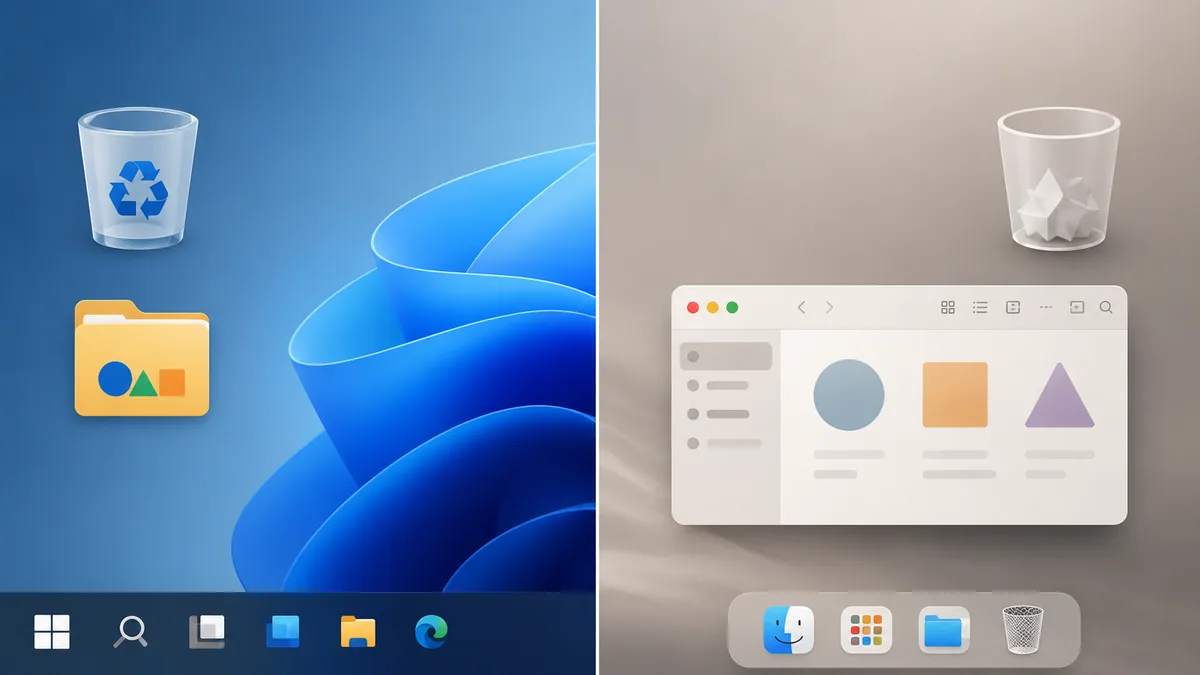
- Recycle Bin. Open it. Right-click the file, choose Restore. Files stay there until the bin is emptied or until disk space pressure forces purges.
- File History / Backup and Restore. If you enabled it: Settings → Update & Security → Backup → More options → Restore files from a current backup.
- Previous Versions. Right-click the folder that contained the file → Properties → Previous Versions tab. Works if System Protection / Restore Points are on.
- Windows File Recovery (
winfr). Free Microsoft CLI tool, install from the Microsoft Store. Two modes —Regularfor recently deleted files on NTFS,Extensivefor older deletions, formatted drives, or FAT/exFAT. Example:winfr C: D:\Recovered /extensive /n *.docx - OneDrive recycle bin / version history. If the file was synced to OneDrive, log in at onedrive.com and check the Recycle Bin (files stay 30 days) and the file's Version History.
Mac
- Trash. Open Finder, click Trash, right-click the file → Put Back.
- Time Machine. Connect your Time Machine drive, click the Time Machine icon in the menu bar → Browse Time Machine Backups, scroll back to before the loss, click Restore.
- iCloud Drive. iCloud.com → Drive → Recently Deleted. Files stay for 30 days. Also check Files app on iPhone/iPad.
- App-specific version history. Apple Pages, Numbers, Keynote, and most Office apps keep document version history. File → Revert To → Browse All Versions.
Best Free Hard Drive Recovery Software in 2026
If the built-in options didn't catch it, these are the tools currently worth installing. We've verified each is live, downloadable, and accurate to its 2026 free-tier limits.
1. EaseUS Data Recovery Wizard Free
The most polished free recovery tool for non-technical users. The 2026 release added AI-powered deep scans that surface twice the file format coverage of Recuva and full BitLocker-encrypted drive support. Free tier recovers up to 2 GB. Available for Windows and Mac. Best for: people who want guided UI and a clean, modern interface. Download.
2. Recuva (by Piriform / CCleaner)
Lightweight, free, unlimited. Wizard-based interface aimed squarely at beginners. Wins on simplicity and the fact that it's truly free with no recovery cap. Windows only. Best for: recently deleted files on a healthy HDD. Limitation: no Mac version and no real deep-scan capability for badly corrupted drives. Download.
3. PhotoRec & TestDisk (CGSecurity)
Free, open source, 100% no-paywall. PhotoRec recovers more than 480 file types by signature, ignoring the file system entirely — which means it can rescue data when the partition table is destroyed. TestDisk (its companion) repairs partition tables. Catch: command-line interface, no preview, files come back with generic names. Best for: technical users, RAW partitions, severely corrupted drives. Runs on Windows, Mac, Linux, BSD.
4. Disk Drill
Polished commercial tool with a generous trial. Windows free tier recovers up to 500 MB; Mac free tier supports preview-only. Strong on damaged drives thanks to its byte-level disk imaging — you can image a failing drive once and scan the image repeatedly without further stress on the hardware. Best for: failing drives, clicking drives, and users who want a clean macOS experience. Download.
5. Stellar Data Recovery Free
Versatile tool with strong AI-driven deep scan. Recovers up to 1 GB on the free tier. Particularly good at video and photo recovery and signature-based scanning on Macs. Available for Windows, Mac, and Linux.
6. Recoverit (Wondershare)
The most aggressive on AI in 2026: claims 99% file recovery and 60% faster scans than non-AI alternatives. Free tier recovers up to 100 MB. Best for: video recovery (its AI rebuilds broken video headers) and any case where speed of the scan matters. Available for Windows and Mac.
7. Windows File Recovery (Microsoft)
Free, Microsoft-signed, no recovery limit. Command-line only. The fastest path for "I deleted this file from C: an hour ago and the Recycle Bin is empty." Doesn't help much for formatted or corrupted drives. Microsoft documentation.
8. DiskGenius Free
Surprisingly capable freeware that handles partition recovery, lost file recovery, and even bad-sector handling. The free version is generous compared to most commercial tools' free tiers. Windows only.
9. R-Studio (free demo)
The professional's tool. Free demo lets you scan and preview; paying unlocks recovery. The depth of options is the most extensive of any tool here — including network recovery, RAID reconstruction, and forensic-grade scanning. Best for: complex losses, RAID arrays, and when you don't mind paying for the professional license once you've confirmed the data is there.
10. AOMEI FastRecovery
Newer entrant (2024 launch, 2026 update) with a clean UI and a workable free tier. Reliable enough to be a reasonable plan B if EaseUS or Disk Drill don't see your drive.
Comparison Table: 2026 Free Recovery Tools at a Glance
| Tool | Free Limit | Platforms | AI / Deep Scan | Best For | 2026 Standout |
|---|---|---|---|---|---|
| EaseUS Data Recovery Wizard Free | 2 GB | Windows, Mac | Yes | Beginners, BitLocker drives | 2× file format coverage vs Recuva |
| Recuva | Unlimited | Windows | No | Recent deletions on healthy HDDs | Still the only truly free unlimited tool |
| PhotoRec / TestDisk | Unlimited | Windows, Mac, Linux, BSD | Signature only | RAW partitions, technical users | 480+ file types, fully open source |
| Disk Drill | 500 MB (Win) | Windows, Mac | Yes | Failing/clicking drives | Byte-level disk imaging built in |
| Stellar Data Recovery Free | 1 GB | Windows, Mac, Linux | Yes | Video/photo recovery on Mac | AI signature scan for older files |
| Recoverit | 100 MB | Windows, Mac | Yes (heaviest) | Video recovery, fast scans | 99% claimed recovery rate, 60% faster |
| Windows File Recovery (winfr) | Unlimited | Windows 10/11 | Mode-based | Recently deleted on NTFS | Free, Microsoft-signed, CLI-only |
| DiskGenius Free | Generous | Windows | Partial | Partition recovery + bad sectors | Free partition reconstruction |
| R-Studio (demo) | Scan only | Windows, Mac, Linux | Yes | RAID, forensic, complex losses | Professional-grade options |
| AOMEI FastRecovery | 500 MB | Windows | Yes | Plan B after EaseUS / Disk Drill | Modern UI, fast launch |
How to Recover Files from a Hard Drive: The Universal 4-Step Workflow
Every modern recovery tool follows roughly the same pattern. The original 3-step EaseUS walkthrough this article was built around still holds, but with one important addition in 2026: image the drive first if it might fail.
- Image the drive (only for failing drives). If the drive is clicking, overheating, or intermittently disconnecting, use Disk Drill, ddrescue (Linux/Mac), or HDDSuperClone to create a byte-level image to a healthy drive. Then scan the image, not the original hardware. This avoids further damage during the scan. Skip this step for healthy drives where you just deleted a file.
- Select the source drive and file types. Open your chosen tool, pick the affected drive. Most tools let you filter by file type (Documents, Photos, Video, Audio, Email, Archive, "Other"). Filtering narrows results and shortens scan times.
- Run a quick scan first, then a deep/AI scan if needed. Quick scans take seconds to minutes; they find recently deleted files whose directory entries are still present. Deep scans (signature-based) take 1-8 hours depending on drive size and read the entire drive surface looking for known file headers. The 2026 AI-deep-scan modes are a hybrid that's often faster than full signature scans.
- Preview and recover — to a DIFFERENT drive. Preview each recoverable file (most tools show thumbnails for images, partial render for documents) to confirm it's actually intact. Then recover to a separate drive — never the same drive you're recovering from.
For a step-by-step video walkthrough that's tool-agnostic, this one is one of the clearest:
SSD vs HDD Recovery in 2026: The TRIM Reality
If your data is on an SSD (most laptops since ~2017, most newer desktops), the rules are different and the success rates are lower. The reason is a feature called TRIM.
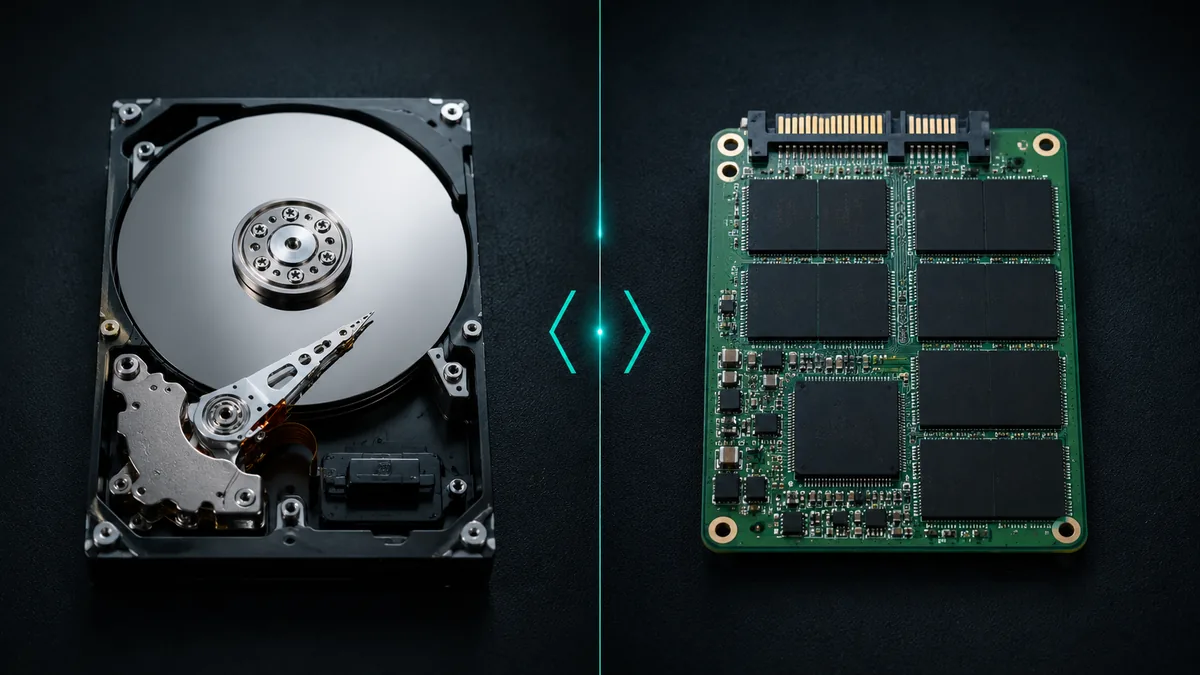
On a traditional hard drive, deleting a file only updates the directory — the actual magnetic data on the platter stays intact until something else writes over it. That window can be months or years on a lightly used drive. This is why old-school recovery works so well on HDDs.
SSDs behave fundamentally differently. When you delete a file, the operating system sends a TRIM command telling the SSD "these blocks are no longer in use." The SSD's internal garbage collection then electrically resets those cells to a blank state — usually within seconds to minutes. Once TRIM has processed a deleted file on an SSD, the data is genuinely gone. No magnetic remnant, no recovery possible from software alone.
The practical implications:
- HDD recovery rates: 85-95% across most failure types.
- SSD recovery rates: 40-60% depending on TRIM status, encryption, and how quickly you stop using the drive.
- For deleted files on an SSD, your window is minutes, not weeks. Power the system down immediately, then attempt recovery from a different boot environment (USB boot) so TRIM doesn't run on the affected drive.
- Encrypted SSDs (most modern Macs, BitLocker-on Windows laptops) compound the problem. Even if data physically exists, the encryption key may be inaccessible after a wipe.
- SSD physical failure — controller chip failure, firmware corruption — is usually a job for professional services, not software. The data lives on the NAND chips, but you need a chip-level reader to access it.
By Scenario: Which Tool for Which Problem
Accidentally deleted a file (Recycle Bin already emptied)
First try: Windows File Recovery (Regular mode), Recuva, or EaseUS Free. Fast, high success rate on HDDs. On SSDs, only if you act within minutes.
Formatted the wrong drive
First try: EaseUS, Disk Drill, or PhotoRec. Use a deep / signature scan. A quick format only wipes the file table, not the data; full format is harder but often partially recoverable.
Drive shows up as RAW or "needs to be formatted"
First try: TestDisk to rebuild the partition table; if files are critical, PhotoRec to extract them by signature before attempting any repair. Do not format the drive when prompted.
External drive is clicking (the "click of death")
First try: Power the drive down. If the data is critical, stop and call a professional — clicking usually means head-platter contact and every additional spin causes more damage. If you must try software, use Disk Drill or ddrescue to image the drive first (single read pass), then scan the image.
Drive is corrupted but visible
First try: EaseUS or Stellar with AI deep scan. The file system metadata is partially intact, which AI tools can use to reconstruct directories.
BitLocker / encrypted drive
First try: EaseUS Data Recovery Wizard (one of the few free tools that supports BitLocker directly), or unlock the drive first via the BitLocker recovery key, then recover.
NAS or RAID array
First try: R-Studio or UFS Explorer (paid). RAID recovery requires reconstructing the array configuration before recovery is possible — consumer tools like EaseUS rarely handle it correctly.
Physical damage: water, fire, drop
First try nothing — call a professional. Powering on a damaged drive almost always makes things worse. Skip to the professional services section below.
AI-Assisted Recovery: What Actually Changed in 2026
"AI" is in every product page in 2026, but only some of it is meaningful for recovery. The genuinely useful AI features being shipped:
- AI deep-scan path prediction. Instead of reading every sector blindly, the scanner uses learned patterns of how file systems lay out data to scan high-probability regions first. Cuts time-to-first-recovered-file dramatically.
- Header reconstruction for video files. Older signature scans recovered video files in pieces because broken MP4/MOV headers couldn't be parsed. AI video recovery (Recoverit, Stellar) reconstructs headers and joins fragments into playable files.
- Filename and path inference. Where traditional signature scanning gives you a folder of
img001.jpg,img002.jpg, etc., AI tools attempt to infer original folder names and filenames from surrounding metadata. Imperfect, but a huge UX improvement when you're scanning thousands of recovered photos. - Photo cleanup post-recovery. Some tools include AI deblurring or noise reduction for recovered photos — useful, but a separate operation from recovery itself.
What "AI" still doesn't do: bring back data that's been physically overwritten or TRIM'd. No software, AI or otherwise, can read data that's been electrically erased from an SSD.
When to Stop and Call a Professional Recovery Service
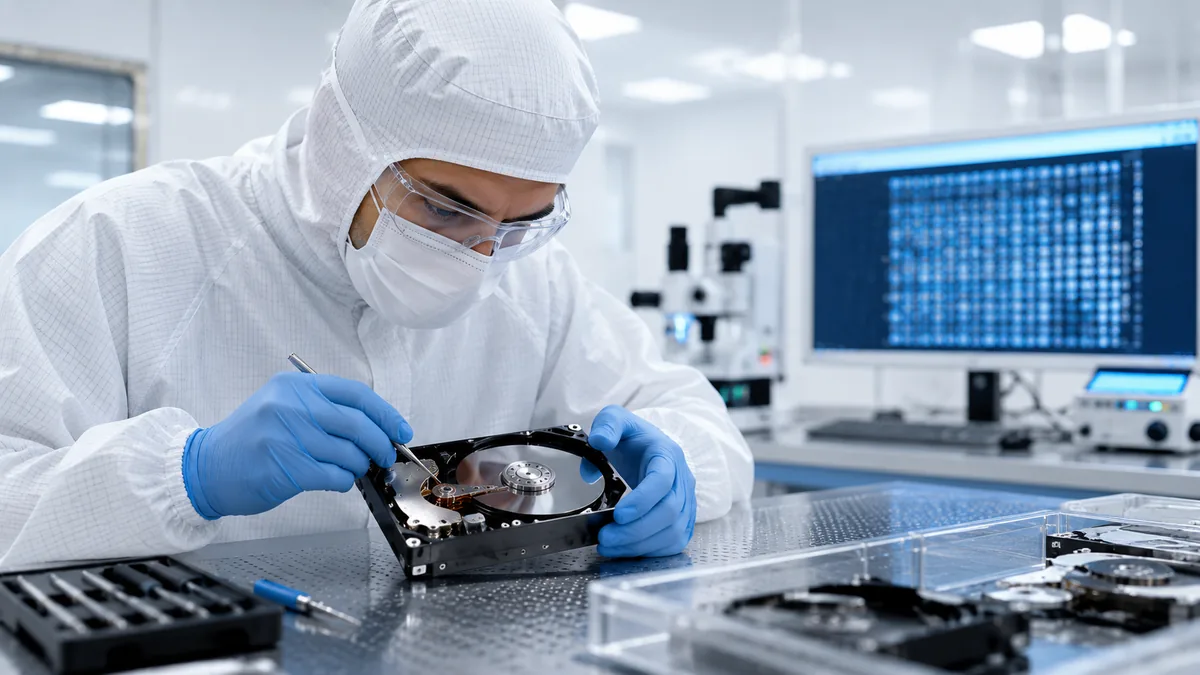
Software recovery only works on drives that are still electrically and mechanically functional. The moment a drive starts clicking, beeping, refusing to spin up, smelling burnt, or showing up intermittently — stop. The right call is a professional service with a cleanroom environment. Here's the lay of the land in 2026:
- DriveSavers — the industry's largest ISO-certified cleanroom, no-recovery-no-fee for most cases. Premium pricing, very high success rates on physical failure cases.
- Ontrack — in the recovery business 35+ years, strong on enterprise, RAID, and tape; good consumer pricing tier.
- Geek Squad — available walk-in via Best Buy, handles simple deletions to physical failures. Slower than dedicated services but accessible everywhere.
- Rossmann Group — published 5-tier pricing from $100 (basic logical recovery) up to $2,000 (complex physical failure or board-level repair). One of the few services with transparent pricing.
Typical 2026 pricing tiers for a single-drive consumer recovery: logical recovery (deleted files, formatted drives, no hardware damage) runs $100-$400; mechanical recovery (clicking, head crash) $400-$1,500; severe physical damage (water, fire, dropped) $1,000-$3,500. Most reputable services charge nothing if recovery fails — ask before sending the drive.
Preventing the Next Data Disaster
The cheapest data recovery is the one you don't need. Even one of these in place would have saved most of the people who end up reading this article:
- 3-2-1 backup. 3 copies of important data, on 2 different media types, with 1 copy offsite. The most-cited rule in IT for a reason. A cloud backup service (Backblaze, iDrive, Arq Premium) covers the "1 offsite" cheaply.
- Cloud sync ≠ backup. OneDrive, iCloud, Google Drive sync deletions just as fast as they sync new files. If you delete a file locally, it deletes in the cloud. Version history helps, but version retention varies by tier.
- SMART monitoring. Tools like CrystalDiskInfo (Windows) or DriveDx (Mac) read the drive's self-reported health metrics and warn you when reallocated sectors start climbing — usually weeks before a drive actually fails.
- SSD health checks. Manufacturer tools (Samsung Magician, Crucial Storage Executive, Intel SSD Toolbox) report wear percentage. Replace SSDs at 80%+ wear, even if they still work.
- Image important drives. Before any major OS upgrade, drive migration, or partition operation, image the drive with Macrium Reflect (Windows) or Carbon Copy Cloner (Mac). Restore is minutes; recovery from a failed migration is hours-to-days.
- Test your backups. Untested backups have a habit of being silently corrupted. Once a quarter, restore a random file from your backup and confirm it opens.
FAQ: Hard Drive Recovery in 2026
- Can I recover files from a hard drive after a quick format?
Usually yes, as long as you haven't written anything to the drive since. A quick format only wipes the file table; the actual file data remains on the platters until overwritten. Use EaseUS, Disk Drill, or PhotoRec with a deep / signature scan. A full format is harder — it writes zeros across the drive — but partial recovery is sometimes still possible.
- Why is recovering data from an SSD harder than from a hard drive?
Because of TRIM. Modern SSDs electrically erase deleted data blocks within seconds to minutes of deletion, in a process called garbage collection. Once TRIM has processed a deleted file, the underlying NAND cells have been reset — the data is genuinely gone, with no magnetic remnant for software to find. HDDs leave deleted data intact until overwritten; SSDs do not.
- What is the best free hard drive recovery software in 2026?
For most users, EaseUS Data Recovery Wizard Free (Windows or Mac) offers the best balance of ease, file coverage, and a usable 2 GB free recovery limit. For unlimited free recovery on Windows, Recuva is still unmatched. For technical users, PhotoRec (open source, 480+ file types, unlimited) is the most powerful free option.
- Can I recover files from a dead hard drive?
It depends on what "dead" means. If the drive spins but isn't recognized by Windows / macOS, software recovery often works — try Disk Drill or EaseUS, ideally after imaging the drive. If the drive doesn't spin at all, makes clicking or beeping sounds, or has obvious physical damage, software won't help — you need a professional cleanroom service like DriveSavers, Ontrack, or Rossmann Group.
- What does a clicking hard drive mean and can data still be recovered?
Clicking usually means the read/write head is physically striking the platter (a "head crash") or that the head positioner has failed. Yes, data is often still recoverable — but only if the drive is powered off immediately. Every additional second of clicking grinds metal into the magnetic platter surface and reduces what's recoverable. This is a job for a professional service, not software.
- How long does a hard drive recovery scan take?
Quick scans: seconds to a few minutes. Deep / signature scans: roughly 1-2 minutes per gigabyte for HDDs, varying with drive speed and condition. A 2 TB external HDD with a deep scan typically takes 4-8 hours. SSDs scan faster (no mechanical seek time). AI deep-scan modes in 2026 reduce this by roughly 60% in benchmark tests.
- Does Windows have built-in data recovery?
Yes. Windows File Recovery (
winfr) is free from the Microsoft Store. It's command-line only but supports two modes:Regularfor recent deletions on NTFS, andExtensivefor older deletions, formatted drives, or FAT/exFAT. Beyond that, File History, Previous Versions, and OneDrive's recycle bin and version history all provide built-in recovery paths. - Does macOS have built-in data recovery?
Trash and Time Machine are the primary built-ins. Time Machine, if you set it up, makes file recovery a one-click affair. iCloud Drive's Recently Deleted folder holds files for 30 days. macOS itself has no first-party signature-scan recovery tool — for that you need third-party software like Disk Drill or EaseUS.
- How much does professional hard drive recovery cost?
In 2026, expect: $100-$400 for logical recovery (deleted files, formatted drives, no hardware damage); $400-$1,500 for mechanical recovery (clicking drives, head crashes); $1,000-$3,500 for severe physical damage (water, fire, drops). Most reputable services offer no-recovery-no-fee evaluations. Get a written estimate before authorizing work.
- Will running CHKDSK help recover lost files?
Generally no — and it can hurt. CHKDSK rewrites the file system to restore consistency, which often means moving data into
FOUND.000folders with cryptic names, or in worst cases, marking sectors as bad and abandoning the data on them. If you care about specific files, run recovery software first; only run CHKDSK after recovery is complete or if you've decided the data isn't worth saving. - Can I recover files from an encrypted (BitLocker / FileVault) drive?
Yes — if you have the encryption key or recovery password. EaseUS Data Recovery Wizard is one of the few free tools that supports BitLocker recovery directly. Without the key, software recovery is not possible: the data on disk is ciphertext.
- Is paid recovery software actually better than free?
Sometimes. Paid versions of EaseUS, Disk Drill, Stellar, and Recoverit usually offer: unlimited recovery (vs free-tier caps), AI deep-scan modes (sometimes), faster scans, better preview, and support for more file types and RAID arrays. For a single-incident recovery under 1-2 GB, the free tiers are often enough. For repeated recoveries or large-volume cases, a one-month paid license can be cheaper than a single professional service call.
- Should I clone the drive before recovery?
Yes, if there's any sign of physical or electrical trouble — clicking, overheating, intermittent disconnects, or slow access. Use Disk Drill's byte-level imaging, ddrescue (Linux/Mac), or HDDSuperClone. Cloning gives you a working copy you can scan repeatedly without further stressing the original drive. Skip cloning only for clean drives with simple deletions.
- How can I prevent data loss in the first place?
The 3-2-1 backup rule: 3 copies of important data, on 2 different media types, with 1 copy offsite. In practice for most home users: a local external drive backup (Time Machine or File History) + a cloud backup service (Backblaze, iDrive, Arq Premium). Monitor drive health with CrystalDiskInfo or DriveDx and replace drives before they reach 80% wear / accumulate reallocated sectors.
- Is it safe to open a hard drive to try to fix it?
No. Hard drive platters are sensitive to particles smaller than visible dust; a single contaminant on the platter surface can destroy data on contact with the read/write head. Cleanroom recovery facilities operate at ISO Class 5 (cleaner than a hospital operating room) for this reason. The DIY "open the drive in a clean bathroom" advice that circulated in old forums almost always makes things worse.
Editor's Note
This guide is maintained by the SaveDelete editorial team. The original article was published December 2015 and recommended a single tool (EaseUS Data Recovery Wizard 9.8). This 2026 rewrite reflects the current state of the recovery landscape: AI-assisted scanning is now standard, SSD TRIM has fundamentally changed what's recoverable on flash storage, and the free tier of the major tools is now wide enough to handle most consumer cases. Every software recommendation above was verified live and accurate to its current 2026 free-tier limits in May 2026. If a link is broken or a tool's free tier has changed, leave a comment — we review and update this guide quarterly.
Conclusion
Hard drive recovery is one of those skills you never want to need but should always have ready. For 90% of cases on a working HDD, free software gets the job done — install EaseUS, Recuva, or Disk Drill on a different drive than the one you're recovering from, run a quick scan, and you'll usually have your files back within an hour. For SSDs, your window is much shorter and the success odds lower — act fast and don't expect miracles. For clicking, dropped, water-damaged, or burnt drives, stop, power off, and call a professional. And whichever path you take this time, set up a real 3-2-1 backup afterward — the version of you who has to read this article again next year will thank the version of you who builds that habit today.