How to Delete a Page on Google Docs | Fix Blank Page Issues

Google Docs remains one of the most popular document editors in the world, with billions of people relying on its seamless cloud-based functionality. Despite its intuitive interface, one of the most persistent challenges users face is dealing with unwanted pages that seem to appear out of nowhere. Whether it's a stubborn blank page at the end of your document or mysterious page breaks disrupting your formatting, these issues can be incredibly frustrating when you're trying to finalize important documents.
Also see - Best Google Docs Alternatives: Top Free & Paid Options for 2026
The good news is that Google Docs gives you several reliable ways to delete pages in Google Docs and maintain clean document formatting. You can cross-check any step against the official Google Docs Editors Help. This comprehensive guide will walk you through every method available, from the basic delete key techniques to advanced troubleshooting for hidden formatting elements that cause persistent blank pages.
See also: 6 Popular Ways to Edit PDF Files.
Understanding how to properly remove unwanted pages in Google Docs is essential for creating professional documents, whether you're a student submitting assignments, a business professional preparing reports, or a content creator finalizing manuscripts. We'll cover solutions for desktop and mobile, including the modern Pageless format.
Why Extra Pages Appear in Google Docs
Google Docs' formatting options can lead to unwanted pages appearing in your documents in several ways. Understanding these causes is crucial for effective page management and prevention of future formatting issues.
Primary Causes of Unwanted Pages
- Enhanced Page Break System: Google's improved page break detection can sometimes create unintended breaks
- Advanced Spacing Controls: Custom line spacing and paragraph formatting can push content to new pages
- Hidden Table Elements: Invisible tables and formatting structures that persist in documents
- Section Break Integration: New section break features that create page divisions
- Collaborative Editing Artifacts: Formatting remnants from multiple editors working simultaneously
- Import Formatting Issues: Problems arising from documents imported from Microsoft Word, PDF, or other formats
Method 1: The Delete and Backspace Technique
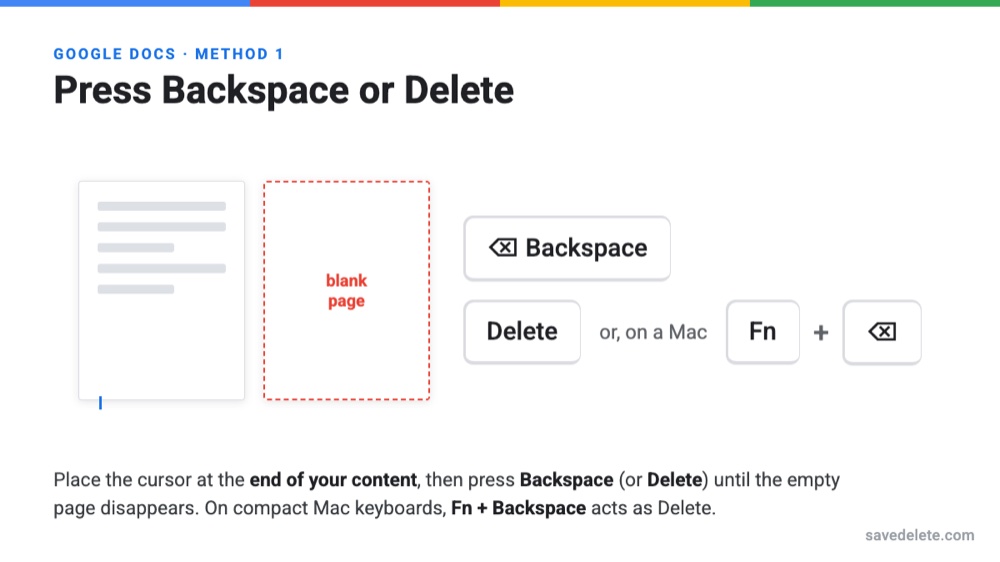
The delete and backspace keys are the quickest way to remove an unwanted page, and they resolve the majority of blank-page problems. This remains the most straightforward method for deleting blank pages in Google Docs.
Step-by-Step Delete Key Method
- Position your cursor at the very end of your document content (before the blank page)
- Use the Delete key to remove forward content, or Backspace to remove backward content
- For Mac users with compact keyboards, use Fn + Backspace to simulate the Delete key function
- Continue pressing the key until the unwanted page disappears
- If the page persists, try selecting all content on the blank page (Ctrl+A while on that page) and delete
Advanced Delete Techniques for Stubborn Pages
When standard deletion doesn't work, try these enhanced approaches:
- Multi-line Selection: Click and drag to select multiple blank lines, then delete
- Paragraph Mark Deletion: Enable "Show non-printing characters" to see and delete hidden paragraph marks
- Format Painter Reset: Use the format painter to copy formatting from a properly formatted section
Method 2: Using View Show Print Layout for Page Management
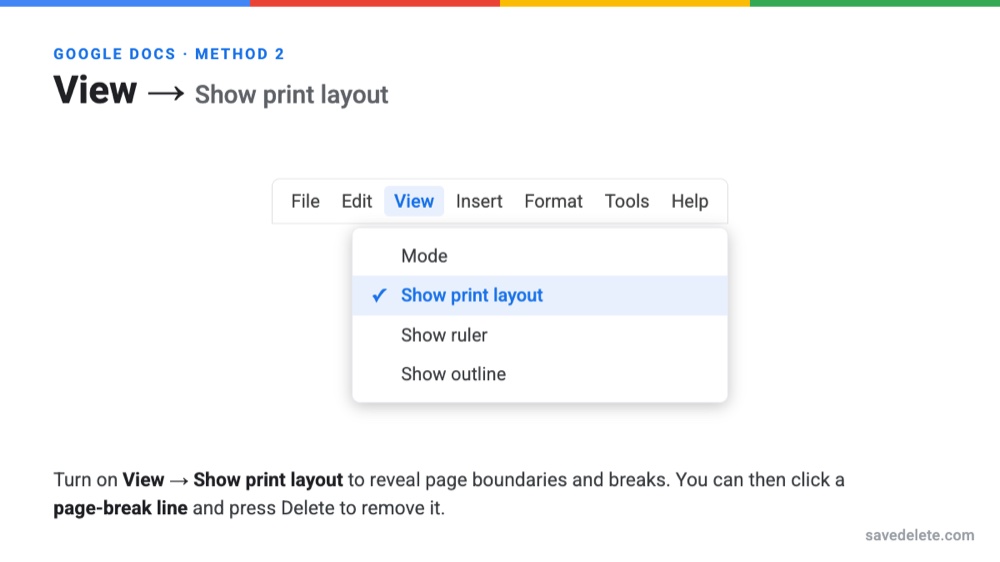
Google Docs' Print Layout view gives you a clear view of page breaks and formatting issues, making it easier to identify and remove page breaks in Google Docs.
Accessing Enhanced Print Layout View
- Navigate to View in the top menu bar
- Select Show Print Layout (if not already enabled)
- This reveals page boundaries, margins, and break points clearly
- Look for visual indicators of page breaks, section breaks, or formatting issues
- Click directly on page break lines to select and delete them
Benefits of Print Layout View for Page Management
- Clear visualization of document structure and page divisions
- Easy identification of hidden formatting elements
- Direct manipulation of page breaks and section dividers
- Real-time preview of how changes affect document layout
Method 3: Adjusting Custom Spacing Through Format Menu
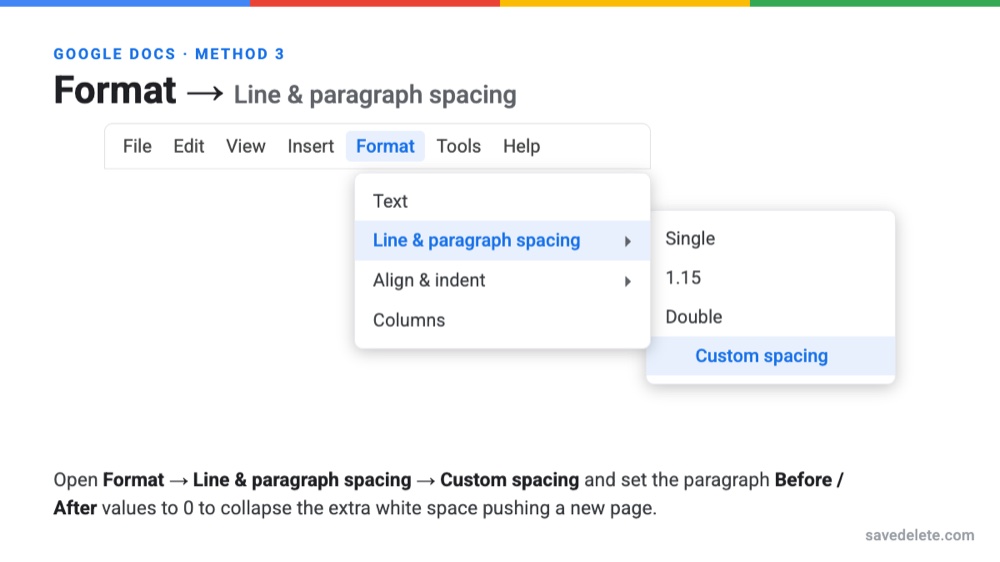
Google Docs includes spacing controls that can help eliminate pages created by excessive white space or paragraph formatting issues.
You might also be interested in Google Docs is getting a significant upgrade to formatting.
Accessing Advanced Spacing Controls
- Select the content area where unwanted pages appear
- Go to Format > Line & paragraph spacing
- Choose Custom spacing from the dropdown menu
- Adjust the following settings:
- Line spacing: Reduce from excessive values (anything above 2.0 may cause issues)
- Paragraph spacing: Minimize "Before" and "After" values
- Custom spacing: Set to 0 for both before and after if needed
- Click Apply and check if the unwanted page disappears
Optimal Spacing Settings
| Document Type | Line Spacing | Paragraph Before | Paragraph After | Best Use Case |
|---|---|---|---|---|
| Academic Papers | Double (2.0) | 0 pt | 0 pt | University submissions |
| Business Reports | 1.15 | 0 pt | 6 pt | Professional documents |
| Creative Writing | 1.5 | 0 pt | 0 pt | Manuscripts and stories |
| Web Content | 1.2 | 0 pt | 8 pt | Online publication |
Method 4: Reducing Bottom Margins via File Page Setup
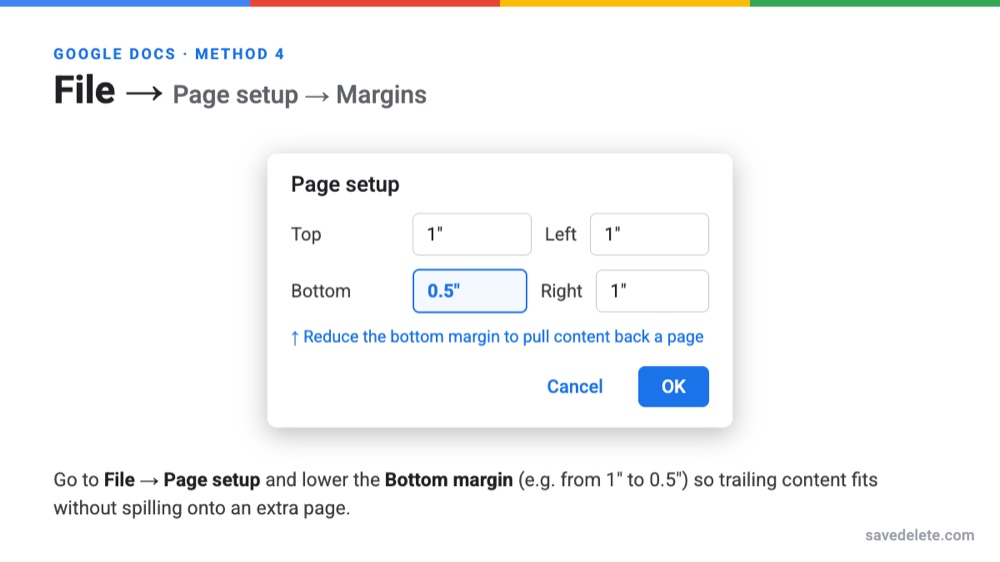
Excessive bottom margins are a common culprit for unwanted pages in Google Docs, and the Page setup dialog gives you precise control over them.
Adjusting Margins to Eliminate Extra Pages
- Click on File in the top menu
- Select Page setup from the dropdown
- In the Page setup dialog, focus on the Margins section
- Reduce the Bottom margin incrementally:
- Standard: 1 inch (2.54 cm)
- Reduced: 0.75 inch (1.91 cm)
- Minimal: 0.5 inch (1.27 cm)
- Click OK to apply changes
- Check if content now fits on the intended number of pages
Advanced Margin Optimization Strategies
- Symmetric Adjustment: Reduce all margins proportionally for balanced appearance
- Content-Specific Margins: Adjust based on document type and printing requirements
- Preview Before Finalizing: Use Print Preview to verify margin changes don't affect readability
Method 5: Removing Section Breaks and Advanced Formatting
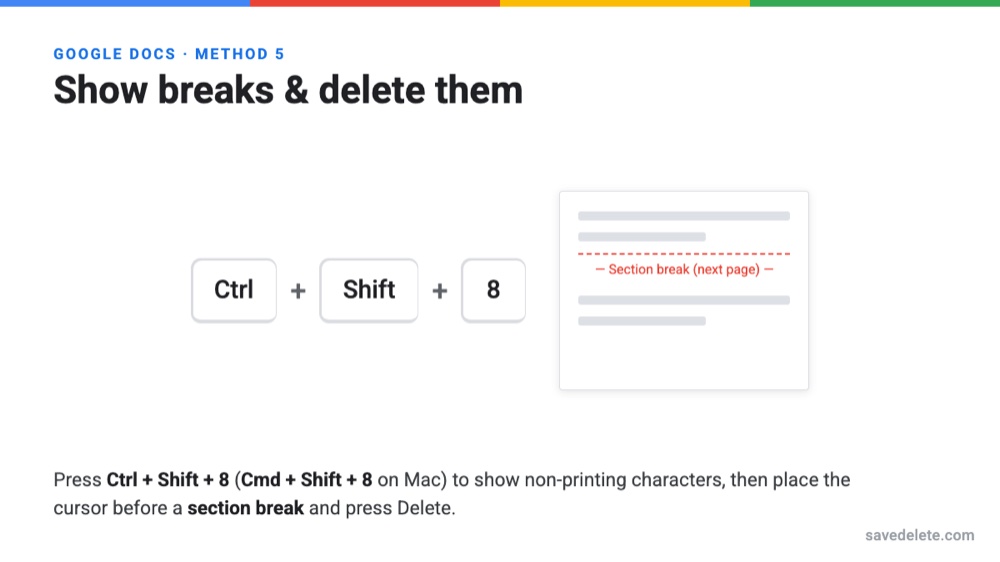
Google Docs' section breaks give you more control over document structure but can sometimes create unwanted page divisions.
Identifying and Removing Section Breaks
- Enable Show non-printing characters by pressing Ctrl+Shift+8 (Cmd+Shift+8 on Mac)
- Look for section break indicators throughout your document
- Position your cursor immediately before the section break
- Press the Delete key to remove the section break
- Repeat for all unwanted section breaks
- Disable non-printing characters view when finished
Types of Section Breaks in Google Docs
- Next Page Break: Forces content to start on a new page
- Continuous Break: Changes formatting without starting a new page
- Even Page Break: Starts content on the next even-numbered page
- Odd Page Break: Starts content on the next odd-numbered page
Method 6: Hidden Tables Troubleshooting
Hidden or invisible tables are a frequent cause of persistent blank pages in Google Docs. These can be particularly tricky to identify and remove without proper techniques.
Detecting Hidden Tables
- Click anywhere on the suspected blank page
- Press Ctrl+A (Cmd+A on Mac) to select all content on that page
- Look for selection highlights that indicate hidden table structures
- If a table is detected, you'll see table formatting options appear in the toolbar
- Right-click on the selected area and choose Delete table if the option appears
Alternative Hidden Table Removal Methods
- Table Border Visualization: Temporarily add borders to all tables to make them visible
- Format Menu Detection: Use Format > Table to identify hidden table properties
- Copy-Paste Reset: Copy content to a new document to eliminate hidden formatting
Switch to Pageless Mode (No More Page Breaks)
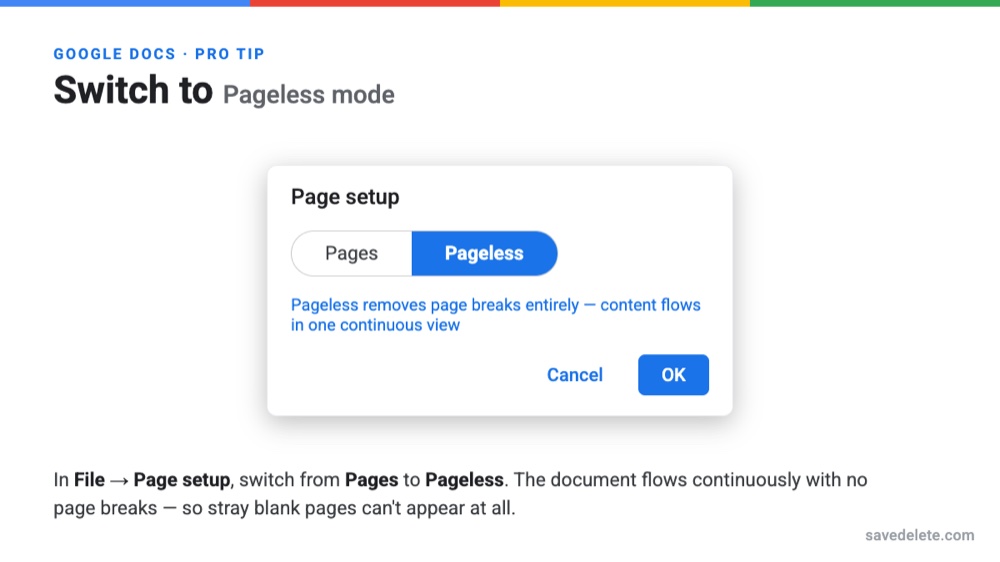
If stray blank pages keep coming back, the simplest long-term fix is to turn off pages altogether. Google Docs' Pageless format removes page breaks completely, letting your content flow in one continuous view—ideal for documents you will read on screen rather than print.
- Open File > Page setup.
- Select the Pageless tab at the top of the dialog.
- Click OK. Your document now scrolls continuously, with no page breaks or trailing blank pages.
- To switch back, return to File > Page setup and choose Pages.
Note: Pageless mode hides page-specific features such as headers, footers, page numbers and columns, so use Pages view whenever you need to print or format for a specific page size.
Mobile App Instructions: Android and iOS
Google Docs mobile apps for Android and iOS let you manage pages on the go, with most of the same controls found on desktop.
Deleting Pages on Android Devices
- Open your Google Docs document in the mobile app
- Tap to position your cursor at the end of content before the unwanted page
- Use the Backspace key on your mobile keyboard repeatedly
- For advanced options, tap the three-dot menu and select Print layout
- Tap and hold on page break lines to select and delete them
- Use the Format menu (A icon) to adjust spacing and margins
Deleting Pages on iOS Devices
- Launch Google Docs app and open your document
- Tap to place cursor before the blank page content
- Use the iOS keyboard's Delete key (backspace) repeatedly
- Access Format options by tapping the A icon in the top toolbar
- Adjust Line spacing and Paragraph spacing as needed
- Use Page setup from the menu to modify margins
Mobile-Specific Tips
- Gesture Controls: Use pinch-to-zoom for precise cursor placement
- Voice Commands: Use "Hey Google" to navigate and edit documents
- Offline Editing: Make changes offline and sync when connected
- Cross-Device Continuity: Start editing on mobile, finish on desktop
Advanced Troubleshooting for Persistent Page Issues
When standard methods fail, these advanced techniques can help resolve stubborn page problems in Google Docs.
You might also be interested in Free Online PDF to Word Converter for Easy Document Editing.
Document Reconstruction Method
- Create a new Google Docs document
- Copy content from your problematic document section by section
- Paste as plain text (Ctrl+Shift+V) to remove formatting
- Reapply formatting manually to avoid importing hidden elements
- This method eliminates persistent formatting issues
Browser and Cache Solutions
- Clear Browser Cache: Remove stored data that might cause display issues
- Try Different Browsers: Test in Chrome, Firefox, Safari, or Edge
- Disable Extensions: Turn off browser extensions that might interfere
- Incognito Mode: Use private browsing to eliminate cached conflicts
Prevention Strategies for Future Documents
Implementing these best practices can help prevent unwanted pages from appearing in your future Google Docs documents.
Document Creation Best Practices
- Use Templates: Start with Google's pre-formatted templates
- Consistent Formatting: Apply styles uniformly throughout the document
- Regular Cleanup: Periodically check for and remove unnecessary formatting
- Import Carefully: When importing from other formats, review for formatting issues
- Collaborative Guidelines: Establish formatting rules for team editing
Frequently Asked Questions (FAQ)
How do I delete a blank page at the end of my Google Docs document?
Position your cursor at the very end of your document content and press the Backspace key repeatedly until the blank page disappears. If that does not work, select all content on the blank page (Ctrl+A) and delete it. You can also check for hidden tables or formatting elements that might be keeping the page in place.
Why won't my blank page delete even after using the Backspace key?
Persistent blank pages are usually caused by hidden formatting elements like invisible tables, section breaks, or excessive paragraph spacing. Enable "Show non-printing characters" (Ctrl+Shift+8) to reveal hidden elements, or use the Format menu to set line and paragraph spacing to zero.
What is the Fn+Backspace shortcut for, and when should I use it?
The Fn+Backspace combination is mainly for Mac users with compact keyboards that lack a dedicated Delete key. It simulates the Delete key, letting you remove content forward from your cursor rather than backward like the standard Backspace.
How do I remove page breaks I can see in Print Layout view?
In Print Layout view (View > Show print layout), page-break lines are clearly visible. Position your cursor immediately before the page break and press Delete. You can also click directly on some page-break indicators to select and remove them.
Can I delete pages using the Google Docs mobile app?
Yes. You can delete pages in both the Android and iOS Google Docs apps. Use the Backspace key on your mobile keyboard, and open formatting options through the "A" icon in the toolbar to adjust spacing and margins, just like on desktop.
What is Pageless mode, and how does it help?
Pageless format removes page breaks entirely, so your document flows in one continuous view and stray blank pages cannot appear. Turn it on via File > Page setup > Pageless. Switch back to Pages view when you need headers, footers, page numbers, or to print.
What should I do if hidden tables are causing extra pages?
To detect hidden tables, click on the suspected blank page and press Ctrl+A to select everything. If you see highlights indicating a table, right-click and choose "Delete table." You can also temporarily add borders to all tables to make them visible for easier removal.
How do I adjust margins to fit content on fewer pages?
Go to File > Page setup and reduce the bottom margin incrementally. Standard margins are 1 inch, but lowering them to 0.75 or 0.5 inches fits more content per page. Avoid making margins too small for printing requirements.
Why do imported Microsoft Word documents create extra pages?
Word documents often contain formatting that does not translate perfectly to Google Docs, such as different spacing standards, section breaks, or embedded objects. When importing, review the document for formatting issues and use "Paste as plain text" (Ctrl+Shift+V) when copying content to avoid bringing over problematic formatting.
What is the best way to prevent unwanted pages in collaborative documents?
Establish clear formatting guidelines for your team, use consistent styles throughout the document, and have one person handle the final formatting cleanup. Regular reviews during collaboration catch formatting issues before they become problems.
How do I completely reset formatting to eliminate persistent page issues?
Create a new Google Docs document and copy your content section by section, pasting as plain text (Ctrl+Shift+V) to strip all formatting. Then reapply formatting manually. This removes hidden or corrupted formatting that can cause page problems.