How to Reverse Image Search on iPhone: 6 Free Ways
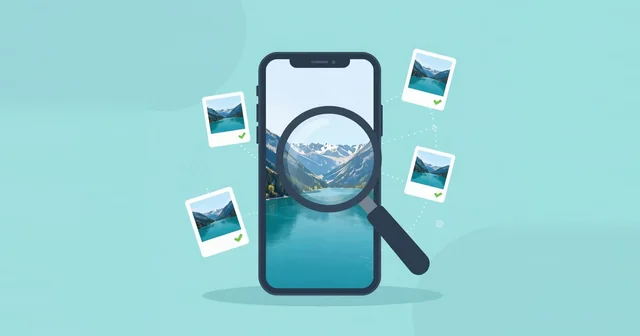
You have a photo on your iPhone and want to know where it came from, who else posted it, or what it shows. You don't need a computer for that. This guide covers six free ways to reverse image search on an iPhone, from a web tool that needs no app to Apple's own Visual Intelligence.
We checked every step against Apple's and Google's own help pages, and we tested the Safari method on iOS 27 on 29 November 2026.
How to reverse image search on iPhone
To reverse image search on an iPhone, open a reverse image search page in Safari, upload a photo from your library and pick a search engine. On an iPhone 15 Pro or later with Apple Intelligence, you can also take a screenshot and tap the search button in Visual Intelligence. The Google app and Chrome do the same job with Google Lens.
| Method | What you need | Best for |
|---|---|---|
| 1. Free tool in Safari | Any iPhone, no app | Comparing Google Lens, Bing, Yandex and TinEye |
| 2. Visual Intelligence | iPhone 15 Pro, iPhone 16 or later with Apple Intelligence | Quick searches from a screenshot or the camera |
| 3. Google app | The free Google app | Naming what is in a photo |
| 4. Chrome | The free Chrome app | Pictures on web pages |
| 5. Google Photos | The free Google Photos app | Photos already in Google Photos |
| 6. Bing app | The free Microsoft Bing app | A second opinion from Bing |
1. Use a free reverse image search tool in Safari (no app)
Our free reverse image search tool runs in Safari or any other iPhone browser. It sends one photo to four engines, so you can check each of them in turn. These are the steps we tested on iOS 27:
- Open savedelete.com/reverse-image-search in Safari.
- Tap the Upload Image tab, tap Choose File, then tap Photo Library.
- Select your photo. To keep where it was taken private, tap Options and turn off Location before you confirm.
- Tap the check mark, then tap Search Image.
- Tap Search next to Google Lens, Bing Visual Search, Yandex Images or TinEye to open that engine's results.
The tool takes JPG, PNG, GIF and WebP files up to 10 MB. If a photo is bigger, shrink it first with our free image compressor.
The Camera tab lets you photograph a product, plant or sign and search it straight away. If you have a picture's web address, paste it into the Image URL tab. Otherwise, save the picture to Photos and upload it.
2. Use Visual Intelligence on iPhone 15 Pro and later
Visual Intelligence is Apple's built-in visual search. It is part of Apple Intelligence, which Apple says runs on the iPhone 15 Pro, iPhone 15 Pro Max and iPhone 16 models or later on iOS 27. It isn't available in every language or region, and Apple Intelligence isn't available in mainland China.
Search something on your screen
- Open the photo, web page or app that shows the picture.
- Press the side button and the volume up button together, the same buttons you use for a screenshot.
- Tap the search button at the bottom to search the web for similar items. To search just one part, swipe your finger over it first.
Search something in front of you
- Start Visual Intelligence. On models with Camera Control, click and hold it. You can also put it on the Action button, the Lock Screen or Control Center.
- Point the camera at the object.
- Tap the search button to look for similar images online.
Apple notes that these searches are subject to your search provider's terms and privacy policy. Visual Intelligence is quick for naming things and finding where to buy them. To track down exact copies of a photo, TinEye through method 1 is still the better tool.
3. Use Google Lens in the Google app
Google Lens is Google's search by image. On iPhone it is built into the free Google app and Chrome, and you can also open it from google.com in Safari. It searches a photo or screenshot from your library, or whatever your camera sees.
- Install and open the Google app.
- In the search bar, tap Google Lens.
- To search a photo or screenshot you already have, tap Photo picker and select it. To search something in front of you, point the camera and tap Search.
- To search only part of the picture, drag the corners of the box around your selection.
- Scroll down to see the results.
Google says the results can include an AI overview, matches for objects in the image, similar images and websites with the same or a similar image. To narrow them down, tap Add to your search and type a few words. Google says that option is only in the Google app.
4. Search pictures on websites with Chrome
Chrome for iPhone has Google Lens built in. Google says it needs Google set as Chrome's default search engine.
- A picture on a web page: touch and hold it, then tap Search image with Google.
- A picture in Google's image results: go to google.com, search for an image and select it, then tap Google Lens at the bottom left.
- Part of a page: tap Google Lens on the left of the address bar, then draw over or tap the part you want.
- A photo from your library: open a new tab, tap Google Lens in the search bar, then tap the photo picker at the bottom left.
To help select objects, Lens in Chrome sends a screenshot of the page to Google. Google says it doesn't keep that data beyond the time it needs to answer your query.
5. Use Google Lens in Google Photos
If your pictures are backed up to Google Photos, you can search them from there:
- Open the Google Photos app.
- Select a photo.
- Tap More, then Google Lens.
Lens then shows details or actions for that photo, such as similar products, facts about a landmark or the species of a plant.
6. Try Bing's visual search
The free Microsoft Bing app has visual search. Microsoft's App Store listing says you can search right from your camera or by uploading a picture. Bing is a useful second opinion for other sizes of a picture and for similar images, because it searches its own index.
What about the Photos app's Visual Look Up?
The Photos app has a feature called Visual Look Up. Apple says it can identify landmarks, statues, famous art, plants, pets, books and food in your photos. It draws on Siri Knowledge and the web.
- Open a photo full screen, or pause a video on a frame.
- If the Info button shows stars, tap it.
- Tap Look Up at the top of the photo information.
Visual Look Up tells you what is in a picture, but it doesn't list the pages where the picture appears. So it isn't a full reverse image search. It needs iOS 15 or later and isn't available in every region or language.
Which method should you use?
| If you want to | Use |
|---|---|
| Find where a photo first appeared, or who copied it | TinEye and Google Lens through method 1 |
| Check whether a dating or social profile photo is real | Method 1, then compare what each engine finds |
| Name a plant, dog breed, landmark or product | Visual Intelligence, Google Lens or Visual Look Up |
| Search a picture on a web page | Chrome: touch and hold the picture |
| Search on an iPhone without Apple Intelligence | Method 1 or the Google app |
Each engine searches its own index, so a photo one engine misses can turn up on another. The reverse image search page also explains how to spot a fake profile photo.
How to reverse image search a screenshot on iPhone
Yes, you can reverse image search a screenshot on iPhone, and every method in this guide works with one.
- Quickly press and release the side button and the volume up button at the same time. On iPhone SE, press the Home button and the side button together.
- If a thumbnail appears in the lower left, tap it and drag the handles to crop out the status bar and anything around the picture. The engine then only sees what you want matched.
- Upload the screenshot with method 1, or tap Photo picker in Google Lens and select it. You'll find it in Photos under Collections, then Media Types, then Screenshots.
On an iPhone 15 Pro or later with Apple Intelligence, the same button press opens Visual Intelligence. You can tap the search button straight away, then choose whether to save or delete the screenshot.
Search a Live Photo or video
Live Photos are searched as a still image. Apple's guide says that services which don't support Live Photos get a still photo.
Videos can't be searched directly. Pause on a clear frame, take a screenshot and search that. In Photos, Visual Look Up also works on a paused video frame.
Keep your photo private
- Safari only sees what you pick. On iOS 27, the photo picker says Safari can only access the items you select.
- Leave out the location. After you select a photo in Safari's picker, tap Options and turn off Location. The picker then shows "Location Not Included". To strip the location from the photo itself, Apple's steps are: open the photo in Photos, tap Adjust Info, tap Adjust Location, then tap No Location.
- Crop first. Cut out faces, addresses and papers that you don't need matched.
- Know where the file goes. Our tool keeps an uploaded photo at a temporary, unlisted link so the engines can fetch it. Only the engines you tap get the link, and the file is deleted after about an hour. Once you open an engine, its own privacy terms apply.
Why a reverse image search finds nothing
- The picture is new or private. Engines can only match images they have already found online.
- The crop is wrong. Try the whole photo, then only the main subject.
- One engine missed it. Open the next engine before you give up.
- The copy is blurry. A screenshot of a screenshot loses detail, so use the sharpest version you have.
Frequently Asked Questions
Can I reverse image search on iPhone without an app?
Yes. Open savedelete.com/reverse-image-search in Safari, tap Upload Image, choose a photo from your library and tap Search Image. You can also open google.com in Safari and tap Google Lens in the search bar.
How do I search Google with a picture on iPhone?
Open the Google app, Chrome or google.com in Safari, tap Google Lens in the search bar, then pick a photo or point the camera. For a picture on a web page, touch and hold it and tap Search image with Google in Chrome, or Search inside image in the Google app.
Can I reverse image search in the iPhone Photos app?
Only partly. Visual Look Up in Photos names landmarks, art, plants, pets and more, but it doesn't list the pages where a photo appears. For that, upload the photo to an engine such as TinEye or Google Lens.
Which iPhones have Visual Intelligence?
Apple says Apple Intelligence on iOS 27 runs on the iPhone 15 Pro, iPhone 15 Pro Max and iPhone 16 models or later. Some languages and regions aren't supported yet.
Can you reverse image search on DuckDuckGo?
Not with a photo. When we checked on 29 November 2026, DuckDuckGo's image search only took words, with no way to upload a picture. Use Google Lens, Bing, TinEye or our free tool instead.
Can ChatGPT do a reverse image search?
A chatbot can describe a photo and guess what it shows, but a guess isn't a match. To find where a picture appears online, use an engine that compares it with an index of images, such as TinEye or Google Lens.
Is reverse image search safe on iPhone?
Yes, if you stick to well-known services. Upload only the photo you need, turn off Location in the picker's Options, and don't upload private documents or other people's private photos.
Does this work on iPad?
Yes. Our tool works in Safari on iPad, and Google's Lens steps cover both iPhone and iPad. Visual Look Up also runs on supported iPad models.