How to recover deleted text messages on iPhone/iPad
By Jaspal Singh
Many of us will agree that text messages are still the best way to express our thoughts to others. It remains to be the key aspect of our daily lives. There are emotions and memories attached to these text messages which are too much valuable to lose it. But what happens if you lose all your important text messages? Well, the mere thought of this scenario can scare anyone. After all, text messages are quite essential to us. If you are iPhone user and you lose your text messages accidentally then what will you do? This question alone can bewilder many.
What if this happens to you? Well, don’t worry. There is a remedy to rescue you from such awful circumstances. Enter dr.fone toolkit-iPhone Data recovery.
This is a professional and a brilliant iPhone recovery software. It is considered to be the software with highest data recovery rate of iPhones in the industry. It comes with a plethora of features. It allows you to recover your data from iPhone, iTunes and even from iCloud. It also provides you the option to recover important photos, contacts, videos, messages, call logs and much more. It provides three different ways to recover your iPhone data. You can selectively restore your data from your iCloud or iTunes backup directly to your device or even your computer. This software is compatible with all of the latest iPhone offerings such as iPhone 8Plus, iPhone 8 and even iPhone X.
If you have accidently lost your messages on your iPhone, you can use dr.fone iPhone message recovery.
When it comes to retrieving deleted messages on iPhone, it provides three different options. It allows you to recover messages directly on your iPhone as well as extract iPhone messages from your iTunes backup along with retrieving iPhone text messages from iCloud backup.
We will explain these three solutions in detail. You can use these solutions as per your requirement and scenario that you are facing. So, without further adieu, let’s discuss these solutions.
dr.fone-iPhone Data Recovery software provides you three different recovery modes to retrieve your deleted text messages from iPhone. You can download its free trial version to get started and also understand it to further help you in making a purchasing decision. Once satisfied, you can buy this software. Just download the free trial on your computer and follow instructional steps to learn how to retrieve your deleted messages.
First Solution is Recovering Deleted Text Messages on iPhone.
To start the recovery process of deleted text messages from your iPhone, first, you have to connect your iPhone to the computer. After that, you have to follow the below-mentioned steps to carry on with your recovery process.
- Once your iPhone is connected duly to the computer, run the program and then click on the “Data Recovery” button. You will now see “Recover from iOS Device” option. Choose this option from the side menu present on the right.
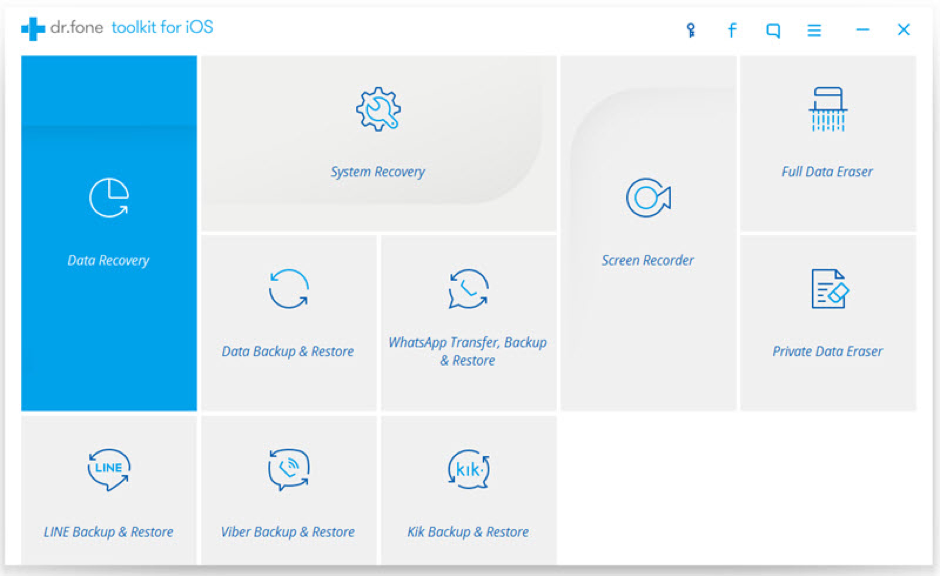
- Now check “Messages & Attachments”. Click on the “Start Scan” button which appears on the window in order to scan your iPhone.
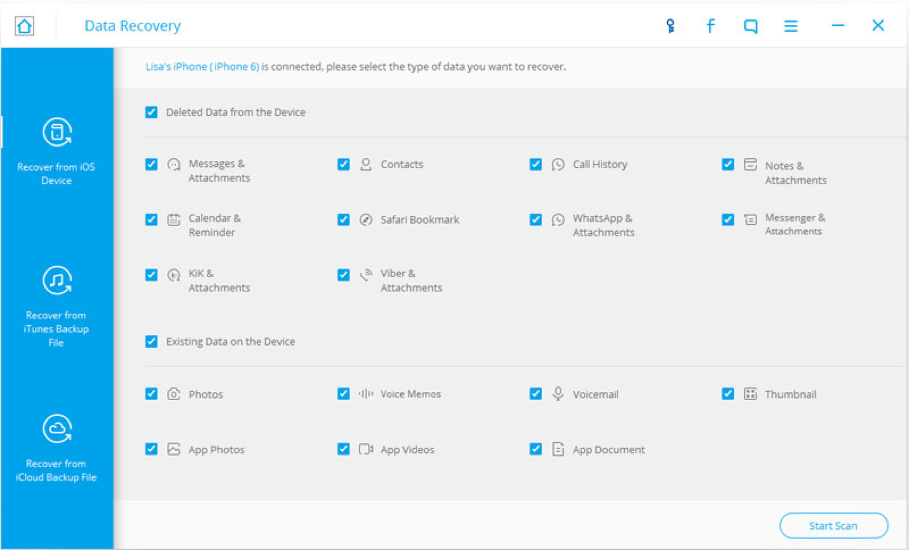
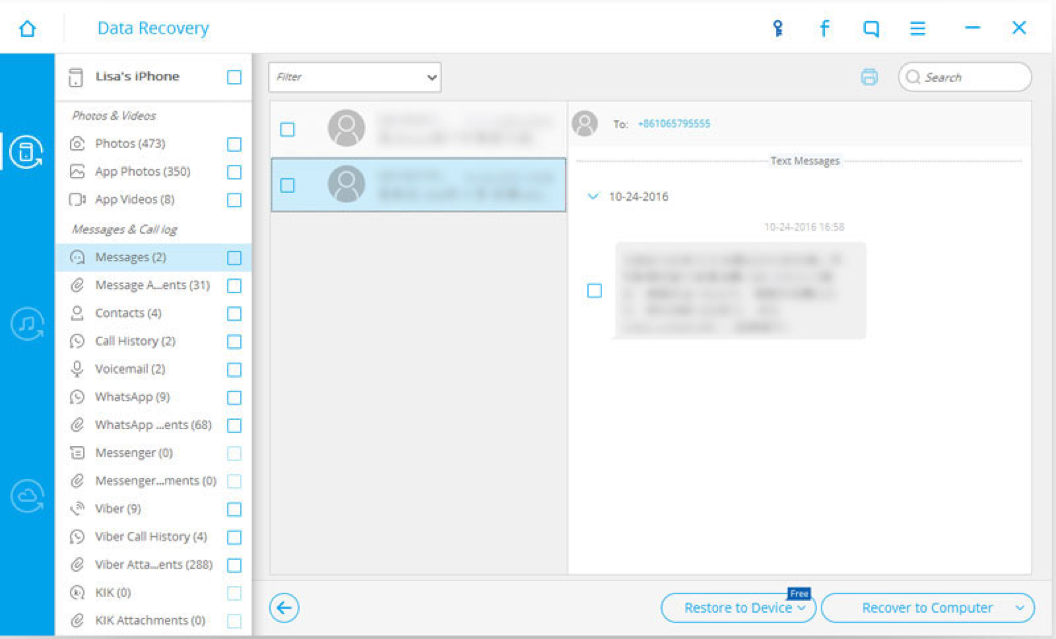
- Once the scan is completed, you can now choose “Messages” and “Message Attachments” in order to preview all of the discovered text messages, one by one.
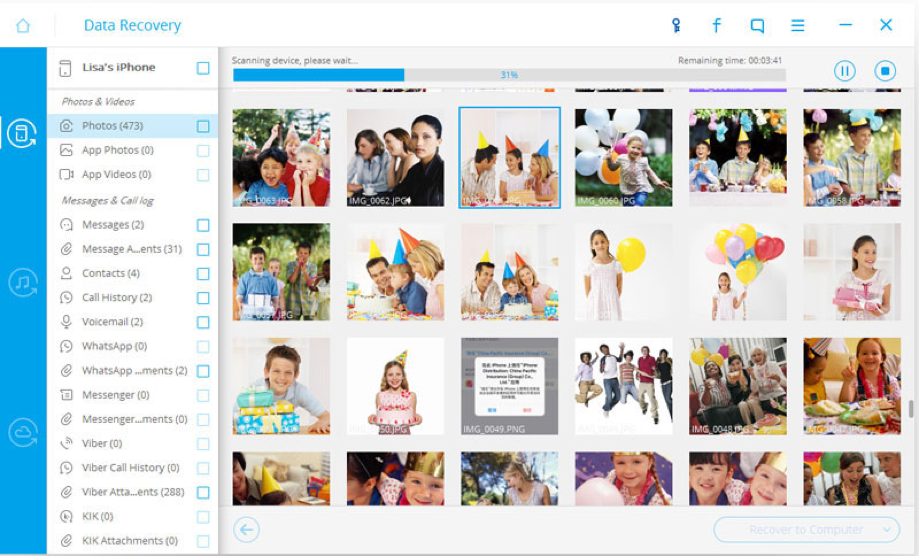
- Now, recover the items selectively which you need on to your computer or on your device.
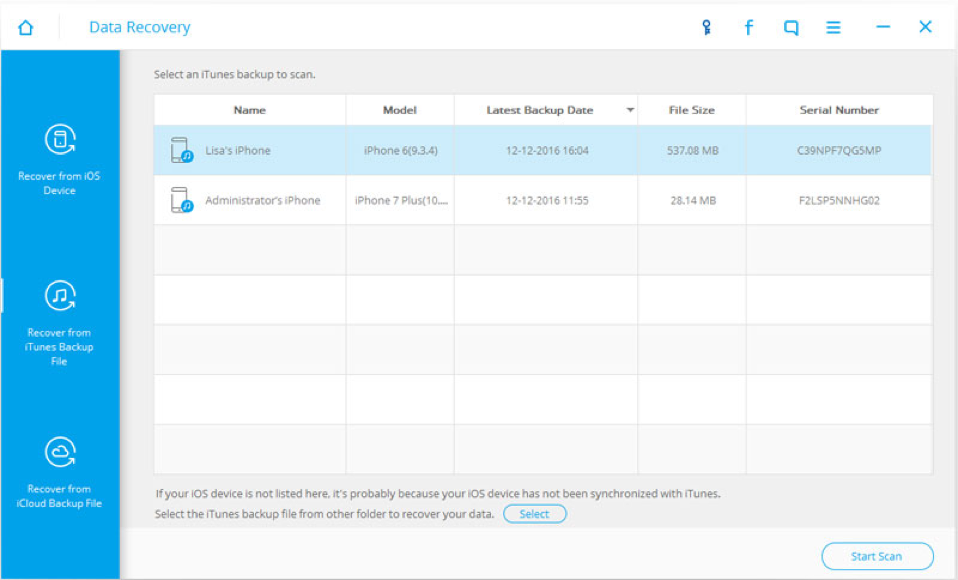
- First, you have to select the “Recover from iTunes Backup File” recovery mode from the “Data Recovery” tool.
- Once you have selected it, you now have to select the backup which you wish to recover text messages from in the list. Then click on the “Start Scan” button present on the interface to start extracting the backup content.
- All backup files that are existing on your computer are duly available for extraction.
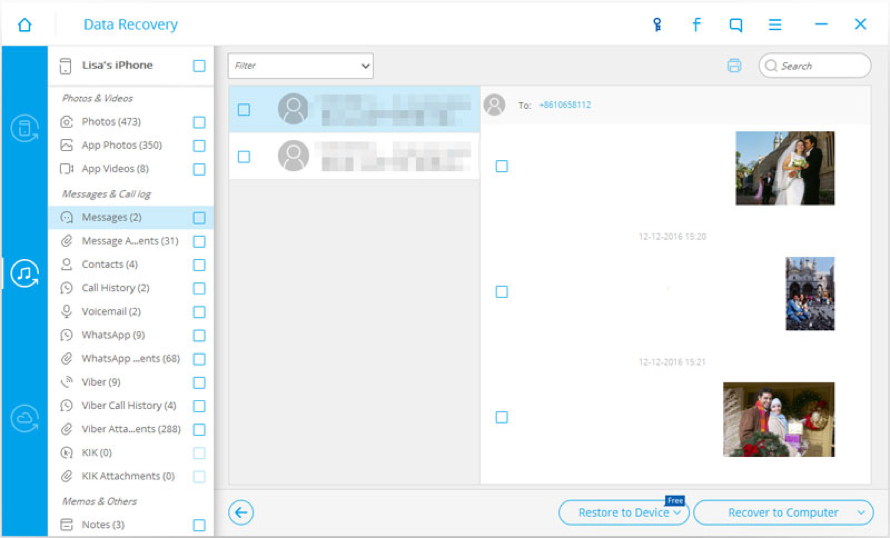
- The scan just takes a couple of seconds to complete. After scanning, you can easily preview as well as recover any messages you like in the menu of “Messages” and “Message Attachments.”
- Once you have done that, you can now recover the selected messages to your iPhone or your computer.
- At first, you have to switch to “Recover from iCloud Backup file.” Now you need to sign in your iCloud account.
- After you have successfully signed in, you can start downloading as well as extracting work. You never have to give a second thought about your account security. One of the key feature of Wondershare is that it doesn’t keep any information of your account or any data that you have during your sessions.
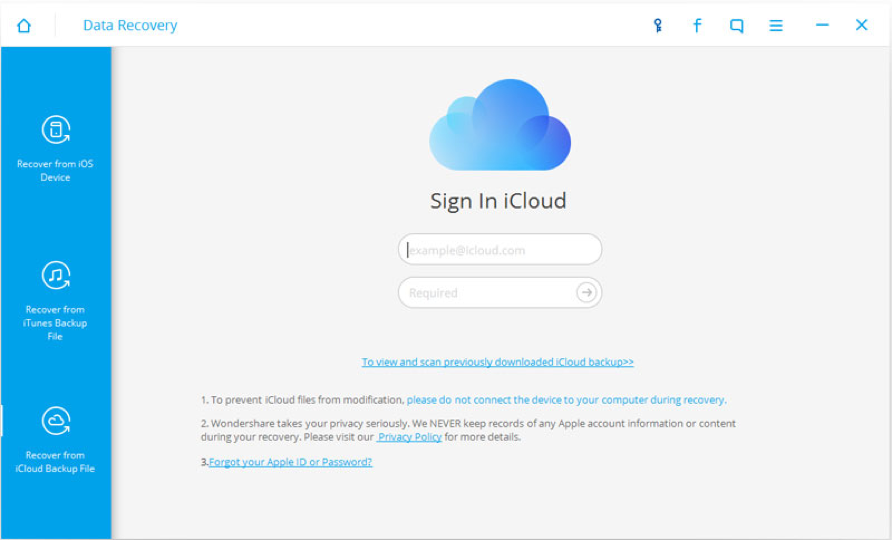
- Once you are into the system, you can easily view a list of all of your iCloud backup files under this particular account.
- Now, choose the one for your iPhone. We recommend that you select the latest one which is the best. After choosing, check “Message” as well as “Message Attachments” present on the pop-up window in case you don’t wish to download all of your data there.
- By doing the above step, you can only download the text messages along with the attachments which in turn saves your time. In case you want to choose all, then you can also do the same.
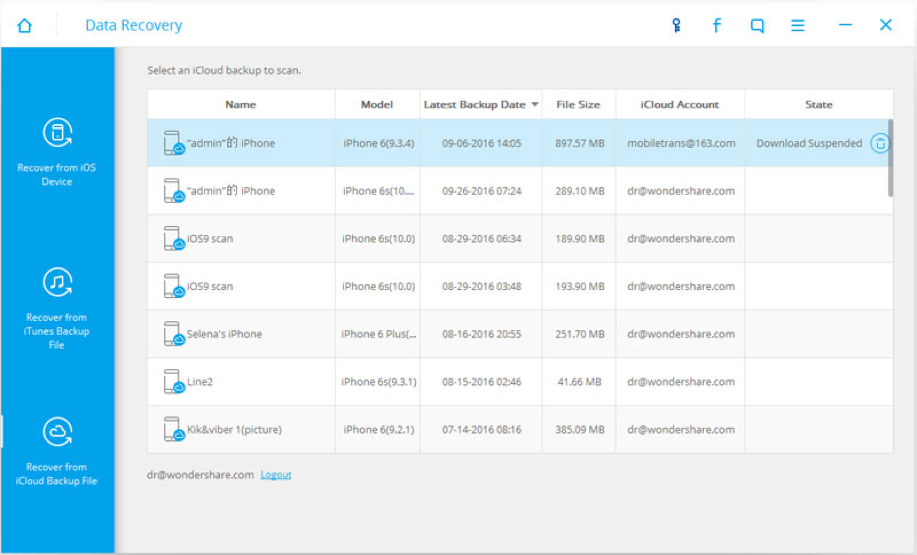
- After the completion of the download process, you can continue to extract the downloaded backup file. In order to do so, just click on the “Scan” button which appears on it. Although the backup file is unreadable, you can still extract it for reading and then recover the deleted messages from it.
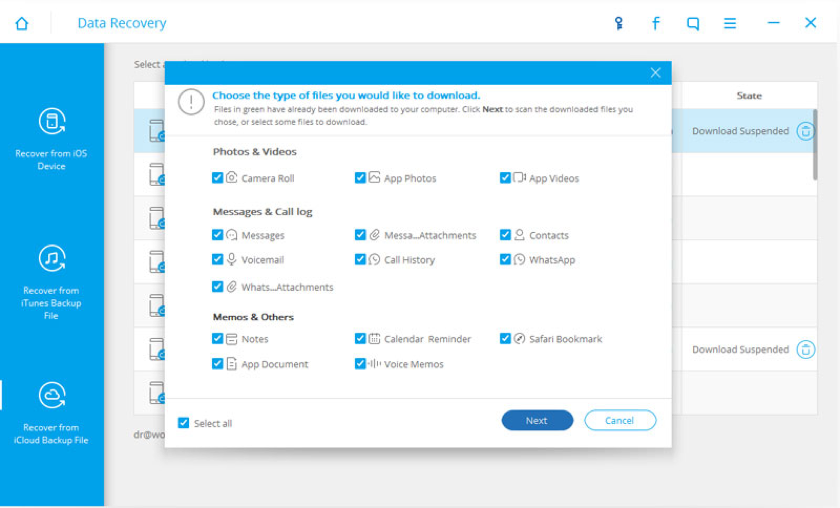
- After the scan stops, you can easily preview all of your text messages present in the iCloud backup file.
- Now, choose the text messages that you wish to retrieve and click on the “Recover” button. In this tool, “Recover to Device” as well as “Recover to Computer”, both are available. We recommend that you connect your iPhone to your computer via a USB cable and then choose the “Recover to Device” option. It will be more convenient for you to see the messages on our iPhone rather than on your computer.
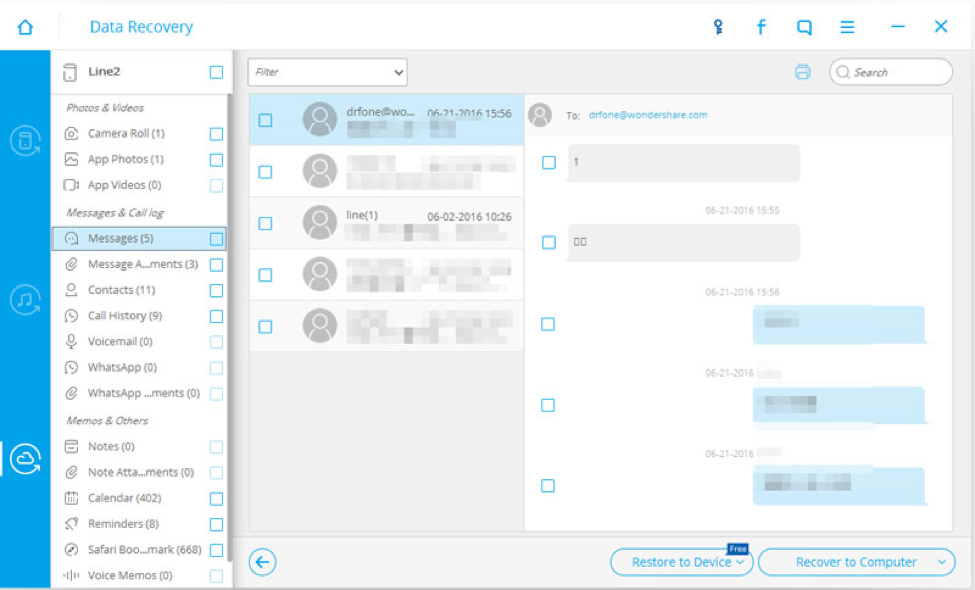
- After completion of the scan, you can see the result of scanning.
- Present on the upper right corner, there is a print icon. This icon is particularly designed for printing text message.
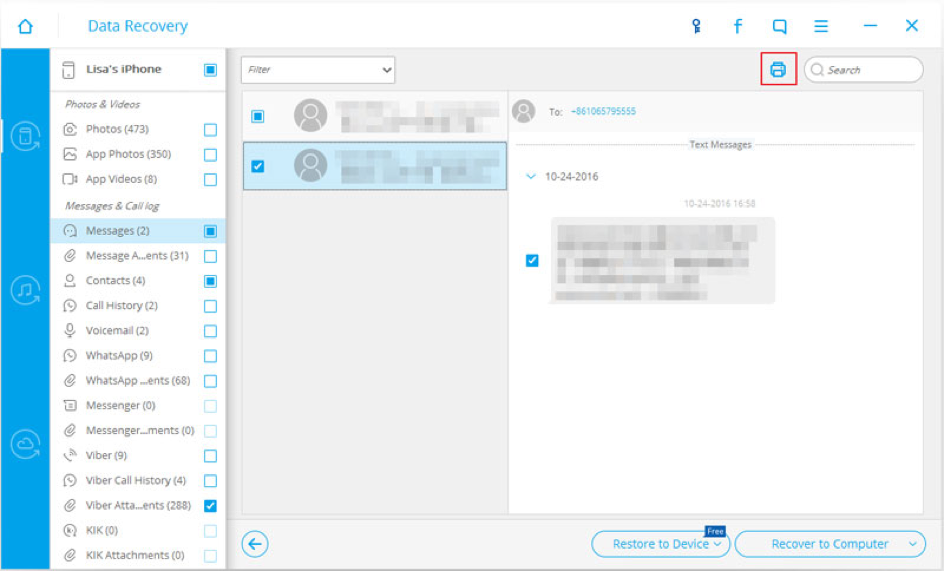
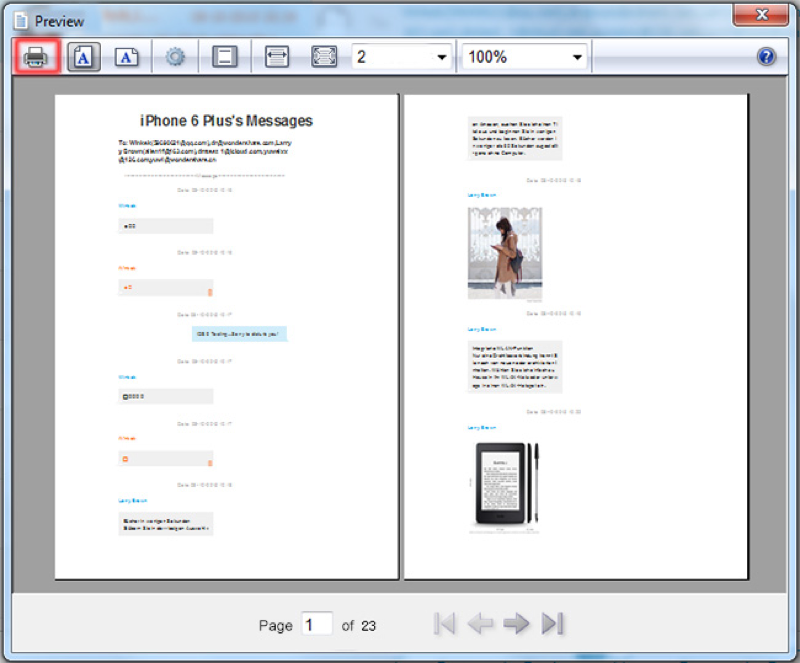
- Just click on the print icon and you can easily see the preview of the file. You are also allowed to adjust the width as well as size along with the word size.
- After completing everything, just click on the printer icon present on the upper left corner to initiate the printing process.