iOS 7 Tips and Tricks
By Jaspal Singh
So, after a long wait iOS 7 has arrived. Although the developer version was out to test and I tested it way before the release, but now its available for all.
At first iOS 7 may look totally different to you, the fluorescent area and new icons for your favorite apps can struck you as a newland.
We will be helping you with some basic and advanced features, which are bit confusing at start. Although Tim Cook has given a sneak peak at almost all major features and how to use them at the event. Still we need to polish our senses a bit, about the all new iOS 7.
Some of you may know these tricks and are using iOS 7, but we will try to keep these tricks from beginner level to advance so that you may learn a thing or two. If you know all these tricks before hand then you can know few more of these, share them with us in the comments below.
SEE ALSO : iPhone 5s - Review & How To Save Battery On iPhone
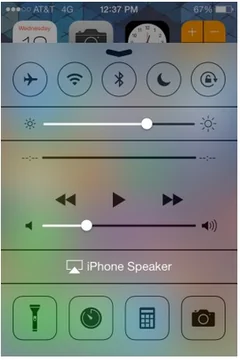
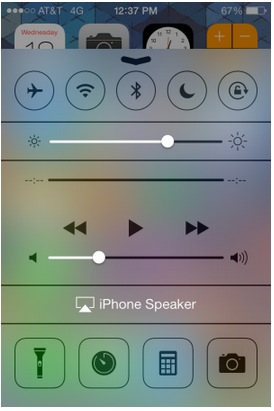 Android users are enjoying this feature from a long time, where you just swipe and tap on icons like Bluetooth, WiFI, Airplane Mode etc. This feature has now been integrated beautifully in iOS 7. Just swipe up and new Toggle screen will appear which has all the options to control your Bluetooth, WiFi, Airplane Mode, Do Not Disturb, Orientation Lock and you will also find two sliders containing brightness control and media controls.
Another great addition here is the Flashlight button, so now you don't need to download an app for flashlight anymore. While playing games this swipe up feature may interrupt, but you can easily switch it off from settings.
Android users are enjoying this feature from a long time, where you just swipe and tap on icons like Bluetooth, WiFI, Airplane Mode etc. This feature has now been integrated beautifully in iOS 7. Just swipe up and new Toggle screen will appear which has all the options to control your Bluetooth, WiFi, Airplane Mode, Do Not Disturb, Orientation Lock and you will also find two sliders containing brightness control and media controls.
Another great addition here is the Flashlight button, so now you don't need to download an app for flashlight anymore. While playing games this swipe up feature may interrupt, but you can easily switch it off from settings.
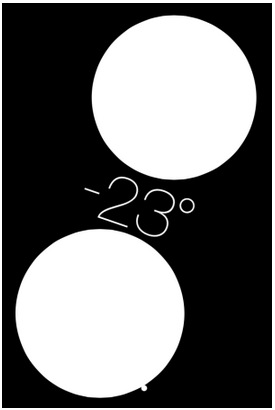 I have used the leveling app before and now iOS 7 has integrated it with the famous compass. Just swipe to the left from the compass app and you will see two big bubbles or circles with degrees in between.
The great thing about this app is that, you can reset the screen level to 0˚ at any point. Thought its a bit dull in looks but pretty effective.
I have used the leveling app before and now iOS 7 has integrated it with the famous compass. Just swipe to the left from the compass app and you will see two big bubbles or circles with degrees in between.
The great thing about this app is that, you can reset the screen level to 0˚ at any point. Thought its a bit dull in looks but pretty effective.
Search in iOS 7 (Swipe Down)
In iOS 7 to get what you need by typing in on spotlight is shifted to the top of screen, where you need to swipe down and enter text to search. As far as i know, there was a 'search on web' feature, which is no longer available now, but I personally feel that it was useless. I haven't used it since ages.Toggles are here (Swipe Up)
 Android users are enjoying this feature from a long time, where you just swipe and tap on icons like Bluetooth, WiFI, Airplane Mode etc. This feature has now been integrated beautifully in iOS 7. Just swipe up and new Toggle screen will appear which has all the options to control your Bluetooth, WiFi, Airplane Mode, Do Not Disturb, Orientation Lock and you will also find two sliders containing brightness control and media controls.
Another great addition here is the Flashlight button, so now you don't need to download an app for flashlight anymore. While playing games this swipe up feature may interrupt, but you can easily switch it off from settings.
Android users are enjoying this feature from a long time, where you just swipe and tap on icons like Bluetooth, WiFI, Airplane Mode etc. This feature has now been integrated beautifully in iOS 7. Just swipe up and new Toggle screen will appear which has all the options to control your Bluetooth, WiFi, Airplane Mode, Do Not Disturb, Orientation Lock and you will also find two sliders containing brightness control and media controls.
Another great addition here is the Flashlight button, so now you don't need to download an app for flashlight anymore. While playing games this swipe up feature may interrupt, but you can easily switch it off from settings.
Timestamps in SMS
Now you can simple swipe to left, inside your SMS and iMessage chats to get the timestamps. Before there was no such option to view a multithreaded message with timestamps on all the messages, you could only see timestamp at the beginning of chat. Trust me it does help, when you get into an argument over who sent it, and when. I love this feature.Level your workspace
 I have used the leveling app before and now iOS 7 has integrated it with the famous compass. Just swipe to the left from the compass app and you will see two big bubbles or circles with degrees in between.
The great thing about this app is that, you can reset the screen level to 0˚ at any point. Thought its a bit dull in looks but pretty effective.
I have used the leveling app before and now iOS 7 has integrated it with the famous compass. Just swipe to the left from the compass app and you will see two big bubbles or circles with degrees in between.
The great thing about this app is that, you can reset the screen level to 0˚ at any point. Thought its a bit dull in looks but pretty effective.