How to Use Gboard's Split Keyboard in 2026 (Setup Guide)
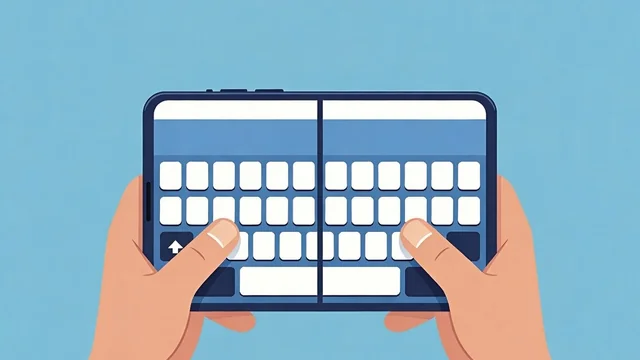
Typing on a big phone or tablet with two thumbs can be a stretch - literally. Gboard's split keyboard divides the keys into two halves so each thumb has less distance to travel. Here's how to use it in 2026.
What Is Gboard's Split Keyboard?
The split keyboard mode in Gboard separates the keyboard into left and right sections, making two-thumb typing more comfortable on large screens. It's especially useful on tablets and foldables held in landscape.
How to Enable the Split Keyboard
- Open Gboard in any text field.
- Tap the toolbar (the four-dot or arrow icon), then Settings.
- Choose Preferences, then enable Split keyboard (available on larger screens), or pinch the keyboard apart where supported.
- Use one-handed and floating modes from the same menu for more flexibility.
Tips for Comfortable Typing
The split layout works best in landscape on tablets and large phones. Combine it with Gboard's glide typing and voice input for speed. If you don't see the option, update Gboard to the latest version, since availability depends on screen size and version. For more, see our guides to free typing tools and the best Android apps.
Frequently Asked Questions
How do I split the keyboard on Android?
In Gboard, open Settings > Preferences and enable Split keyboard (on larger screens), or pinch the keyboard apart where supported. It works best in landscape on tablets and big phones.
Why don't I see the split keyboard option?
The split layout depends on your screen size and Gboard version. Update Gboard to the latest version; smaller phones may not offer it in portrait mode.
Is the split keyboard good for tablets?
Yes. It's ideal for tablets and foldables, letting you type with both thumbs while holding the device, reducing reach and fatigue.