How to Increase Download Speed: 15 Proven Methods (2026)
Gone are the days when downloading a 10GB file took the better part of a day. Most of us can now pull down movies, games, and huge files in minutes — yet slow download speeds still strike at the worst possible moment, whether you're updating a game, joining a video call, or streaming in 4K. The good news: you rarely need a whole new internet plan to fix it. Below are 15 proven ways to increase your download speed, starting with quick diagnostic checks and working up to deeper network tweaks.
How much download speed do you actually need?
Before you start tweaking, it helps to know what “fast enough” looks like. Download speed is measured in megabits per second (Mbps), and the speed you need depends entirely on what you do online. Use this table as a quick reference:
| Activity | Recommended download speed |
|---|---|
| General web browsing & email | 1–5 Mbps |
| SD video streaming | 3–5 Mbps |
| HD (1080p) streaming | 5–10 Mbps |
| 4K UHD streaming | 25 Mbps |
| Online gaming | 25–50 Mbps (low latency matters most) |
| HD video calls (Zoom, Meet) | 3–5 Mbps |
| Large downloads & cloud backups | 50+ Mbps |
| Busy household (4+ devices) | 100+ Mbps |
If your real-world speeds are well below what your plan promises, the methods below will help you reclaim the difference.
#1 Test your current download speed
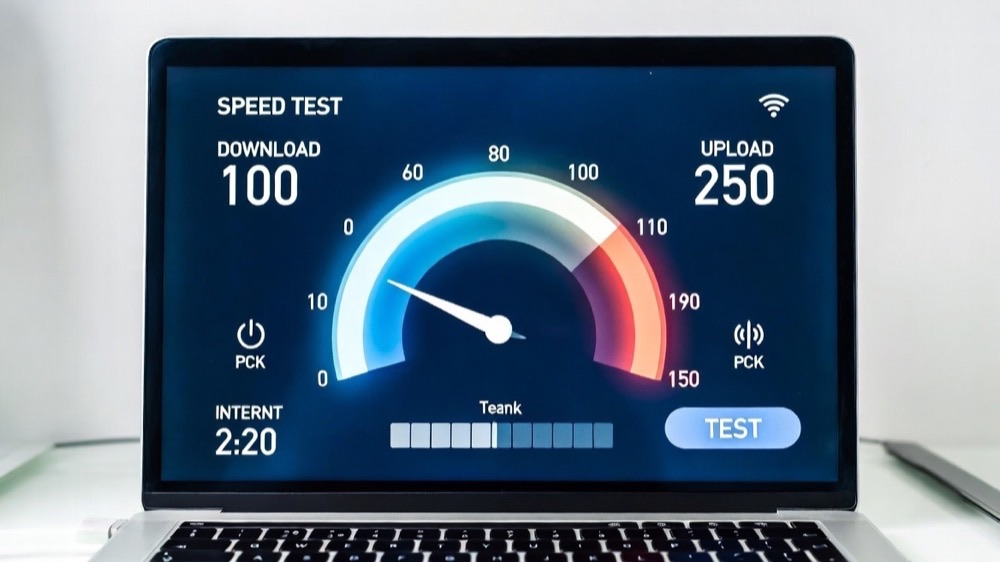
You can't fix what you can't measure. Before changing anything, run a quick speed test so you have a baseline to compare against. Free tools like Speedtest.net, Fast.com (run by Netflix), or Google's built-in speed test report your download and upload speeds in seconds. For the most accurate reading, close other apps, pause active downloads, and run the test two or three times — then compare the result with the speed your ISP advertises. If you're paying for 200 Mbps but seeing 40 Mbps, the problem is on your end (or your provider's), and the fixes below are worth your time.
#2 Restart your router and modem
It sounds almost too simple, but power-cycling your router and modem clears out memory leaks, overheating, and minor firmware glitches that quietly throttle your connection. Unplug both, wait 30–60 seconds, plug the modem back in first and let it fully reconnect, then power the router back on. A weekly restart keeps things running smoothly and often restores speeds that have slowly degraded over days of uptime.
#3 Run the network troubleshooter
If downloads are still crawling, run your operating system's built-in network troubleshooter. A misbehaving driver or a stuck network adapter can quietly cap your throughput, and the troubleshooter is the fastest way to pinpoint and reset those issues. On Windows, go to Settings → Network & Internet → Status → Network troubleshooter; on a Mac, use Wireless Diagnostics. It's a one-click check that often resolves the problem before you touch anything more advanced.
#4 Disconnect non-essential devices
Every phone, tablet, smart TV, and IoT gadget on your network competes for the same bandwidth. When too many devices download, stream, or sync at once, your own download slows to a crawl. Take charge with simple bandwidth management: disconnect devices you're not using, pause background system updates, and hold off on large uploads until your download finishes. If your router supports Quality of Service (QoS), prioritise the device you're actively using.
#5 Close background apps and bandwidth hogs
Slow downloads often have nothing to do with your connection and everything to do with what's running in the background. Cloud sync (OneDrive, Google Drive, Dropbox), automatic app and OS updates, streaming tabs, and torrent clients can silently eat most of your bandwidth. Open Task Manager on Windows (Ctrl+Shift+Esc) or Activity Monitor on a Mac, sort by network usage, and close or pause anything you don't need while downloading. Dozens of open browser tabs and extensions add up too.
#6 Use a wired (Ethernet) connection
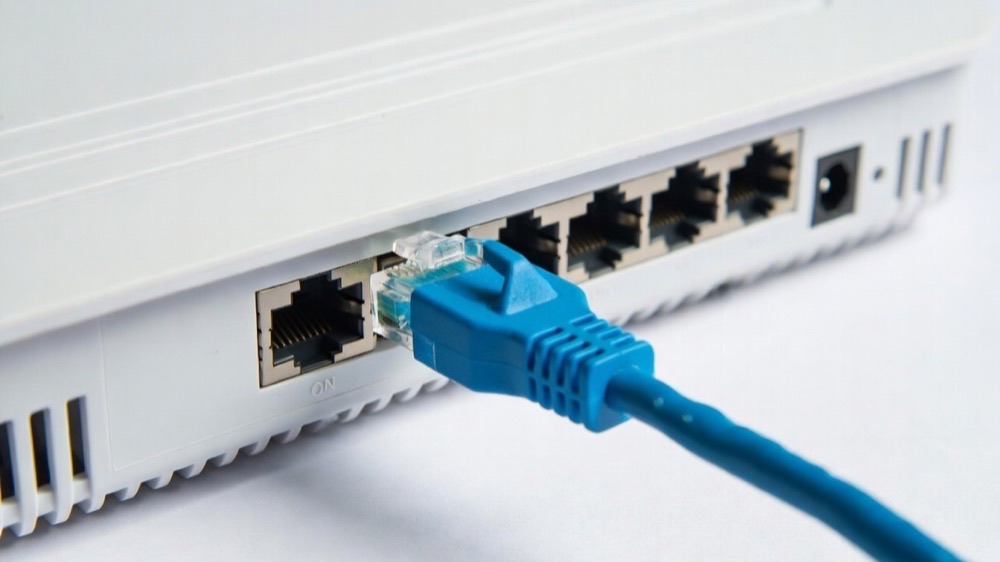
Wi-Fi is convenient, but it's also vulnerable to interference, walls, and distance. For the fastest, most stable download speeds, plug your device directly into the router with an Ethernet cable. A wired connection eliminates wireless interference and signal loss, delivers lower latency, and almost always beats Wi-Fi for large downloads. Use a Cat6 (or better) cable so the cable itself isn't the bottleneck. If running a cable across the house isn't practical, a powerline adapter is a solid middle ground.
#7 Switch to the 5 GHz Wi-Fi band
If a wired connection isn't an option and your router and device support it, connect to the 5 GHz band instead of 2.4 GHz. The 5 GHz band is far less congested and delivers significantly faster speeds at short to medium range. The trade-off is reach: 2.4 GHz travels further and penetrates walls better, so it stays the more reliable choice when you're working far from the router. Here's a good explainer on the difference between 2.4 GHz and 5 GHz.
#8 Reposition your router or add a Wi-Fi extender
Proximity to your router matters more than most people realise. Simply moving closer to the access point — or relocating the router to a central, elevated, open spot away from walls, metal, and microwaves — can noticeably boost your Wi-Fi speed. If certain rooms are still dead zones, a Wi-Fi extender or a mesh system can carry a strong signal into the corners of your home. Your baseline speed won't change, but a cleaner, stronger signal lets you actually use the speed you're paying for.
#9 Change your Wi-Fi channel
In apartments and crowded neighbourhoods, nearby networks broadcasting on the same channel overlap and slow everyone down. Logging into your router and switching to one of the non-overlapping channels — channels 1, 6, or 11 on 2.4 GHz — can clear up congestion. For the best result, use a free Wi-Fi analyzer app to see which channels are least crowded in your area, then set your router to one of them manually instead of leaving it on “Auto.”
#10 Update your router’s firmware
Router manufacturers regularly release firmware updates that improve performance, patch security holes, and fix bugs that drag down your speed. Log into your router's admin page (or its companion app) and check for an update; if you can't find your manual, search “manufacturer + model + firmware” on the maker's website. And if your router is several years old, it may simply be the bottleneck — upgrading to a modern Wi-Fi 7 router can transform speeds across every device in your home.
#11 Change your DNS server
Your DNS (Domain Name System) server translates website names into IP addresses, and a slow or unreliable one — often your ISP's default — can make everything feel sluggish. Switching to a fast public DNS such as Google Public DNS (8.8.8.8), Cloudflare (1.1.1.1), or OpenDNS can speed up how quickly pages and downloads start, and often adds a layer of security too. You can change it on your device or in your router's DNS settings. Our complete guide to choosing a DNS server walks through the best options.
#12 Use a VPN to bypass throttling
It sounds counterintuitive, but a VPN can sometimes increase your download speed by stopping your ISP from throttling specific traffic (such as streaming or large downloads). Because a VPN encrypts your activity, your provider can no longer single out and slow particular services. The catch: a slow or distant VPN server will reduce speed, so choose a reputable, fast provider and connect to a nearby server. You can start with a trusted VPN browser extension or set one up on your router to cover every device. See our roundup of the best VPN services to pick one.
#13 Use a download manager
A dedicated download manager can speed up large downloads by splitting each file into multiple parts, downloading them in parallel, and reassembling them — and it lets you pause, resume, and queue files so a dropped connection doesn't cost you the whole download. Tools like Free Download Manager or Internet Download Manager are popular choices. One important habit: download one large file at a time. When several downloads run at once, your bandwidth is divided among them, so each finishes more slowly. Queue them up and let them complete in sequence.
#14 Scan your devices for malware
Malware, adware, and cryptominers are notorious bandwidth thieves — they run hidden processes that upload your data or pull down payloads in the background, throttling everything else. If your speeds dropped suddenly for no obvious reason, run a full scan with a trusted antivirus or anti-malware tool and remove anything suspicious. Keeping your security software and OS up to date prevents reinfection. Our guide to the best malware removal tools can help you clean an infected PC.
#15 Upgrade your data plan
If you've worked through every method above and your speeds still fall short, the bottleneck may simply be your internet plan. Compare your typical speed-test results against the requirements in the table near the top of this guide. If you're regularly maxing out your connection — or your household has grown more devices and 4K streams than your plan was built for — it may be time to call your ISP and upgrade to a faster tier, or move to a fibre connection where available.
Frequently Asked Questions
Why is my download speed so slow even on fast internet?
Slow speeds on a fast plan usually come from Wi-Fi interference, too many connected devices, background apps eating bandwidth, an outdated router, or ISP throttling. Start by running a speed test on a wired connection — if it's much faster than Wi-Fi, your wireless setup is the culprit.
How do I test my download speed?
Use a free tool like Speedtest.net, Fast.com, or Google's speed test. For an accurate reading, close other apps, pause downloads, connect via Ethernet if possible, and run the test two or three times, then compare the result with the speed your ISP advertises.
Does a wired (Ethernet) connection really increase download speed?
Yes. A wired Ethernet connection eliminates the interference, signal loss, and congestion that affect Wi-Fi, so it's almost always faster and more stable for large downloads. Use a Cat6 or better cable so the cable itself doesn't become the bottleneck.
Can a VPN increase download speed?
A VPN usually adds a little overhead, but it can increase speed when your ISP is throttling certain traffic, because it hides what you're doing. Choose a fast, reputable provider and connect to a nearby server for the best results.
What is a good download speed?
It depends on what you do. Around 25 Mbps handles 4K streaming, 25–50 Mbps suits online gaming, and a busy household with several devices is comfortable at 100 Mbps or more. See the reference table near the top of this guide for activity-by-activity recommendations.
Does changing my DNS server make downloads faster?
Switching to a fast public DNS like Cloudflare (1.1.1.1) or Google (8.8.8.8) mainly speeds up how quickly websites and downloads start resolving rather than raw throughput, but it can make browsing feel noticeably snappier and more reliable.
Why is my download speed faster than my upload speed?
Most home internet plans are asymmetric: they're designed to give you far more download bandwidth than upload, since people download much more than they upload. It's normal — if you need faster uploads, look for a symmetrical fibre plan.
Conclusion
Slow downloads are frustrating, but they're rarely permanent. Start with the quick wins — test your speed, restart your hardware, and switch to a wired connection — then work through the Wi-Fi, DNS, and VPN tweaks to squeeze out every last megabit. With a little effort you'll spend far less time staring at progress bars and a lot more time actually using your connection. And if you've tried everything and speeds are still poor, your ISP is the next call.