How to Upload Photos to Instagram from a PC or Mac (2026)
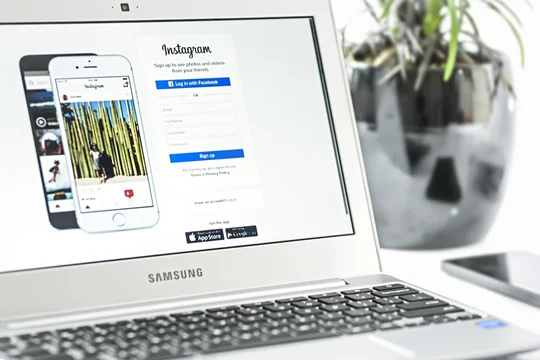
Instagram started life as a mobile-first photo-sharing app, so for years you couldn’t post from a computer without a workaround. The good news: that’s no longer true. Instagram now lets you upload photos and videos directly from the web on a PC or Mac — no tricks, no extra software. Here’s how, plus a couple of options for scheduling and managing posts from your desktop.
Post to Instagram from a Computer (the Easy Way)
Instagram’s website now supports posting natively. Here’s the step-by-step:
- Open instagram.com in any modern browser (Chrome, Safari, Edge or Firefox) and log in.
- Click the Create button (the “+” icon) in the top bar or left-hand menu.
- Choose Post, then select the photo or video from your computer (drag-and-drop also works).
- Crop, add filters or adjustments, then write your caption, add a location and tag people.
- Click Share — your post goes live just like it would from the app.
A few advanced features (like tagging products or fully editing Reels) are still easier in the mobile app, but for everyday photo posts the website does everything you need.
Schedule Posts with Meta Business Suite (Free)
If you want to plan ahead, Meta Business Suite lets you upload, schedule and publish Instagram posts, Stories and Reels from your desktop for free — as long as your Instagram account is linked to a Facebook Page. It’s the official way to queue content in advance.
Third-Party Schedulers for Creators
For a full content calendar and analytics, third-party tools such as Later, Buffer and Hootsuite let you bulk-upload, schedule and manage Instagram (and other social accounts) from your computer.
The Old Browser Trick (Rarely Needed Now)
Before native web posting existed, people used their browser’s developer tools to make Instagram think they were on a phone. You generally don’t need this anymore, but if you ever do: in Chrome press F12 (or Ctrl/Cmd+Shift+I) and click the device-toolbar icon to emulate a phone; in Safari, enable the Develop menu in Preferences → Advanced, then choose Develop → User Agent → an iPhone option. Reload Instagram and the mobile upload button appears.
Frequently Asked Questions
Can you post to Instagram from a computer?
Yes. Instagram’s website now supports posting natively — just log in at instagram.com, click the “+” Create button and upload your photo or video. You no longer need a phone or a browser trick.
How do I upload photos to Instagram from a Mac or PC?
Open instagram.com in any browser, log in, click Create (the “+” icon), choose Post, select your image from your computer, add a caption and click Share.
Can I schedule Instagram posts from my desktop?
Yes. Meta Business Suite (free) lets you schedule Instagram posts, Stories and Reels from a computer if your account is linked to a Facebook Page. Tools like Later and Buffer offer scheduling plus a content calendar and analytics.
Can I post Reels or Stories from a computer?
You can upload Reels and Stories through Meta Business Suite and many third-party schedulers. The instagram.com website mainly handles feed posts, while full Reels editing is still easiest in the mobile app.
Is it safe to upload to Instagram from a browser?
Yes — using the official instagram.com site or Meta Business Suite is completely safe. Only enter your login on Instagram’s real website, and avoid third-party apps that ask for your Instagram password directly.