Miracast "Available, with HDCP": What It Means and How to Use It
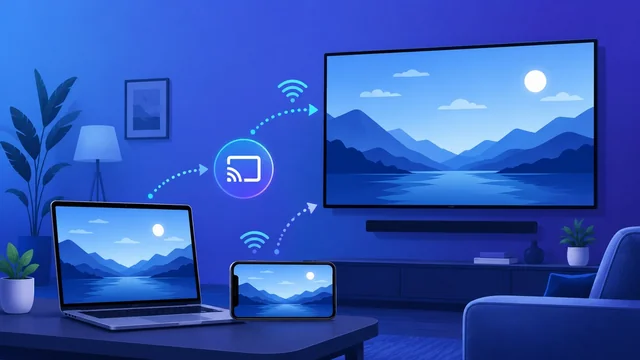
If you ran the DirectX Diagnostic Tool (dxdiag) and saw the line Miracast: Available, with HDCP, your Windows PC reports that it can send its screen wirelessly to a Miracast receiver, such as a smart TV, projector, wireless display adapter or another Windows PC. This guide covers what the status means, two ways to check it, how to connect in Windows 11, and what to do when Miracast is missing or fails to connect.
What Miracast Is
Miracast is a wireless screen-mirroring standard from the Wi-Fi Alliance, first introduced in September 2012. It is built on Wi-Fi Direct, so the PC and the receiver connect to each other directly. They do not need to share a router, although Windows can also use a network-based version (covered below). Video is compressed with H.264, and the session is controlled over RTSP on port 7236.
In practice, it is the technology behind the Cast option in Windows. You can use it to show slides on a meeting-room screen, play a video on a TV, or extend your desktop to a second display without an HDMI cable.
What "Available, with HDCP" Means
The dxdiag status tells you two things:
- Available: your Wi-Fi adapter and graphics driver both support Miracast, so Windows can project to a Miracast receiver.
- with HDCP: the link supports HDCP (High-bandwidth Digital Content Protection). This is the copy-protection system that protected video uses over HDMI and similar connections.
If the status says Not Supported (sometimes followed by a reason, such as the graphics driver), Windows cannot project over Miracast in its current state. The fixes section below explains what to try.
How to Check Miracast Support on Your PC
Method 1: DirectX Diagnostic Tool (dxdiag)
- Press Windows + R to open the Run box.
- Type dxdiag and press Enter.
- Wait for the tool to finish detecting your hardware, then click Save All Information.
- Choose where to save the text file and click Save.
- Open the file and search for Miracast. "Available, with HDCP" means your PC supports it.
Method 2: Command Prompt (netsh)
This method also tells you whether the Wi-Fi driver or the graphics driver is the problem.
- Press Windows + R, type cmd and press Enter.
- Type netsh wlan show drivers and press Enter.
- Look for the Wireless Display Supported line near the bottom of the output.
A fully supported PC shows Wireless Display Supported: Yes (Graphics Driver: Yes, Wi-Fi Driver: Yes). If either driver shows No, you know which driver to update.
A quicker check is to press Windows + K. If the Cast panel opens and starts searching for displays, your PC supports wireless display.
How to Connect to a Miracast Display in Windows 11
Microsoft ended support for Windows 10 on 14 October 2025, so these steps are for Windows 11. Windows 10 uses similar options, but its menus are named differently.
- Turn on the TV, projector or adapter. If it needs to be switched to a screen-mirroring or wireless-display input, do that first.
- Make sure Wi-Fi is turned on in your PC's Quick Settings.
- Press Windows + K, or open Quick Settings and select Cast.
- Select your display from the list. Some TVs will ask you to accept the connection on screen.
- Once connected, press Windows + P to choose Duplicate, Extend or Second screen only.
You can also add the display from Settings > Bluetooth & devices > Add device > Wireless display or dock. While you are casting, a Cast icon appears in the taskbar. To disconnect, press Windows + K again and select Disconnect.
Projecting to a Windows 11 PC
To use a Windows 11 PC as the receiver, for example to mirror a phone or another laptop onto it, that PC needs the Wireless Display optional feature:
- On the receiving PC, go to Settings > System > Projecting to this PC.
- Select Optional features, then View features.
- Search for wireless display, install it, then set your projecting preferences on the same page.
The feature only needs to be installed on the PC you are projecting to, not the one you are projecting from.
How to Fix Miracast Not Working
Status says "Not Supported"
- Update both drivers. Download the latest Wi-Fi and graphics drivers from your PC maker's or chip maker's support site, or check Windows Update (including optional driver updates). Then run netsh wlan show drivers again.
- Older hardware. PCs upgraded from older versions of Windows may have Wi-Fi or graphics hardware that never supported Miracast. If updated drivers still report No, no setting will change that.
- Use a different route. If your PC cannot use Miracast, you can connect with an HDMI cable, or use a casting receiver that comes with its own software instead of relying on Windows' built-in Miracast.
Status says "Available" but it will not connect
- Restart both the PC and the receiver, and make sure the receiver is in mirroring or discovery mode.
- Keep the PC close to the receiver while connecting. Miracast creates its own Wi-Fi Direct link, so distance and interference matter.
- Temporarily disable VPN software and third-party firewalls, which can block the connection. Miracast uses RTSP on port 7236.
- Remove the display under Settings > Bluetooth & devices, then add it again.
- Check that the receiver's firmware is up to date.
Miracast over Infrastructure
Many meeting-room systems support Miracast over Infrastructure (MS-MICE), a Microsoft extension that sends the stream over the local network rather than a direct Wi-Fi link. It is supported from Windows 10 version 1809 onwards. If the receiver's name can't be resolved on the network, Windows falls back to a standard Wi-Fi Direct connection. Android devices do not support this extension.
Miracast from an Android Phone
Android support for Miracast depends on the phone maker. Samsung Galaxy phones include Smart View, Samsung's screen-mirroring service, under Settings > Connected devices > Smart View. Other brands often list it as Screen mirroring, Cast or Wireless display in Quick Settings or connection settings. Google Pixel phones and Chromebooks do not support Miracast and use Google Cast instead.
If your phone hides its built-in mirroring option, you can download and install the Miracast app from the Google Play store. It is called "Miracast - Wifi Display" by The Tree Team, is free with ads and in-app purchases, and has more than 10 million downloads. The developer's related Wireless Display app describes itself as a shortcut to Android's built-in Miracast feature. Apps like this open the phone's own casting controls; they cannot add Miracast to a phone whose hardware or software does not support it. Once the casting screen opens, pick your TV or adapter from the list and accept the connection on the TV if asked.
To mirror a phone onto a Windows 11 PC, install the Wireless Display feature on the PC as described above.
Frequently Asked Questions
What does "Miracast: Available, with HDCP" mean?
It means your PC's Wi-Fi and graphics drivers support Miracast, so Windows can mirror or extend your screen to a Miracast TV, projector or adapter. The "with HDCP" part means the wireless link supports HDCP, the copy-protection system used for protected video.
What is HDCP and why does it matter for Miracast?
HDCP (High-bandwidth Digital Content Protection) encrypts video as it travels between devices to prevent copying. Some protected video may need a connection that supports HDCP to play on an external display. That is why dxdiag reports whether your Miracast link includes it.
What should I do if Miracast shows no HDCP or Not Supported?
Update your Wi-Fi and graphics drivers first, then run netsh wlan show drivers to see which driver reports No. If your hardware still doesn't support it after the updates, use an HDMI cable or a casting receiver that has its own software.
How do I connect Miracast on Windows 11?
Turn on your TV or adapter and set it to screen-mirroring mode. Then press Windows + K (or select Cast in Quick Settings) and choose the display. Use Windows + P to switch between Duplicate, Extend and Second screen only.
Why does my PC say Available but still fail to connect?
The usual causes are outdated drivers, VPN or firewall software blocking the connection, a receiver that is not in mirroring mode, or too much distance between the PC and the receiver. Restart both devices, remove and re-add the display, and disable your VPN while connecting.
Can I use Miracast from an Android phone?
Many Android phones, including Samsung Galaxy models with Smart View, support Miracast through their screen-mirroring setting. Google Pixel phones do not support Miracast and use Google Cast instead.