
Sora AI, OpenAI's groundbreaking text-to-video generation model, has revolutionized how we create video content. In this comprehensive guide, you'll learn everything you need to know about using Sora AI effectively in 2025, from basic setup to advanced techniques that will help you create stunning videos from simple text prompts.
Whether you're a content creator, marketer, educator, or simply curious about AI-powered video generation, this guide will walk you through the entire process step-by-step. You'll discover how to craft effective prompts, optimize your workflow, avoid common pitfalls, and maximize the potential of this powerful AI tool.
What You'll Learn
By the end of this guide, you'll be able to:
- Set up and access Sora AI through various platforms
- Write effective prompts that generate high-quality videos
- Understand the technical capabilities and limitations
- Apply advanced techniques for professional results
- Troubleshoot common issues and optimize performance
- Integrate Sora AI into your existing content workflow
Prerequisites
Before diving into Sora AI, ensure you have the following:
- OpenAI Account: A verified OpenAI account with ChatGPT Plus or Pro subscription
- Stable Internet Connection: High-speed internet for uploading prompts and downloading generated videos
- Modern Web Browser: Chrome, Firefox, Safari, or Edge (latest versions recommended)
- Basic Understanding: Familiarity with AI tools and prompt engineering concepts
- Storage Space: Adequate local storage for downloading and managing video files
- Video Editing Software: Optional but recommended for post-processing (Adobe Premiere, DaVinci Resolve, or similar)
Understanding Sora AI Capabilities
Before jumping into the how-to steps, it's crucial to understand what Sora AI can and cannot do in 2025:
Current Capabilities
- Video Length: Generate videos up to 60 seconds in duration
- Resolution: Support for up to 1080p HD video output
- Aspect Ratios: Multiple formats including 16:9, 9:16, 1:1, and custom ratios
- Content Types: Realistic scenes, animated sequences, abstract concepts, and hybrid styles
- Camera Movements: Dynamic camera work including pans, zooms, and tracking shots
- Character Consistency: Improved ability to maintain character appearance across scenes
Current Limitations
- Processing Time: Generation can take 2-10 minutes depending on complexity
- Physics Accuracy: Some unrealistic physics in complex scenes
- Text Rendering: Limited accuracy in generating readable text within videos
- Fine Details: May struggle with intricate hand movements or facial expressions
- Usage Limits: Monthly generation limits based on subscription tier
Step 1: Accessing Sora AI
Getting started with Sora AI requires proper access through OpenAI's platform:
- Visit OpenAI's Website: Navigate to openai.com and log into your account
- Verify Subscription: Ensure you have an active ChatGPT Plus ($20/month) or Pro ($200/month) subscription
- Access Sora Interface: Look for the "Sora" option in your dashboard or navigate directly to the Sora interface
- Review Usage Limits: Check your current monthly allocation and remaining credits
- Accept Terms: Review and accept the updated terms of service for video generation
Pro Tip: ChatGPT Pro users get significantly higher usage limits and priority processing, making it worthwhile for heavy users.
Step 2: Crafting Your First Prompt
The quality of your generated video heavily depends on how well you structure your text prompt:
- Start Simple: Begin with a basic scene description like "A golden retriever playing in a sunny park"
- Add Visual Details: Include specific visual elements: "A golden retriever with flowing fur playing fetch in a sunny park with green grass and blue skies"
- Specify Camera Work: Add camera instructions: "Wide shot of a golden retriever playing fetch, camera slowly zooms in, cinematic lighting"
- Include Style Preferences: Mention artistic style: "Cinematic wide shot of a golden retriever playing fetch, warm golden hour lighting, shallow depth of field"
- Set Duration Expectations: While not always honored, you can suggest timing: "30-second clip of..."
Prompt Structure Template
Use this template for consistent results:
[Camera Shot] + [Subject/Action] + [Environment] + [Lighting] + [Style] + [Duration]
Example: "Medium shot of a chef preparing pasta in a modern kitchen, warm ambient lighting, documentary style, 45 seconds"
Step 3: Configuring Video Settings
Before generating your video, configure the technical settings:
- Select Aspect Ratio:
- 16:9 for YouTube, presentations, or landscape content
- 9:16 for TikTok, Instagram Stories, or mobile content
- 1:1 for Instagram posts or square formats
- Custom ratios for specific needs
- Choose Resolution:
- 1080p for high-quality output (recommended)
- 720p for faster processing and smaller file sizes
- Set Quality Preference:
- High Quality: Slower processing, better results
- Standard Quality: Balanced speed and quality
- Fast: Quick generation with acceptable quality
Step 4: Generating Your Video
With your prompt ready and settings configured:
- Enter Your Prompt: Paste or type your carefully crafted prompt into the text field
- Review Settings: Double-check aspect ratio, resolution, and quality settings
- Submit Generation: Click the "Generate" button to start the process
- Monitor Progress: Watch the progress indicator and estimated completion time
- Wait for Completion: Generation typically takes 3-8 minutes depending on complexity and server load
Important: Don't close your browser tab during generation, as this may interrupt the process.
Step 5: Reviewing and Downloading Results
Once generation is complete:
- Preview the Video: Watch the generated video in the preview player
- Check Quality: Evaluate if the video meets your expectations
- Download Options:
- MP4 format for general use
- MOV format for professional editing
- WebM for web optimization
- Save Metadata: Keep a record of the prompt used for future reference
- Organize Files: Create a folder structure for managing your Sora AI videos
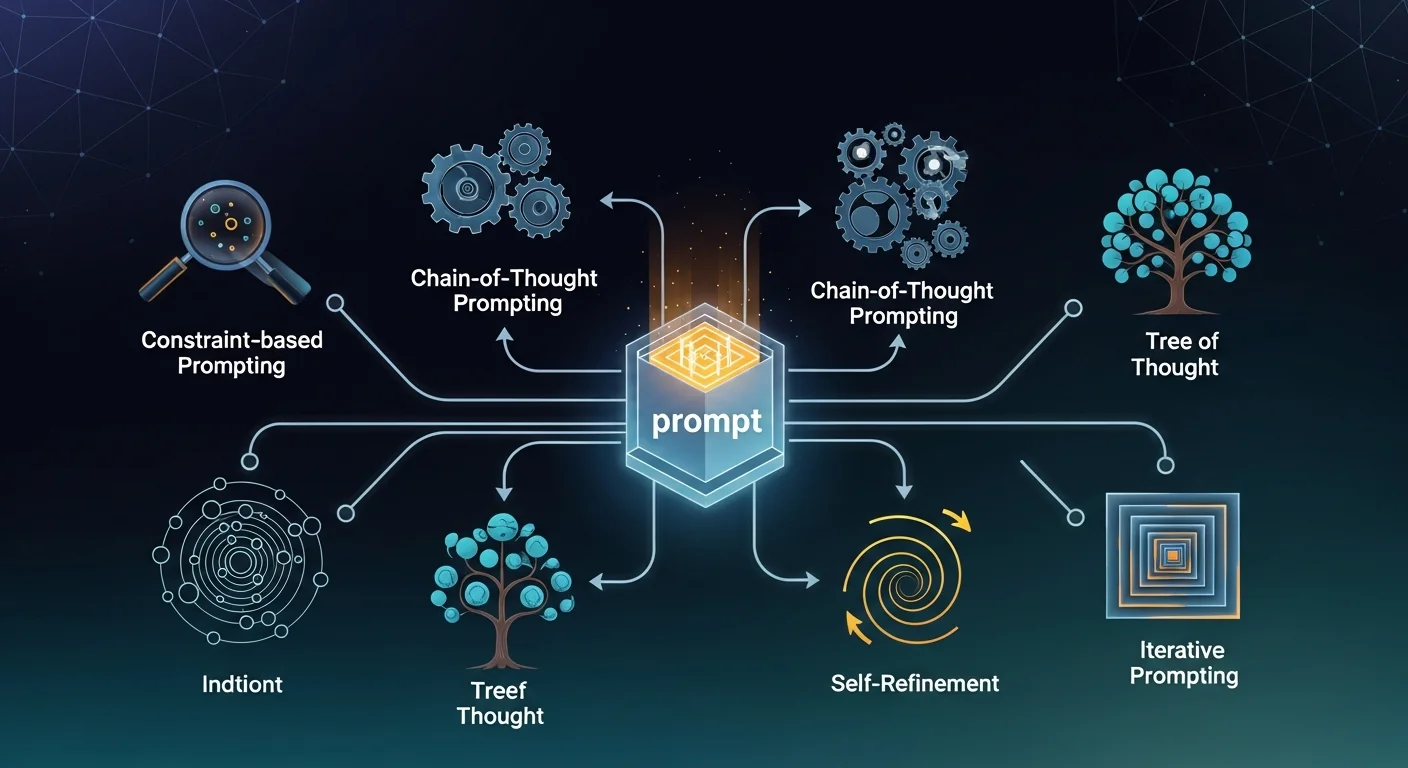
Advanced Prompting Techniques
To get professional-quality results, master these advanced techniques:
Cinematic Language
Use film industry terminology for better results:
- Camera Shots: "Extreme close-up," "Medium shot," "Wide establishing shot"
- Camera Movements: "Dolly zoom," "Tracking shot," "Crane shot"
- Lighting: "Golden hour," "Rim lighting," "Chiaroscuro"
- Composition: "Rule of thirds," "Leading lines," "Symmetrical framing"
Style References
Reference specific visual styles:
- Film Styles: "Shot like a Wes Anderson film," "Christopher Nolan cinematography"
- Art Movements: "Impressionist style," "Art Deco aesthetic"
- Photography Styles: "Street photography," "Fashion photography lighting"
- Color Grading: "Teal and orange color palette," "Desaturated Nordic noir"
Technical Specifications
Include technical details for precision:
- Lens Information: "Shot with 85mm lens," "Wide-angle perspective"
- Depth of Field: "Shallow depth of field," "Everything in sharp focus"
- Frame Rate Feel: "Slow motion effect," "Time-lapse style"
- Texture Details: "Highly detailed textures," "Soft, dreamy quality"
Best Practices for Optimal Results
Follow these proven strategies to maximize your success with Sora AI:
Prompt Optimization
- Be Specific but Concise: Include important details without overwhelming the AI
- Use Active Voice: "A cat jumps" rather than "A cat is jumping"
- Prioritize Information: Put the most important elements first in your prompt
- Test Variations: Try different phrasings of the same concept
- Build a Prompt Library: Save successful prompts for future use
Workflow Efficiency
- Batch Similar Requests: Generate related videos in sequence
- Plan Your Usage: Spread generation across the month to avoid hitting limits
- Use Off-Peak Hours: Generate during less busy times for faster processing
- Prepare Backup Prompts: Have alternative prompts ready if first attempts fail
- Document Everything: Keep detailed records of prompts and results
Quality Control
- Review Before Downloading: Always preview the full video
- Check for Artifacts: Look for visual glitches or inconsistencies
- Verify Audio Sync: If audio is included, ensure proper synchronization
- Test Different Devices: Preview on various screens and devices
- Consider Post-Processing: Plan for potential editing needs
Common Mistakes to Avoid
Learn from these frequent errors to save time and credits:
Prompt-Related Mistakes
- Overly Complex Prompts: Avoid cramming too many elements into one video
- Vague Descriptions: "Beautiful scene" is less effective than "Sunset over mountain lake"
- Conflicting Instructions: Don't request both "close-up" and "wide shot" simultaneously
- Unrealistic Expectations: Understand current AI limitations
- Ignoring Aspect Ratio: Choose the right format for your intended use
Technical Mistakes
- Wrong Settings: Double-check resolution and quality settings
- Poor Internet Connection: Ensure stable connectivity during generation
- Browser Issues: Use supported browsers and clear cache regularly
- Insufficient Storage: Check available space before downloading
- Ignoring File Formats: Choose the right format for your workflow
Usage Mistakes
- Credit Wastage: Don't generate without planning
- No Backup Strategy: Always save your generated content
- Ignoring Terms of Service: Understand usage rights and restrictions
- Poor Organization: Develop a system for managing files and prompts
- Skipping Quality Checks: Always review before using in projects
Advanced Use Cases and Applications
Explore these practical applications of Sora AI:
Content Creation
- Social Media Content: Generate engaging videos for Instagram, TikTok, and YouTube
- Marketing Materials: Create product demonstrations and promotional videos
- Educational Content: Develop instructional and explanatory videos
- Storytelling: Bring written narratives to life with visual sequences
Professional Applications
- Concept Visualization: Prototype ideas before expensive production
- Storyboarding: Create animated storyboards for larger projects
- Training Materials: Develop corporate training and safety videos
- Presentations: Enhance business presentations with custom video content
Creative Projects
- Art Projects: Combine AI-generated video with traditional media
- Music Videos: Create visual accompaniments for musical pieces
- Short Films: Produce complete short film sequences
- Experimental Content: Explore abstract and artistic video concepts
Integration with Other Tools
Maximize Sora AI's potential by integrating with complementary tools:
Video Editing Software
Adobe Premiere Pro
Professional video editing suite
Industry-standard video editing software perfect for post-processing Sora AI generated content.
- Advanced color grading and correction
- Professional audio editing
- Multi-format export options
- Integration with Adobe Creative Suite
DaVinci Resolve
Professional editing and color grading
Powerful free video editing software with professional-grade features for enhancing AI-generated videos.
- Advanced color grading tools
- Professional audio post-production
- Multi-user collaboration
- Fusion VFX and motion graphics
AI Enhancement Tools
Topaz Video AI
AI-powered video enhancement
Enhance Sora AI videos with upscaling, denoising, and stabilization using advanced AI algorithms.
- Video upscaling to 8K
- Noise reduction and sharpening
- Frame rate interpolation
- Video stabilization
Troubleshooting Common Issues
Resolve frequent problems with these solutions:
Generation Failures
- Prompt Rejected: Review OpenAI's content policy and revise your prompt
- Processing Timeout: Try generating during off-peak hours or simplify your prompt
- Server Errors: Wait a few minutes and retry your request
- Credit Issues: Check your remaining monthly allocation
Quality Issues
- Blurry Results: Request "high resolution" or "sharp focus" in your prompt
- Inconsistent Lighting: Be more specific about lighting conditions
- Unrealistic Physics: Simplify complex motion or physics-heavy scenes
- Character Inconsistency: Use more detailed character descriptions
Technical Problems
- Download Failures: Check internet connection and available storage
- Playback Issues: Try different browsers or update your current browser
- File Corruption: Re-download the video or contact OpenAI support
- Format Compatibility: Convert to different formats using video conversion tools
Staying Updated with Sora AI
Keep up with rapid developments in AI video generation:
- Follow OpenAI: Subscribe to OpenAI's blog and social media channels
- Join Communities: Participate in AI video generation forums and Discord servers
- Experiment Regularly: Try new features and techniques as they're released
- Read Documentation: Stay current with official documentation updates
- Attend Webinars: Join OpenAI and community-hosted educational sessions
Frequently Asked Questions
How much does Sora AI cost?
Sora AI is included with ChatGPT Plus ($20/month) and ChatGPT Pro ($200/month) subscriptions. Plus users get limited monthly generations, while Pro users receive significantly higher limits and priority processing.
What's the maximum video length Sora AI can generate?
As of 2025, Sora AI can generate videos up to 60 seconds in length. However, most high-quality generations work best in the 10-30 second range.
Can I use Sora AI videos commercially?
Yes, OpenAI's current terms allow commercial use of Sora-generated videos, provided you comply with their usage policies and content guidelines. Always review the latest terms of service for any updates.
How long does it take to generate a video?
Generation times typically range from 2-10 minutes depending on video complexity, length, quality settings, and current server load. Pro subscribers often experience faster processing times.
Can Sora AI generate videos with specific people or copyrighted characters?
No, Sora AI has restrictions against generating videos of real people (especially public figures) and copyrighted characters. Focus on original characters and concepts for best results.
What video formats does Sora AI support?
Sora AI primarily outputs MP4 format, which is compatible with most video players and editing software. You can convert to other formats using standard video conversion tools if needed.
Can I edit the videos after generation?
Absolutely! Sora AI videos can be edited like any other video file. Use professional editing software like Adobe Premiere Pro or DaVinci Resolve for best results.
Why did my video generation fail?
Common reasons include content policy violations, overly complex prompts, server overload, or technical issues. Review your prompt for policy compliance and try again during off-peak hours.

Conclusion and Next Steps
Mastering Sora AI opens up incredible possibilities for video creation, from social media content to professional marketing materials. The key to success lies in understanding the tool's capabilities, crafting effective prompts, and integrating the generated content into your broader creative workflow.
As you continue your journey with Sora AI, remember that this technology is rapidly evolving. What seems impossible today may become standard tomorrow. Stay curious, keep experimenting, and don't be afraid to push the boundaries of what's possible.
Your Next Steps:
- Start Practicing: Begin with simple prompts and gradually increase complexity
- Build Your Library: Create a collection of successful prompts and techniques
- Join the Community: Connect with other Sora AI users to share tips and inspiration
- Plan Your Projects: Identify specific use cases where Sora AI can enhance your work
- Stay Updated: Follow OpenAI's announcements for new features and capabilities
- Experiment Boldly: Push creative boundaries while respecting usage guidelines
The future of video creation is here, and with Sora AI, you have the power to bring any vision to life. Start creating, keep learning, and prepare to be amazed by what's possible when human creativity meets artificial intelligence.