
Google's Gemini AI represents one of the most advanced artificial intelligence systems available to consumers and businesses in 2025. This comprehensive guide will walk you through everything you need to know about using Gemini AI effectively, from basic setup to advanced techniques that can transform your productivity and creativity.
Whether you're a complete beginner looking to understand AI capabilities or an experienced user wanting to maximize Gemini's potential, this guide covers all the essential steps, best practices, and insider tips you need to become proficient with Google's flagship AI assistant.
By the end of this article, you'll understand how to access Gemini AI, navigate its various interfaces, craft effective prompts, leverage its multimodal capabilities, integrate it into your workflow, and avoid common pitfalls that trip up new users.
What You'll Learn
- How to access and set up Gemini AI across different platforms
- Understanding Gemini's capabilities and limitations
- Step-by-step instructions for common tasks and use cases
- Advanced prompting techniques for better results
- Integration strategies for personal and professional workflows
- Privacy and security best practices
- Troubleshooting common issues
- Tips for maximizing value from both free and paid tiers
Prerequisites
Before diving into this guide, ensure you have the following:
- Google Account: A valid Google account is required to access Gemini AI
- Internet Connection: Stable internet connection for optimal performance
- Compatible Device: Computer, smartphone, or tablet with a modern web browser
- Basic Computer Skills: Familiarity with web browsers and basic navigation
- Clear Use Case: Understanding of what you want to accomplish with AI assistance
Optional but recommended: Gemini Advanced subscription for access to premium features and higher usage limits.
Step 1: Accessing Gemini AI
Getting started with Gemini AI is straightforward, but there are multiple access points depending on your needs and preferences.
Web Interface Access
- Open your preferred web browser and navigate to gemini.google.com
- Click "Sign in" in the top right corner
- Enter your Google account credentials
- Accept the terms of service and privacy policy
- Complete any additional verification steps if prompted
The web interface provides the most comprehensive experience with full access to Gemini's capabilities, including image analysis, document uploads, and conversation history.
Mobile App Installation
- Download the Google app from your device's app store (iOS App Store or Google Play Store)
- Open the app and sign in with your Google account
- Look for the Gemini icon or "Ask Gemini" option
- Tap to activate Gemini within the Google app
- Grant necessary permissions for optimal functionality
Google Workspace Integration
For business users with Google Workspace accounts:
- Ensure your administrator has enabled Gemini for your organization
- Access Gemini through Gmail, Google Docs, Sheets, or Slides
- Look for the Gemini sidebar or "Help me write" prompts
- Follow any additional setup steps specific to your organization
Step 2: Understanding the Interface
Familiarizing yourself with Gemini's interface is crucial for efficient usage. The layout is designed to be intuitive, but understanding each component will help you navigate more effectively.
Main Chat Interface
The primary interface consists of:
- Chat Window: The central area where conversations appear
- Input Box: Where you type your prompts and questions
- Send Button: Submits your prompt (or press Enter)
- Attachment Icon: For uploading images or documents
- Microphone Icon: For voice input (if available)
- Settings Menu: Access to preferences and account options
Conversation Management
- New conversations automatically start when you begin typing
- Previous conversations are saved in your history (left sidebar)
- Click on any previous conversation to resume or review
- Use the "New Chat" button to start fresh conversations
- Organize conversations with custom names by clicking the edit icon
Step 3: Crafting Your First Prompts
The quality of your prompts directly impacts the usefulness of Gemini's responses. Learning to communicate effectively with AI is a skill that improves with practice.
Basic Prompt Structure
Start with simple, clear requests:
- Be Specific: Instead of "help me write," try "help me write a professional email declining a meeting invitation"
- Provide Context: Include relevant background information
- Set Expectations: Specify the format, length, or style you want
- Ask Follow-ups: Build on previous responses to refine results
Example progression:
- Initial: "Write a marketing email"
- Better: "Write a marketing email for a new productivity app targeting small business owners"
- Best: "Write a 150-word marketing email for a new productivity app called 'TaskFlow' targeting small business owners who struggle with team coordination. Use a friendly but professional tone and include a clear call-to-action."
Testing Basic Functionality
Try these starter prompts to familiarize yourself with Gemini's capabilities:
- Information Retrieval: "Explain quantum computing in simple terms"
- Creative Writing: "Write a short story about a robot learning to paint"
- Problem Solving: "Help me plan a 7-day itinerary for Tokyo on a budget"
- Analysis: "Compare the pros and cons of remote work vs. office work"
- Code Generation: "Write a Python function to calculate compound interest"
Step 4: Leveraging Multimodal Capabilities
One of Gemini's standout features is its ability to process multiple types of input simultaneously, including text, images, and documents.
Image Analysis and Processing
- Click the attachment icon (paperclip or camera) in the input area
- Select "Upload image" or take a photo directly
- Wait for the image to upload completely
- Add a text prompt describing what you want Gemini to do with the image
- Submit your request and review the analysis
Effective image prompts:
- "Describe what you see in this image in detail"
- "Extract and organize the text from this document"
- "Identify the plants in this garden photo"
- "Analyze the data in this chart and provide insights"
- "Suggest improvements for this room layout"
Document Processing
Gemini can analyze various document types:
- Ensure your document is in a supported format (PDF, DOC, TXT, etc.)
- Upload the document using the attachment feature
- Specify what type of analysis or action you need
- Allow processing time for larger documents
- Ask follow-up questions to dive deeper into specific sections
Step 5: Advanced Prompting Techniques
As you become more comfortable with basic interactions, these advanced techniques will help you get more precise and useful results.
Prompt Engineering Best Practices
- Use Role-Playing: "Act as a financial advisor and help me create a budget for..."
- Specify Output Format: "Provide your response as a numbered list with brief explanations"
- Set Constraints: "Limit your response to 200 words and focus on actionable advice"
- Request Examples: "Give me three examples of effective subject lines for this email"
- Chain Prompts: Build complex requests through a series of related prompts
Advanced Prompt Templates
| Use Case | Template | Example |
|---|---|---|
| Analysis | "Analyze [topic] considering [factors]. Provide [format] focusing on [aspect]." | "Analyze this marketing campaign considering budget constraints, target audience, and ROI. Provide a SWOT analysis focusing on digital channels." |
| Creative Projects | "Create [deliverable] for [audience] with [tone] that [objective]." | "Create a blog post for tech professionals with an informative tone that explains blockchain benefits." |
| Problem Solving | "I need to [goal] but I'm facing [constraints]. Suggest [number] solutions that [criteria]." | "I need to increase website traffic but I'm facing a limited budget. Suggest 5 solutions that can be implemented within 30 days." |
Step 6: Integrating Gemini into Your Workflow
Maximizing Gemini's value requires thoughtful integration into your daily routines and professional workflows.
Personal Productivity Integration
- Morning Planning: Use Gemini to prioritize daily tasks and create schedules
- Email Management: Draft responses, summarize long emails, and improve communication
- Research Assistance: Gather information quickly and get different perspectives on topics
- Learning Support: Break down complex topics and create study materials
- Creative Projects: Brainstorm ideas, overcome writer's block, and refine content
Professional Workflow Integration
For business applications:
- Content Creation: Generate drafts for blogs, social media, and marketing materials
- Data Analysis: Interpret charts, summarize reports, and identify trends
- Meeting Preparation: Create agendas, talking points, and follow-up summaries
- Customer Service: Draft responses to common inquiries and complaints
- Training Materials: Develop educational content and documentation
Setting Up Efficient Workflows
- Identify repetitive tasks that could benefit from AI assistance
- Create template prompts for common requests
- Establish quality control processes for AI-generated content
- Train team members on effective prompting techniques
- Monitor usage and adjust approaches based on results
Step 7: Managing Conversations and History
Effective conversation management helps you build on previous work and maintain organized records of your AI interactions.
Conversation Organization
- Rename conversations with descriptive titles immediately after creation
- Use consistent naming conventions (e.g., "Project_Date_Topic")
- Archive completed conversations to reduce clutter
- Star important conversations for quick access
- Regularly review and clean up your conversation history
Building on Previous Conversations
Gemini remembers context within individual conversations, allowing you to:
- Reference previous responses without repeating information
- Ask for modifications or improvements to earlier outputs
- Build complex projects through iterative refinement
- Maintain consistency across related tasks
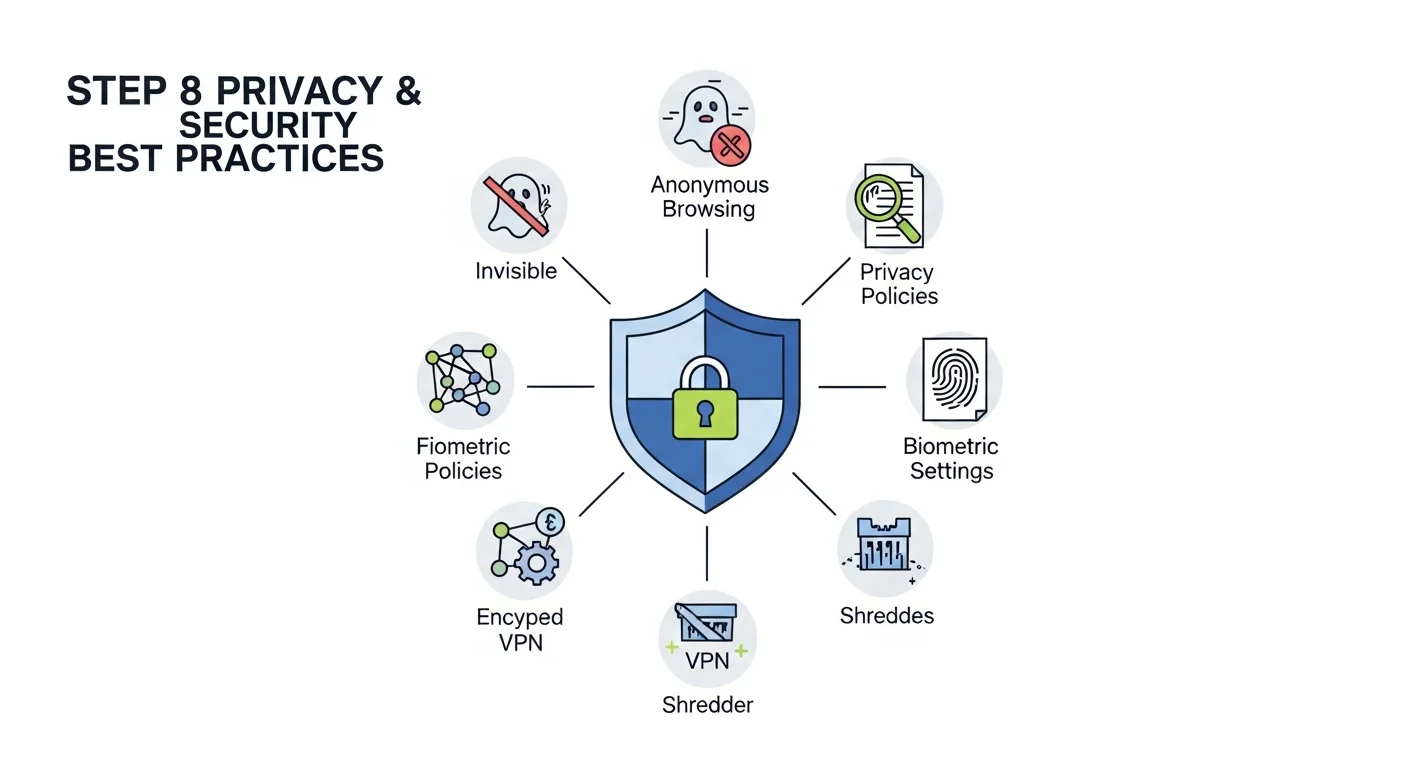
Step 8: Privacy and Security Best Practices
Protecting your privacy and sensitive information while using AI tools requires careful attention to what you share and how you configure your settings.
Data Protection Guidelines
- Avoid Sensitive Information: Never input personal data, passwords, financial information, or confidential business details
- Review Privacy Settings: Regularly check and update your Google account privacy preferences
- Understand Data Usage: Read Google's privacy policy to understand how your conversations are used
- Use Generic Examples: Replace real names, addresses, and specific details with placeholders
- Consider Business Policies: Ensure AI usage complies with your organization's data governance policies
Account Security
- Enable two-factor authentication on your Google account
- Use strong, unique passwords
- Regularly review account activity and connected devices
- Log out of shared or public computers
- Monitor for unusual account activity
Understanding Gemini Plans and Pricing
Google offers different tiers of Gemini access, each with varying capabilities and limitations.
Gemini (Free)
- Basic conversational AI capabilities
- Limited monthly usage
- Standard response times
- Access to core features
- Integration with basic Google services
Gemini Advanced
- Access to more powerful AI models
- Higher usage limits
- Priority access during peak times
- Advanced reasoning capabilities
- Enhanced Google Workspace integration
- Pricing: $20/month (as of 2025)
Enterprise Solutions
For organizations requiring enhanced security, compliance, and management features:
- Advanced admin controls
- Enhanced data governance
- Custom usage limits
- Priority support
- Custom pricing based on organization size and needs
Tips and Best Practices
Maximizing Response Quality
- Be Iterative: Start with a basic prompt and refine based on the response
- Provide Examples: Show Gemini the style or format you want
- Use Clear Language: Avoid ambiguous terms or overly complex sentences
- Set Context: Provide background information relevant to your request
- Specify Constraints: Include word limits, format requirements, or style preferences
Productivity Tips
- Create Prompt Libraries: Save effective prompts for reuse
- Batch Similar Tasks: Group related requests in single conversations
- Use Voice Input: Speed up input for longer prompts when available
- Leverage Shortcuts: Learn keyboard shortcuts for common actions
- Plan Your Sessions: Prepare questions in advance for complex projects
Quality Control
- Always Fact-Check: Verify important information from external sources
- Review for Bias: Be aware that AI responses can reflect training data biases
- Edit and Personalize: Customize AI-generated content to match your voice
- Test Different Approaches: Try multiple prompts for important tasks
- Maintain Human Oversight: Use AI as a tool, not a replacement for critical thinking
Common Mistakes to Avoid
Prompt-Related Mistakes
- Being Too Vague: "Help me with work stuff" won't generate useful responses
- Overcomplicating Requests: Break complex tasks into smaller, manageable prompts
- Ignoring Context Limits: Very long conversations may lose early context
- Not Specifying Format: Clearly state if you want lists, paragraphs, tables, etc.
- Assuming Perfect Accuracy: Always verify factual claims and calculations
Security and Privacy Mistakes
- Sharing Sensitive Data: Never input passwords, SSNs, or confidential information
- Ignoring Terms of Service: Understand how your data is used and stored
- Using Company Data Inappropriately: Check organizational policies before inputting business information
- Not Reviewing Outputs: AI-generated content may inadvertently include inappropriate material
Workflow Integration Mistakes
- Over-Reliance: Maintain critical thinking and don't outsource all decision-making
- Skipping Quality Control: Always review and edit AI-generated content
- Not Training Team Members: Ensure everyone understands effective AI usage
- Ignoring Updates: Stay informed about new features and capabilities
Troubleshooting Common Issues
Technical Problems
Slow Response Times:
- Check your internet connection
- Try refreshing the page or restarting the app
- Consider upgrading to Gemini Advanced for priority access
- Use shorter prompts during peak usage times
Error Messages:
- Read the specific error message carefully
- Check if your prompt violates content policies
- Try rephrasing your request
- Ensure you're signed in to your Google account
- Clear your browser cache if using the web interface
Content Quality Issues
Irrelevant Responses:
- Provide more specific context in your prompt
- Break complex requests into smaller parts
- Use examples to clarify what you want
- Try starting a new conversation to reset context
Inconsistent Output:
- Maintain conversation context for related requests
- Specify style and tone preferences explicitly
- Use template prompts for consistent results
- Provide feedback to help Gemini understand your preferences
Advanced Use Cases and Applications
Content Creation and Marketing
Gemini excels at various content creation tasks:
- Blog Writing: Generate outlines, introductions, and full articles
- Social Media: Create posts, captions, and engagement strategies
- Email Marketing: Craft subject lines, body content, and call-to-actions
- SEO Optimization: Generate keyword-rich content and meta descriptions
- Video Scripts: Write scripts for educational or promotional videos
Data Analysis and Research
- Market Research: Analyze trends and competitor information
- Survey Analysis: Interpret survey results and identify patterns
- Literature Reviews: Summarize research papers and academic articles
- Financial Analysis: Interpret financial statements and market data
- Customer Feedback: Analyze reviews and feedback for insights
Education and Training
- Lesson Planning: Create curricula and educational materials
- Quiz Generation: Develop assessments and practice questions
- Concept Explanation: Break down complex topics for different audiences
- Language Learning: Practice conversations and grammar exercises
- Skill Development: Create personalized learning paths
Frequently Asked Questions
Is Gemini AI free to use?
Yes, Google offers a free tier of Gemini AI with basic capabilities and usage limits. Gemini Advanced, priced at $20/month, provides enhanced features, higher usage limits, and access to more powerful AI models.
Can Gemini access real-time information from the internet?
Gemini has access to information up to its training cutoff date and may have limited real-time search capabilities. For the most current information, it's best to verify facts from primary sources, especially for rapidly changing topics.
How does Gemini compare to other AI assistants like ChatGPT?
Gemini offers strong multimodal capabilities, excellent integration with Google services, and competitive performance in most tasks. The choice between AI assistants often depends on specific use cases, integration needs, and personal preferences.
Can I use Gemini for commercial purposes?
Yes, both free and paid tiers of Gemini can be used for commercial purposes, subject to Google's terms of service. For enterprise use, consider Google's business plans which offer additional features and support.
What file types can Gemini analyze?
Gemini can process various file types including images (JPEG, PNG, WebP), documents (PDF, DOC, TXT), and other common formats. The specific supported formats may vary and are regularly updated.
How secure is my data when using Gemini?
Google implements security measures to protect user data, but conversations may be used to improve the service. Review Google's privacy policy and avoid sharing sensitive personal or business information in your prompts.
Can Gemini write code in different programming languages?
Yes, Gemini can generate, debug, and explain code in numerous programming languages including Python, JavaScript, Java, C++, and many others. It can also help with code reviews and optimization suggestions.
What should I do if Gemini gives me incorrect information?
Always verify important information from authoritative sources. AI systems can make mistakes or provide outdated information. For critical decisions, use Gemini as a starting point but confirm details through additional research.
Staying Updated with Gemini AI
AI technology evolves rapidly, and Google regularly updates Gemini with new capabilities and improvements. Stay informed about changes that could benefit your usage:
Following Updates
- Subscribe to Google's AI blog and official announcements
- Follow Google AI on social media platforms
- Join AI and technology communities for user discussions
- Regularly check the Gemini interface for new features
- Experiment with new capabilities as they're released
Continuous Learning
- Practice with different types of prompts regularly
- Learn from the AI community and share effective techniques
- Attend webinars and training sessions when available
- Read case studies and success stories from other users
- Stay informed about AI ethics and best practices
Conclusion and Next Steps
Mastering Gemini AI is an ongoing journey that combines technical understanding with creative application. This comprehensive guide has provided you with the foundation needed to use Gemini effectively, from basic setup through advanced techniques and best practices.
The key to success with Gemini AI lies in consistent practice, thoughtful prompt crafting, and maintaining a balance between leveraging AI capabilities and applying human judgment. As you become more comfortable with the platform, you'll discover unique ways to integrate it into your personal and professional workflows.
Immediate Next Steps
- Set up your Gemini account and explore the basic interface
- Practice with simple prompts to understand response patterns
- Identify specific use cases relevant to your needs
- Experiment with multimodal inputs like images and documents
- Create a prompt library for common tasks
Long-term Development
- Develop advanced prompting skills through regular practice
- Integrate Gemini into your daily workflows systematically
- Stay updated on new features and capabilities
- Share knowledge with colleagues and communities
- Continuously evaluate the impact on your productivity and quality of work
Remember that AI tools like Gemini are most effective when used as intelligent assistants rather than replacements for human creativity and critical thinking. By following the guidelines and techniques outlined in this guide, you'll be well-equipped to harness the full potential of Gemini AI in 2025 and beyond.
Start with small experiments, build your confidence through practice, and gradually expand your usage as you become more comfortable with the platform. The investment in learning these skills will pay dividends in increased productivity, enhanced creativity, and improved problem-solving capabilities across all areas of your work and personal projects.