
Microsoft Copilot AI has revolutionized how we interact with artificial intelligence in our daily workflows. Whether you're a business professional, student, or casual user, this comprehensive guide will teach you everything you need to know about using Microsoft Copilot effectively in 2025. You'll learn how to access different versions of Copilot, master essential features, optimize your prompts for better results, and integrate AI assistance seamlessly into your Microsoft 365 workflow.
By the end of this guide, you'll understand how to leverage Copilot's capabilities across various Microsoft applications, troubleshoot common issues, and implement best practices that will transform your productivity. We'll also explore advanced techniques and real-world use cases that demonstrate Copilot's full potential.
What is Microsoft Copilot AI?
Microsoft Copilot is an AI-powered assistant built on advanced large language models, including GPT-4 and Microsoft's proprietary AI technologies. It's designed to integrate seamlessly with Microsoft's ecosystem of products, providing intelligent assistance across Windows, Microsoft 365 applications, Edge browser, and standalone web and mobile applications.
Copilot serves as your digital assistant, capable of generating content, answering questions, analyzing data, creating presentations, writing code, and performing countless other tasks through natural language conversations. The AI understands context, maintains conversation history, and can access real-time information from the web when needed.
Prerequisites
Before diving into using Microsoft Copilot, ensure you have the following:
- Microsoft Account: A personal Microsoft account (outlook.com, hotmail.com, or live.com) or work/school account
- Compatible Device: Windows 10/11 PC, Mac, iOS, or Android device with internet connection
- Updated Browser: Latest version of Microsoft Edge, Chrome, Firefox, or Safari
- Microsoft 365 Subscription: For Copilot integration within Office apps (optional but recommended)
- Copilot Pro Subscription: $20/month for enhanced features and priority access (optional)
- Basic AI Knowledge: Understanding of how to write clear, specific prompts
How to Access Microsoft Copilot
Method 1: Web Browser Access
- Open your web browser and navigate to copilot.microsoft.com
- Sign in with your Microsoft account by clicking the "Sign in" button in the top-right corner
- Enter your credentials and complete any two-factor authentication if enabled
- Accept terms and conditions if prompted for first-time users
- Start your first conversation by typing a question or request in the chat box
Method 2: Windows 11 Integration
- Click the Copilot icon in the Windows 11 taskbar (looks like a small squares icon)
- Alternatively, use the keyboard shortcut Windows key + C to open Copilot
- Sign in if prompted with your Microsoft account
- The Copilot sidebar will appear on the right side of your screen
- Begin interacting by typing your questions or commands
Method 3: Microsoft Edge Browser
- Open Microsoft Edge browser and look for the Copilot icon in the sidebar
- Click the Copilot icon or use Ctrl + Shift + Period shortcut
- Sign in with your Microsoft account if not already logged in
- Choose your conversation style (Creative, Balanced, or Precise)
- Start chatting with Copilot about web content or general topics
Method 4: Mobile Apps
- Download the Microsoft Copilot app from the App Store (iOS) or Google Play Store (Android)
- Install and open the app on your mobile device
- Sign in with your Microsoft account when prompted
- Grant necessary permissions for microphone and camera if you plan to use voice or image features
- Begin your conversation using text, voice, or image inputs
Understanding Copilot Interfaces
Conversation Styles
Microsoft Copilot offers three distinct conversation styles that affect how the AI responds to your queries:
| Style | Best For | Response Characteristics |
|---|---|---|
| Creative | Content creation, brainstorming, storytelling | More imaginative, longer responses, creative suggestions |
| Balanced | General questions, everyday tasks | Moderate creativity with factual accuracy |
| Precise | Research, factual queries, technical questions | Concise, accurate, fact-focused responses |
Key Interface Elements
- Chat Input Box: Where you type your questions and prompts
- Conversation History: Previous messages in your current session
- New Topic Button: Starts a fresh conversation thread
- Style Selector: Switch between Creative, Balanced, and Precise modes
- Microphone Icon: Enable voice input for hands-free interaction
- Image Upload: Add images for analysis or context
- Suggested Prompts: Pre-written examples to get you started
Essential Copilot Features and How to Use Them
Text Generation and Writing Assistance
- Start with a clear prompt describing what you want to write
- Specify the format (email, blog post, report, etc.)
- Include key details like tone, length, and target audience
- Review the generated content and ask for revisions if needed
- Copy and paste the final result into your preferred application
Example prompt: "Write a professional email to a client explaining a project delay. Keep it concise, apologetic, and include a new timeline."
Data Analysis and Insights
- Upload a data file or describe your dataset to Copilot
- Ask specific questions about trends, patterns, or calculations
- Request visualizations like charts or graphs if applicable
- Seek explanations for complex data relationships
- Export or copy the analysis results for use in presentations
Image Analysis and Generation
- Upload an image using the camera or file upload icon
- Ask questions about the image content, objects, or text
- Request image modifications or descriptions
- For image generation, provide detailed descriptions of what you want created
- Refine your requests based on the initial results
Code Generation and Programming Help
- Describe your programming task clearly, including the language
- Provide context about your project or specific requirements
- Ask for explanations of complex code concepts
- Request debugging help by sharing error messages
- Test the generated code and ask for modifications as needed
Using Copilot in Microsoft 365 Applications
Copilot in Microsoft Word
- Open Microsoft Word and create a new document
- Look for the Copilot icon in the ribbon or sidebar
- Click "Draft with Copilot" to start AI-assisted writing
- Provide your prompt describing the document you want to create
- Review the generated content and use "Keep it" or "Regenerate" options
- Continue editing with Copilot assistance for rewriting, summarizing, or expanding content
Copilot in Microsoft Excel
- Open your Excel workbook with data you want to analyze
- Select the data range you want Copilot to work with
- Click the Copilot button in the ribbon
- Ask questions about your data using natural language
- Request charts, pivot tables, or formula suggestions
- Apply the suggestions directly to your spreadsheet
Copilot in Microsoft PowerPoint
- Create a new presentation or open an existing one
- Click "Copilot" in the ribbon or use the Designer pane
- Describe your presentation topic and key points to cover
- Let Copilot generate slides with content and design suggestions
- Customize the generated slides by asking for specific changes
- Add speaker notes using Copilot's suggestions
Copilot in Microsoft Outlook
- Compose a new email in Outlook
- Click the Copilot icon in the compose window
- Describe the email you want to write including tone and key points
- Review the generated draft and make adjustments
- Use Copilot to summarize long email threads
- Get help with scheduling and meeting coordination
Advanced Copilot Techniques
Prompt Engineering Best Practices
- Be specific and detailed in your requests
- Use context-setting phrases like "Act as a..." or "In the role of..."
- Break complex tasks into smaller, manageable steps
- Provide examples when possible to guide the AI's understanding
- Iterate and refine your prompts based on initial results
Chain of Thought Prompting
- Start with a complex problem that requires step-by-step thinking
- Ask Copilot to "think step by step" or "show your reasoning"
- Review each step of the AI's reasoning process
- Ask follow-up questions to clarify or expand on specific steps
- Use the detailed reasoning to inform your decision-making
Multi-Modal Interactions
- Combine text, images, and voice in your interactions
- Upload reference images when describing visual concepts
- Use voice input for hands-free operation
- Reference multiple sources in a single conversation
- Create rich, contextual prompts using various input methods
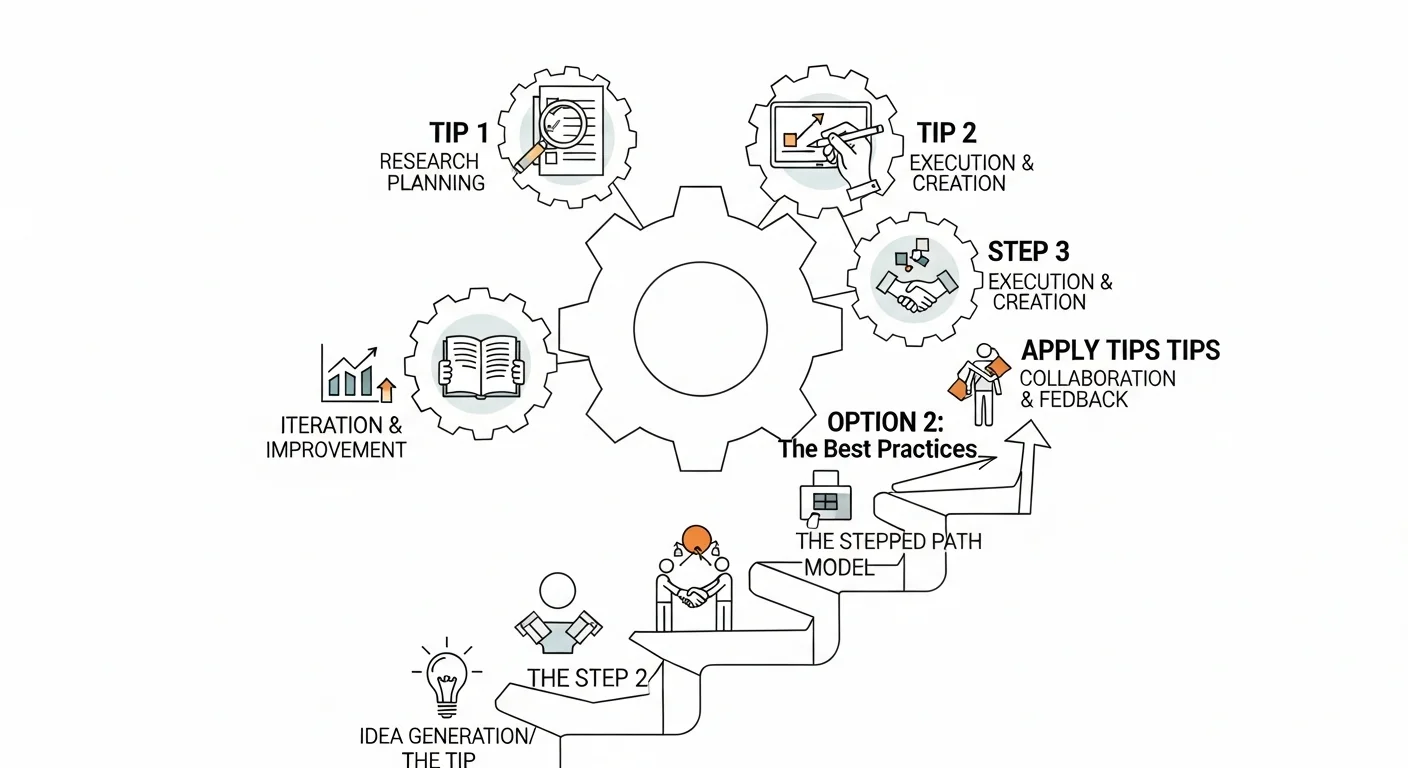
Tips and Best Practices
Optimizing Your Prompts
- Start with action words: Use verbs like "Create," "Analyze," "Summarize," or "Explain"
- Include relevant context: Provide background information that helps Copilot understand your needs
- Specify desired format: Mention if you want bullet points, paragraphs, tables, or specific structures
- Set expectations for length: Indicate whether you want brief or detailed responses
- Define your audience: Specify who will be reading or using the output
Maximizing Productivity
- Use conversation history: Reference previous responses to build on earlier work
- Save useful prompts: Keep a collection of effective prompts for repeated use
- Combine with other tools: Integrate Copilot outputs with your existing workflow
- Regular practice: Experiment with different types of requests to discover new capabilities
- Stay updated: Keep track of new features and improvements to Copilot
Collaboration and Sharing
- Share conversation links: Send specific Copilot conversations to team members
- Export results: Copy generated content to collaborative documents
- Create templates: Develop standardized prompts for team use
- Document processes: Keep records of successful prompt strategies
- Train team members: Share best practices and effective techniques
Common Mistakes to Avoid
Prompt-Related Mistakes
- Being too vague: Avoid generic requests like "help me write something"
- Overcomplicating prompts: Don't include unnecessary details that confuse the AI
- Not providing context: Failing to give background information leads to generic responses
- Ignoring conversation flow: Not building on previous responses in the same conversation
- Expecting perfection: Not iterating and refining prompts based on initial results
Usage and Workflow Mistakes
- Over-reliance on AI: Not reviewing and fact-checking generated content
- Ignoring privacy concerns: Sharing sensitive information without considering data security
- Not customizing responses: Using AI-generated content without personalization
- Skipping verification: Not double-checking facts, figures, and claims
- Neglecting human oversight: Failing to apply critical thinking to AI suggestions
Technical Mistakes
- Not updating applications: Using outdated versions that lack latest Copilot features
- Poor internet connection: Trying to use Copilot with unstable connectivity
- Ignoring error messages: Not troubleshooting when Copilot isn't responding properly
- Wrong conversation style: Using Creative mode for factual queries or Precise for brainstorming
- Not managing conversation length: Letting conversations become too long and losing context
Troubleshooting Common Issues
Access and Login Problems
- Clear browser cache and cookies if having web access issues
- Verify your Microsoft account is in good standing
- Check internet connectivity and try a different network if needed
- Update your browser to the latest version
- Disable browser extensions that might interfere with Copilot
- Try incognito/private browsing mode to rule out extension conflicts
Performance Issues
- Start a new conversation if responses become slow or irrelevant
- Simplify your prompts if Copilot seems confused
- Check Microsoft's service status for any ongoing outages
- Close unnecessary browser tabs to free up system resources
- Restart your browser or application if Copilot becomes unresponsive
Response Quality Issues
- Rephrase your prompt with more specific language
- Add more context about what you're trying to achieve
- Switch conversation styles if the current one isn't working well
- Break complex requests into smaller, simpler parts
- Provide examples of the type of response you're looking for
Copilot Pro: Advanced Features
Microsoft Copilot Pro, available for $20 per month, offers enhanced capabilities for power users:
Pro Features
- Priority access: Faster response times during peak usage
- Enhanced AI models: Access to the latest and most capable AI versions
- Increased usage limits: More conversations and longer sessions
- Advanced image creation: Higher quality and more detailed image generation
- Microsoft 365 integration: Deeper integration with Office applications
- Custom GPTs: Access to specialized AI assistants for specific tasks
When to Upgrade to Pro
- Heavy daily usage: If you use Copilot for multiple hours per day
- Professional work: When AI assistance is critical to your job performance
- Creative projects: For advanced image generation and creative writing
- Team collaboration: When sharing AI-generated content with colleagues
- Latest features: If you want access to cutting-edge AI capabilities
Privacy and Security Considerations
Data Handling
- Conversation data: Microsoft stores conversations to improve the service
- Personal information: Avoid sharing sensitive personal or financial data
- Business data: Be cautious with proprietary or confidential business information
- Data retention: Understand Microsoft's policies on how long data is kept
- Data deletion: Know how to delete your conversation history when needed
Best Security Practices
- Use strong passwords: Secure your Microsoft account with a robust password
- Enable two-factor authentication: Add an extra layer of security to your account
- Review permissions: Regularly check what data Copilot can access
- Keep software updated: Ensure all applications and browsers are current
- Monitor account activity: Watch for any unusual usage patterns
Future of Microsoft Copilot
Microsoft continues to expand Copilot's capabilities with regular updates and new features. Upcoming developments include:
- Enhanced multimodal capabilities: Better integration of text, voice, and visual inputs
- Expanded application support: Integration with more Microsoft and third-party applications
- Improved personalization: AI that better understands individual user preferences
- Advanced reasoning: More sophisticated problem-solving and analytical capabilities
- Real-time collaboration: Enhanced features for team-based AI assistance
Frequently Asked Questions
Is Microsoft Copilot free to use?
Yes, Microsoft Copilot offers a free tier that includes basic AI assistance, web access, and limited daily usage. Copilot Pro ($20/month) provides enhanced features, priority access, and deeper Microsoft 365 integration.
Can I use Copilot without a Microsoft 365 subscription?
Absolutely. You can access Copilot through the web browser, Windows 11, Microsoft Edge, or mobile apps using just a free Microsoft account. However, integration with Office applications requires a Microsoft 365 subscription.
How accurate is the information provided by Copilot?
Copilot strives for accuracy but can make mistakes. Always verify important information, especially facts, figures, and current events. The AI is most reliable for creative tasks, general assistance, and well-established information.
Can Copilot access my personal files and documents?
Copilot can only access files you explicitly share or upload during your conversation. It doesn't automatically scan your device or cloud storage. In Microsoft 365 applications, it can work with the specific documents you have open.
What languages does Microsoft Copilot support?
Copilot supports over 100 languages, including English, Spanish, French, German, Chinese, Japanese, and many others. The quality of responses may vary depending on the language, with English typically offering the most comprehensive support.
Can I use Copilot for commercial or business purposes?
Yes, Copilot can be used for business purposes. However, be mindful of your organization's data policies and avoid sharing confidential information. Consider Microsoft Copilot for Business for enhanced security and compliance features.
How do I delete my Copilot conversation history?
You can manage your conversation history through your Microsoft account privacy settings. Visit privacy.microsoft.com, sign in, and navigate to the search and browsing history section to delete Copilot conversations.
Why is Copilot not available in my region?
Microsoft Copilot availability varies by region due to local regulations and compliance requirements. Check Microsoft's official website for the most current list of supported countries and regions.

Conclusion and Next Steps
Microsoft Copilot AI represents a significant leap forward in making artificial intelligence accessible and useful for everyday tasks. By following this comprehensive guide, you now have the knowledge and tools to harness Copilot's full potential across various applications and scenarios.
Remember that mastering AI assistance is an iterative process. The more you experiment with different prompts, conversation styles, and use cases, the more effective you'll become at leveraging Copilot's capabilities. Start with simple tasks and gradually work your way up to more complex projects as you build confidence and expertise.
Recommended Next Steps
- Start with basic tasks: Begin by using Copilot for simple writing, research, or analysis tasks
- Experiment with different conversation styles: Try Creative, Balanced, and Precise modes for various types of work
- Integrate with your workflow: Identify specific areas where Copilot can enhance your daily productivity
- Practice prompt engineering: Develop a collection of effective prompts for your most common tasks
- Explore Microsoft 365 integration: If you have a subscription, experiment with Copilot in Word, Excel, and PowerPoint
- Stay informed: Follow Microsoft's updates and announcements for new Copilot features
- Join communities: Connect with other Copilot users to share tips and learn new techniques
- Consider upgrading: Evaluate whether Copilot Pro's advanced features align with your needs
As AI technology continues to evolve rapidly, Microsoft Copilot will undoubtedly introduce new features and capabilities. By establishing a strong foundation with the techniques and practices outlined in this guide, you'll be well-prepared to adapt and take advantage of future enhancements. The key to success with AI assistance lies in understanding its strengths and limitations while maintaining the critical thinking skills that make human judgment irreplaceable.
Whether you're streamlining business processes, enhancing creative projects, or simply making daily tasks more efficient, Microsoft Copilot offers a powerful set of tools to augment your capabilities. Start implementing these strategies today, and discover how AI assistance can transform your productivity and unlock new possibilities in your work and personal projects.