
Removing backgrounds from images has become an essential skill in today's digital world, whether you're creating professional product photos, designing social media content, or preparing images for presentations. Thanks to advances in artificial intelligence, what once required hours of painstaking manual work in Photoshop can now be accomplished in seconds with just a few clicks.
In this comprehensive guide, you'll learn how to leverage AI-powered tools to remove backgrounds from your images quickly and professionally. We'll cover everything from free online solutions to advanced desktop software, walk through step-by-step processes for different scenarios, and share expert tips to achieve the best results every time.
By the end of this article, you'll have mastered multiple methods for background removal and understand when to use each approach for optimal results. Whether you're a complete beginner or looking to streamline your current workflow, this guide will save you time and help you create stunning, professional-looking images.
Prerequisites
Before diving into the background removal process, ensure you have the following:
- A reliable internet connection - Most AI background removal tools are web-based and require stable connectivity
- High-quality source images - Images with at least 1080p resolution work best, though many tools can handle lower resolutions
- Basic computer skills - Familiarity with uploading files and navigating web interfaces
- Clear subject definition - Images where the main subject is clearly distinguishable from the background produce better results
- Supported file formats - Most tools accept JPG, PNG, WebP, and some support RAW formats
Optional but recommended:
- Image editing software (like GIMP, Canva, or Photoshop) for post-processing
- A graphics tablet for manual touch-ups
- Understanding of your intended use case (web, print, social media) to choose appropriate output settings
Best AI Background Removal Tools in 2025
The landscape of AI-powered background removal tools has evolved significantly, with numerous options available for different needs and budgets. Here are the top performers in 2025:
Remove.bg
The pioneer in AI background removal
Remove.bg remains the gold standard for automated background removal, offering exceptional accuracy for people, products, animals, and cars. Their AI model has been refined through millions of processed images.
- Instant processing in under 5 seconds
- High-quality results up to 4K resolution
- API integration for developers
- Bulk processing capabilities
- Photoshop and design tool plugins
Canva Background Remover
Integrated design and background removal
Canva's built-in background remover combines AI-powered removal with their comprehensive design platform, making it perfect for creating complete designs after background removal.
- Seamless integration with design tools
- One-click background removal
- Extensive template library
- Collaborative features
- Multiple export formats
Adobe Express Background Remover
Professional-grade AI with Adobe's expertise
Adobe's entry into AI background removal leverages their decades of image processing expertise, offering professional results with additional creative tools.
- Adobe Sensei AI technology
- Integration with Adobe Creative Cloud
- Advanced edge refinement
- Professional templates
- High-resolution output
PhotoScissors
Simple and effective background removal
PhotoScissors offers both automatic AI removal and manual editing tools, providing flexibility for users who need more control over the final result.
- Automatic and manual modes
- Batch processing
- Desktop and online versions
- Fine-tuning tools
- Transparent PNG export
Cutout.Pro
AI-powered photo editing suite
Cutout.Pro goes beyond background removal, offering a comprehensive suite of AI photo editing tools including object removal, image enhancement, and creative effects.
- Multiple AI editing tools
- Video background removal
- API access
- Bulk processing
- Mobile app available
Method 1: Using Remove.bg (Recommended for Beginners)
Remove.bg is the most straightforward option for beginners, offering excellent results with minimal effort. Here's how to use it effectively:
Step 1: Access Remove.bg
- Open your web browser and navigate to remove.bg
- You'll see the main interface with an upload area prominently displayed
- No account creation is required for basic usage, though signing up provides additional benefits
Step 2: Upload Your Image
- Click the "Upload Image" button or drag and drop your image directly onto the page
- Alternatively, paste an image URL if your image is hosted online
- Supported formats include JPG, PNG, and WebP up to 12 megapixels for free users
- The upload process typically takes 2-5 seconds depending on file size
Step 3: Wait for AI Processing
- The AI automatically begins processing your image upon upload
- Processing usually completes within 5 seconds
- You'll see a progress indicator during processing
- The tool works best with clear subjects like people, products, animals, and vehicles
Step 4: Review and Download Results
- Once processing completes, you'll see a before/after comparison
- The processed image appears with a transparent background (shown as a checkered pattern)
- Click "Download" to save the image as a PNG file with transparency
- Free users get preview quality; subscribers get full resolution
Step 5: Optional Refinements
- If you have a subscription, access the "Edit" option
- Use the brush tool to restore accidentally removed parts
- Use the erase tool to remove unwanted elements
- Adjust brush size and hardness for precise editing
- Click "Apply" when satisfied with your edits
Method 2: Using Canva's Background Remover
Canva's approach integrates background removal with design capabilities, making it ideal for creating complete projects:
Step 1: Set Up Your Canva Project
- Go to canva.com and sign in to your account (free account works)
- Click "Create a design" or choose a template
- Select your desired canvas size or choose "Custom size"
- For background removal only, choose "Custom size" and match your image dimensions
Step 2: Upload and Add Your Image
- Click "Uploads" in the left sidebar
- Click "Upload files" and select your image
- Once uploaded, drag the image onto your canvas
- Resize the image to fill the canvas if needed
Step 3: Remove the Background
- Select your image on the canvas
- Click "Edit image" in the toolbar that appears
- Choose "Background Remover" from the menu
- The AI processing begins automatically and typically takes 3-10 seconds
Step 4: Fine-tune the Results
- After processing, use the "Restore" brush to add back important details
- Use the "Erase" brush to remove unwanted elements
- Adjust brush size using the slider
- Click "Apply" when you're satisfied with the results
Step 5: Download or Continue Designing
- To download just the image with removed background, click "Download"
- Choose PNG format to preserve transparency
- Alternatively, continue designing by adding new backgrounds, text, or graphics
- Use Canva's extensive library of backgrounds and design elements
Method 3: Advanced Technique with Adobe Express
Adobe Express offers more sophisticated controls for professional results:
Step 1: Access Adobe Express
- Navigate to express.adobe.com
- Sign in with your Adobe ID (free accounts available)
- Click "Quick Actions" in the main menu
- Select "Remove background" from the list
Step 2: Upload and Process
- Click "Select an image" or drag and drop your file
- Adobe's Sensei AI begins processing immediately
- Processing time varies from 5-15 seconds depending on image complexity
- The tool excels with portrait photography and product images
Step 3: Refine with Advanced Tools
- Use the "Cutout" tool for precise edge refinement
- Access "Refine edges" for hair and fur details
- Adjust "Feather" settings for softer edges
- Use "Grow/Shrink" to expand or contract the selection
Step 4: Add Professional Touches
- Choose from Adobe's curated background collection
- Adjust lighting and shadows to match the new background
- Apply color correction to ensure consistency
- Use blend modes for natural integration
Step 5: Export with Professional Settings
- Click "Download" when editing is complete
- Choose PNG for transparent backgrounds or JPG with solid backgrounds
- Select resolution based on your intended use (web, print, social media)
- Premium users can access higher resolution exports
Method 4: Batch Processing Multiple Images
When you need to process multiple images efficiently, batch processing becomes essential:
Step 1: Choose a Batch-Compatible Tool
- Remove.bg offers batch processing for subscribers
- Cutout.Pro provides bulk upload capabilities
- PhotoScissors desktop version supports batch operations
- Consider API solutions for large-scale processing
Step 2: Prepare Your Images
- Organize all images in a single folder
- Ensure consistent naming conventions
- Verify all images meet the tool's requirements (format, size, resolution)
- Create a backup of original files
Step 3: Upload Multiple Files
- Use the bulk upload feature of your chosen tool
- Select all images at once or drag the entire folder
- Monitor upload progress and resolve any errors
- Some tools allow up to 50-100 images per batch
Step 4: Process and Monitor
- Initiate batch processing
- Monitor progress through the dashboard
- Processing time scales with the number and complexity of images
- Most tools provide status updates for each image
Step 5: Download and Organize Results
- Download processed images as a ZIP file or individually
- Maintain organized folder structure
- Review results and identify any images needing manual touch-ups
- Keep track of processing credits or usage limits
Tips and Best Practices
To achieve the best results with AI background removal, follow these expert recommendations:
Image Quality Optimization
- Use high-resolution images: Start with at least 1080p resolution for better edge detection
- Ensure good contrast: Clear distinction between subject and background improves accuracy
- Minimize noise: Clean, sharp images produce cleaner cutouts
- Avoid motion blur: Blurry subjects are harder for AI to process accurately
Subject Positioning
- Center your subject: Place the main subject prominently in the frame
- Avoid edge contact: Keep subjects away from image borders when possible
- Mind the pose: Outstretched limbs and complex poses may require manual refinement
- Consider overlap: Minimize overlapping elements that might confuse the AI
Background Considerations
- Simple backgrounds work best: Solid colors or simple patterns are easier to remove
- Avoid similar colors: High contrast between subject and background improves results
- Watch for shadows: Complex shadows may require manual cleanup
- Consider lighting: Even lighting reduces processing artifacts
Post-Processing Excellence
- Always review edges: Zoom in to check for rough or incomplete edges
- Clean up artifacts: Remove any remaining background fragments
- Refine hair and fur: These details often need manual attention
- Match new backgrounds: Ensure lighting and perspective consistency
Format and Export Optimization
- Use PNG for transparency: Preserve transparent backgrounds with PNG format
- Consider file size: Balance quality with file size requirements
- Match resolution needs: Export at appropriate resolution for intended use
- Save project files: Keep editable versions for future modifications
Common Mistakes to Avoid
Learning from common pitfalls will save you time and improve your results:
Technical Mistakes
- Using low-resolution images: Small or pixelated images produce poor cutouts
- Ignoring file size limits: Exceeding tool limits results in processing failures
- Wrong file formats: Using unsupported formats wastes time
- Skipping quality checks: Not reviewing results leads to unprofessional outputs
Creative Mistakes
- Mismatched lighting: New backgrounds with different lighting look artificial
- Scale inconsistencies: Subjects that don't match background scale appear fake
- Color temperature clashes: Warm subjects on cool backgrounds (or vice versa) look unnatural
- Perspective errors: Misaligned perspective between subject and background
Workflow Mistakes
- Not backing up originals: Always keep copies of source images
- Rushing the process: Taking time for refinement improves final quality
- Ignoring tool limitations: Understanding each tool's strengths prevents disappointment
- Over-processing: Excessive editing can degrade image quality
Professional Mistakes
- Inconsistent quality: Maintain consistent standards across all processed images
- Ignoring usage rights: Ensure you have rights to modify and use images
- Poor organization: Keep processed files organized with clear naming conventions
- Not testing outputs: Always test final images in their intended context
Advanced Techniques for Professional Results
Take your background removal skills to the next level with these advanced techniques:
Manual Refinement Strategies
Even the best AI tools sometimes need human intervention for perfect results:
- Edge feathering: Soften harsh edges for more natural blending
- Hair detail recovery: Use fine brushes to restore individual hair strands
- Shadow preservation: Selectively keep natural shadows for realism
- Reflection handling: Manage reflective surfaces and glass objects carefully
Color Matching and Correction
Ensure your subject integrates naturally with new backgrounds:
- Color temperature adjustment: Match the warmth/coolness of the new environment
- Saturation balancing: Adjust color intensity to match background vibrancy
- Contrast optimization: Ensure subject contrast complements the background
- Hue shifting: Subtle color adjustments for environmental consistency
Lighting and Shadow Work
Create convincing composite images through proper lighting:
- Direction matching: Ensure light sources align between subject and background
- Intensity balancing: Match brightness levels for natural appearance
- Shadow recreation: Add appropriate shadows for the new environment
- Highlight consistency: Ensure specular highlights make sense in context
Troubleshooting Common Issues
When AI background removal doesn't work perfectly, these solutions can help:
| Problem | Cause | Solution |
|---|---|---|
| Rough or jagged edges | Low image resolution or poor contrast | Use higher resolution source images; manually refine edges |
| Missing hair or fur details | Complex fine details challenging for AI | Use specialized hair/fur tools; manual restoration with fine brushes |
| Partial subject removal | Subject blends with background colors | Manually restore removed areas; adjust source image contrast |
| Background remnants | Similar colors between subject and background | Manual cleanup with erase tools; try different AI models |
| Processing failures | File size, format, or connectivity issues | Check file requirements; ensure stable internet connection |
| Unnatural appearance | Poor integration with new background | Color correction; lighting adjustments; shadow work |
When AI Fails: Manual Alternatives
Sometimes manual methods are necessary for complex images:
- GIMP (free): Use selection tools like Fuzzy Select or Paths for precise cutouts
- Photoshop: Leverage Select Subject, Quick Selection, and Refine Edge tools
- Affinity Photo: Professional-grade selection and masking tools
- Hybrid approach: Start with AI, finish with manual refinement
Industry-Specific Applications
Different industries have unique requirements for background removal:
E-commerce and Product Photography
- White backgrounds: Standard for most online marketplaces
- Consistent lighting: Maintain uniform appearance across product lines
- High resolution: Support zoom functionality for detailed product views
- Batch processing: Efficiently handle large product catalogs
Social Media and Marketing
- Brand consistency: Maintain visual identity across platforms
- Format optimization: Adapt to different platform requirements
- Creative backgrounds: Use branded or thematic backgrounds
- Mobile optimization: Ensure quality on mobile devices
Professional Photography
- Portrait enhancement: Clean up distracting backgrounds
- Creative compositing: Combine multiple images artistically
- Print quality: Maintain high resolution for physical prints
- Client customization: Offer background options to clients
Content Creation and Design
- Template creation: Develop reusable design elements
- Presentation graphics: Clean, professional slide imagery
- Web design: Optimize images for website performance
- Print materials: Prepare images for brochures and marketing materials
Frequently Asked Questions
Which AI background removal tool is the most accurate?
Remove.bg generally provides the most consistent accuracy across different image types, especially for people, products, and animals. However, Adobe Express excels with portrait photography, while Canva offers the best integration with design workflows. The "most accurate" depends on your specific image types and requirements.
Can I remove backgrounds from images for free?
Yes, most major tools offer free tiers with limitations. Remove.bg provides free processing with preview-quality downloads, Canva includes background removal in their free plan with monthly limits, and Adobe Express offers free processing with watermarks. For professional use, paid plans typically offer better quality and higher resolution outputs.
What image formats work best for AI background removal?
JPG and PNG formats work universally across all tools. PNG is preferred when you need to preserve transparency, while JPG is suitable for most other cases. Some advanced tools also support WebP, TIFF, and even RAW formats. Higher resolution images (1080p or above) generally produce better results regardless of format.
How do I handle hair and fur in background removal?
Hair and fur are challenging for AI tools due to their fine details and semi-transparency. Start with tools that specialize in edge refinement like Adobe Express or Remove.bg's manual editing features. Use fine brushes to restore lost details, and consider photographing subjects against contrasting backgrounds to improve initial AI processing.
Can I process multiple images at once?
Yes, several tools offer batch processing. Remove.bg Pro allows bulk uploads, Cutout.Pro supports multiple image processing, and PhotoScissors desktop version handles batch operations. For large-scale processing, consider API solutions that can handle hundreds or thousands of images programmatically.
What should I do if the AI removes part of my subject?
Most tools provide manual editing features to restore accidentally removed areas. Use the "restore" or "add" brush to paint back missing parts. If the problem persists, try adjusting the source image's contrast, using a different tool, or switching to manual selection methods in photo editing software.
How do I make my subject look natural on a new background?
Natural integration requires attention to lighting, color temperature, scale, and shadows. Match the lighting direction and intensity of your new background, adjust color temperature to be consistent, ensure proper scale relationships, and add appropriate shadows. Many tools offer these adjustment features, or you can use photo editing software for more control.
Are there any copyright concerns with using AI background removal?
The background removal process itself doesn't create copyright issues, but you must have the right to modify and use the original images. If you're processing stock photos, ensure your license allows modifications. For client work, always obtain proper permissions. The AI tools themselves don't claim rights to your processed images.
What's the difference between automatic and manual background removal?
Automatic removal uses AI to instantly identify and remove backgrounds with minimal user input, making it fast and convenient for most images. Manual removal involves using selection tools and brushes for precise control, which is time-consuming but offers perfect accuracy for complex images. Many modern tools combine both approaches for optimal results.
Can I use these tools for commercial purposes?
Most tools allow commercial use, but check the specific terms of service. Remove.bg, Canva Pro, and Adobe Express all support commercial use in their paid plans. Free tiers may have restrictions on commercial usage. Always review the licensing terms before using processed images in commercial projects.
Conclusion and Next Steps
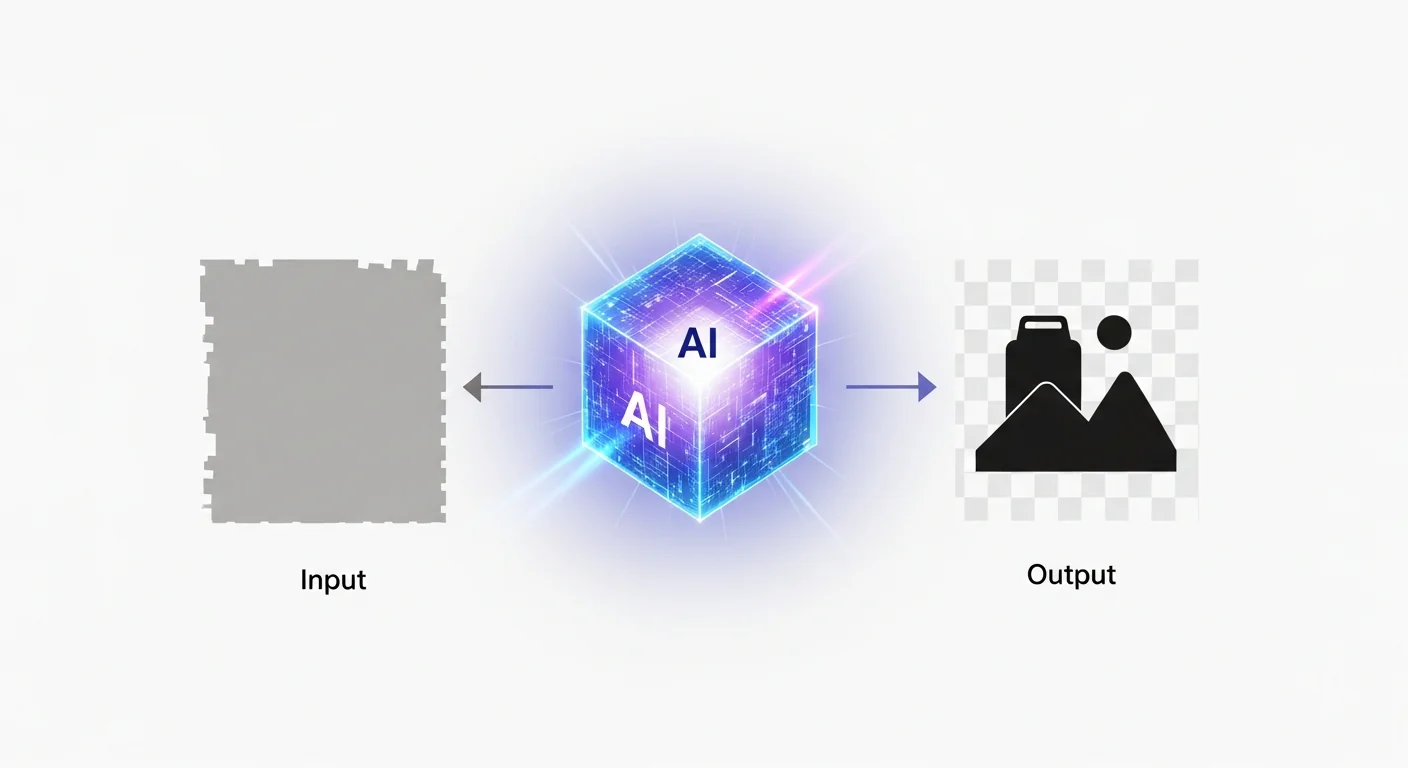
AI-powered background removal has revolutionized image editing, making professional-quality results accessible to everyone. Whether you're a business owner creating product photos, a content creator preparing social media images, or a professional photographer streamlining your workflow, these tools can save hours while delivering excellent results.
The key to success lies in choosing the right tool for your specific needs, understanding each tool's strengths and limitations, and applying the best practices outlined in this guide. Remember that while AI handles the heavy lifting, human oversight and refinement often make the difference between good and exceptional results.
Your Next Steps:
- Start with free tools: Try Remove.bg, Canva, or Adobe Express to find your preferred interface and workflow
- Practice with different image types: Test various subjects (people, products, animals) to understand each tool's capabilities
- Develop a quality checklist: Create a standard process for reviewing and refining your results
- Consider upgrading: Once you understand your needs, invest in paid plans for better quality and features
- Learn complementary skills: Explore basic photo editing to enhance your background removal results
As AI technology continues to advance, these tools will only become more powerful and accurate. Stay updated with new features and improvements, and don't hesitate to experiment with different approaches to find what works best for your specific use cases.
The future of image editing is here, and with the knowledge from this guide, you're well-equipped to leverage AI for professional-quality background removal. Start with simple images, build your skills gradually, and soon you'll be creating stunning visuals that would have taken hours to produce just a few years ago.