How to Play Free Fire on PC with Keyboard and Mouse Controls
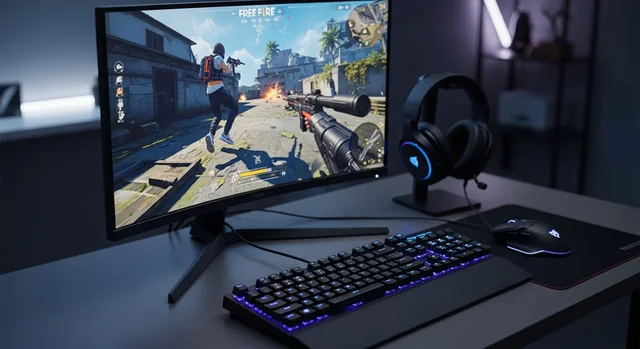
Free Fire continues to dominate the mobile gaming landscape in 2025, but playing on PC offers significant advantages including superior graphics, precise controls, and enhanced performance. With the latest BlueStacks 5 Pie 64-bit emulator supporting up to 240 FPS for Free Fire MAX, PC gaming has never been more compelling for battle royale enthusiasts.
This comprehensive guide covers everything you need to know about playing Free Fire on PC in 2025, from optimal emulator setup to advanced control configurations that will give you a competitive edge in every match.
Why Play Free Fire on PC in 2025?
Playing Free Fire on PC provides numerous advantages over mobile gaming that become increasingly important as the game evolves:
Related: 25 Best Game Apps for iPad Available For Free Download.
- Enhanced Visual Experience: Free Fire MAX supports up to 240 FPS on PC with 4K resolution capabilities
- Precision Controls: Native mouse aiming and customizable keyboard schemes provide superior accuracy
- Extended Gaming Sessions: No battery drain or overheating concerns during long gaming marathons
- Multitasking Capabilities: Stream, record, or communicate while playing without performance impact
- Larger Screen Real Estate: Better visibility for spotting enemies and managing inventory
- Stable Internet Connection: Ethernet connections provide more reliable gameplay than mobile data
Best Android Emulators for Free Fire in 2025
BlueStacks 5 Pie 64-bit (Recommended)
BlueStacks 5 remains the gold standard for Free Fire PC gaming in 2025. The Pie 64-bit version offers exceptional performance optimization specifically designed for battle royale games.
Key Features:
- 240 FPS support for Free Fire MAX
- Smart Controls with auto cursor lock functionality
- Advanced Ctrl+Shift+A keymapping tool
- Eco Mode for reduced resource consumption
- Built-in macro recorder for complex actions
- Multi-instance support for multiple accounts
System Requirements:
- Minimum: 4GB RAM, 4 CPU cores
- Recommended: 8GB RAM, 6+ CPU cores
- Storage: 5GB free space
- Graphics: DirectX 11 compatible
Alternative Emulator Options
LDPlayer 9: Excellent for lower-end systems with efficient resource management and stable performance for Free Fire.
MEmu Play: Features advanced virtualization technology and supports both Intel and AMD processors effectively.
NoxPlayer: Offers good customization options and reliable performance, though slightly higher resource usage than competitors.
Step-by-Step Installation Guide
Installing BlueStacks 5 for Free Fire
- Download BlueStacks 5: Visit the official BlueStacks website and download the Pie 64-bit version
- Run Installation: Execute the installer with administrator privileges
- Initial Setup: Sign in with your Google account during the setup process
- Performance Configuration: Allocate 4GB RAM and 4 CPU cores minimum in settings
- Enable Virtualization: Ensure hardware virtualization is enabled in BIOS for optimal performance
Installing Free Fire on Your Emulator
- Open Google Play Store: Launch the Play Store within BlueStacks
- Search for Free Fire: Download either Free Fire or Free Fire MAX
- Install and Launch: Complete the installation and launch the game
- Initial Game Setup: Complete tutorial and basic settings configuration
- Account Linking: Connect your existing Free Fire account or create a new one
Advanced Control Configuration for 2025
Optimized Keyboard Mapping
The latest BlueStacks keymapping tool (Ctrl+Shift+A) provides unprecedented control customization:
| Action | Default Key | Recommended Alternative | Purpose |
|---|---|---|---|
| Movement | WASD | WASD | Character movement |
| Fire | Left Click | Left Click | Primary weapon fire |
| Aim | Right Click | Right Click | Weapon scope/aim |
| Jump | Space | Space | Character jump |
| Crouch | C | Left Ctrl | Stealth movement |
| Prone | X | Z | Maximum stealth |
| Reload | R | R | Weapon reload |
| Camera Control | F1 | F1 | Third-person view toggle |
| Inventory | Tab | Tab | Item management |
| Map | M | M | World map view |
Smart Controls and Auto Cursor Lock
BlueStacks 5's Smart Controls feature automatically locks your cursor within the game window, preventing accidental clicks outside the game area during intense firefights. This feature can be toggled using the Smart Controls panel accessible through the sidebar.
Sensitivity Optimization for Headshots
Achieving consistent headshots requires precise sensitivity tuning:
Related: Best iPhone Apps for Poker Players (2025 Guide).
- General Sensitivity: Start with 80-90 for balanced movement
- Red Dot Sight: Set to 60-70 for close-range precision
- 2x Scope: Configure to 50-60 for medium-range accuracy
- 4x Scope: Set to 40-50 for long-range stability
- Free Look: Keep at 70-80 for quick environment scanning
Performance Optimization Techniques
Emulator Settings for Maximum FPS
To achieve optimal performance in Free Fire MAX with 240 FPS support:
- Graphics Engine: Select OpenGL for stability or Vulkan for maximum performance
- Memory Allocation: Assign 4-6GB RAM depending on your system capacity
- CPU Cores: Allocate 4-6 cores for smooth gameplay
- Frame Rate: Set to 240 FPS if your monitor supports it, otherwise 144 FPS
- Resolution: Use 1920x1080 for optimal balance between quality and performance
Windows System Optimization
Maximize your PC's gaming performance:
- Game Mode: Enable Windows Game Mode for priority resource allocation
- Background Apps: Close unnecessary applications to free up system resources
- Graphics Drivers: Keep GPU drivers updated for optimal compatibility
- Power Settings: Set to High Performance mode during gaming sessions
- Antivirus Exclusions: Add emulator and game folders to antivirus exclusions
Custom Keyboard Schemes for Different Playstyles
Aggressive Rusher Setup
For players who prefer close-combat and fast-paced gameplay:
- Bind slide to Left Shift for quick movement
- Set crouch to Left Ctrl for instant cover
- Configure quick weapon switch to Q and E
- Assign grenades to G and medkits to H
Sniper/Long-Range Setup
Optimized for precision shooting and tactical gameplay:
- Fine-tune scope sensitivity for each zoom level
- Bind hold breath to Left Alt
- Configure prone to Z for stable shooting positions
- Set inventory quick-access for scope attachments
Support Player Configuration
Perfect for team-oriented gameplay:
- Quick access to revival items on F and G
- Bind voice chat to V for team communication
- Configure quick ping system to mouse buttons
- Set up inventory shortcuts for sharing items
Troubleshooting Common Issues
Performance Problems
Low FPS or Stuttering:
Related: Top 7 Best PlayStation Emulator (PS emulator for Android).
- Reduce graphics settings within Free Fire
- Close background applications
- Increase RAM allocation in emulator settings
- Update graphics drivers
Game Crashes or Freezes:
- Verify emulator and game are fully updated
- Clear cache and restart emulator
- Disable Windows Game Bar if experiencing conflicts
- Check for Windows updates
Control Issues
Keyboard Not Responding:
- Reset keymapping to default settings
- Ensure Smart Controls is properly configured
- Check for conflicting software like macro programs
- Restart emulator with administrator privileges
Advanced Tips for Competitive Play
Mastering Native Mouse Aiming
Take advantage of precise mouse control for superior accuracy:
- Disable mouse acceleration in Windows settings
- Use a consistent DPI setting across all games
- Practice flick shots in training mode
- Adjust in-game sensitivity to match your playstyle
Utilizing F1 Camera Control
The F1 key camera control allows quick perspective changes during combat. Master this feature to:
- Quickly scan surroundings while maintaining movement
- Peek around corners without exposing your position
- Coordinate with teammates by providing better callouts
- Maintain awareness during vehicle travel
Frequently Asked Questions
Is playing Free Fire on PC legal and safe?
Yes, playing Free Fire on PC through official Android emulators like BlueStacks is completely legal and safe. Garena officially supports emulator play, and millions of players use this method without any account restrictions.
Related: 15 Best Free MacBook Games in 2025 (M1, M2, M3, M4 Compatible).
What are the minimum system requirements for Free Fire on PC in 2025?
The minimum requirements are 4GB RAM, 4 CPU cores, and DirectX 11 compatible graphics. However, for optimal performance with 240 FPS support, we recommend 8GB RAM, 6+ CPU cores, and a dedicated graphics card.
Can I use my mobile Free Fire account on PC?
Absolutely! You can link your existing Free Fire account through Facebook, Google Play Games, or VK. All your progress, characters, and purchases will be available across both platforms.
Will I be matched with mobile players or PC players?
Free Fire uses cross-platform matchmaking, meaning you'll play against both mobile and PC players. The game attempts to balance matches based on skill level rather than platform.
How do I achieve 240 FPS in Free Fire MAX?
To reach 240 FPS, you need BlueStacks 5 Pie 64-bit, a high-refresh monitor (240Hz), powerful hardware (8GB+ RAM, modern CPU/GPU), and optimized in-game graphics settings. Enable the high frame rate option in both emulator and game settings.
Can I stream Free Fire while playing on PC?
Yes, PC emulator play is excellent for streaming. You can use OBS Studio or similar software to capture gameplay, and the additional system resources make it easy to stream at high quality without affecting game performance.
What's the difference between Free Fire and Free Fire MAX on PC?
Free Fire MAX offers enhanced graphics, improved textures, better lighting effects, and support for higher frame rates (up to 240 FPS). It requires more system resources but provides a significantly better visual experience on PC.
How do I fix input lag when playing Free Fire on PC?
To reduce input lag: enable hardware acceleration in emulator settings, use a wired mouse and keyboard, close unnecessary background applications, update drivers, and ensure your monitor's refresh rate matches the game's frame rate.
Can I play Free Fire on PC with a controller?
While possible through emulator settings, controller play is not recommended for Free Fire as keyboard and mouse provide significant advantages in terms of precision aiming and quick actions. Most competitive players use keyboard and mouse exclusively.
Is there a risk of getting banned for using keyboard and mouse controls?
No, there's no risk of being banned for using keyboard and mouse controls through official emulators. Garena recognizes emulator play as legitimate, and the game's anti-cheat system is designed to detect actual cheating software, not input methods.
For more details, check out our guide on The Best One Hand Games that you can play on your Androids.
With this comprehensive guide, you're now equipped with everything needed to dominate Free Fire on PC in 2025. The combination of BlueStacks 5's advanced features, optimized controls, and proper system configuration will give you the competitive edge needed to achieve victory in every battle royale match.