EaseUS Data Recovery Wizard Review (2026): Is the Free Version Worth It?
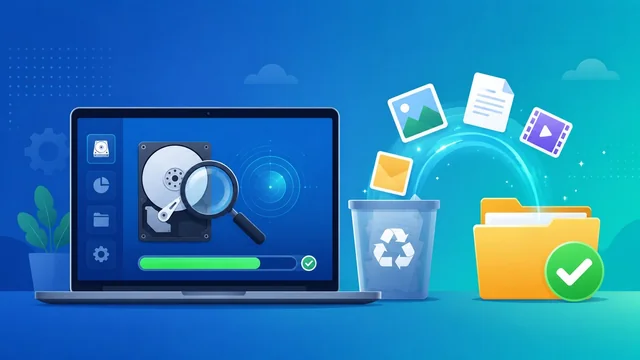
We’ve all felt that jolt of panic: a folder of photos gone after a misclick, a USB drive that suddenly asks to be formatted, or a drive wiped by a crash or malware. Deleted files aren’t usually gone for good — until something overwrites them, the data is still on the disk. The right data recovery software can scan your drive and bring those files back.
EaseUS Data Recovery Wizard is one of the most popular and beginner-friendly recovery tools around. Here’s our updated 2026 review — what it recovers, how the free version performs, what Pro adds, and whether it’s worth it.
What Is EaseUS Data Recovery Wizard?

EaseUS Data Recovery Wizard is a desktop app for Windows and macOS that recovers lost, deleted, formatted and corrupted files. It supports 1,000+ file types — photos, videos, documents, emails, archives and more — from over 2,000 storage devices: internal HDDs and SSDs, external drives, USB sticks, SD cards, cameras and even some RAID setups. Recent versions add AI-assisted scanning to surface recoverable files faster.
What makes it stand out is how simple it is. There’s no confusing choice between quick and deep scans — it runs a quick scan first, then automatically launches a deep scan if needed, so even a complete beginner can recover files in three clicks.
Key Features
- Recovers almost anything: deleted, formatted, hidden, lost-partition, corrupted and RAW-drive data across 1,000+ file types.
- Quick + deep scan in one: a fast scan runs first, with an automatic deep scan to dig out hard-to-find files — no settings to fiddle with.
- Preview before you recover: view photos, documents and videos before restoring, so you only recover the files you actually want.
- Filter & search: sort results by type, date or name and search by filename to find a specific file fast.
- Works on any storage: internal/external drives, SSDs, USB flash drives, memory cards, cameras and more.
- Bootable recovery media: create WinPE bootable media (Pro) to recover data from a PC that won’t start.
- Pause & resume scans and export/import scan results to continue recovery later.
Free vs Pro: What You Get
You can download and run EaseUS Data Recovery Wizard for free, scan your drive and preview everything it finds. The free version recovers up to 2 GB of data at no cost — plenty for rescuing a batch of photos or documents. To recover more, or to use bootable-media recovery and priority support, you’ll need Pro, which removes the size limit. Pro is sold on monthly, yearly and lifetime licences (pricing changes often, so check the EaseUS site for current rates). There are separate Windows and Mac editions.
How to Recover Files (3 Steps)
- Select a location: choose the drive, partition or device where you lost the files and click Scan.
- Scan: EaseUS runs a quick scan, then a deep scan automatically. You can browse results as they appear and pause any time.
- Preview & recover: tick the files you want, preview them to confirm they’re intact, then click Recover and save them to a different drive.
Pros and Cons
Pros
- Extremely easy to use — ideal for non-technical users.
- High success rate, with a thorough automatic deep scan.
- Preview before recovery saves time and avoids restoring junk.
- Free version (up to 2 GB) is genuinely useful, not just a teaser.
- Works on Windows and Mac, and across virtually every storage type.
Cons
- Limited manual control for advanced users who want to fine-tune scans.
- The free 2 GB cap means larger recoveries require a paid licence.
- Deep scans on large drives can take a while.
Is EaseUS Data Recovery Wizard Safe?
Yes. EaseUS is a long-established company, and the software scans your drive read-only — it reads the disk to find recoverable data without writing to or overwriting it. The one golden rule of data recovery applies, though: stop using the affected drive immediately after losing data, and always recover files to a different drive, so you don’t overwrite the very files you’re trying to save.
Frequently Asked Questions
Is EaseUS Data Recovery Wizard free?
There is a free version that lets you scan, preview and recover up to 2 GB of data at no cost. To recover more than that — or to use bootable-media recovery and priority support — you need the Pro version, which removes the size limit.
Is EaseUS Data Recovery Wizard safe to use?
Yes. It’s from a reputable company and scans your drive read-only, so it doesn’t overwrite your data. Just remember to stop using the drive after data loss and always save recovered files to a different drive.
What can EaseUS Data Recovery Wizard recover?
Over 1,000 file types — photos, videos, documents, emails, archives and more — from HDDs, SSDs, USB flash drives, SD cards, cameras and other storage, after deletion, formatting, partition loss, corruption or a system crash.
Does EaseUS Data Recovery Wizard work on Mac?
Yes. There is a dedicated macOS edition alongside the Windows version, which supports Windows 11, 10, 8 and 7.
Can it recover files after formatting or from a crashed PC?
Yes. Its automatic deep scan recovers data from formatted and corrupted drives, and the Pro version can create bootable media to recover files from a computer that won’t start.
Final Verdict
EaseUS Data Recovery Wizard remains one of the best data recovery tools for everyday users in 2026. Its intuitive, three-click workflow, automatic deep scan, preview feature and broad device support make it easy to get your files back without any technical know-how. The free 2 GB tier is great for small recoveries, and the Pro upgrade is worth it if you have a lot to restore or need to rescue data from an unbootable PC. For most people facing accidental deletion or a formatted drive, it’s an easy recommendation.