10 Tips and Tricks Every Mac User Should Know in 2026
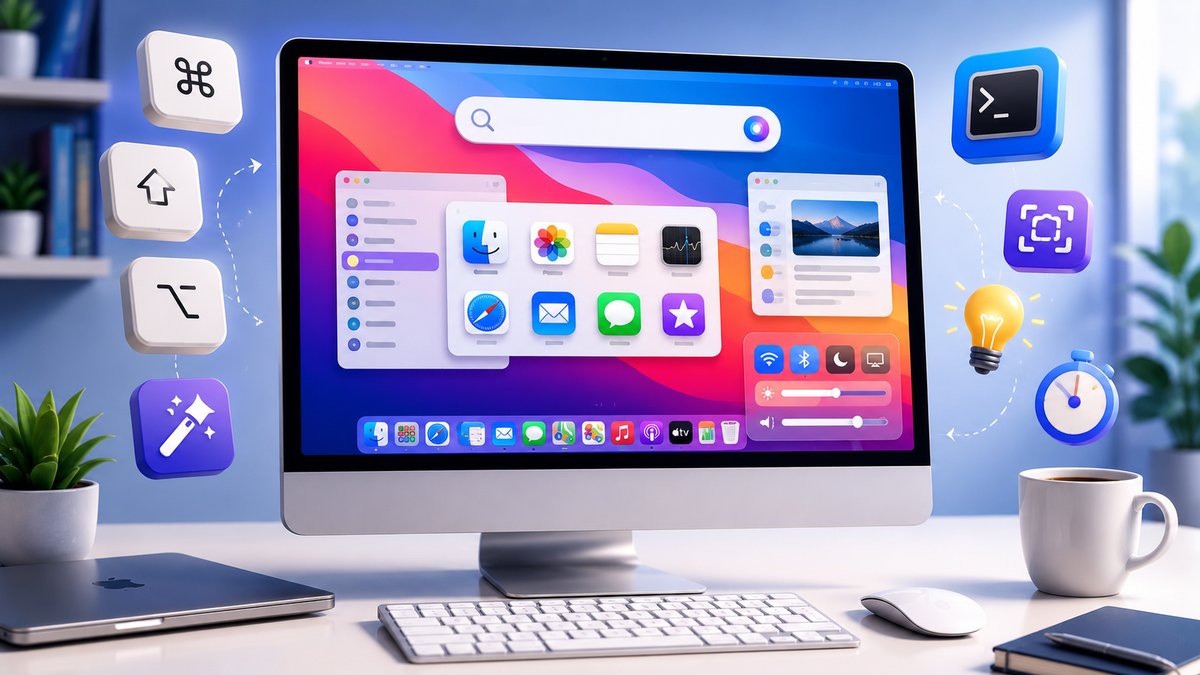
macOS is packed with clever shortcuts and hidden features that make everyday tasks faster — but most people never discover them. Here are 10 of the most useful Mac tips for 2026, updated for the latest version of macOS. A few of these will genuinely change how you work.
1. Instant Conversions and Math in Spotlight
Press Command + Space to open Spotlight and just start typing. It works as a quick calculator and unit converter — type 100 pounds in kg, 50 USD in EUR or 15% of 240 and Spotlight shows the answer instantly. Currency conversions use live rates, so your Mac needs to be online for those.
2. Master Screenshots and Screen Recording
You don't need an app to capture your screen. The essential shortcuts are:
- Command + Shift + 3 — capture the whole screen.
- Command + Shift + 4 — drag a box to capture just part of the screen (press Space to grab a single window).
- Command + Shift + 5 — open the full capture toolbar, where you can also record video of your screen and set a timer.
Hold Control while capturing to copy the screenshot straight to your clipboard instead of saving a file.
3. Export Images to Any Format in Preview
Open an image in Preview and choose File → Export. If the format you want isn't listed, hold down the Option key while clicking the Format dropdown — hidden options like extra image types and quality controls will appear.
4. See Every Open Window with Mission Control
When your screen is buried in windows, press F3 (or swipe up with three or four fingers on the trackpad) to launch Mission Control — formerly known as Exposé. It instantly spreads out every open window and desktop so you can jump to the one you need in a single click.
5. Multitask with Split View and Window Tiling
To work in two apps side by side, hover over the green button at the top-left of a window and choose a tiling option, or simply drag a window to the edge of the screen — recent versions of macOS snap it neatly into place. Hold Option while dragging a divider to resize both windows together.
6. Fine-Tune Volume and Brightness in Quarter Steps
Pressing the volume or brightness keys jumps in big increments. Hold Option + Shift while tapping them and macOS adjusts in much smaller quarter-steps — perfect for getting the sound or screen brightness exactly right.
7. Rename a Whole Batch of Files at Once
Need to rename dozens of files? Select them all in a single Finder folder, right-click and choose Rename. macOS lets you add text, replace words or apply a numbered format to every file in one go — no third-party app required.
8. Organize Finder with the Sidebar and Tags
Drag any folder you use often into the Finder sidebar for one-click access. Even better, use colored Tags: right-click a file, assign a tag like "Work" or "Important," and you can pull up everything with that tag instantly from the sidebar — no matter where the files actually live. Keeping fewer windows open also helps your Mac stay responsive; you can also clear cache and junk files or use the built-in Storage tool under System Settings → General → Storage to free up space.
9. Switch and Quit Apps in Seconds
Hold Command + Tab to flip between open apps. Here's the bonus: while the app switcher is still showing, keep Command held and press Q to quit the highlighted app, or H to hide it — all without lifting a finger to the mouse.
10. Silence Distractions with Focus Modes
Open Control Center (the icon in the top-right menu bar) and click Focus to turn on Do Not Disturb or a custom Focus mode. You can schedule Focus modes, allow only certain people or apps to reach you, and even sync the setting across your iPhone and iPad so notifications stay quiet everywhere.
Bonus: Use Continuity with Your iPhone
If you also own an iPhone, macOS Continuity features are a huge time-saver: copy text on one device and paste it on the other with Universal Clipboard, use iPhone Mirroring to control your phone from your Mac, send files instantly with AirDrop, and turn your iPad into a second display with Sidecar. Everything just works as long as both devices are signed in to the same Apple Account.
Master even a few of these and you'll fly through your day on a Mac. Which tip surprised you the most? Let us know in the comments.