Xfinity Cable Box: How to Activate & Troubleshoot (2026)
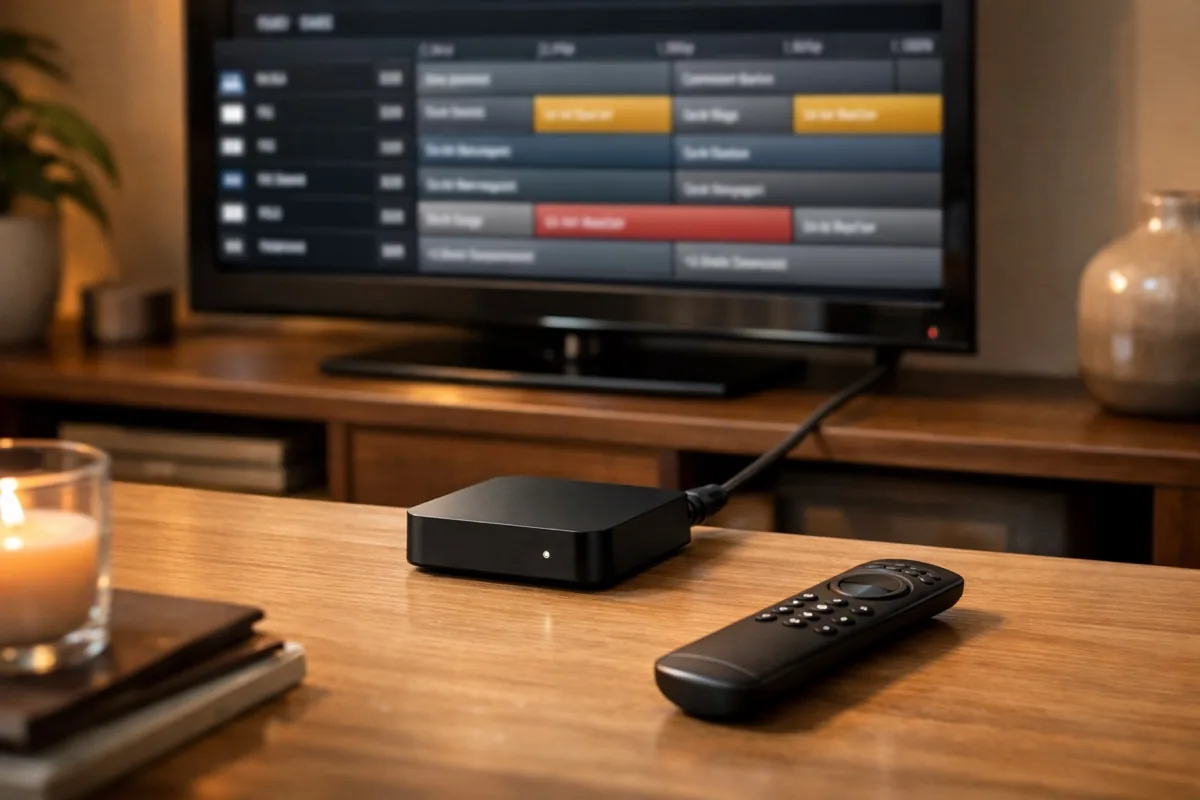
Xfinity cable boxes have evolved significantly — the latest models connect wirelessly to your home network, support 4K streaming, and integrate voice control. But activation and troubleshooting can still be frustrating. Whether you are setting up a new box, fixing a frozen screen, or trying to get your wireless Xi6 to connect, this guide walks you through every step.
Xfinity Cable Box Models (2026)
| Model | Connection | 4K Support | Best For |
|---|---|---|---|
| X1 DVR | Coaxial | Yes | Main TV with recording |
| Xi6 Wireless | Wi-Fi | Yes (4K UHD) | Additional TVs, no wiring |
| XiOne | Wi-Fi or Coaxial | Yes | Flexible connection |
| Xfinity Flex | Wi-Fi | Yes | Internet-only customers |
| Xumo Stream Box | Wi-Fi | Yes | Streaming apps + live TV |
How to Activate Your Xfinity Cable Box
Step 1: Physical Setup
- Connect the HDMI cable from your cable box to your TV
- For wired boxes: connect the coaxial cable from the wall outlet to the box
- For wireless boxes (Xi6, XiOne, Flex): ensure your Xfinity Gateway modem/router is powered on
- Plug in the power cable and turn on the box
Step 2: Activation
- The box will display an activation screen automatically on first boot
- Go to xfinity.com/activate on your phone or computer
- Sign in with your Xfinity account credentials
- Enter the activation code shown on your TV screen
- Wait 10–15 minutes for the box to download its software and channel guide
Step 3: Pair the Voice Remote
- Point the Xfinity Voice Remote at the front of the cable box
- Stay within 10 feet during initial pairing
- Press and hold the microphone button and follow on-screen instructions
- Once paired, the remote works via Bluetooth (no line-of-sight needed)
Troubleshooting Common Issues
Box Won't Turn On
- Check the power cable is securely connected at both ends
- Try a different power outlet
- Look for a small light on the front — if no light at all, the power supply may be faulty
- Contact Xfinity for a replacement if the box is completely unresponsive
Frozen Screen or "Loading" Loop
- Unplug the power cable from the back of the box
- Wait 30 seconds (not 10 — the full 30 matters)
- Plug it back in and wait 5–10 minutes for full reboot
- If it freezes again, try a system refresh at xfinity.com/support
Wireless Box Won't Connect to Network
- Ensure your Xfinity Gateway is online (check the lights on the modem)
- Move the wireless box closer to the Gateway — walls and distance reduce signal
- Restart the Gateway by unplugging for 30 seconds
- On the box, go to Settings > Network > Reconnect to refresh the connection
- If using a third-party router behind the Gateway, ensure MoCA is enabled
No Signal / Black Screen
- Check the HDMI cable is firmly connected at both TV and box
- Try a different HDMI port on your TV
- Try a different HDMI cable — faulty cables are the most common cause
- Ensure your TV input matches the HDMI port you connected to
Remote Control Tips
- Voice search: Hold the microphone button and say what you want to watch — "Watch ESPN" or "Find action movies"
- Re-pair remote: Press and hold Setup until the LED turns green, then press Xfinity button
- Replace batteries: The Voice Remote uses 2 AA batteries. Low battery causes intermittent response
For the best viewing experience, check our guide to the best 4K monitors. For audio, see our noise-cancelling headphones guide.
Frequently Asked Questions
How do I activate my Xfinity cable box?
Connect the box to your TV via HDMI and to power. The activation screen appears automatically. Go to xfinity.com/activate on your phone, sign in, and enter the code shown on your TV. Wait 10 to 15 minutes for the box to complete setup and download the channel guide.
Why is my Xfinity box stuck on "Welcome"?
A box stuck on the Welcome screen usually means it is downloading a software update. Wait up to 20 minutes. If it does not progress, unplug the box for 30 seconds, plug it back in, and wait again. If the issue persists after two reboots, use the Xfinity troubleshooter at xfinity.com/support or contact customer service.
Can I use an Xfinity cable box without a coaxial cable?
Yes. The Xi6, XiOne (in wireless mode), Xfinity Flex, and Xumo Stream Box all connect wirelessly through your home Wi-Fi network. They only need an HDMI cable to your TV and a power connection. Your Xfinity Gateway modem must be active for wireless boxes to work.