Steam FPS Counter: How to Use it
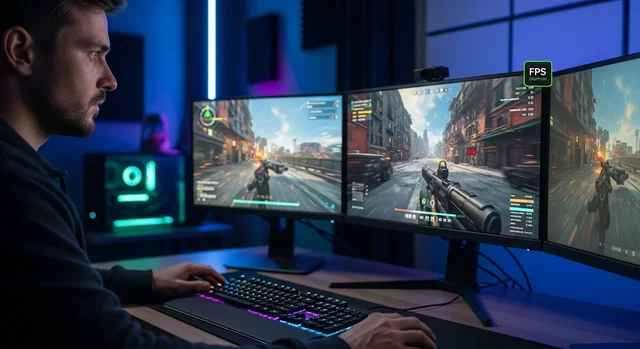
Steam FPS Counter: Your 2025 Guide to Monitoring Gaming Performance
Want to see exactly how well your games are running on Steam? Understanding your Frames Per Second (FPS) is crucial for optimizing your gaming experience. While numerous third-party programs offer detailed performance monitoring, Steam has a built-in FPS counter that's incredibly easy to use. In this 2025 guide, we'll walk you through enabling and using the Steam FPS counter, as well as explore other options for in-depth performance analysis.
Why Monitor Your FPS?
FPS, or Frames Per Second, measures how many individual frames your computer renders each second. A higher FPS generally translates to a smoother and more responsive gaming experience. Low FPS can lead to stuttering, lag, and an overall unpleasant experience. Monitoring your FPS allows you to:
- Assess your hardware's performance: See if your current PC specs are sufficient for running specific games at your desired settings.
- Optimize game settings: Adjust graphics settings to find the sweet spot between visual quality and performance.
- Identify potential bottlenecks: Determine if your CPU, GPU, or RAM is limiting your performance.
- Compare performance after upgrades: Track FPS improvements after upgrading your hardware or drivers.
In 2025, with the release of new AAA titles pushing the boundaries of PC hardware, monitoring your FPS is more important than ever. Games like "Cyberpunk 2077: Phantom Liberty" and "Starfield" demand significant resources, making performance optimization essential.
Learn more in our article about Best Gaming Laptops Under $1500 : Immersive Gaming.
Enabling the Built-in Steam FPS Counter (2025)
The Steam FPS counter is a simple and effective way to display your current frame rate without installing any additional software. Here's how to enable it:
- Open Steam: Launch the Steam client on your PC.
- Access Settings: Click on "Steam" in the top-left corner of the Steam window, then select "Settings."
- Navigate to In-Game Settings: In the Settings window, click on the "In-Game" tab.
- Enable the FPS Counter: Find the "In-game FPS counter" dropdown menu.
- Choose a Display Location: Select the corner of the screen where you want the FPS counter to appear (Top-Left, Top-Right, Bottom-Left, or Bottom-Right).
- High Contrast Color (Optional): Check the "High contrast color" box to make the FPS counter more visible against different backgrounds.
- Close Settings: Click "OK" to save your changes.
Now, launch any game through Steam, and you should see the FPS counter displayed in the corner you selected. It's a small, unobtrusive overlay that provides real-time performance feedback.
Beyond the Basics: Advanced Performance Monitoring Tools (2025)
While the Steam FPS counter is convenient, it only shows your frame rate. For more detailed performance analysis, consider using dedicated monitoring tools. These tools provide information about CPU usage, GPU usage, RAM usage, temperatures, and more.
Popular Performance Monitoring Tools in 2025:
- MSI Afterburner with RivaTuner Statistics Server (RTSS): A powerful and versatile tool for overclocking and monitoring your GPU. RTSS allows you to create customizable on-screen displays (OSDs) with various performance metrics. Free.
- NVIDIA GeForce Experience: If you have an NVIDIA graphics card, GeForce Experience offers a built-in performance overlay that displays FPS, GPU usage, and other stats. Free with NVIDIA GPUs.
- AMD Adrenalin Software: Similar to GeForce Experience, AMD Adrenalin provides performance monitoring tools for AMD graphics cards. Free with AMD GPUs.
- HWiNFO64: A comprehensive hardware information and monitoring tool that provides detailed data about your CPU, GPU, RAM, and other components. Free for personal use.
- CapFrameX: A more advanced tool specifically designed for capturing and analyzing frame rate data. Useful for identifying performance bottlenecks and comparing different hardware configurations. Free.
Comparison of Performance Monitoring Tools (2025)
| Tool | Price | Key Features | Pros | Cons |
|---|---|---|---|---|
| MSI Afterburner + RTSS | Free | GPU Overclocking, Customizable OSD, FPS Monitoring, Temperature Monitoring | Highly customizable, Feature-rich, Widely used | Can be overwhelming for beginners |
| NVIDIA GeForce Experience | Free (NVIDIA GPU Required) | FPS Monitoring, GPU Usage, Driver Updates, Game Optimization | Easy to use, Integrated with NVIDIA ecosystem | Limited customization options |
| AMD Adrenalin Software | Free (AMD GPU Required) | FPS Monitoring, GPU Usage, Driver Updates, Game Optimization | Easy to use, Integrated with AMD ecosystem | Limited customization options |
| HWiNFO64 | Free (Personal Use) | Detailed Hardware Information, Comprehensive Monitoring | Extremely detailed, Supports a wide range of hardware | Can be overwhelming, Not specifically designed for gaming |
| CapFrameX | Free | Frame Rate Capture and Analysis, Performance Benchmarking | Precise frame rate analysis, Useful for benchmarking | More technical, Requires some knowledge of performance analysis |
Setting up MSI Afterburner and RTSS for Detailed Monitoring
MSI Afterburner, in conjunction with RivaTuner Statistics Server (RTSS), is a popular choice for detailed performance monitoring. Here's a basic guide to setting it up:
- Download and Install MSI Afterburner and RTSS: Download the latest versions from the MSI website and follow the installation instructions.
- Launch MSI Afterburner: Open the MSI Afterburner application.
- Configure Monitoring: In MSI Afterburner, select the hardware metrics you want to monitor (e.g., GPU temperature, GPU usage, CPU temperature, CPU usage, RAM usage).
- Enable On-Screen Display (OSD): For each metric, check the "Show in On-Screen Display" box.
- Configure RTSS: Launch RTSS from the system tray.
- Customize OSD Appearance (Optional): In RTSS, you can customize the font, size, color, and position of the OSD.
- Launch Your Game: Start your game, and the OSD should appear with the selected performance metrics.
Interpreting Your FPS and Performance Data
Once you have your FPS and other performance data, it's important to understand what it means. Here's a general guideline:
- 60 FPS or higher: Generally considered a smooth and enjoyable gaming experience.
- 30-60 FPS: Playable, but may experience some stuttering or lag, especially in fast-paced games.
- Below 30 FPS: Unplayable for most games. Expect significant stuttering and lag.
However, the ideal FPS can vary depending on the game and your personal preferences. For example, competitive gamers often prefer higher frame rates (120 FPS or higher) for maximum responsiveness. In 2025, with the increasing popularity of high refresh rate monitors (144Hz, 240Hz, or higher), aiming for higher FPS is becoming more common.
Learn more in our article about How to Play Free Fire on PC with Keyboard and Mouse Controls.
Also, pay attention to other performance metrics, such as CPU and GPU usage. If either of these components is consistently at 100% utilization, it could be a sign of a bottleneck. Lowering graphics settings or upgrading your hardware may be necessary to improve performance.
Troubleshooting Low FPS in 2025
If you're experiencing low FPS, here are some troubleshooting steps you can try:
- Lower Graphics Settings: Reduce the resolution, texture quality, shadows, and other graphics settings in the game.
- Update Graphics Drivers: Make sure you have the latest drivers for your NVIDIA or AMD graphics card.
- Close Unnecessary Programs: Close any background applications that may be consuming system resources.
- Check for Overheating: Monitor your CPU and GPU temperatures to ensure they are not overheating. Clean dust from your PC and consider improving cooling if necessary.
- Update Windows: Ensure your Windows operating system is up to date.
- Defragment Your Hard Drive (HDD Only): If you're using a traditional hard drive (HDD), defragmenting it can improve performance. (Not necessary for SSDs).
- Upgrade Your Hardware: If all else fails, consider upgrading your CPU, GPU, or RAM.
The Future of FPS Monitoring (2025 and Beyond)
In 2025, we're seeing a growing trend towards more integrated and user-friendly performance monitoring tools. Game developers are increasingly incorporating built-in performance overlays into their games, providing players with real-time feedback without the need for external software. Cloud gaming services like NVIDIA GeForce Now and Xbox Cloud Gaming also offer built-in performance monitoring tools.
Furthermore, advancements in AI and machine learning are being used to optimize game settings automatically based on your hardware configuration, ensuring the best possible performance without requiring manual adjustments. As technology continues to evolve, we can expect even more sophisticated and accessible performance monitoring tools in the future.
Related: Top 7 Best Video Player for Windows PC.
FAQ: Steam FPS Counter and Performance Monitoring in 2025
- Q: Does the Steam FPS counter affect performance?
A: The Steam FPS counter has a minimal impact on performance. The overhead is typically negligible.
- Q: What is a good FPS for gaming in 2025?
A: 60 FPS is generally considered good for gaming. However, competitive gamers often prefer 120 FPS or higher, especially with high refresh rate monitors.
- Q: How do I show FPS in all games, not just Steam games?
A: Use a tool like MSI Afterburner with RTSS. RTSS can display the OSD in almost any application, including non-Steam games.
- Q: My FPS counter is not showing up. What should I do?
A: Make sure the FPS counter is enabled in Steam Settings > In-Game. Also, ensure that Steam Overlay is enabled. Restart Steam and your game.
See also: 15 Best Free MacBook Games in 2025 (M1, M2, M3, M4 Compatible).
- Q: Can I use the Steam FPS counter with cloud gaming services?
A: No, the Steam FPS counter only works with games launched through the Steam client. Cloud gaming services typically have their own built-in performance monitoring tools.
- Q: What is the difference between average FPS and minimum FPS?
A: Average FPS is the average frame rate over a period of time. Minimum FPS is the lowest frame rate recorded during that period. Minimum FPS is a good indicator of potential stuttering or lag.
- Q: How can I benchmark my PC's gaming performance?
A: Use benchmarking tools like 3DMark or Unigine Heaven. These tools provide a standardized score that you can compare to other systems.
- Q: Is it better to have higher graphics settings or higher FPS?
A: It depends on your preferences. Some players prioritize visual quality, while others prioritize smooth performance. Experiment with different settings to find the best balance for you.
- Q: How do I monitor CPU and GPU temperatures while gaming?
A: Use tools like MSI Afterburner, HWiNFO64, or the monitoring software provided by your CPU and GPU manufacturers.
See also: 15 Best VLC Media Player Keyboard Shortcuts.
- Q: What are some common causes of low FPS in games?
A: Outdated drivers, insufficient hardware, overheating, background applications, and demanding graphics settings are common causes of low FPS.