How to Set Up iTunes Home Sharing on iPhone, iPad and iPod Touch
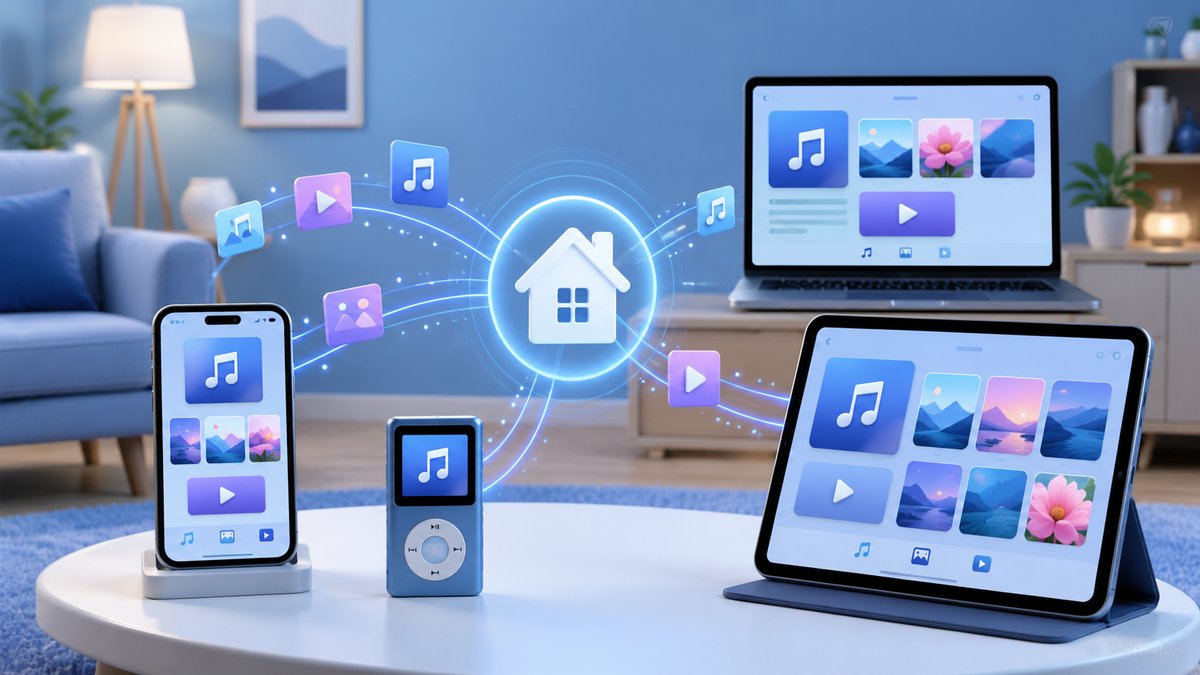
Home Sharing is one of Apple's most convenient features — it lets you stream your entire music, movie and TV library from a computer to your iPhone, iPad, iPod touch or Apple TV over the same Wi-Fi network, with no cables and no re-downloading. You set it up once and your library is available across every device signed in to the same Apple Account.
A lot has changed since Home Sharing first launched. On the Mac, iTunes was replaced by the Apple Music app back in macOS Catalina, while on Windows you can use either iTunes or the newer Apple Music app. The good news is that Home Sharing still works exactly the same way — only the menus have moved. This updated 2026 guide walks you through the current setup on both your computer and your iOS devices.
What You Need Before You Start
- A Mac or Windows PC with the Apple Music app (Mac/Windows) or iTunes (Windows) installed.
- Your iPhone, iPad or iPod touch running a current version of iOS or iPadOS.
- All devices signed in with the same Apple Account (Apple ID).
- Every device connected to the same Wi-Fi network.
- The computer powered on and awake, with the Music app or iTunes open.
Step 1: Turn On Home Sharing on Your Computer
On a Mac (Apple Music app):
- Open the Music app.
- In the menu bar, click File → Home Sharing → Turn On Home Sharing.
- Sign in with your Apple Account and click Turn On Home Sharing.
On Windows (Apple Music or iTunes):
- Open the Apple Music app (or iTunes).
- From the menu, choose File → Home Sharing → Turn On Home Sharing.
- Enter your Apple Account credentials and confirm.
Make sure you use the same Apple Account that you use on your iPhone or iPad — Home Sharing only works between devices that share one account.
Step 2: Turn On Home Sharing on Your iPhone, iPad or iPod touch
- Open the Settings app.
- Scroll down and tap Apps → Music (on older versions, just Settings → Music).
- Under Home Sharing, tap Sign In and enter the same Apple Account you used on your computer.
The procedure is identical on iPhone, iPad and iPod touch.
Step 3: Play Your Shared Library
- Open the Music app on your device and go to the Library tab.
- Tap Library at the top and select your computer's shared library from the list.
- Browse and stream your songs, playlists and albums instantly over Wi-Fi.
To stream movies and TV shows, open the Apple TV app and look for your shared computer library in the settings. On an Apple TV box, enable Home Sharing under Settings → Users and Accounts → Home Sharing.
Troubleshooting Home Sharing
- No library appears: Confirm all devices use the same Apple Account and the same Wi-Fi network.
- Computer isn't showing: Keep the Music app or iTunes open and the computer awake — Home Sharing stops when the computer sleeps.
- Connection drops: Restart the Music/iTunes app, or sign out of Home Sharing and back in on both ends.
- Firewall blocking it: On Windows, allow iTunes/Apple Music through Windows Defender Firewall; on Mac, check System Settings → Network → Firewall.
That's it — once Home Sharing is on, your whole media library follows you around the house. Enjoy all your music, TV shows, movies and podcasts on any of your Apple devices without downloading a thing.