PS5 Setup Guide 2025: Essential Tips, Best Settings & Hidden Features
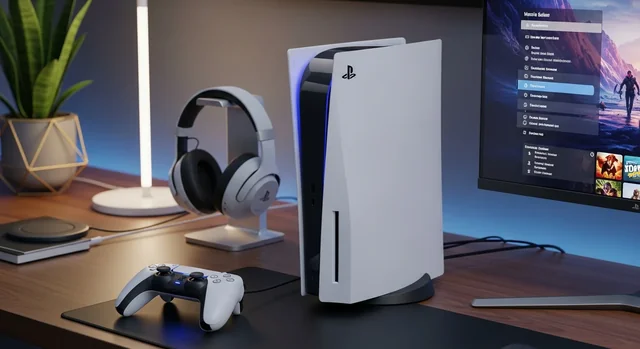
Setting up your PlayStation 5 in 2025 has become more streamlined than ever, but there are still numerous optimization opportunities and hidden features that can dramatically enhance your gaming experience. Whether you've just unboxed a brand new PS5 or you're looking to optimize your existing console, this comprehensive guide will walk you through everything from basic setup to advanced configuration options that many users overlook.
The PS5 continues to be one of the most sought-after gaming consoles, and with recent firmware updates throughout 2024 and early 2025, Sony has introduced several new features and improvements that make proper setup even more crucial for getting the most out of your investment.
Pre-Setup Preparation
Before diving into the setup process, ensure you have everything you need for a smooth installation. Your PS5 box should include the console, DualSense wireless controller, HDMI cable, AC power cord, USB cable, printed materials, and ASTRO's PLAYROOM pre-installed game.
Related: Netflix Ready Player Me Deal Signals a New Gaming Era.
You'll also want to prepare your gaming environment. Ensure you have a stable internet connection with at least 50 Mbps download speed for optimal performance, especially for 4K streaming and large game downloads. Clear adequate space around your PS5 for proper ventilation – Sony recommends at least 4 inches of clearance on all sides.
Initial Hardware Setup
Console Placement and Connections
Position your PS5 either vertically with the included stand or horizontally. For vertical placement, attach the base by aligning it with the console's bottom and securing it with the included screw. For horizontal placement, simply clip the stand onto the console without screws.
Connect the HDMI cable to your TV's HDMI 2.1 port if available – this enables 4K gaming at 120fps for supported titles. If your TV doesn't have HDMI 2.1, any HDMI port will work, but you'll be limited to 4K at 60fps. Connect the power cable and press the power button to begin the initial setup process.
Controller Setup
Your DualSense controller should pair automatically during initial setup. If it doesn't, connect it via the included USB cable and press the PlayStation button. The controller will charge while connected, and you can continue using it wirelessly once paired.
Software Configuration
Initial System Setup
Follow the on-screen prompts to select your language, region, and time zone. Connect to your Wi-Fi network or use an ethernet cable for the most stable connection. Sign in to your PlayStation Network account or create a new one if you're new to the PlayStation ecosystem.
During setup, you'll be prompted to enable or disable various features. We recommend enabling automatic updates to keep your system and games current, and consider enabling the "Stay Connected to the Internet" option for background downloads and updates.
Essential System Updates
After connecting to the internet, your PS5 will likely prompt you to download and install the latest system software. As of early 2025, the current firmware version includes enhanced VRR (Variable Refresh Rate) support, improved SSD management, and better backwards compatibility features. Allow this update to complete before proceeding with other setup tasks.
Optimal Display and Audio Settings
Video Output Configuration
Navigate to Settings > Screen and Video > Video Output to configure your display settings. Enable 4K if your TV supports it, and turn on HDR if your display is HDR-compatible. The "Enable 120Hz Output" option should be enabled if your TV supports HDMI 2.1 and 120Hz refresh rates.
| Setting | Recommended Value | Purpose |
|---|---|---|
| Resolution | 4K (if supported) | Maximum visual clarity |
| HDR | Automatic (if supported) | Enhanced color range and contrast |
| 120Hz Output | Automatic (if supported) | Smoother gameplay in supported titles |
| VRR | Automatic (if supported) | Eliminates screen tearing |
| Deep Color Output | Automatic | Better color accuracy |
Audio Configuration
For audio setup, go to Settings > Sound > Audio Output. If you're using a soundbar or surround sound system, select the appropriate audio format. The PS5 supports 3D audio through the Tempest 3D AudioTech, which works with any headphones connected to the controller or console.
Enable "3D Audio for Headphones" if you plan to use headphones for gaming. This feature significantly enhances spatial audio in supported games, providing a competitive advantage in multiplayer titles and a more immersive single-player experience.
Storage Management and Expansion
Understanding PS5 Storage
The PS5 comes with approximately 667GB of usable storage from its 825GB SSD. With modern games often exceeding 50-100GB, storage management becomes crucial. The console allows you to expand storage using compatible M.2 NVMe SSDs or external USB drives for PS4 games.
Installing an M.2 SSD
For internal expansion, Sony has approved numerous M.2 SSDs including the Samsung 980 PRO, WD Black SN850X, and Seagate FireCuda 530. These drives must meet specific requirements: PCIe Gen4 interface, minimum 5,500 MB/s read speed, and include a heatsink.
To install an M.2 drive, power down the console completely, remove the side panel, and locate the expansion slot. Remove the mounting screw, insert the drive at a 30-degree angle, then secure it with the screw and spacer. Replace the side panel and power on – the console will format the new drive automatically.
Learn more in our article about Best Video Games of 2025: Top Titles You May Have Missed.
Network and Connectivity Optimization
Internet Connection Setup
For the best online gaming experience, use a wired ethernet connection when possible. If Wi-Fi is necessary, ensure your PS5 is connected to a 5GHz network rather than 2.4GHz for better performance and less congestion.
In Settings > System > Console Information > Network, you can test your connection speed. For optimal performance, aim for download speeds of at least 25 Mbps for 4K streaming and 10 Mbps for standard gaming. Upload speeds of 3-5 Mbps are sufficient for most online gaming scenarios.
Port Forwarding and NAT Type
To improve online connectivity, consider configuring port forwarding on your router for the PS5. The console uses ports 80, 443, and 3478-3480 for basic connectivity, plus additional ports for specific games. A NAT Type 1 or 2 is ideal for online gaming, while NAT Type 3 may cause connectivity issues.
Hidden Features and Advanced Settings
Game Presets and Performance Modes
Many users overlook the Game Presets feature in Settings > Saved Data and Game/App Settings > Game Presets. Here you can set default preferences for performance vs. graphics quality. Choose "Performance Mode" to prioritize frame rates, or "Graphics Mode" for enhanced visual quality.
The "Game Help" feature, available for PlayStation Plus subscribers, provides real-time hints and tips for supported games. This can be particularly useful for challenging titles or when you're stuck on specific sections.
Activity Cards and Social Features
Activity Cards appear when you highlight games on the home screen, showing your progress and available activities. These cards can help you jump directly to specific game modes or chapters, saving time navigating through game menus.
The "Share" button functionality has been expanded in 2025, allowing for easier content creation and sharing across social platforms. You can now record gameplay in 4K HDR and edit clips directly on the console with improved editing tools.
PlayStation Plus and Digital Store Setup
Subscription Services
PlayStation Plus has evolved into a three-tier service as of 2025. The Essential tier ($9.99/month) provides monthly games and online multiplayer. Extra tier ($14.99/month) adds a game catalog with hundreds of titles. Premium tier ($17.99/month) includes classic games, game trials, and streaming capabilities.
Learn more in our article about 10 Best Free WordPress Video Player Plugins in 2025.
If you're upgrading from PS4, many of your previous purchases will be available for download on PS5, often with enhanced performance or dedicated PS5 versions available at no additional cost.
Common Setup Mistakes to Avoid
Inadequate Ventilation: Many users place their PS5 in enclosed entertainment centers without proper airflow. This can lead to overheating and reduced performance. Always ensure adequate clearance around all vents.
Using Incompatible Storage: Not all M.2 SSDs are compatible with PS5. Using drives that don't meet Sony's specifications can result in poor performance or system instability. Always verify compatibility before purchasing.
Ignoring HDR Calibration: Simply enabling HDR isn't enough – you need to calibrate it properly for your specific display. Use the built-in HDR calibration tool in Settings > Screen and Video > Video Output > HDR.
Skipping Controller Updates: DualSense controllers receive firmware updates that improve functionality and add new features. Connect your controller via USB periodically to check for updates.
Poor Network Configuration: Using 2.4GHz Wi-Fi or having an inadequate internet plan can severely impact your gaming experience, especially for online multiplayer games and large downloads.
Performance Optimization Tips
System Maintenance
Regularly restart your PS5 to clear temporary files and refresh system memory. Enable automatic updates to keep games and system software current. Consider rebuilding the database monthly by booting into Safe Mode (hold power button for 7 seconds when console is off) and selecting "Rebuild Database."
Game Management
Use the "Auto-Upload" feature for save data if you have PlayStation Plus. This ensures your game progress is backed up to the cloud automatically. Regularly review and delete games you no longer play to free up storage space.
See also: The Best One Hand Games that you can play on your Androids.
Take advantage of the "Game Library" organization features to create custom collections and easily find your games. You can sort games by genre, completion status, or personal preference.
Frequently Asked Questions
Q: Can I use my PS4 games on PS5?
A: Yes, the vast majority of PS4 games are compatible with PS5 and often run with improved performance. Some titles have dedicated PS5 versions available for free or at a reduced cost.
Q: How much storage do I really have on PS5?
A: The PS5 has approximately 667GB of usable storage from its 825GB SSD. The remaining space is used by the operating system and system files.
Q: Do I need a 4K TV to enjoy PS5?
A: No, PS5 works with any HDMI-compatible display. However, a 4K TV with HDMI 2.1 will provide the best visual experience and support for 120fps gaming.
Q: Can I expand PS5 storage with any external drive?
A: You can use external USB drives for PS4 games and media storage, but PS5 games must be stored on the internal SSD or a compatible M.2 expansion drive.
Q: Is PlayStation Plus required for all online features?
A: PlayStation Plus Essential is required for online multiplayer in most games, but free-to-play games, streaming apps, and web browsing don't require a subscription.
Q: How do I know if my TV supports all PS5 features?
A: Check your TV specifications for HDMI 2.1, 4K support, HDR10 compatibility, and VRR support. The PS5 will automatically detect and enable supported features.
Q: Can I use PS5 in rest mode safely?
A: Yes, rest mode is designed for regular use and allows background downloads and controller charging. Ensure your power settings are configured properly in Settings > System > Power Saving.
Q: What's the difference between Performance and Graphics mode?
A: Performance mode prioritizes higher frame rates (often 60fps or 120fps), while Graphics mode focuses on visual quality, resolution, and effects, typically at 30-60fps.
Q: How often should I clean my PS5?
A: Clean dust from vents monthly using compressed air. The PS5's design allows for easy dust removal from the main intake areas without opening the console.
Q: Can I share games with family members?
A: Yes, through Console Sharing and Offline Play settings, you can share digital games with other accounts on the same console, and even share with one other PS5 console.
Conclusion
Properly setting up your PS5 in 2025 involves more than just plugging it in and turning it on. By following this comprehensive guide, you've optimized your console for the best possible gaming experience, from display settings and audio configuration to storage management and network optimization.
The key to getting the most from your PS5 lies in understanding its advanced features and taking time to configure settings that match your specific setup and preferences. Regular maintenance, staying updated with firmware releases, and exploring the console's hidden features will ensure you continue to enjoy everything the PS5 has to offer.
For more details, check out our guide on Nintendo Switch 2: Complete System Guide (Specs, Games, Features & More).
Remember that Sony continues to add new features and improvements through regular system updates, so revisit your settings periodically to take advantage of new capabilities. With proper setup and optimization, your PS5 will provide years of exceptional gaming experiences across its impressive library of exclusive and multi-platform titles.