Best Live Streaming Software in 2026 — Top 8 Picks for Every Creator
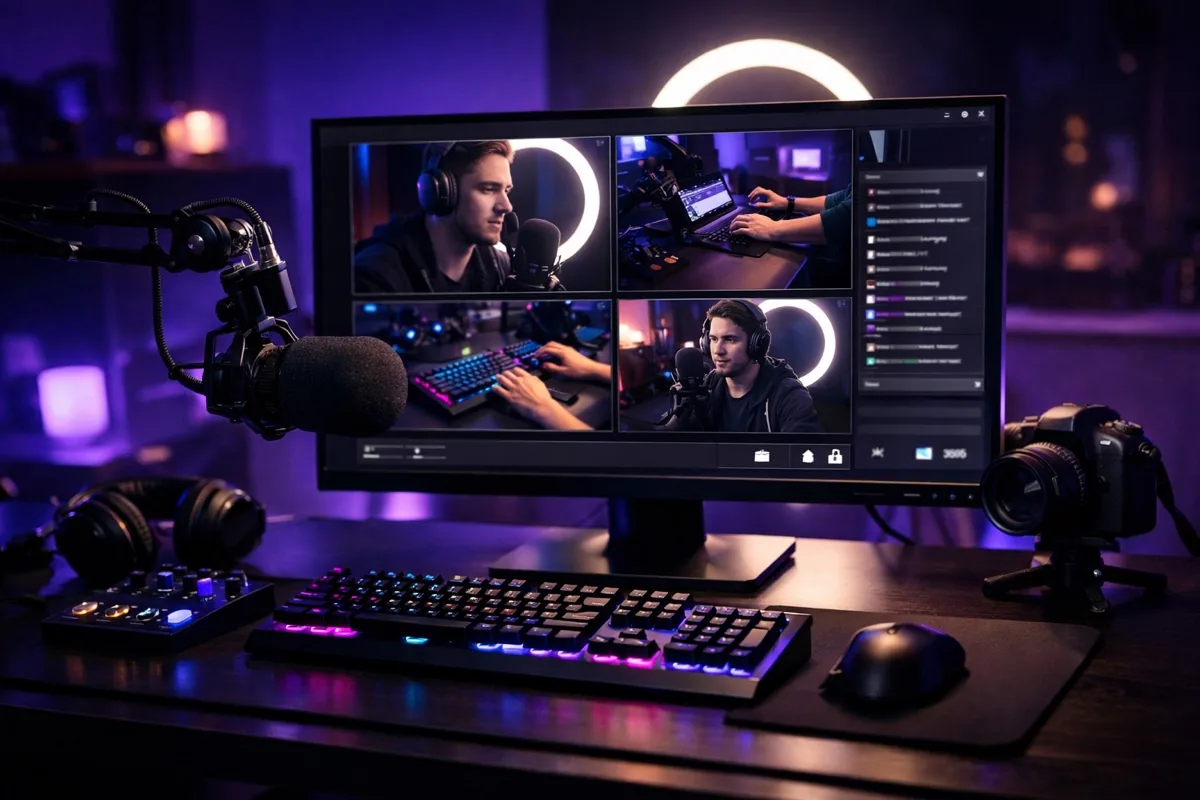
Live streaming has evolved from a niche hobby into a multi-billion dollar industry. Whether you are a Twitch gamer, a YouTube educator, a LinkedIn thought leader, or a business running virtual events, the software you choose shapes every aspect of your broadcast — from video quality and latency to audience engagement and monetization.
The landscape in 2026 is more competitive than ever. OBS Studio continues to dominate with its open-source flexibility, while browser-based tools like StreamYard have eliminated the need for downloads entirely. Professional suites like vMix now rival hardware switchers at a fraction of the cost, and AI-powered features are showing up across the board.
We tested and compared the top live streaming software available today, evaluating them on ease of use, performance, multi-platform support, pricing, and feature depth. Here are the eight best options for every type of creator.
Quick Comparison: Best Live Streaming Software at a Glance
| Software | Price | Best For | Platform | Key Strength |
|---|---|---|---|---|
| OBS Studio | Free | Advanced users, gamers | Windows, Mac, Linux | Customizable, lightweight |
| Streamlabs | Free / $27/mo Ultra | Beginner streamers | Windows, Mac, Mobile | Built-in alerts & overlays |
| StreamYard | Free / $36–$249/mo | Podcasters, interviews | Browser-based | No download needed |
| XSplit Broadcaster | Free / $5–$15/mo | Windows gamers | Windows only | Polished UI, VCam built-in |
| vMix | $60–$1,200 (one-time) | Professional broadcast | Windows only | Multi-camera, instant replay |
| Restream | Free / $16–$199/mo | Multi-platform streamers | Browser + desktop | 30+ platform simulcast |
| Wirecast | $599–$799 (one-time) | Events, production teams | Windows, Mac | Hardware encoder support |
| Twitch Studio | Free | Twitch-only beginners | Windows, Mac | Zero-config Twitch setup |
1. OBS Studio — Best Free Streaming Software Overall
OBS Studio (Open Broadcaster Software) remains the undisputed king of free live streaming software in 2026. Now at version 32.1, it has matured into a powerhouse that rivals paid alternatives while costing absolutely nothing.
The latest update introduces WebRTC Simulcast support, which sends multiple quality layers simultaneously so CDNs can serve the right resolution to each viewer automatically. The overhauled audio mixer now features vertical layout, source pinning, and one-click monitoring toggles — addressing one of the biggest workflow complaints from long-time users.
OBS handles everything from basic webcam streams to complex multi-source productions with screen captures, game captures, browser sources, and media files. Its plugin ecosystem is massive — popular additions include Advanced Scene Switcher for automation, Stream FX for real-time filters, and the NDI plugin for network-based video routing.
Performance is where OBS truly shines. It consistently uses 20 to 30 percent less CPU than Streamlabs in head-to-head benchmarks, making it the better choice for streamers on mid-range hardware who need every frame for their game. The trade-off is a steeper learning curve — there are no built-in overlays, alerts, or monetization tools. You either configure everything manually or install third-party plugins.
OBS Studio Pros
- Completely free and open source with no watermarks or limitations
- Lowest CPU and RAM usage among full-featured streaming tools
- Massive plugin ecosystem with community-driven development
- Cross-platform support for Windows, macOS, and Linux
- WebRTC Simulcast and SRT protocol support for modern streaming
OBS Studio Cons
- No built-in alerts, overlays, or monetization features
- Steeper learning curve for first-time streamers
- No official mobile app
2. Streamlabs — Best for Beginner Streamers
Streamlabs takes the OBS engine and wraps it in a beginner-friendly package loaded with features that would take hours to configure manually in OBS. If OBS is a professional DSLR, Streamlabs is a smartphone camera — it gets you broadcasting in minutes with results that look polished from day one.
The free tier includes scene management, alerts, widgets, overlays, and single-destination streaming. Upgrading to Streamlabs Ultra at $27 per month (or $189 per year) unlocks cloud multistreaming to Twitch, YouTube, TikTok, Kick, and Facebook simultaneously. Ultra also includes Talk Studio Pro for remote guests, Cross Clip Pro for creating short-form content, a video editor, and premium overlay themes.
Streamlabs shines brightest in its monetization integration. Built-in donation bars, tip pages, merch alerts, and subscriber goals are configured through a visual editor — no code or third-party services required. For streamers focused on growing their income, this alone can justify the subscription.
The downside is resource usage. Streamlabs requires a minimum of 8 GB of RAM and uses noticeably more CPU than OBS, which can be a dealbreaker for gamers on budget hardware. The interface, while friendlier, can also feel cluttered with upsell prompts for Ultra features.
Streamlabs Pros
- Built-in alerts, overlays, widgets, and donation tools
- One-click setup with pre-designed themes
- Cloud multistreaming with Ultra subscription
- Mobile and console streaming support
- Integrated clip editor and podcast tools
Streamlabs Cons
- Higher CPU and RAM usage than OBS Studio
- Best features locked behind $27/month Ultra subscription
- Frequent upsell prompts in the free version
3. StreamYard — Best Browser-Based Streaming Tool
StreamYard has carved out a unique position by running entirely in your web browser. There is nothing to download, nothing to configure, and nothing to update. Open a link, allow camera access, and you are live. This makes it the go-to choice for podcasters, educators, corporate events, and anyone who values simplicity over customization.
Guests join through a shared link — no accounts or software required — making it ideal for interview-style shows and panel discussions. The studio interface lets you add branded overlays, display live comments on screen, create lower thirds, and switch between layouts with a single click.
The free plan streams at 720p with a StreamYard watermark and multistreams to two channels. The Core plan at $36 per month (annually) removes the watermark, bumps quality to 1080p, adds multistreaming to three destinations, and unlocks unlimited local recordings. The Advanced plan at $69 per month adds 4K support and more destinations, while the Business plan at $249 per month enables team collaboration with multiple seats.
StreamYard's limitation is that it is not built for high-performance game streaming. It lacks game capture, scene transitions, and the granular encoder control that desktop apps provide. But for talk shows, webinars, and multi-guest productions, nothing is easier.
StreamYard Pros
- Zero-download browser-based interface
- Easiest guest management — share a link, they join
- Built-in branding, overlays, and comment display
- Works on any operating system with a modern browser
- Seven-day free trial on all paid plans
StreamYard Cons
- Not suitable for game streaming or complex scene setups
- Limited customization compared to desktop software
- Depends on stable internet — no local encoding fallback
- 720p cap and watermark on free plan
4. XSplit Broadcaster — Best for Windows Power Users
XSplit Broadcaster sits in the sweet spot between OBS's complexity and Streamlabs' simplicity. It is a Windows-only application that delivers a polished, professional interface with features that appeal to gamers and content creators who want more control without diving into plugin configuration.
XSplit's standout feature is its built-in VCam technology, which removes, replaces, or blurs your background without a green screen. This works with any webcam and integrates directly into your stream scenes — no separate virtual camera app needed. The scene editor supports drag-and-drop source management, custom transitions, and simultaneous multi-scene recording.
Pricing is flexible. The free version handles basic streaming and recording, while Premium plans start at $5 per month for an annual subscription. The lifetime license at $199 eliminates recurring costs entirely. Premium unlocks simultaneous multi-platform streaming, multi-scene recording, and removes all watermarks.
XSplit's main limitation is its Windows-only availability. Mac and Linux users are completely out of luck. The plugin ecosystem is also smaller than OBS's, though the built-in feature set compensates for most gaps.
XSplit Broadcaster Pros
- Clean, intuitive interface with drag-and-drop scene editing
- Built-in VCam for background removal without green screen
- Flexible pricing with affordable monthly and lifetime options
- Multi-platform streaming and multi-scene recording
- Strong Skype and video call integration
XSplit Broadcaster Cons
- Windows only — no Mac or Linux support
- Smaller plugin ecosystem than OBS
- Some advanced features require Premium subscription
5. vMix — Best Professional Broadcasting Software
vMix is where live streaming meets broadcast television. This Windows-only powerhouse is designed for professional productions — sports broadcasts, concerts, conferences, church services, and corporate events where production value is non-negotiable.
vMix supports multiple camera inputs, NDI network video, virtual sets, instant replay, slow motion, and a professional audio mixer — capabilities that used to require hardware costing tens of thousands of dollars. The 4K edition handles UHD output with HDR support and high frame rates, making it suitable for the most demanding broadcast environments.
Unlike subscription-based tools, vMix uses a one-time perpetual license model. Basic HD starts at $60, HD at $350, and the full 4K edition at $1,200. The vMix Max subscription option at $50 per month gives you all Pro features without the upfront investment. A generous 60-day free trial lets you test the full feature set before committing.
The learning curve is significant. vMix assumes you have broadcast production experience, and the interface reflects that complexity. This is not a tool for casual streamers — it is built for professionals who need broadcast-grade output and are willing to invest the time to learn it.
vMix Pros
- Broadcast-grade multi-camera production capabilities
- Instant replay, slow motion, and virtual sets
- One-time perpetual license — no recurring fees
- NDI support for network-based video routing
- 60-day full-featured free trial
vMix Cons
- Windows only — no Mac or Linux support
- Steep learning curve aimed at professionals
- High upfront cost for 4K edition ($1,200)
- Overkill for solo streamers and casual creators
6. Restream — Best for Multi-Platform Streaming
Restream is a cloud-based multistreaming service that lets you broadcast to over 30 platforms from a single stream. It works both as a standalone browser-based studio (Restream Studio) and as a destination you can connect to from OBS, Streamlabs, or any other broadcasting software via RTMP.
The core value proposition is reach. Instead of choosing between Twitch, YouTube, Facebook, LinkedIn, TikTok, and Kick, you stream once and Restream distributes to all of them simultaneously. The unified chat feature pulls comments from every platform into a single window, so you can engage with your entire audience without switching tabs.
The free plan lets you multistream to two channels. Standard at $16 per month adds three channels with Restream branding removed. Professional at $39 per month expands to more destinations and adds analytics, while Business at $199 per month provides team collaboration with up to 10 on-screen guests and priority support.
Restream also includes AI Clips, which automatically identifies highlights from your stream and generates short-form clips for TikTok, Reels, and YouTube Shorts. The Upload and Stream feature lets you schedule pre-recorded videos to go live automatically — useful for repurposing content across time zones.
Restream Pros
- Multistream to 30+ platforms simultaneously
- Unified cross-platform chat management
- Works with any encoder via RTMP or as standalone studio
- AI-powered clip generation for short-form content
- Schedule pre-recorded content as live broadcasts
Restream Cons
- Relies on cloud infrastructure — adds latency
- Free plan limited to two channels with branding
- Additional team seats cost $25 per month
- Less control over encoding quality than desktop tools
7. Wirecast — Best for Live Event Production
Wirecast by Telestream has been a trusted name in professional live production for over a decade. Now in its latest iteration, it continues to serve production teams, houses of worship, educational institutions, and event companies that need reliable, broadcast-quality output with multi-camera support.
Wirecast supports an unlimited number of sources including cameras, screen captures, web feeds, remote guests via Wirecast Rendezvous, and pre-recorded media. The built-in titler, virtual sets, and animated transitions give productions a television-quality look without external graphics software.
Pricing starts at $599 for Wirecast Studio and $799 for Wirecast Pro, both as one-time purchases. The Pro version adds additional output destinations, ISO recording of individual sources, and advanced replay capabilities. While expensive upfront, the perpetual license model means no recurring costs.
Wirecast's main competitors are vMix for raw feature depth and OBS for cost. Its advantage is a more intuitive interface than vMix for teams transitioning from traditional broadcast workflows, plus native support for both Windows and macOS.
Wirecast Pros
- Professional production quality with unlimited sources
- Cross-platform — Windows and macOS support
- Built-in Rendezvous for remote guests
- One-time perpetual license
- Extensive hardware encoder and capture card support
Wirecast Cons
- High upfront cost ($599 to $799)
- Heavier resource usage than OBS or vMix
- Interface can feel dated compared to newer tools
- No free tier — trial only
8. Twitch Studio — Best Free Option for Twitch Beginners
Twitch Studio is Twitch's own free broadcasting software, designed specifically for new streamers who want to go live on Twitch with zero configuration. It auto-detects your hardware, suggests optimal settings, and provides starter templates for scenes and overlays.
The setup wizard walks you through microphone configuration, webcam framing, and scene layout in under five minutes. Built-in alerts for follows, subscriptions, and raids are pre-configured — you literally just click "Go Live" and start streaming. The integrated activity feed shows chat, events, and stream health in one panel.
The trade-off is obvious: Twitch Studio only streams to Twitch. There is no YouTube, Facebook, or multi-platform support. Feature depth is intentionally limited — no advanced scene transitions, limited source types, and no plugin support. It is a stepping stone, not a long-term solution for serious streamers.
That said, for someone who has never streamed before and just wants to try it on Twitch, nothing gets you from zero to live faster than Twitch Studio.
Twitch Studio Pros
- Completely free with no watermarks
- One-click setup with hardware auto-detection
- Built-in Twitch alerts and activity feed
- Optimized specifically for Twitch streaming
- Available on Windows and macOS
Twitch Studio Cons
- Twitch-only — cannot stream to other platforms
- Very limited customization and scene options
- No plugin support or advanced features
- Not suitable for experienced streamers
How to Choose the Right Live Streaming Software
The best streaming software depends entirely on your specific situation. Here is a quick decision framework:
- Budget is zero and you want maximum control: OBS Studio. It is free, powerful, and runs on everything. Just be prepared to invest time learning it.
- First-time streamer who wants to go live fast: Streamlabs or Twitch Studio. Both get you broadcasting in minutes with built-in overlays and alerts.
- Podcaster or interview host: StreamYard. Browser-based, guests join via link, and the interface is built for conversation-style content.
- Windows gamer who wants a polished tool: XSplit Broadcaster. Clean interface, built-in VCam, and affordable Premium plans.
- Professional event or broadcast production: vMix or Wirecast. Multi-camera, replay, virtual sets — the full broadcast toolkit.
- Growing your audience across multiple platforms: Restream. Stream once, reach 30+ platforms, and manage all chats in one place.
Consider your hardware too. If you are gaming on a mid-range PC, OBS's lighter footprint matters. If you have a dedicated streaming machine, Streamlabs or XSplit's extra features become more practical without impacting game performance. For GPU encoding with NVENC, check out our RTX 5090 vs 4090 comparison to see how newer cards handle simultaneous streaming and gaming.
Audio quality is just as important as video for keeping viewers engaged. A dedicated USB microphone for streaming will dramatically improve your sound compared to a headset mic. And once your stream is over, you will want solid video editing software to turn VODs into highlight clips and YouTube uploads. If budget is a concern, there are excellent free AI video editors that can handle post-stream editing without watermarks.
Frequently Asked Questions
What is the best free live streaming software in 2026?
OBS Studio is the best free live streaming software in 2026. It is completely open source with no watermarks, no feature limitations, and no subscription required. It supports Windows, macOS, and Linux, and offers the most customization through its extensive plugin ecosystem. For Twitch-only beginners, Twitch Studio is another excellent free option with simpler setup.
Is OBS Studio better than Streamlabs?
OBS Studio is better for performance and customization — it uses 20 to 30 percent less CPU than Streamlabs and supports a much larger plugin ecosystem. Streamlabs is better for beginners who want built-in overlays, alerts, and monetization tools without manual configuration. If you have limited hardware, choose OBS. If you want a quick, polished setup, choose Streamlabs.
Can I stream to multiple platforms at the same time?
Yes. Restream lets you multistream to over 30 platforms from a single broadcast, with a free plan supporting two channels. StreamYard and Streamlabs Ultra also offer multi-platform streaming. You can also use OBS with third-party plugins or services to achieve the same result, though it requires more manual configuration.
What streaming software do professional broadcasters use?
Professional broadcasters typically use vMix or Wirecast. vMix offers multi-camera support, instant replay, virtual sets, and NDI integration starting at $60 for Basic HD. Wirecast by Telestream provides similar professional features with cross-platform support starting at $599. Both use one-time perpetual licenses rather than subscriptions.
Do I need a powerful computer for live streaming?
It depends on the software. OBS Studio runs well on modest hardware with a quad-core CPU and 8 GB of RAM. Streamlabs and XSplit need more resources — at least 8 GB RAM and a modern multi-core processor. Browser-based tools like StreamYard offload encoding to the cloud, so they work on less powerful machines. For 4K streaming or professional production with vMix, you will want a high-end CPU, 16 to 32 GB of RAM, and a dedicated GPU with hardware encoding support.