
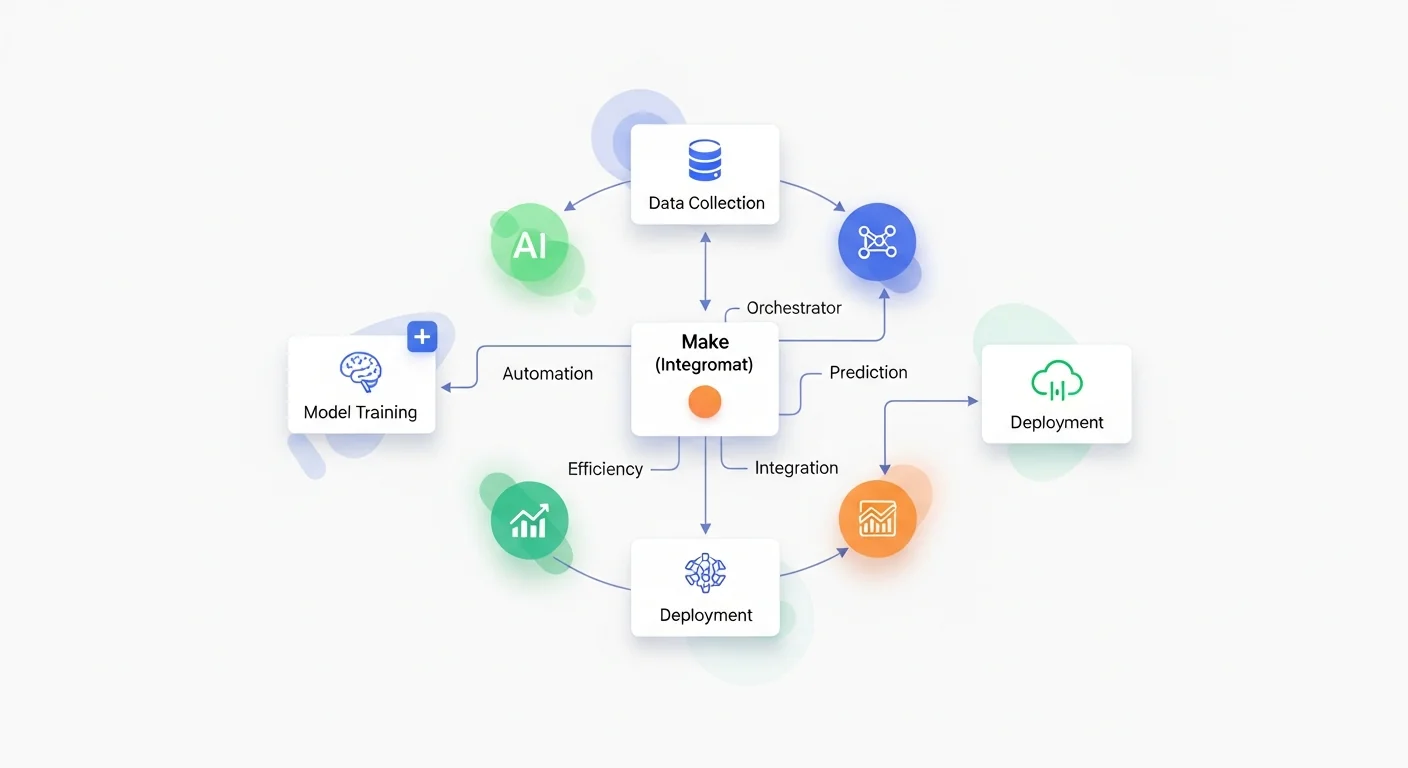
Make (formerly Integromat) has emerged as one of the most powerful automation platforms for creating sophisticated AI workflows. Whether you're looking to automate content creation, streamline data processing, or build intelligent customer service systems, Make provides the visual automation tools needed to connect AI services with your existing business processes.
In this comprehensive tutorial, you'll learn how to harness Make's capabilities to create robust AI-powered workflows that can transform your productivity and business operations. We'll cover everything from basic setup to advanced automation scenarios, giving you the knowledge to build professional-grade AI integrations without writing a single line of code.
By the end of this guide, you'll understand how to connect popular AI services like OpenAI's GPT models, Google's AI services, and other machine learning platforms through Make's intuitive drag-and-drop interface. You'll also learn best practices for error handling, data management, and scaling your AI workflows for maximum efficiency.
Prerequisites
Before diving into AI workflow creation with Make, ensure you have the following requirements in place:
- Make Account: A free or paid Make account (free accounts include 1,000 operations per month)
- AI Service Accounts: Active accounts with AI providers you plan to use (OpenAI, Google AI, Anthropic, etc.)
- API Keys: Valid API keys from your chosen AI services
- Basic Understanding: Familiarity with APIs and JSON data structures (helpful but not required)
- Connected Apps: Accounts for any additional services you'll integrate (Gmail, Slack, databases, etc.)
Additionally, having a clear use case in mind will help you follow along more effectively. Consider what specific AI automation you want to build as we progress through the tutorial.
Step 1: Setting Up Your Make Account and Workspace
Begin by creating your Make workspace, which will serve as the foundation for all your AI workflows.
- Sign up for Make: Visit make.com and create an account. Choose the plan that best fits your needs - the free tier is perfect for learning and small-scale automation.
- Verify your email: Complete the email verification process to activate your account.
- Explore the dashboard: Familiarize yourself with the main interface, including the Scenarios tab where you'll build your workflows.
- Set up your profile: Configure your account settings, including timezone and notification preferences.
The Make interface consists of several key areas: the scenario editor where you'll build workflows, the data store for managing information between runs, and the execution history for monitoring your automations.
Step 2: Understanding Make's Core Concepts
Before building AI workflows, it's crucial to understand Make's fundamental building blocks:
Scenarios
Scenarios are complete workflows that define how data flows between different services. Each scenario consists of modules connected in a specific sequence.
Modules
Modules are individual components that perform specific actions, such as reading emails, calling APIs, or processing data. AI services are integrated as modules within your scenarios.
Triggers and Actions
Triggers start your scenarios (like receiving an email or a webhook), while actions perform operations (like generating AI content or sending notifications).
Data Mapping
Data mapping allows you to pass information between modules, enabling dynamic workflows where AI outputs can be used as inputs for subsequent actions.
Step 3: Connecting Your First AI Service
Let's connect OpenAI's GPT service as our first AI integration, which will serve as the foundation for many AI workflows.
- Create a new scenario: Click "Create a new scenario" from your Make dashboard.
- Search for OpenAI: In the module library, search for "OpenAI" and select the OpenAI module.
- Choose an action: Select "Create a Completion" or "Create a Chat Completion" depending on your needs.
- Add your connection: Click "Add" next to the Connection field and enter your OpenAI API key.
- Test the connection: Make will verify your API key and establish the connection.
Once connected, you can configure the OpenAI module with parameters like model selection (GPT-4, GPT-3.5-turbo), temperature settings for creativity control, and maximum token limits for response length.
Step 4: Building Your First AI Workflow
Now we'll create a practical AI workflow that automatically generates blog post summaries from URLs. This workflow demonstrates core concepts you'll use in more complex automations.
Workflow Overview
Our workflow will: receive a URL via webhook → extract content from the webpage → send the content to OpenAI for summarization → save the summary to a Google Sheet.
- Add a Webhook Trigger:
- Start with a "Webhooks" module and select "Custom Webhook"
- Click "Add" to create a new webhook
- Copy the generated webhook URL for later use
- Add Content Extraction:
- Add an "HTTP" module and select "Make a request"
- Set the URL to the webhook data:
{{1.url}} - Configure the method as GET
- Configure OpenAI Processing:
- Add your OpenAI module after the HTTP request
- Select GPT-4 or GPT-3.5-turbo as your model
- Create a prompt like: "Summarize the following webpage content in 3-4 sentences: {{2.data}}"
- Set temperature to 0.3 for consistent, focused summaries
- Save Results:
- Add a Google Sheets module and select "Add a Row"
- Connect your Google account and select your target spreadsheet
- Map the original URL and AI-generated summary to appropriate columns
Step 5: Advanced AI Workflow Patterns
Once you've mastered basic AI integration, you can implement more sophisticated patterns that leverage Make's advanced features.
Conditional AI Processing
Use Make's router and filter modules to create conditional logic that determines which AI service to use based on input characteristics:
- Content-based routing: Send technical content to specialized AI models while routing general content to standard models
- Language detection: Automatically detect input language and route to appropriate multilingual AI services
- Sentiment-based processing: Analyze sentiment first, then apply different AI processing based on positive, negative, or neutral sentiment
Multi-AI Service Orchestration
Combine multiple AI services for enhanced capabilities:
- Sequential Processing: Use one AI service for initial analysis, then pass results to another for refinement
- Parallel Processing: Send the same input to multiple AI services and compare or combine results
- Specialized Workflows: Create chains where each AI service handles its area of expertise
Step 6: Implementing Error Handling and Monitoring
Robust AI workflows require comprehensive error handling to manage API failures, rate limits, and unexpected responses.
Error Handling Strategies
- Add Error Handlers:
- Right-click on AI modules and select "Add error handler"
- Configure retry logic for temporary failures
- Set up notification systems for persistent errors
- Implement Fallback Logic:
- Create alternative paths when primary AI services fail
- Use simpler AI models as backups for complex ones
- Store failed requests for manual review
- Rate Limit Management:
- Configure appropriate delays between AI API calls
- Use Make's built-in rate limiting features
- Implement queue systems for high-volume processing
Monitoring and Optimization
Set up comprehensive monitoring to track your AI workflow performance:
- Execution History: Regularly review scenario execution logs for errors and performance issues
- Cost Tracking: Monitor AI service usage and costs through Make's operation tracking
- Performance Metrics: Track processing times and success rates to optimize workflow efficiency
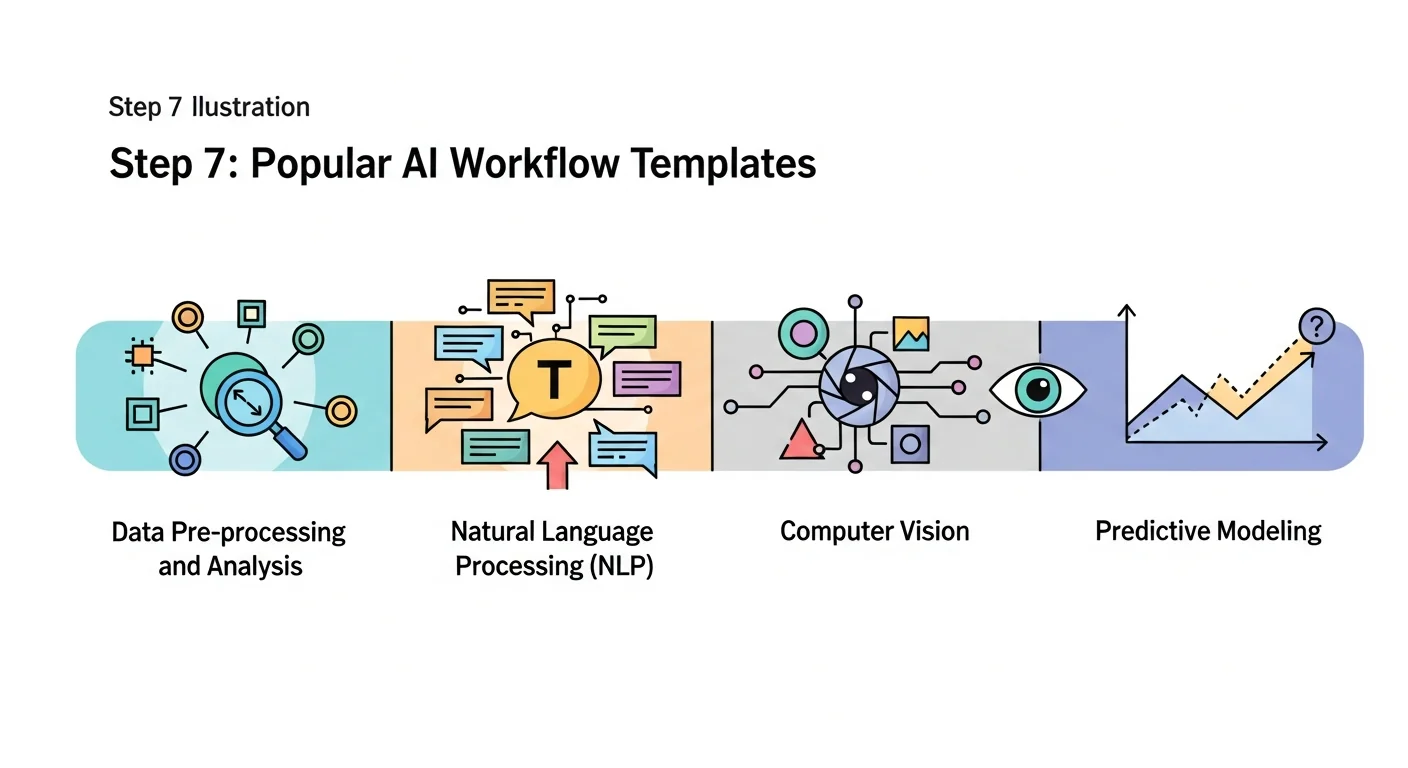
Step 7: Popular AI Workflow Templates
Here are several proven AI workflow templates you can implement and customize for your specific needs:
Content Creation Workflow
Automate blog post creation from topic keywords:
- Trigger: Google Sheets with topic list
- Research: Web scraping for current information
- AI Processing: GPT-4 for outline and content generation
- Output: WordPress post creation with SEO optimization
Customer Service Automation
Intelligent email response system:
- Trigger: Gmail incoming emails
- Analysis: AI sentiment and intent analysis
- Processing: Context-aware response generation
- Action: Automated replies or ticket creation
Data Analysis Pipeline
Automated insights from business data:
- Trigger: Database updates or scheduled intervals
- Data Processing: Statistical analysis and trend detection
- AI Analysis: Natural language insights generation
- Reporting: Automated dashboard updates and notifications
Step 8: Scaling Your AI Workflows
As your AI automation needs grow, consider these scaling strategies:
Performance Optimization
- Batch Processing: Group similar requests to reduce API calls and improve efficiency
- Caching Strategies: Store frequently requested AI results to avoid redundant processing
- Parallel Execution: Use Make's parallel processing capabilities for independent operations
Resource Management
- Operation Limits: Monitor and optimize your Make operation usage
- API Quotas: Track AI service usage to avoid hitting rate limits
- Cost Control: Implement approval workflows for high-cost AI operations
Integration with Popular AI Services
Make supports integration with numerous AI services beyond OpenAI. Here's how to connect and use other popular platforms:
OpenAI
Leading language model platform
OpenAI offers GPT-4, GPT-3.5, and other advanced language models for text generation, analysis, and conversation.
- Chat completions and text generation
- Image generation with DALL-E
- Code generation and analysis
- Fine-tuning capabilities
Google AI Platform
Comprehensive AI and ML services
Google's AI platform provides machine learning models, natural language processing, and computer vision capabilities.
- Vertex AI for custom models
- Natural Language API
- Vision API for image analysis
- Translation services
Anthropic Claude
Safe and helpful AI assistant
Claude offers advanced reasoning capabilities with a focus on safety and helpfulness for complex tasks.
- Long context understanding
- Advanced reasoning capabilities
- Document analysis
- Code generation and review
Best Practices for AI Workflows
Follow these best practices to ensure your AI workflows are reliable, efficient, and maintainable:
Prompt Engineering
- Be Specific: Use clear, detailed prompts that specify exactly what you want the AI to do
- Provide Context: Include relevant background information to improve AI understanding
- Use Examples: Show the AI examples of desired outputs for better consistency
- Iterate and Test: Continuously refine prompts based on actual results
Data Management
- Validate Inputs: Always validate data before sending to AI services
- Handle Edge Cases: Plan for unusual inputs that might cause AI failures
- Store Intermediate Results: Save AI outputs for debugging and analysis
- Implement Logging: Track all AI interactions for monitoring and optimization
Security Considerations
- API Key Management: Store API keys securely and rotate them regularly
- Data Privacy: Ensure sensitive data is handled according to privacy regulations
- Access Control: Limit who can modify critical AI workflows
- Audit Trails: Maintain logs of all AI processing for compliance
Common Mistakes to Avoid
Learn from these common pitfalls to build more reliable AI workflows:
Technical Mistakes
- Insufficient Error Handling: Not planning for API failures or unexpected responses
- Poor Data Validation: Sending malformed or inappropriate data to AI services
- Ignoring Rate Limits: Overwhelming AI APIs with too many requests
- Inadequate Testing: Not thoroughly testing workflows with various input types
Design Mistakes
- Overly Complex Workflows: Creating unnecessarily complicated scenarios that are hard to maintain
- Lack of Modularity: Building monolithic workflows instead of reusable components
- Poor Documentation: Not documenting workflow logic and decision points
- Ignoring Costs: Not monitoring AI service usage and associated costs
Operational Mistakes
- No Monitoring: Failing to set up alerts for workflow failures
- Inconsistent Maintenance: Not regularly updating and optimizing workflows
- Poor Version Control: Not tracking changes to workflow configurations
- Inadequate Backup: Not backing up critical workflow configurations
Advanced Techniques and Tips
Dynamic Prompt Generation
Create prompts that adapt based on input data characteristics:
- Use conditional logic to modify prompts based on content type
- Implement template systems for consistent prompt structure
- Store prompt variations in data stores for easy management
AI Response Processing
Enhance AI outputs with post-processing techniques:
- Parse structured data from AI responses using regex or JSON parsing
- Implement quality checks to validate AI output before use
- Use secondary AI calls to refine or verify initial results
Workflow Optimization
Maximize efficiency and minimize costs:
- Cache frequently requested AI results
- Use appropriate AI models for different complexity levels
- Implement smart batching for bulk processing
- Monitor and optimize token usage
| AI Service | Best Use Cases | Cost Range | Integration Complexity |
|---|---|---|---|
| OpenAI GPT-4 | Complex reasoning, content creation | $0.03-0.06/1K tokens | Low |
| Google AI | Image analysis, translation | $0.50-3.00/1K units | Medium |
| Anthropic Claude | Document analysis, safety-critical tasks | Custom pricing | Low |
| Microsoft Cognitive | Speech, vision, enterprise integration | $1.00-15.00/1K transactions | Medium |
Frequently Asked Questions
How much does it cost to run AI workflows on Make?
Make charges based on operations (each module execution counts as one operation), starting with 1,000 free operations monthly. AI service costs are separate and depend on your usage. A typical AI workflow might use 3-5 Make operations plus AI service fees ranging from $0.002 to $0.06 per request.
Can I use multiple AI services in a single workflow?
Yes, Make allows you to combine multiple AI services within a single workflow. This is useful for specialized tasks like using one service for language detection and another for translation, or combining text and image AI services for comprehensive content processing.
How do I handle API rate limits from AI services?
Make provides built-in rate limiting features, and you can add delays between requests using the Sleep module. For high-volume workflows, consider implementing queue systems or spreading requests across multiple API keys if your AI service allows it.
What happens if an AI service is temporarily unavailable?
Use Make's error handling features to create fallback scenarios. You can set up retry logic, alternative AI services, or queue failed requests for later processing. Always include error handlers on AI modules to gracefully manage service outages.
How can I ensure my AI workflows are secure?
Store API keys securely in Make's connection system, never in plain text. Use HTTPS for all communications, implement proper access controls, and regularly audit your workflows. Consider data encryption for sensitive information and ensure compliance with relevant privacy regulations.
Can I schedule AI workflows to run automatically?
Yes, Make offers various scheduling options including time-based triggers (every hour, daily, weekly) and event-based triggers (new emails, database changes, webhooks). You can create fully automated AI processing pipelines that run without manual intervention.
How do I troubleshoot failed AI workflow executions?
Use Make's execution history to view detailed logs of each workflow run. Check for common issues like invalid API keys, malformed requests, or rate limit exceeded errors. The execution history shows data passed between modules, making it easy to identify where failures occur.
What's the best way to test AI workflows before deployment?
Use Make's "Run once" feature to test workflows with sample data. Create test scenarios with various input types, including edge cases and error conditions. Start with simple workflows and gradually add complexity while testing each component thoroughly.
Conclusion and Next Steps
You've now learned how to create sophisticated AI workflows using Make, from basic setup to advanced automation patterns. The key to success with AI automation lies in starting simple, testing thoroughly, and gradually building more complex workflows as you gain experience.
Your next steps should include:
- Practice with Simple Workflows: Start by implementing one of the basic templates provided in this guide
- Explore Advanced Features: Experiment with Make's advanced modules like routers, aggregators, and iterators
- Monitor and Optimize: Set up monitoring for your workflows and continuously optimize based on performance data
- Scale Gradually: Expand your AI automation as you become more comfortable with the platform
Remember that successful AI workflow automation is an iterative process. Start with clear use cases, build incrementally, and always prioritize reliability and maintainability over complexity. As AI services continue to evolve, Make's visual automation platform provides the flexibility to adapt and integrate new capabilities seamlessly.
The future of business automation lies in intelligent workflows that combine human creativity with AI capabilities. By mastering Make's AI integration features, you're positioning yourself at the forefront of this technological revolution, ready to build automation solutions that can transform how work gets done.