Yodot MOV Repair Review
By SaveDelete
Most of us like videos. And why not? We make our own videos from cameras or camcorders whenever we are on travel or make for events like birthdays, anniversary etc. With all these video files, there is always a chance that they get corrupted every once in a while. But how does video file get corrupt? Well, video file type like MOV, MP4, M4V files can easily get corrupted due to a plethora of reasons which make happen unknowingly. Some of them are:
- Different sorts of interruption that may occur during recording the videos can easily cause corruption or damage the video file completely.
- Sometimes the corruption is due to errors related to the memory card. While ejecting the memory card from a camera or camcorder during the transfer of the files or recording the video.
- Video files stored on the memory card can also get corrupted during usage of the memory card in various devices.
- The MOV, MP4 files can get damaged while transferring them between PC and camera/camcorder or any sort of error like power rise or sudden shutdown.
- They can also get damaged due to a faulty firmware that can make them inaccessible.
- Corruption may be caused during editing of the videos using various video editing tools.
- Repairing Video files.
- Usage of Advanced Techniques
- Unique Preview Feature
- Extensive Compatibility
- Great User-Friendliness
- Customer Support
- Free Trial version
- First, you need to download Yodot MOV Repair application to your Mac laptop or computer.
- In case of Windows users, they need to download the Windows version of this tool to repair corrupt MOV video using their PC.
- Now Install and Run the application by simply following the guided steps shown on your screen in different windows.
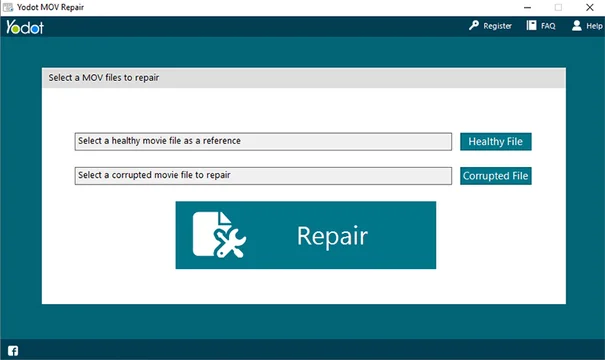
- When the first window is opened, browse the desired MOV file and select it which needs to be repaired.
- In the first step, after selecting the corrupt video file in case of Windows users, they need to select a healthy, uncorrupted video file as a reference to fix as well as restore the repaired video file. The healthy video file that you have selected should be recorded using the same camcorder or camera as that of the corrupted video file.
- Now select “Repair” option. The software then starts scanning the process in order to repair the selected MOV file.
- Depending on the video file size, the application repairs the MOV video files within seconds and shows the result along with the description of the file.
- Now, preview the video file in order to confirm the success file repair.
- Supported Operating Systems- Windows 7, 8, XP, Vista, Server 2003 and 2008. In case of Mac OS, it needs Mac OS X - 10.6 (Snow Leopard), 10.7 (Lion), 10.8 (Mountain Lion)
- Hardware requirements- It requires Memory of 1 GB RAM and more. Free Disk Space of 50 MB for installation purpose. System type- 32-bit and 64-bit Windows OS and only 64-bit Mac OS.
- Supported File System- HFS+, HFSX, FAT and NTFS.