Top 5 tips for FastStone Image Viewer - A Free Image Browser, Converter and Editor
By SaveDelete
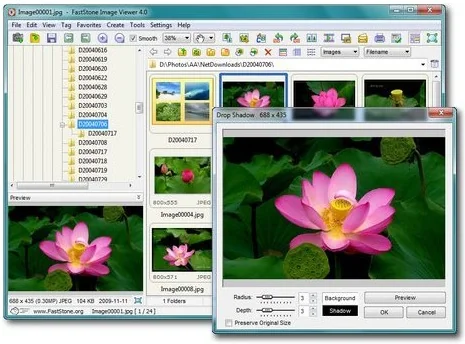
Installable and portable versions : FastStone’s website offers Image Viewer in several versions, including an installable option and a portable one. The portable version does not make any changes to Windows and keeps all its files within its own folder – you could even run it from a USB memory drive.
If you want the software on your PC, put it on your Desktop where it’s easy to access. This also makes the program easier to uninstall because you simply drag the folder to the Recycle Bin and it’s gone.

1. Resize images for email
Digital photos can be very large so, unless your email recipient needs the original images, you should resize them. FastStone Image Viewer is particularly good at this. If you have email software installed on your PC, there’s an Email tool in Image Viewer’s File menu, which will resize your pictures and automatically load them into a draft message. If you use webmail, you’ll have to do this manually. In Image Viewer, browse to the folder containing the photos you want to email. Click the first image to select it, hold down the Ctrl key and click any other images you want to include. In Tools, click Batch Convert Selected Images. The list on the left shows all the files in the folder, while the Input List on the right shows the images you want to convert. Choose the file format you require from the drop-down menu next to Output Format. JPEG is a good choice for emailing photos. Click Settings and set the quality to 80 if you want small files of reasonable quality, or 90 for larger, better quality images. Back in the convert window, click the Browse button next to Output Folder, select Desktop (or another temporary space) and Create Folder. Give it a name (Email or Temp, for example). Tick Use Advanced Options, then click the Advanced Options button. Tick the box on the Resize tab and make sure Preserve Aspect Ratio is ticked and Smart Cropping is unticked. Click ‘Pick a Standard Size’ and select ‘800 x 600’ to email small images or ‘1024 x 768’ to email larger ones. Click OK and Convert. Now you can attach the photos you’ve converted individually or zip them into a compressed folder from your right-click menu’s ‘Send to’ option.