12 Essential Tips for Creating WordPress Pages That Convert in 2026
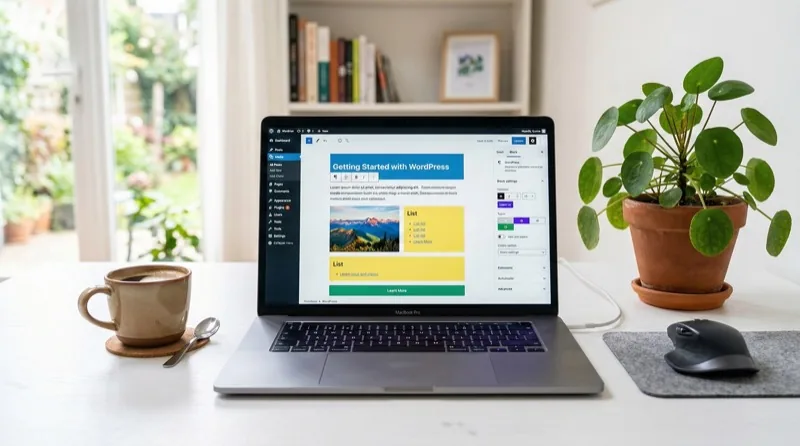
WordPress powers over 40% of all websites on the internet, and the platform has evolved dramatically. The block editor (Gutenberg) is now mature, Full Site Editing gives you control over every template, and performance features like built-in lazy loading and responsive images come standard. But creating a WordPress page that actually performs well in search, loads quickly, and converts visitors still requires deliberate effort.
Here are 12 essential tips for building WordPress pages that work in 2026.
1. Choose Between Page and Post Correctly
This sounds basic but it is the most common mistake. Pages are for static, evergreen content: your homepage, about page, services, contact, and landing pages. Posts are for time-stamped content that belongs in your blog feed: articles, news, tutorials. Using the wrong type affects your site structure, URL format, and how Google categorizes your content. If you are creating content that will never change and does not belong in a blog feed, use a page.
2. Plan Your URL Slug Before Publishing
WordPress auto-generates your URL slug from the page title, which often creates slugs that are too long. A title like "12 Essential Tips for Creating WordPress Pages That Convert" becomes an unwieldy URL. Before publishing, manually edit the slug to something short and keyword-rich: /wordpress-page-tips/. Keep slugs under 3-5 words, use hyphens, and include your primary keyword. Once published, never change the slug without setting up a 301 redirect.
3. Use the Block Editor Effectively
The Gutenberg block editor is now powerful enough that most sites do not need a page builder plugin. Key blocks for effective pages:
- Cover block: Full-width hero sections with background images and overlay text
- Columns block: Side-by-side layouts for features, comparisons, and benefits
- Group block: Container for styling sections with backgrounds and padding
- Query Loop block: Display posts dynamically (related articles, latest posts)
- Table of Contents block: Auto-generated from your headings (great for SEO)
Learn the keyboard shortcuts: type / to insert any block by name, --- for a separator, and ## for headings.
4. Set a Clear Visual Hierarchy
Every page needs a clear hierarchy that guides the visitor's eye. Follow this structure:
- H1: One per page, your main page title (WordPress sets this automatically)
- H2: Major sections of the page
- H3: Subsections within H2 sections
- Body text: Short paragraphs (2-3 sentences max for web readability)
Never skip heading levels (H1 to H3 without an H2) and never use headings just for visual styling. Screen readers and search engines use your heading structure to understand your content.
5. Optimize Images Before Uploading
Images are the number one cause of slow WordPress pages. Before uploading:
- Resize to the maximum display size. If your content area is 800px wide, do not upload a 4000px image.
- Compress aggressively. Use tools like ShortPixel, Imagify, or Squoosh to reduce file size by 60-80% without visible quality loss.
- Use WebP format. WordPress has supported WebP natively since version 5.8. WebP files are 25-35% smaller than JPEG at equivalent quality.
- Always add alt text. Describe what the image shows for accessibility and SEO. Keep it under 125 characters.
6. Write SEO-Optimized Meta Data
Install an SEO plugin like Yoast SEO or Rank Math to control your page's meta title and meta description. The meta title should be under 60 characters and include your primary keyword near the beginning. The meta description should be under 160 characters and include a compelling reason to click. These fields appear in Google search results and directly affect your click-through rate.
7. Add Internal Links Strategically
Every new page should link to at least 2-3 relevant existing pages on your site, and you should go back and add links from existing pages to the new one. Internal linking helps Google discover and understand your content, distributes page authority across your site, and keeps visitors engaged longer. Use descriptive anchor text (not "click here") that tells both users and search engines what the linked page is about.
8. Make It Mobile-First
Over 60% of web traffic is mobile. Preview every page on mobile before publishing. Common mobile issues with WordPress pages:
- Columns that are too narrow to read on small screens (use stacked layouts for mobile)
- Text over images that becomes unreadable on small viewports
- Buttons and links too close together (tap targets should be at least 44x44px)
- Fixed-width elements that cause horizontal scrolling
The block editor has a built-in responsive preview: click the screen icon in the top toolbar to switch between desktop, tablet, and mobile views.
9. Set Up a Proper Call-to-Action
Every page should have a clear goal. What do you want the visitor to do after reading? Subscribe to your newsletter? Contact you? Buy a product? Place your primary CTA above the fold (visible without scrolling) and repeat it at the bottom of the page. Use the Buttons block with a contrasting color that stands out from your page background. Be specific: "Get Your Free Quote" converts better than "Submit."
10. Check Page Speed After Publishing
Run your published page through Google PageSpeed Insights and aim for a mobile score above 80. Common issues on WordPress pages:
- Unused CSS from plugins: Dequeue styles from plugins that are not used on the page
- Render-blocking JavaScript: Defer non-critical scripts
- No caching: Use a caching plugin like WP Super Cache, W3 Total Cache, or LiteSpeed Cache
- Large images: See tip #5
A CDN like Cloudflare (free tier) can improve load times globally by serving your static assets from edge servers close to your visitors.
11. Add Schema Markup
Schema markup helps search engines understand what your page is about and can earn you rich snippets in search results. Common schema types for WordPress pages:
- FAQ schema: For pages with question-and-answer sections
- LocalBusiness schema: For your contact or about page if you have a physical location
- Product schema: For product or service pages
- BreadcrumbList schema: For navigation breadcrumbs
Rank Math and Yoast both include schema generators in their free versions.
12. Set Up Analytics and Track Performance
A page without analytics is a page without purpose. At minimum, connect Google Analytics 4 and Google Search Console to your WordPress site. Monitor:
- Organic traffic: How many visitors find this page through search?
- Bounce rate and time on page: Are visitors engaging or leaving immediately?
- Conversion rate: Is the page achieving its goal?
- Core Web Vitals: Is the page meeting Google's performance thresholds?
Review these metrics monthly and iterate. The first version of any page is never the best version.
The Bottom Line
Creating a WordPress page takes seconds. Creating one that ranks, loads fast, and converts visitors takes deliberate planning. Start with the right content type, optimize your slug and meta data, use the block editor's native capabilities instead of heavy page builders, and always test on mobile before publishing. Then track performance and improve. A well-built WordPress page should be a living asset that you refine over time, not a set-and-forget document.