How to Make the Most of Face ID on the Apple iPhone X
By Editor
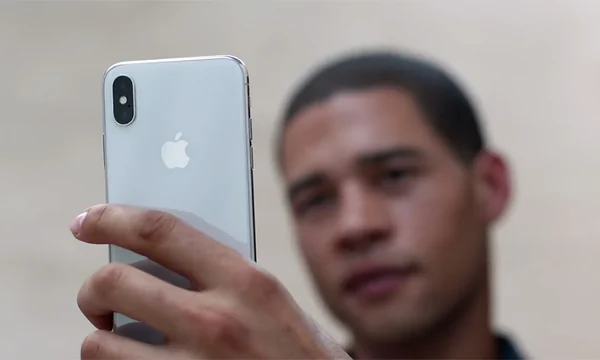
The iPhone X is the first Apple device to offer Face ID security to access your phone. Apple's facial recognition process is a form of biometric authentication. Follow the tips below to set up and use this new feature to make the most of Face ID on the Apple iPhone X.
 Image via Flickr by William Hook
To complete the Face ID enrollment, you need to follow a few steps before you can use it. Go to Settings and access Face ID & Passcode. The front-facing camera will turn on. Look at your phone with your eyes open. You'll see your face displayed in a circle of green dashes.
Follow the prompts to rotate your head in a full circle so that the camera can map your facial features. Tap continue, move your head in a circle again, and tap done. You'll need to set up a passcode as a backup authentication method if you didn't take that step previously.
Return to Settings and access Face ID & Passcode to choose which apps to use with Face ID. You can also reset Face ID using your Face ID & Passcode settings if needed.
Image via Flickr by William Hook
To complete the Face ID enrollment, you need to follow a few steps before you can use it. Go to Settings and access Face ID & Passcode. The front-facing camera will turn on. Look at your phone with your eyes open. You'll see your face displayed in a circle of green dashes.
Follow the prompts to rotate your head in a full circle so that the camera can map your facial features. Tap continue, move your head in a circle again, and tap done. You'll need to set up a passcode as a backup authentication method if you didn't take that step previously.
Return to Settings and access Face ID & Passcode to choose which apps to use with Face ID. You can also reset Face ID using your Face ID & Passcode settings if needed.
How the iPhone X Face ID Works
The TrueDepth camera system measures the topography of your face using infrared dots of light. Face ID stores a mathematical representation of your face's distinctive features. This process makes your phone secure so that no one can use your iPhone X except you. The map is stored in a secure part of the phone's A11 Bionic chip. The phone only checks to see if your face matches the stored map. Your facial identification is never sent to Apple or any third party.Set Up Face ID
Image via Flickr by William Hook
To complete the Face ID enrollment, you need to follow a few steps before you can use it. Go to Settings and access Face ID & Passcode. The front-facing camera will turn on. Look at your phone with your eyes open. You'll see your face displayed in a circle of green dashes.
Follow the prompts to rotate your head in a full circle so that the camera can map your facial features. Tap continue, move your head in a circle again, and tap done. You'll need to set up a passcode as a backup authentication method if you didn't take that step previously.
Return to Settings and access Face ID & Passcode to choose which apps to use with Face ID. You can also reset Face ID using your Face ID & Passcode settings if needed.