10 Best Fan Control Software for Windows in 2025
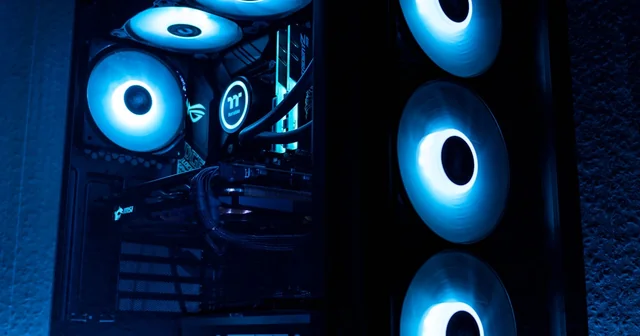
Keeping your PC cool is essential for optimal performance and longevity. Whether you're a gamer pushing your hardware to the limit, a content creator running intensive workloads, or simply want a quieter computing experience, fan control software gives you precise control over your system's cooling.
In 2025, fan control software has evolved significantly, offering intuitive interfaces, custom fan curves, and integration with RGB lighting. This guide covers the best fan control software available for Windows, from free open-source options to premium solutions with advanced features.
Best Fan Control Software in 2025
1. FanControl (by Rem0o)
Best Overall - Free & Open Source
FanControl has quickly become the gold standard for fan control software in 2025. Developed by Remi Mercier, this free, open-source application offers a perfect balance of power and simplicity that appeals to both beginners and advanced users.
Key Features:
- Clean, modern user interface with drag-and-drop fan curve creation
- Support for virtually all motherboards and fan headers
- Custom fan curves with multiple temperature sources
- Mix temperature sensors to create hybrid curves
- Save and load profiles for different scenarios (gaming, work, silent)
- Minimal system resource usage
- Plugin support for extended functionality
- Active development with regular updates
Pros: Completely free, excellent UI, highly customizable, active community
Cons: No RGB control, requires some initial setup
Price: Free (open source)
Download: Available on GitHub
2. Argus Monitor
Best Premium Option
Argus Monitor is a German-developed software that offers professional-grade fan control and hardware monitoring. It's particularly known for its accurate S.M.A.R.T. disk monitoring alongside comprehensive fan management capabilities.
Key Features:
- Control all case fans connected to motherboard headers
- GPU fan control for NVIDIA and AMD graphics cards
- Custom fan curves with hysteresis support
- S.M.A.R.T. HDD/SSD health monitoring with failure prediction
- System tray integration with real-time temperature display
- Desktop gadget showing hardware stats
- Benchmark and stress testing tools
- Notification alerts for temperature thresholds
Pros: Professional features, excellent disk monitoring, reliable
Cons: Paid software after trial, interface feels dated
Price: $15.95 (30-day free trial)
3. MSI Afterburner
Best for GPU Fan Control
MSI Afterburner is the most popular GPU overclocking and fan control utility, and despite the MSI branding, it works with graphics cards from all manufacturers. It's the go-to choice for gamers who want precise control over their GPU cooling.
Key Features:
- Custom GPU fan curves with temperature-based automation
- GPU overclocking (core clock, memory clock, voltage)
- Real-time hardware monitoring and on-screen display (OSD)
- Built-in benchmarking with Kombustor
- Video capture functionality
- Profile system for different games/applications
- Works with NVIDIA, AMD, and Intel GPUs
- Completely free to use
Pros: Industry standard for GPU control, free, feature-rich
Cons: GPU-focused only, doesn't control case fans
Price: Free
4. HWiNFO
Best for Hardware Monitoring + Fan Control
HWiNFO is one of the most comprehensive hardware monitoring tools available, and recent versions have added fan control capabilities. It's the preferred choice for users who want detailed system information alongside fan management.
Key Features:
- Extremely detailed hardware monitoring (200+ sensors)
- Fan control through integration with FanControl
- Real-time sensor logging and graphing
- Customizable alerts and notifications
- Export reports in multiple formats
- Portable version available
- OSD support via RTSS integration
- Regular updates for new hardware support
Pros: Most comprehensive monitoring, accurate readings, free for personal use
Cons: Fan control requires additional software, complex interface
Price: Free for personal use, Pro version $25
5. Libre Hardware Monitor
Best SpeedFan Alternative - Open Source
Libre Hardware Monitor is the spiritual successor to the discontinued Open Hardware Monitor, offering modern hardware support and active development. It's become the go-to replacement for users who loved SpeedFan but need support for newer systems.
Key Features:
- Monitor CPU, GPU, RAM, and storage temperatures
- Fan speed monitoring and basic control
- Support for latest Intel and AMD processors
- Open-source with community contributions
- System tray with temperature readings
- Remote web server for monitoring from other devices
- Gadget support for desktop widgets
- Plugin architecture for extensions
Pros: Free, open source, actively maintained, SpeedFan alternative
Cons: Limited fan control compared to dedicated tools
Price: Free (open source)
6. NZXT CAM
Best for NZXT Hardware Users
NZXT CAM is a polished, modern application designed primarily for NZXT hardware but also works as a general system monitor. It offers an excellent user experience with a beautiful interface that appeals to RGB enthusiasts.
Key Features:
- Sleek, modern interface with dark theme
- Fan control for NZXT controllers (Grid+, Kraken)
- RGB lighting control for NZXT products
- General system monitoring (works without NZXT hardware)
- GPU overclocking capabilities
- In-game overlay for real-time stats
- Mobile app for remote monitoring
- Game library integration
Pros: Beautiful interface, all-in-one solution, free
Cons: Best features require NZXT hardware, account required
Price: Free
7. SpeedFan
Classic Choice (Legacy Systems)
SpeedFan is a legendary piece of software that dominated the fan control space for over a decade. While it's no longer actively developed (last update was 2015), it still works on older systems and remains popular among users with legacy hardware.
Key Features:
- Automatic fan speed control based on temperatures
- S.M.A.R.T. disk health monitoring
- Voltage and temperature monitoring
- In-depth charts and logging
- Very lightweight on system resources
- Extensive motherboard support (older models)
Pros: Free, lightweight, proven reliability
Cons: No longer updated, poor support for modern hardware
Price: Free
Note: Only recommended for systems built before 2018
8. NoteBook FanControl (NBFC)
Best for Laptops
NoteBook FanControl is specifically designed for laptop users who want to take control of their often-aggressive (and noisy) cooling systems. It supports hundreds of laptop models from major manufacturers.
Key Features:
- Pre-configured profiles for 200+ laptop models
- Custom fan curve creation
- System tray integration with quick controls
- Temperature monitoring
- Community-contributed laptop configurations
- Automatic profile switching
- Works with most laptop brands (Dell, HP, Lenovo, ASUS, etc.)
Pros: Specifically designed for laptops, extensive model support, free
Cons: Limited to laptops, may not support newest models immediately
Price: Free (open source)
9. Corsair iCUE
Best for Corsair Ecosystem
Corsair iCUE is the unified software for all Corsair components, offering comprehensive fan control alongside RGB lighting and peripheral management. If you have Corsair cooling products, this is essential software.
Key Features:
- Control Corsair fans, AIOs, and Commander controllers
- Extensive RGB lighting customization
- Custom fan curves with multiple temperature inputs
- Zero RPM mode for silent operation
- Hardware monitoring dashboard
- Macro and peripheral configuration
- Cloud sync for profiles
- Integration with games for reactive lighting
Pros: Full ecosystem control, professional features, great RGB
Cons: Only works with Corsair products, resource-heavy
Price: Free (requires Corsair hardware)
10. ASUS AI Suite 3
Best for ASUS Motherboard Users
ASUS AI Suite 3 is the official utility for ASUS motherboards, offering fan control through Fan Xpert alongside system tuning, power management, and RGB control. It's a comprehensive solution for ASUS system owners.
Key Features:
- Fan Xpert 4 with automatic fan tuning
- Create custom fan curves for each header
- AI-powered optimization suggestions
- System power management (TPU)
- DIGI+ voltage controller configuration
- Aura Sync RGB lighting control
- Performance monitoring and benchmarks
Pros: Deep motherboard integration, automatic tuning, comprehensive
Cons: ASUS motherboards only, can be bloated
Price: Free (for ASUS motherboard users)
Fan Control Software Comparison Table
| Software | Best For | Price | Case Fans | GPU Fans | Laptops | RGB Control |
|---|---|---|---|---|---|---|
| FanControl | Overall best | Free | Yes | Limited | No | No |
| Argus Monitor | Premium features | $15.95 | Yes | Yes | No | No |
| MSI Afterburner | GPU control | Free | No | Yes | Yes | No |
| HWiNFO | Monitoring | Free/$25 | Via plugin | No | Limited | No |
| Libre Hardware Monitor | SpeedFan replacement | Free | Limited | No | No | No |
| NZXT CAM | NZXT users | Free | NZXT only | Yes | No | Yes |
| SpeedFan | Legacy systems | Free | Yes | No | No | No |
| NBFC | Laptops | Free | N/A | N/A | Yes | No |
| Corsair iCUE | Corsair ecosystem | Free | Corsair only | No | No | Yes |
| ASUS AI Suite | ASUS motherboards | Free | Yes | Limited | No | Yes |
How to Choose the Right Fan Control Software
For Desktop PCs (General Use)
If you have a standard desktop PC and want comprehensive fan control, FanControl by Rem0o is the best choice. It's free, actively developed, and works with virtually all motherboards. For users willing to pay for additional features like disk health monitoring, Argus Monitor is excellent.
For Gamers
Gamers should use a combination of FanControl for case fans and MSI Afterburner for GPU fan control. This gives you complete control over your cooling system while also providing overclocking capabilities and performance monitoring.
For Laptop Users
NoteBook FanControl (NBFC) is specifically designed for laptops and supports hundreds of models. It allows you to create quieter profiles for general use and performance profiles for gaming or heavy workloads.
For Brand-Specific Hardware
If you've invested in a specific ecosystem, use the manufacturer's software:
- Corsair products: Corsair iCUE
- NZXT products: NZXT CAM
- ASUS motherboards: AI Suite 3 / Fan Xpert
- MSI motherboards: MSI Dragon Center
- Gigabyte motherboards: RGB Fusion / System Information Viewer
Understanding Fan Curves
A fan curve determines how fast your fans spin at different temperatures. Here's a basic guide to setting up effective fan curves:
Silent Profile
- Below 40°C: Fans off or minimal speed (20-30%)
- 40-60°C: Gradual increase (30-50%)
- 60-75°C: Moderate speed (50-70%)
- Above 75°C: Full speed
Balanced Profile
- Below 35°C: Low speed (30%)
- 35-55°C: Medium speed (40-60%)
- 55-70°C: Higher speed (60-80%)
- Above 70°C: Full speed
Performance Profile
- Below 30°C: Medium speed (40%)
- 30-50°C: Higher speed (50-70%)
- 50-65°C: High speed (70-90%)
- Above 65°C: Full speed
Frequently Asked Questions
Is it safe to use fan control software?
Yes, fan control software is safe when used properly. Modern software includes safety features that prevent fans from stopping completely when temperatures are high. Always ensure your fan curve maintains adequate cooling under load, and avoid setting fans to 0% when your system is under stress.
Why did SpeedFan stop working on my new PC?
SpeedFan hasn't been updated since 2015 and doesn't support many modern motherboards and chipsets. For newer systems, use FanControl, Argus Monitor, or your motherboard manufacturer's software instead.
Can I control my GPU fans with FanControl?
FanControl has limited GPU fan support through plugins. For full GPU fan control, use MSI Afterburner, which works with all GPU brands despite the MSI name. You can run both programs simultaneously.
What's the difference between PWM and DC fan control?
PWM (Pulse Width Modulation) fans use a 4-pin connector and can be controlled more precisely, especially at low speeds. DC (Voltage) fans use a 3-pin connector and are controlled by varying the voltage, which can be less precise at low speeds. Most modern software supports both types.
Will fan control software void my warranty?
Using fan control software typically doesn't void your warranty, as you're using a software feature rather than modifying hardware. However, if you damage components by running fans too slowly and causing overheating, that damage may not be covered.
Can I use multiple fan control programs at once?
It's generally not recommended to run multiple programs that control the same fans, as they may conflict. However, you can use FanControl for case fans and MSI Afterburner for GPU fans simultaneously since they control different hardware.
How do I know if my fans are PWM or DC?
Count the pins on your fan connector. 4-pin fans are PWM, while 3-pin fans are DC (voltage controlled). Your motherboard manual will also specify which headers support PWM vs DC control.
What temperature should I aim for to keep my PC healthy?
For CPUs, aim to keep temperatures below 80°C under load (ideally 60-75°C). For GPUs, below 85°C is acceptable, with 70-80°C being ideal. Idle temperatures should typically be 30-50°C depending on your cooling solution and ambient temperature.
Why are my fans running at full speed all the time?
This could be due to BIOS settings, a stuck temperature sensor reading, or the motherboard defaulting to full speed for safety. Check your BIOS fan settings first, then use software like HWiNFO to verify your temperature readings are accurate.
Can I control laptop fans with desktop fan software?
Most desktop fan control software doesn't work with laptops due to different hardware interfaces. Use NoteBook FanControl (NBFC) instead, which is specifically designed for laptop fan control and supports hundreds of laptop models.