Blue Screen of Death (BSOD): Complete Guide & Fixes for 2025
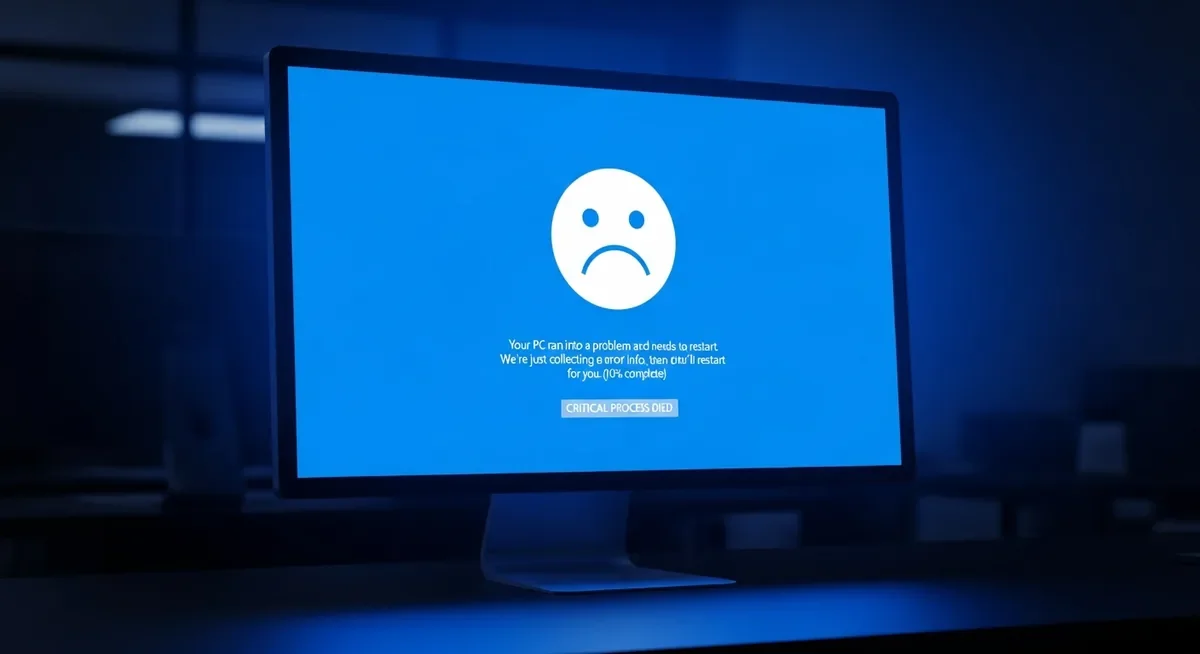
The Blue Screen of Death (BSOD) remains one of the most recognizable and dreaded error screens in computing history. In 2024-2025, BSOD made headlines worldwide when a faulty CrowdStrike update crashed over 8.5 million Windows devices simultaneously, causing an estimated $5.4 billion in damages to Fortune 500 companies alone. This comprehensive guide explains what causes BSOD, how to fix it, and what's changed in Windows 11.
2025 Update: Microsoft has officially changed the Blue Screen of Death to a Black Screen of Death in Windows 11 24H2 (update KB5062660). The functionality remains identical—only the background color has changed from blue to black, and the sad emoticon and QR code have been removed.
What is the Blue Screen of Death?
The Blue Screen of Death (BSOD), technically known as a "Stop Error," is a critical system error screen displayed by Windows operating systems when the system encounters a fatal error from which it cannot recover. When this happens, Windows halts all operations to prevent damage to your hardware or data, displays the error information, and typically restarts your computer.
Unlike application crashes that only affect individual programs, a BSOD indicates a problem at the kernel level—the core of the Windows operating system. This means the entire system must stop and restart.
The 2024 CrowdStrike Incident: Largest BSOD Event in History
On July 19, 2024, the world witnessed what many consider the largest IT outage in history. A faulty configuration update from cybersecurity company CrowdStrike caused over 8.5 million Windows devices to crash with BSOD errors simultaneously.
What Happened
- Time: July 19, 2024, at 04:09 UTC
- Cause: A bug in CrowdStrike's Channel File 291 caused an out-of-bounds memory read
- Duration: The faulty update was active for approximately 78 minutes before being reverted
- Impact: Airlines, banks, hospitals, railways, supermarkets, and news networks worldwide were affected
- Cost: Estimated $5.4 billion in losses for US Fortune 500 companies
Recovery Challenges
Affected systems entered a BSOD loop—restarting would immediately crash again. Devices with BitLocker encryption required manual entry of 48-digit recovery keys, making mass recovery extremely difficult. Many organizations needed days to fully recover.
Common Causes of BSOD
Understanding what triggers a Blue Screen of Death helps in both prevention and troubleshooting:
Hardware Issues
- Faulty RAM: Defective memory modules are one of the most common BSOD causes
- Overheating: CPU or GPU running too hot can trigger system crashes
- Hard Drive Failure: Failing storage devices cause data read/write errors
- Power Supply Problems: Unstable power delivery can crash systems
Software Issues
- Driver Problems: Outdated, corrupted, or incompatible drivers (most common cause)
- Windows Updates: Some updates introduce compatibility issues
- Malware: Viruses and malware that modify system files
- Software Conflicts: Incompatible programs running simultaneously
Common BSOD Error Codes
| Error Code | Name | Common Cause | Typical Fix |
|---|---|---|---|
| 0x0000007E | SYSTEM_THREAD_EXCEPTION_NOT_HANDLED | Incompatible driver | Update or roll back drivers |
| 0x00000050 | PAGE_FAULT_IN_NONPAGED_AREA | Faulty RAM or driver | Run memory diagnostic |
| 0x0000000A | IRQL_NOT_LESS_OR_EQUAL | Driver accessing invalid memory | Update drivers, check RAM |
| 0x0000001E | KMODE_EXCEPTION_NOT_HANDLED | Hardware/driver conflict | Safe Mode troubleshooting |
| 0x000000D1 | DRIVER_IRQL_NOT_LESS_OR_EQUAL | Faulty device driver | Identify and update driver |
| 0x0000007B | INACCESSIBLE_BOOT_DEVICE | Boot drive not accessible | Check BIOS settings, cables |
| 0x00000024 | NTFS_FILE_SYSTEM | Hard drive corruption | Run CHKDSK, check drive health |
| 0x0000018B | SECURE_KERNEL_ERROR | Windows Update issue | Uninstall recent updates |
How to Fix Blue Screen of Death
Follow these troubleshooting steps from simplest to most advanced:
Step 1: Restart and Note the Error
When you see a BSOD, note the error code displayed (e.g., "DRIVER_IRQL_NOT_LESS_OR_EQUAL"). This information is crucial for diagnosing the issue. Windows 10/11 displays a QR code you can scan for more information.
Step 2: Boot into Safe Mode
- Restart your computer and press F8 repeatedly (or hold Shift while clicking Restart)
- Select Troubleshoot > Advanced Options > Startup Settings > Restart
- Press 4 or F4 to start in Safe Mode
Safe Mode loads only essential drivers, helping you determine if a third-party driver is causing the crash.
Step 3: Uninstall Recent Updates or Drivers
If BSODs started after a Windows update or driver installation:
- Updates: Settings > Windows Update > Update History > Uninstall updates
- Drivers: Device Manager > Right-click device > Properties > Driver > Roll Back Driver
Step 4: Run System File Checker (SFC) and DISM
Open Command Prompt as Administrator and run:
sfc /scannow
DISM /Online /Cleanup-Image /RestoreHealth
These commands repair corrupted Windows system files.
Step 5: Check for Hardware Issues
- Memory Test: Run Windows Memory Diagnostic (mdsched.exe)
- Drive Check: Run CHKDSK /f /r from Command Prompt
- Temperature: Use software like HWMonitor to check CPU/GPU temperatures
- Disconnect peripherals: Remove external devices to isolate the issue
Step 6: Use System Restore
If the BSOD started recently, restore Windows to an earlier point:
- Search for "Create a restore point" in Windows
- Click "System Restore"
- Choose a restore point from before the issues began
Step 7: Reset or Reinstall Windows
As a last resort, reset Windows while keeping your files:
Settings > System > Recovery > Reset this PC > Keep my files
Windows 11 BSOD Issues in 2024-2025
Several Windows 11 updates have caused BSOD issues:
- KB5035853 (March 2024): Caused BSODs on Lenovo AMD-based systems
- Windows 11 24H2: Issues with Intel Smart Sound Technology drivers and Easy Anti-Cheat
- KB5055523 (April 2025): Triggered SECURE_KERNEL_ERROR (0x18B) on some systems
- KB5063060 (June 2025): Emergency fix for Easy Anti-Cheat BSODs in games like Fortnite
BSOD Analysis Tools
| Tool | Developer | Price | Best For |
|---|---|---|---|
| BlueScreenView | NirSoft | Free | Viewing minidump files easily |
| WhoCrashed | Resplendence | Free/Pro | Beginner-friendly crash analysis |
| WinDbg | Microsoft | Free | Advanced debugging |
| Event Viewer | Microsoft (Built-in) | Free | Viewing system logs |
Frequently Asked Questions
Is the Blue Screen of Death dangerous to my computer?
The BSOD itself doesn't damage your computer—it's a protective measure that stops Windows when it detects a critical error. However, the underlying cause (like overheating or failing hardware) could potentially cause damage if not addressed. Frequent BSODs may indicate hardware issues that need attention.
Why did Microsoft change BSOD to black in Windows 11?
Microsoft changed the BSOD background from blue to black in Windows 11 24H2 (June 2025) as part of a visual update. The change is purely aesthetic—the functionality, error codes, and troubleshooting steps remain the same. The sad emoticon and QR code were also removed in this update.
What was the CrowdStrike BSOD incident?
On July 19, 2024, a faulty update from cybersecurity company CrowdStrike caused over 8.5 million Windows devices worldwide to crash with BSOD errors. It affected airlines, banks, hospitals, and major businesses, causing an estimated $5.4 billion in damages. It's considered the largest IT outage in history.
Can a virus cause Blue Screen of Death?
Yes, malware can cause BSODs by corrupting system files, modifying the Windows kernel, or installing faulty drivers. If you suspect malware, boot into Safe Mode and run a full system scan with your antivirus software.
How do I find out what caused my BSOD?
Windows creates "minidump" files in C:\Windows\Minidump when a BSOD occurs. Use free tools like BlueScreenView or WhoCrashed to analyze these files and identify the driver or process that caused the crash.
Will I lose my data if I get a Blue Screen of Death?
You may lose unsaved work in open applications when a BSOD occurs, as the system restarts without saving. However, your saved files on the hard drive are typically not affected. Regular saving and automatic backup features can minimize data loss.
Why does BSOD keep happening after I restart?
If you're stuck in a BSOD loop, it usually means the problematic driver or file loads automatically on startup. Boot into Safe Mode (hold Shift while clicking Restart) to troubleshoot, or use Windows Recovery Environment to uninstall recent updates or restore to a previous point.
How can I prevent Blue Screen of Death errors?
Keep Windows and drivers updated, avoid installing software from untrusted sources, maintain adequate cooling for your system, use a surge protector, run regular malware scans, and don't ignore early warning signs like system slowdowns or random freezes.
Conclusion
The Blue Screen of Death has been part of Windows since 1993, and while it's evolved visually (now even turning black in Windows 11), its core purpose remains the same: protecting your system from critical errors. The 2024 CrowdStrike incident reminded us that even enterprise-level systems aren't immune to BSOD events.
Understanding common error codes, keeping your system updated, and knowing basic troubleshooting steps can help you quickly resolve most BSOD issues. If you experience frequent crashes, use tools like BlueScreenView to identify the cause, and don't hesitate to seek professional help for persistent hardware-related issues.