10 Ways to Keep our PC Cool
By Editor
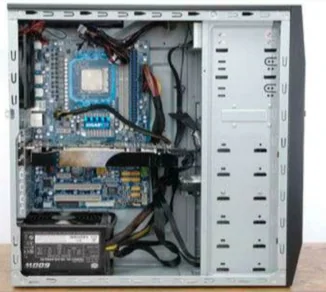
Too much heat could mean bad news for your PC or laptop. Follow our top 10 cooling tips and help your PC keep its cool..
1. Give it Some Room : Let's start by looking at a few principles of cooling. Your computer lowers its temperature by using air drawn from the surrounding area. Stick a desktop PC in a corner - or even one of those little cubby holes you End in computer desks - and you'll end up with insufficient air-flow to keep your PC cool.
 The air around it - with limited circulation - will warm up, meaning it will be less efficient at chilling those components. A laptop with missing feet, or one surrounded by general desk litter, can have the same issues. Make sure there's a good couple of inches clearance around your desktop case, prop up that laptop, and check that all vents and fans are free of obstruction.
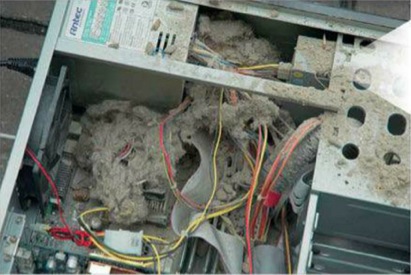 Give your machine a regular clean inside and out. Dirt dust and hair (pet or human) can stop fans working efficiently and over-insulate vital electronic components. Start from the outside of your machine, cleaning out vents and fans with a vacuum cleaner hose. Inside the case, carefully blow away excess detritus with canned air. You should be able to get it from an electronics or art supplier for a relatively decent price. Don't be tempted to blow on components through pursed lips, you'll just glue the dust in place with spittle.
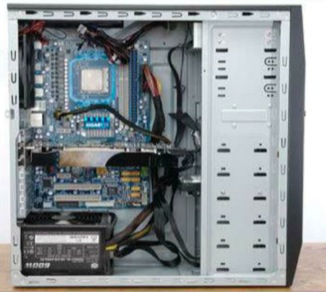 If you assembled your PC yourself from scratch, you may have gotten a few things mixed up completely inadvertently. Most PC builders know to fit one or more case fans to their systems, but not everyone knows which way round to put them. It's best to have one positioned at the side - preferably over the CPU - sucking air into the case. The second can be on the opposite side or the back of the case, venting hot air out. This arrangement should create a constant stream of air flowing over your components to make your PC run cooler. Try flipping a fan over if you suspect things have gone wrong.
The air around it - with limited circulation - will warm up, meaning it will be less efficient at chilling those components. A laptop with missing feet, or one surrounded by general desk litter, can have the same issues. Make sure there's a good couple of inches clearance around your desktop case, prop up that laptop, and check that all vents and fans are free of obstruction.
2. Spring clean now
Give your machine a regular clean inside and out. Dirt dust and hair (pet or human) can stop fans working efficiently and over-insulate vital electronic components. Start from the outside of your machine, cleaning out vents and fans with a vacuum cleaner hose. Inside the case, carefully blow away excess detritus with canned air. You should be able to get it from an electronics or art supplier for a relatively decent price. Don't be tempted to blow on components through pursed lips, you'll just glue the dust in place with spittle.
3. Check Air Flow
If you assembled your PC yourself from scratch, you may have gotten a few things mixed up completely inadvertently. Most PC builders know to fit one or more case fans to their systems, but not everyone knows which way round to put them. It's best to have one positioned at the side - preferably over the CPU - sucking air into the case. The second can be on the opposite side or the back of the case, venting hot air out. This arrangement should create a constant stream of air flowing over your components to make your PC run cooler. Try flipping a fan over if you suspect things have gone wrong.