Everything You Want To Know About Facebook Groups For Using It
By Jaspal Singh
Facebook - largest social networking site on earth has always been a great platform to share your thoughts, images, information with your friends, colleagues and family. It's been a great place to know what your friends and known ones are upto.
However, sharing information with less number of people or we can say that small group of people was never easy. For example, I could post a image on my profile and hope that my friends see it. Or I have to tag them individually or send them individual messages.
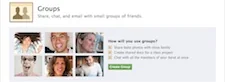
To overcome this issue, Facebook recently launched a new version of Groups that allows you to share anything, chat and email with small groups of people. With new Groups, you can build groups according to your choice at any given point of time. All you have to do is to create a group, add people and start sharing with them.
So, in this article, I am showing a step by step guide on how to create Facebook Group and chat, email and share with group members.
 After clicking the above option, you will see a pop-up window will open where you can add the name of your friends you want to add in your new group.
Add a name to the group and enter the name of your friends in the "Members" box. After selecting the name of your friends, choose the privacy level.
You can set privacy as open, closed and secret. Click on "Create" button and start using your new group that allows you to chat, share and email with them.
After clicking the above option, you will see a pop-up window will open where you can add the name of your friends you want to add in your new group.
Add a name to the group and enter the name of your friends in the "Members" box. After selecting the name of your friends, choose the privacy level.
You can set privacy as open, closed and secret. Click on "Create" button and start using your new group that allows you to chat, share and email with them.
 After clicking on "Create" button, you will re-directed to Group Page.

 After clicking on "Edit Group" link, you will re-directed to the settings page. Here in this page, you can change the Group name, set privacy, select Email Address for group and add a group description. You can also set profile picture of the group and add more members to the group.
It's very simple, just find the "Chat with group" link on right hand side of the page just under the group member images.
 A chat pop-up box will appear at bottom of the page just like it happens when you chat with any Facebook buddy. All group members can chat with each other at the same time in the same window.
 After clicking on the link, a pop-up box will appear that allows you set the notification settings. You can set whether you want to notify when a member posts or comments, a member posts or email notifications to your E-mail address.

 Facebook Groups is surely a welcome feature from the Facebook to connect and share with the members having same interests. But, I believe this can turn into a real problem too because there is no option for approval of being entered into a group.
I hope Facebook will look this post and add a option of approval request before joining the Group.
Facebook Groups is surely a welcome feature from the Facebook to connect and share with the members having same interests. But, I believe this can turn into a real problem too because there is no option for approval of being entered into a group.
I hope Facebook will look this post and add a option of approval request before joining the Group.
How to create Facebook Groups
Click on this page or find "Create Group" on the left side of Facebook home page.After clicking the above option, you will see a pop-up window will open where you can add the name of your friends you want to add in your new group.
Add a name to the group and enter the name of your friends in the "Members" box. After selecting the name of your friends, choose the privacy level.
You can set privacy as open, closed and secret. Click on "Create" button and start using your new group that allows you to chat, share and email with them.
After clicking on "Create" button, you will re-directed to Group Page.
How to edit the Facebook Group Page
If you want to edit the group that you created just now, click on "Edit Group" link on the right hand side corner of the Groups page.After clicking on "Edit Group" link, you will re-directed to the settings page. Here in this page, you can change the Group name, set privacy, select Email Address for group and add a group description. You can also set profile picture of the group and add more members to the group.
 How to chat with the group members.
It's very simple, just find the "Chat with group" link on right hand side of the page just under the group member images.
A chat pop-up box will appear at bottom of the page just like it happens when you chat with any Facebook buddy. All group members can chat with each other at the same time in the same window.
How to edit notification settings of Facebook Groups
Click on "Edit Settings" link at the top right hand corner of the Facebook group page.
After clicking on the link, a pop-up box will appear that allows you set the notification settings. You can set whether you want to notify when a member posts or comments, a member posts or email notifications to your E-mail address.
How to leave Group
If you want to leave group at any given point of time, just click on "Leave group" link on right hand side of the page just under the "Chat with group" option.
Facebook Groups is surely a welcome feature from the Facebook to connect and share with the members having same interests. But, I believe this can turn into a real problem too because there is no option for approval of being entered into a group.
I hope Facebook will look this post and add a option of approval request before joining the Group.