How To Connect Printer With Google Cloud Print And Start Printing From Your Mobile
By Jaspal Singh
Google company is on roll these days with its latest launches starting from Android Honeycomb with some awesome features that iPhone users will envy, Chrome OS roll-out, Chrome Web Store having cool web apps and latest addition is Google cloud print (beta)
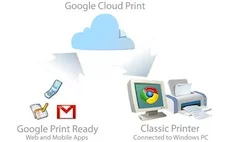
Google cloud print is a new service that allows to print documents from your smart phones that supports HTML5 or OS above Android 2.1. It also allows printing of documents from your Gmail account without need of any software. This service makes printing more intuitive and accesible by allowing you to print documents from your set-up printers from any computer or smart phone.
As for now, Google cloud print is supported for Windows OS only running Windows XP, Vista or 7. But, it may soon available for Mac and Linux OS according to their official site. To start printing, you need to connect your printer to Google cloud print service. After connecting your printer with Google cloud service, you will be able to print from any computer or smart phone, regardless of where you are. Let's see step to step guide on illustrating how to connect and use your printer with Google Cloud print service?
1. Download and install latest build of Google Chrome browser from here, i.e., Google Chrome 9.0.597.1 or greater.
2. Click the wrench icon in Google Chrome browser (upper right hand side of the page) on the Window PC that is connected to your printer. Choose "options" button from the drop down menu.
 3. Now, click "Under the Hood" tab. Scroll to the bottom of the settings pop-up and click "Sign in to Google Cloud Print".
 4. A dialog appears where you have to enter your Google account details.
 You will see a pop-up window after signing into your Google account.
 That's it, your printer is connected with Google cloud print and now you can print any document from any computer or smart phone in any part of the world.
After connecting your printer, let's see how to print documents from your mobile using Google cloud print service?
This is pretty easy - just type gmail.com in your iPhone or Android browser and choose "Print" option from the dropdown menu in the top right hand corner. You can also click on "Print" link appears next to email attachments such as .pdf or .doc.
That's it, your printer is connected with Google cloud print and now you can print any document from any computer or smart phone in any part of the world.
After connecting your printer, let's see how to print documents from your mobile using Google cloud print service?
This is pretty easy - just type gmail.com in your iPhone or Android browser and choose "Print" option from the dropdown menu in the top right hand corner. You can also click on "Print" link appears next to email attachments such as .pdf or .doc.
 It might happen that you can't see the above option in Chrome or mobile because Google is rolling out this service in U.S. and will available in every part of the world in next few days.
3. Now, click "Under the Hood" tab. Scroll to the bottom of the settings pop-up and click "Sign in to Google Cloud Print".
4. A dialog appears where you have to enter your Google account details.
You will see a pop-up window after signing into your Google account.
That's it, your printer is connected with Google cloud print and now you can print any document from any computer or smart phone in any part of the world.
After connecting your printer, let's see how to print documents from your mobile using Google cloud print service?
This is pretty easy - just type gmail.com in your iPhone or Android browser and choose "Print" option from the dropdown menu in the top right hand corner. You can also click on "Print" link appears next to email attachments such as .pdf or .doc.
It might happen that you can't see the above option in Chrome or mobile because Google is rolling out this service in U.S. and will available in every part of the world in next few days.