5 Methods To View Sites that Don't Load
- Have you ever clicked a link and seen an error page, or revisited a bookmarked website and found it?s closed? Many of us have come across such situations number of times. But, the good news is that now you can view such websites.
Google, the Coral Content Distribution Network and Archive.org?s Wayback Machine does the work for us. These all take snapshots of webpages, allowing you to view the cached version.?To speed up the process you can use a browser extension or a bookmarklet on your browser?s bookmarks toolbar.
1. Google Cache?- Earlier Google?s cache links appears in the front and center of its search page, but now they are hidden behind an arrow that appears only when you hover over a search result.
To access cached pages, just type?cache:into the search box, followed by the address of the webpage you want to access.

Google doesn?t cache images. Bing too has a?Cached page?link hidden behind an arrow.

2. Coral CDN -?The Coral content distribution network is best suited for those websites that are down due to a high amount of traffic.

You can use them by adding?.nyud.net?to the domain name of a website or webpage. Suppose, if you want to access SaveDelete?s homepage through it, you?d use ?savedelete.com.nyud.net?.

3. The Wayback Machine - This tool provides a way to view websites that won't load, a way to travel back in time and view what websites used to look like.


The Wayback Machine shows snapshots taken on various dates. You can view the most recent, or even view the oldest snapshot.
4. Browser Extensions - Using browser extensions is also one of the way for accessing ?websites.?Resurrect Pages?is a popular Firefox add-on that makes your error pages more useful with links to these services.
Google Chrome shows a link to the Google cache on its error page, assuming a Google cache result is available.?Web Cache?and similar extensions add small menus with links to these services.
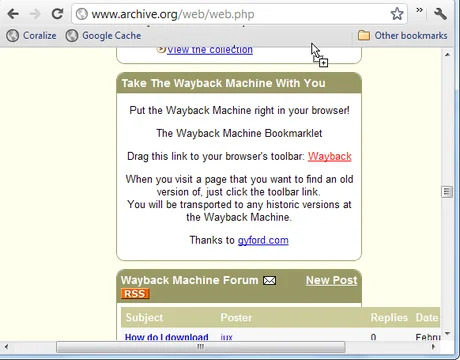
5. Bookmarklets-??Bookmarklets are links that you can drag and drop onto your bookmarks toolbar. When you click the link, tiny bit of JavaScript code runs that performs some action on?the?current page. They are just like browser extensions but don't take up any system resources.

In case of Wayback Machine?bookmarklets are present on the main page, in Coral Cache on?its plug-ins page?and in Google Cache on?unofficial websites. You can drag and drop these bookmarklet links from the page onto your bookmarks toolbar.
If you don?t see the bookmark bar, you?ll have to enable it. On Chrome, click the wrench menu, point to?Bookmarks?and click?Show Bookmarks Bar. On Firefox, right-click on toolbar and select?Bookmarks Toolbar. On Internet Explorer, right-click on the toolbar and click?Favorites Bar.