10 Best Free Windows Backup Software in 2026
Hard drives fail, laptops get stolen, and one wrong click or ransomware hit can wipe out years of photos, documents and work in seconds. The good news: you don’t need to pay for peace of mind. Windows has a deep bench of free backup software that can image your whole disk, automate file backups, clone your drive to a new SSD, and copy everything safely to the cloud. If you’ve already lost files, you’ll want data recovery software instead — but to make sure it never happens again, here are the best free Windows backup tools in 2026.
Best free Windows backup software at a glance
| Software | Best For | Backup Type | Price |
|---|---|---|---|
| EaseUS Todo Backup Free | Overall / beginners | Image + file + clone | Free |
| AOMEI Backupper Standard | Imaging & cloning | Image + file + clone | Free |
| MiniTool ShadowMaker Free | Scheduled images | Image + file + clone | Free |
| Duplicati | Encrypted cloud | File → cloud | Free |
| Cobian Reflector | Lightweight scheduling | File | Free |
| FBackup | Simple file backup | File | Free |
| MSP360 Backup (Free) | Bring-your-own cloud | File → cloud | Free |
| Iperius Backup Free | Flexible scheduling | File | Free |
| SyncBackFree | Backup + sync | File + sync | Free |
| DriveImage XML | Legacy imaging | Image | Free |
1. EaseUS Todo Backup Free — Best Overall Free
The most popular free backup app for good reason: it handles full system-image backups, file and folder backups, disk cloning and scheduling behind a clean, beginner-friendly interface. The free tier covers what most home users need, including bootable recovery media, and paid tiers add cloud backup and enterprise features.
Backup type: Image + file + clone · Platform: Windows · Price: Free
2. AOMEI Backupper Standard — Best for Disk Imaging & Cloning
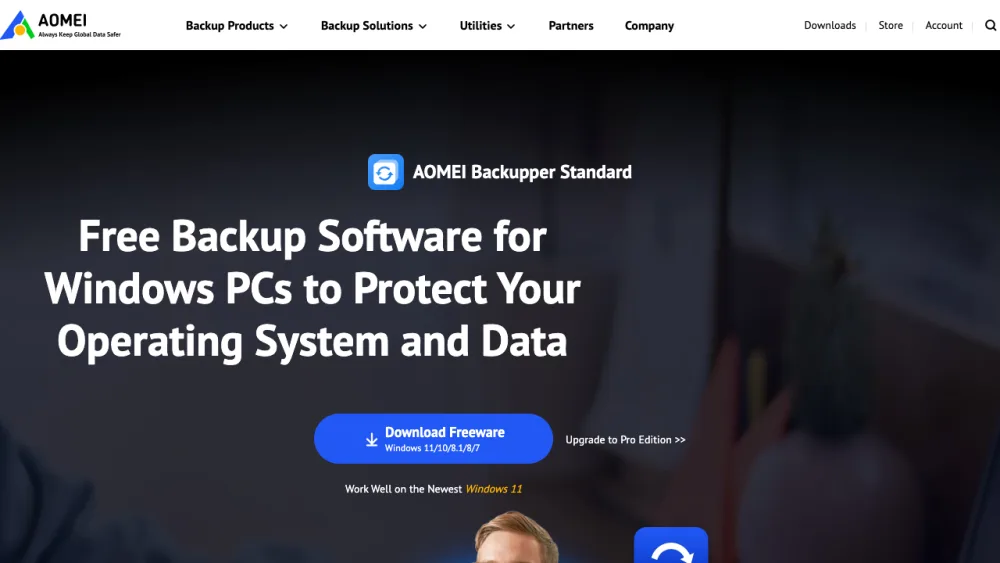
AOMEI Backupper Standard is a long-standing free favourite for full-disk imaging, system backup and drive cloning — ideal when you’re migrating to a new SSD. It supports incremental and scheduled backups plus bootable rescue media; the occasional upgrade prompt is the only real downside.
Backup type: Image + file + clone · Platform: Windows · Price: Free
3. MiniTool ShadowMaker Free — Best for Scheduled Imaging
MiniTool ShadowMaker Free handles system, disk, partition and file backups with automatic scheduling and incremental/differential options. It can clone disks and build WinPE bootable media, making it a strong free choice for set-and-forget image backups.
Backup type: Image + file + clone · Platform: Windows · Price: Free
4. Duplicati — Best for Encrypted Cloud Backup
Duplicati is a free, open-source tool built for the cloud: it makes strongly encrypted, compressed, incremental backups to Backblaze B2, Amazon S3, Google Drive, OneDrive, FTP and dozens of other destinations. If your priority is secure offsite backup rather than local imaging, this is the one to grab.
Backup type: File → cloud · Platform: Windows · Price: Free
5. Cobian Reflector — Best Lightweight Scheduler
Cobian Reflector is the modern successor to the much-loved Cobian Backup (which featured on the original version of this list). It’s a lightweight scheduler for full, incremental and differential file backups to local drives, network shares or FTP, with compression and encryption — perfect for simple automated file backups without a heavy suite.
Backup type: File · Platform: Windows · Price: Free
6. FBackup — Best Simple Automatic File Backup
FBackup is genuinely free (for personal and commercial use) with a wizard-driven interface. It runs scheduled full and mirror backups to local, network or cloud folders and can zip and encrypt them. Its paid sibling Backup4all adds advanced features, but FBackup covers the essentials well.
Backup type: File · Platform: Windows · Price: Free
7. MSP360 Backup (Free) — Best for Your Own Cloud Storage
MSP360 Backup (formerly CloudBerry) Free backs up files to your own cloud storage account — Amazon S3, Backblaze B2, Wasabi, Azure and more — with client-side encryption. It’s the pick if you want cloud backup but prefer to bring your own (often cheaper) storage bucket.
Backup type: File → cloud · Platform: Windows · Price: Free
8. Iperius Backup Free — Best for Flexible Scheduling
Iperius Backup Free is a flexible, reliable tool for backing up files and folders to external drives, NAS or network paths, with zip compression and scheduling. Paid editions add drive imaging, cloud and database backup, but the free version is solid for everyday file protection.
Backup type: File · Platform: Windows · Price: Free
9. SyncBackFree — Best for Backup + Sync
SyncBackFree from 2BrightSparks does both backup and two-way synchronisation between folders, drives and network locations. It’s more technical than most, but its filtering, scheduling and versioning options make it a favourite of power users.
Backup type: File + sync · Platform: Windows · Price: Free
10. DriveImage XML — Best Lightweight Legacy Imaging
A veteran free tool (also on the original 2010 list) for imaging logical drives and partitions to XML-based files you can browse and restore. The interface looks dated, but it’s lightweight and still works for straightforward drive images on older or low-spec machines.
Backup type: Image · Platform: Windows · Price: Free
Don’t overlook the backup built into Windows
Before you install anything, remember Windows 11 and 10 include free backup tools you already have. File History keeps continuous, versioned copies of your libraries on an external or network drive. Backup and Restore (Windows 7) is still present for full system images. And the newer Windows Backup app backs up your folders, apps, settings and credentials to OneDrive. For many people, File History to an external drive plus a cloud copy is enough — but the dedicated tools above add full disk imaging, cloning and far more control.
Follow the 3-2-1 backup rule
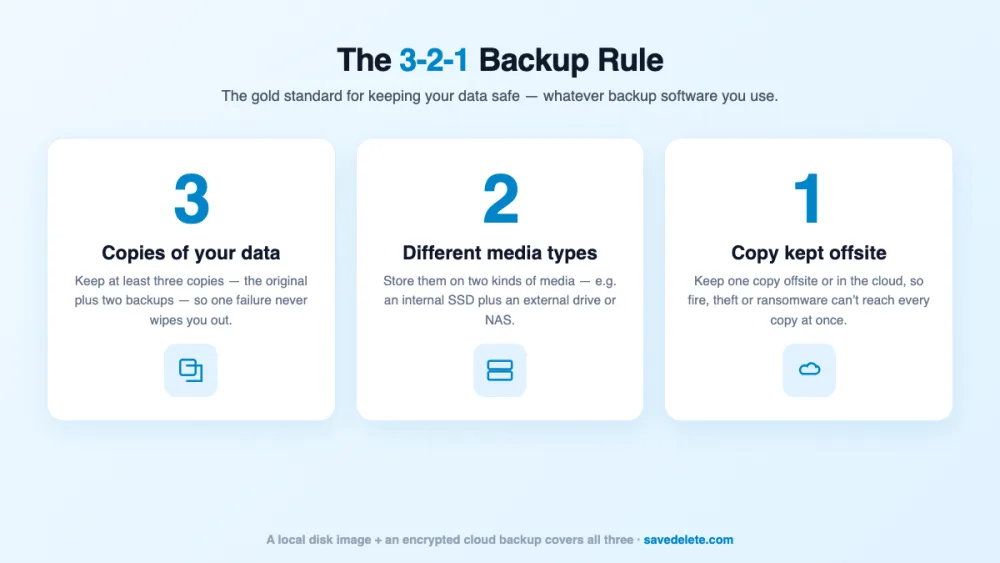
Whatever software you pick, structure your backups around the industry-standard 3-2-1 rule: keep 3 copies of your data, on 2 different types of media, with 1 copy offsite or in the cloud. A local disk image plus an encrypted cloud backup covers this neatly — and if you want somewhere to store that offsite copy, see our guide to the best cloud storage services. For the full strategy, read our complete data backup and recovery guide.
When free isn’t enough
A few of the best-known backup apps have dropped or never offered a free tier. Macrium Reflect retired its popular free edition in 2024, and Acronis Cyber Protect Home Office bundles backup with anti-ransomware as a paid subscription. If you want those, or a fuller comparison that includes paid tools and online services, see our roundup of the best backup software in 2026.
Frequently asked questions
What is the best free Windows backup software?
For most people, EaseUS Todo Backup Free or AOMEI Backupper Standard are the best all-round free choices — both do full disk imaging, file backup and drive cloning. For encrypted offsite backup, Duplicati is the top free pick.
Is Windows’ built-in backup good enough?
Windows’ File History (versioned file backup) and the newer Windows Backup app (folders and settings to OneDrive) are fine for basic protection and are already installed. But for full disk images, drive cloning and more control over scheduling, a dedicated free tool like AOMEI Backupper or EaseUS Todo Backup does much more.
What’s the difference between a file backup and a disk image?
A file backup copies selected files and folders, which is quick and space-efficient. A disk image clones your entire drive — the operating system, apps, settings and files — into one file, so you can restore a dead PC to exactly how it was. Most people want both: regular file backups plus an occasional full image.
What is the 3-2-1 backup rule?
Keep 3 copies of your data, on 2 different types of media, with 1 copy offsite (or in the cloud). It means no single failure — a dead drive, theft, fire or ransomware — can wipe out every copy at once. A local disk image plus an encrypted cloud backup satisfies the rule neatly.
Can free software clone my hard drive to a new SSD?
Yes. AOMEI Backupper Standard, MiniTool ShadowMaker Free and EaseUS Todo Backup Free all include free disk-cloning, which copies your entire Windows installation to a new SSD so it boots exactly as before — the easiest way to upgrade a drive without reinstalling.
Is free backup software safe to use?
Yes, when you download from the developer’s official website (all the links in this guide go there). Free versions from reputable vendors are the same trusted engines as their paid tiers; just decline any bundled extras during install and keep the app updated.
How often should I back up my PC?
Set automatic backups to run at least daily for important files, and create a fresh full disk image after big changes such as a Windows update or new software install. Scheduling, which every tool above supports, means it happens without you having to remember.
Final thoughts
You don’t need to spend anything to keep your data safe. Start with EaseUS Todo Backup Free or AOMEI Backupper Standard for full disk images and cloning, add Duplicati for an encrypted cloud copy, and let scheduling do the rest. Follow the 3-2-1 rule and your files will survive a dead drive, a stolen laptop or a ransomware attack. If you outgrow the free tools, our best backup software guide covers the paid options worth considering.