How to Save Drive Space by Removing Files you Don't Need
By Jaspal Singh
If your hard-drive space is running out, the most efficient way to make more room is to find and remove unnecessary files. This will reduce clutter and boost performance.
Anti-Twin ( for XP / Vista / 7 ) is a program what will locate duplicate fles. To find and remoce space-hogging files, use Window Search and WinDirStat.
Step 1 : In Anti-Twin, select the folder in which you want to search for duplicated files. Tick 'Compare names', 'Identical file size' and set 'Match min' to 100%. Click 'Search for same names'.
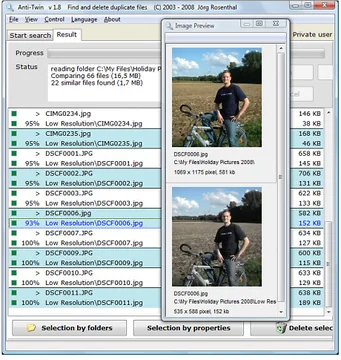
 Step 2 : Identical files are highlighted in the same color, Green square indicate the files to be kept. Click to select the ones you want to delete. Right-click to keep only one file in a group.
 Step 3 : Click 'Delete selected files'. You can choose what to do with these files. initially, it's best to move them to a back-up folder or send them to the Recycle Bim, just to be on the safe side.
Step 4 : Not all duplicates have the same name, Select 'Compare content', 'Compare images', set 'Match min' to 90% and set the folder to the place where you keep photos. Clicking an image name displays the photos, so you can check if they're the same and mark them for deletion.
Step 5 : To instantly find the biggest space hogs, click Start, then Computer. Double-Click your hard drive , click the search box, type size:gigantic and right-click files in the results to delete them or move them to a DVD-R or back-up.
Step 6 : For a full size-based tidy-up, WinDirStat can be run without installing. Click Size to order folders by the size of individual files inside them. The contents of your drive are represented by the blocks below. Right-click for delete options.
Step 3 : Click 'Delete selected files'. You can choose what to do with these files. initially, it's best to move them to a back-up folder or send them to the Recycle Bim, just to be on the safe side.
Step 4 : Not all duplicates have the same name, Select 'Compare content', 'Compare images', set 'Match min' to 90% and set the folder to the place where you keep photos. Clicking an image name displays the photos, so you can check if they're the same and mark them for deletion.
Step 5 : To instantly find the biggest space hogs, click Start, then Computer. Double-Click your hard drive , click the search box, type size:gigantic and right-click files in the results to delete them or move them to a DVD-R or back-up.
Step 6 : For a full size-based tidy-up, WinDirStat can be run without installing. Click Size to order folders by the size of individual files inside them. The contents of your drive are represented by the blocks below. Right-click for delete options.
Step 2 : Identical files are highlighted in the same color, Green square indicate the files to be kept. Click to select the ones you want to delete. Right-click to keep only one file in a group.
Step 3 : Click 'Delete selected files'. You can choose what to do with these files. initially, it's best to move them to a back-up folder or send them to the Recycle Bim, just to be on the safe side.
Step 4 : Not all duplicates have the same name, Select 'Compare content', 'Compare images', set 'Match min' to 90% and set the folder to the place where you keep photos. Clicking an image name displays the photos, so you can check if they're the same and mark them for deletion.
Step 5 : To instantly find the biggest space hogs, click Start, then Computer. Double-Click your hard drive , click the search box, type size:gigantic and right-click files in the results to delete them or move them to a DVD-R or back-up.
Step 6 : For a full size-based tidy-up, WinDirStat can be run without installing. Click Size to order folders by the size of individual files inside them. The contents of your drive are represented by the blocks below. Right-click for delete options.